

 Deutsch
 Español
 Français
 Hrvatski
 Italiano
 Polski
 Português (BR)
Sign a Ticket
Summary
Sign tickets as a final approval or handover for completed tickets.
When you sign a ticket it gets locked automatically and cannot be edited anymore. You can also Lock a ticket manually to allow subcontractors to sign it, because they cannot lock tickets themselves.
Access & Permissions
Sign a Ticket
When you View & Edit a Ticket, you can sign it either by yourself (as the logged in user) or as someone else.
You can add up to 10 signatures for each ticket.
Signatures are tied to the ticket’s locked status because they confirm the ticket’s current state and information. The only way to edit a signed ticket is to unlock it, which automatically removes all signatures. You can then make the required changes, lock and sign it again.
For locked tickets you can still edit the assignee, receiver, progress, status and write comments. This allows you to assign the next signer or communicate when multiple signatures are required.
| Field | Can be edited while locked | Cannot be edited while locked |
| Assignee | ✔ | |
| Receiver | ✔ | |
| Progress | ✔ | |
| Status | ✔ | |
| Comments | ✔ | |
| Any other fields & attachments | × |
Sign by Yourself
To sign a ticket as the logged-in user:
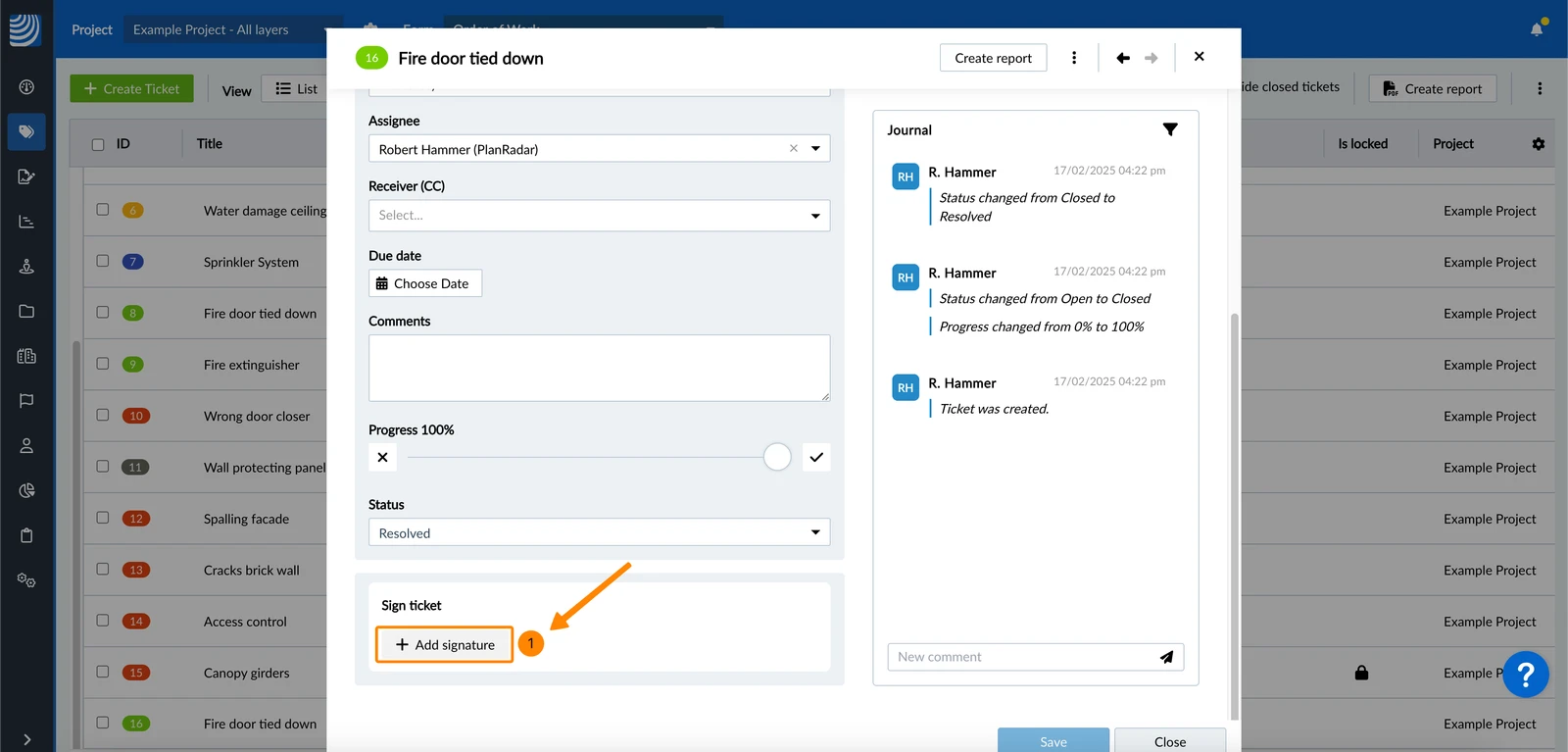
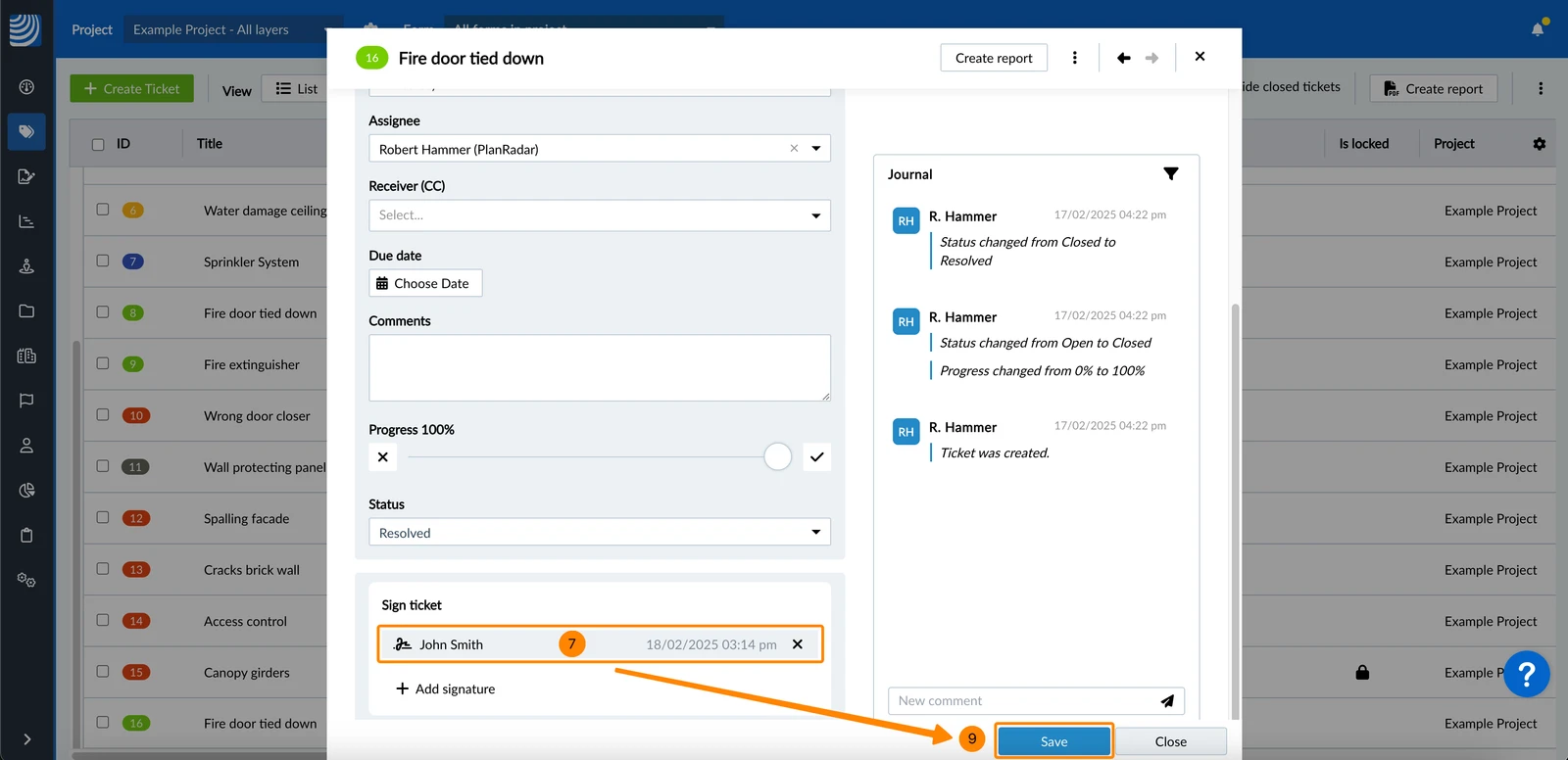
- Click + Add signature
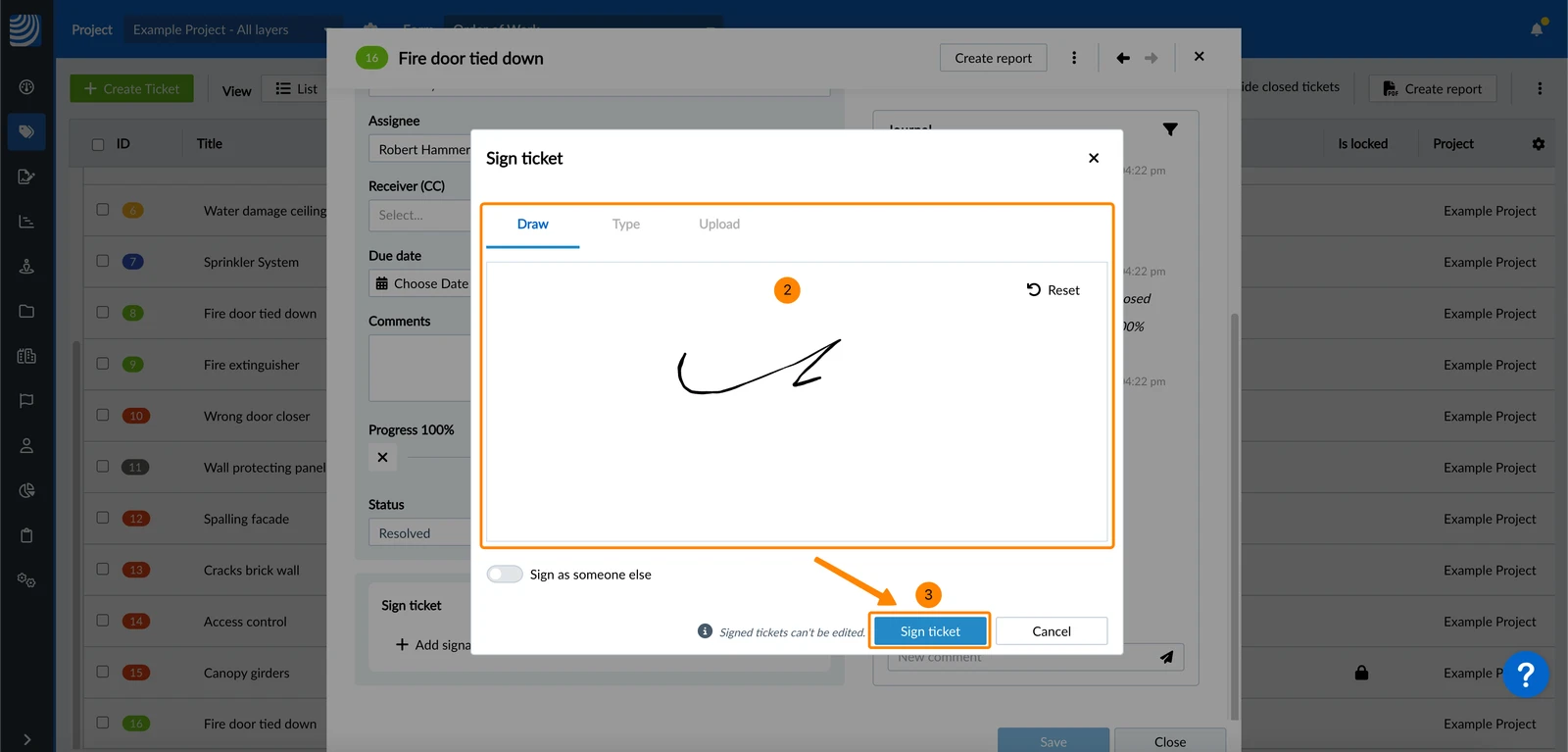
- Sign by drawing
- Click Sign ticket
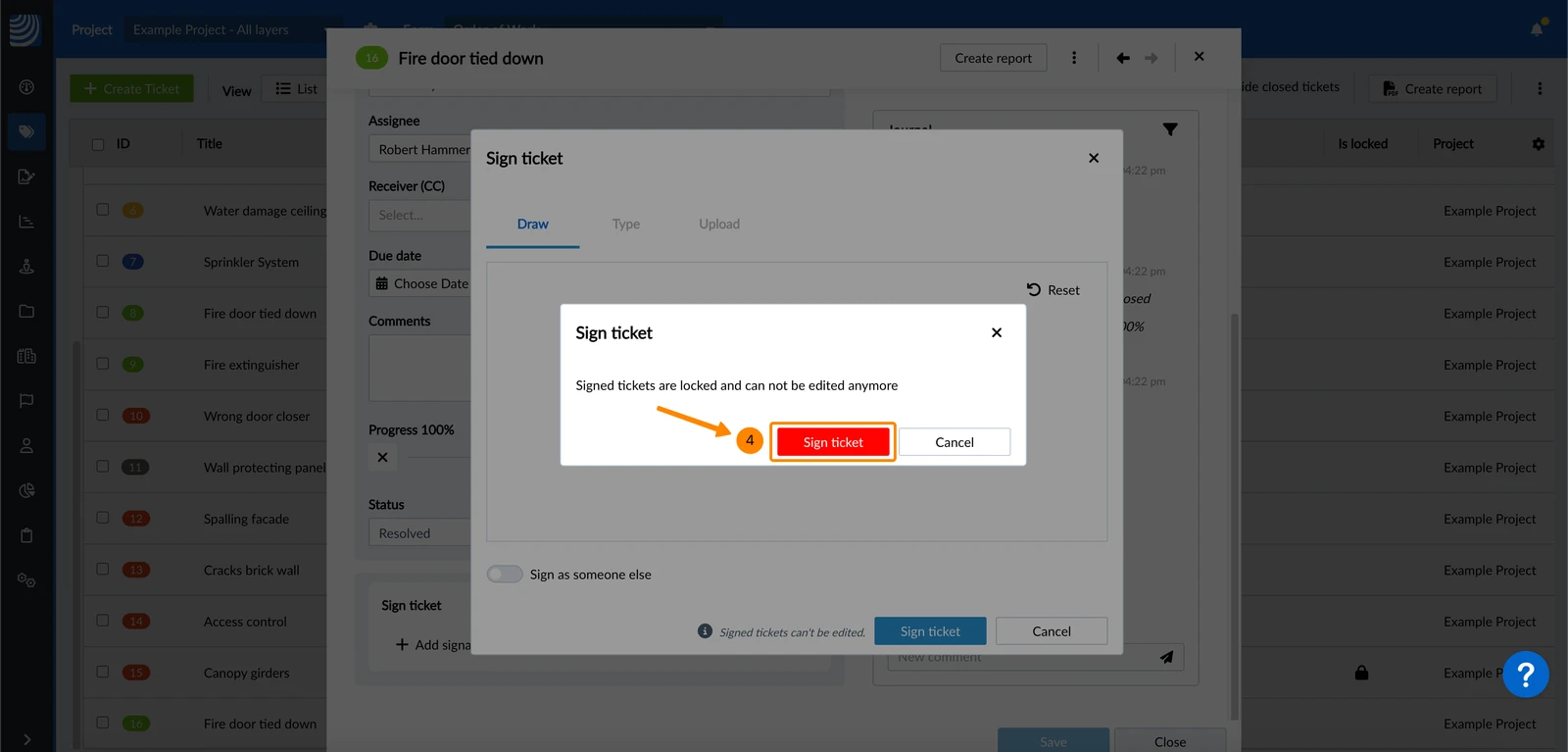
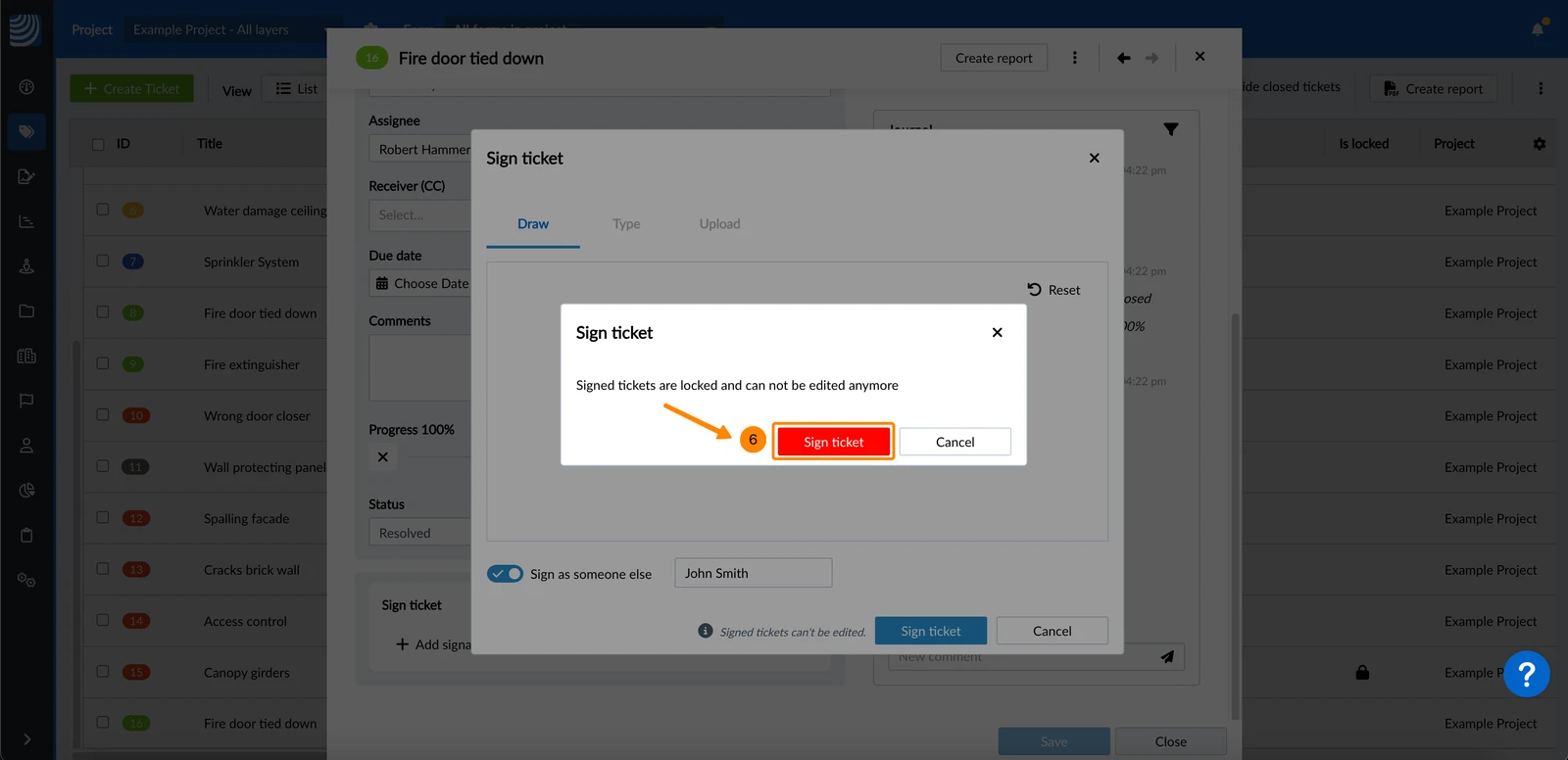
- Optional: Click Sign ticket to confirm it also gets locked (if not yet locked).
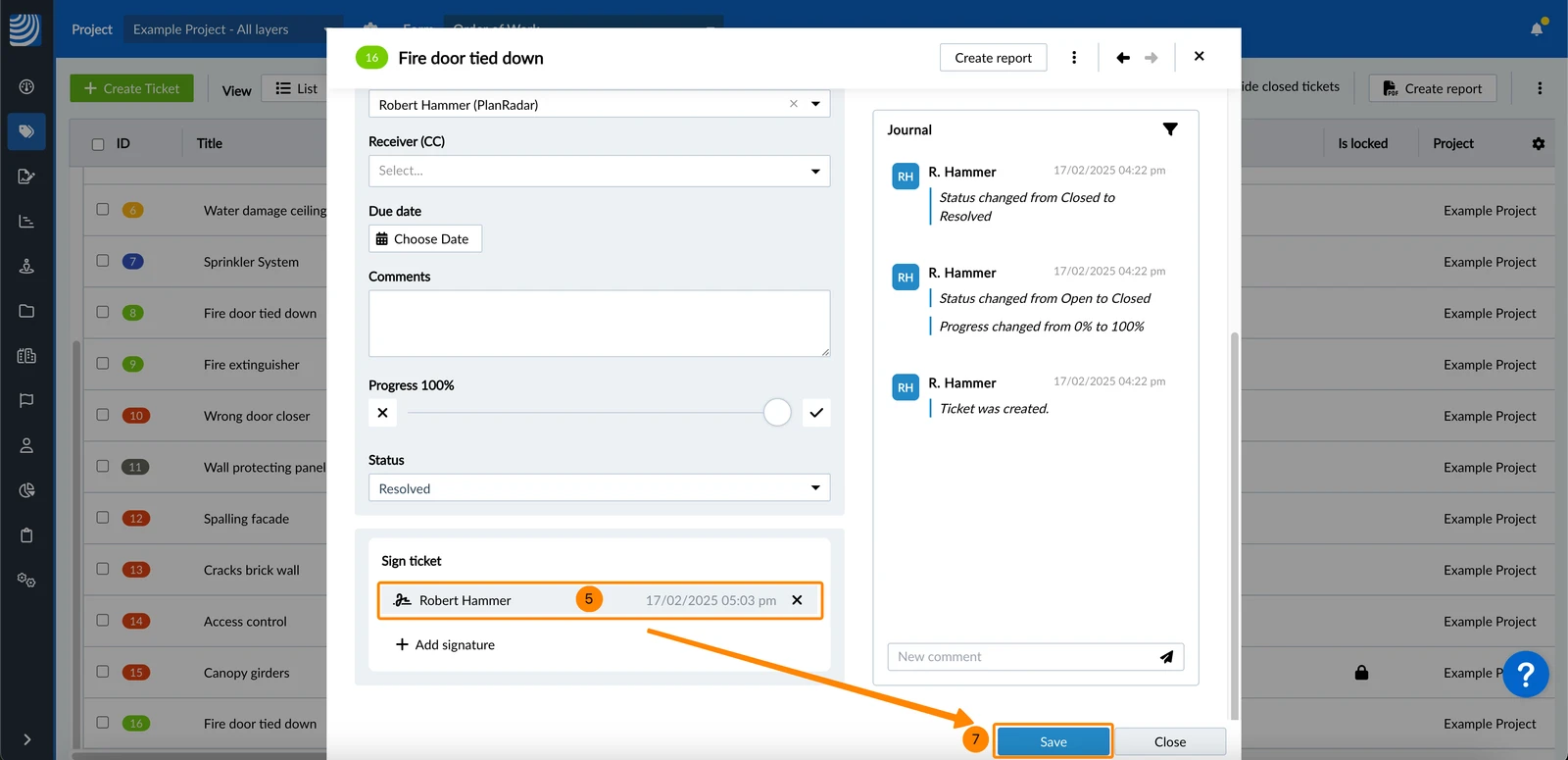
- See the signature entry
- Optional: Add up to 10 signatures by repeating steps 1 to 3.
- Click Save
- Tap + Add signature
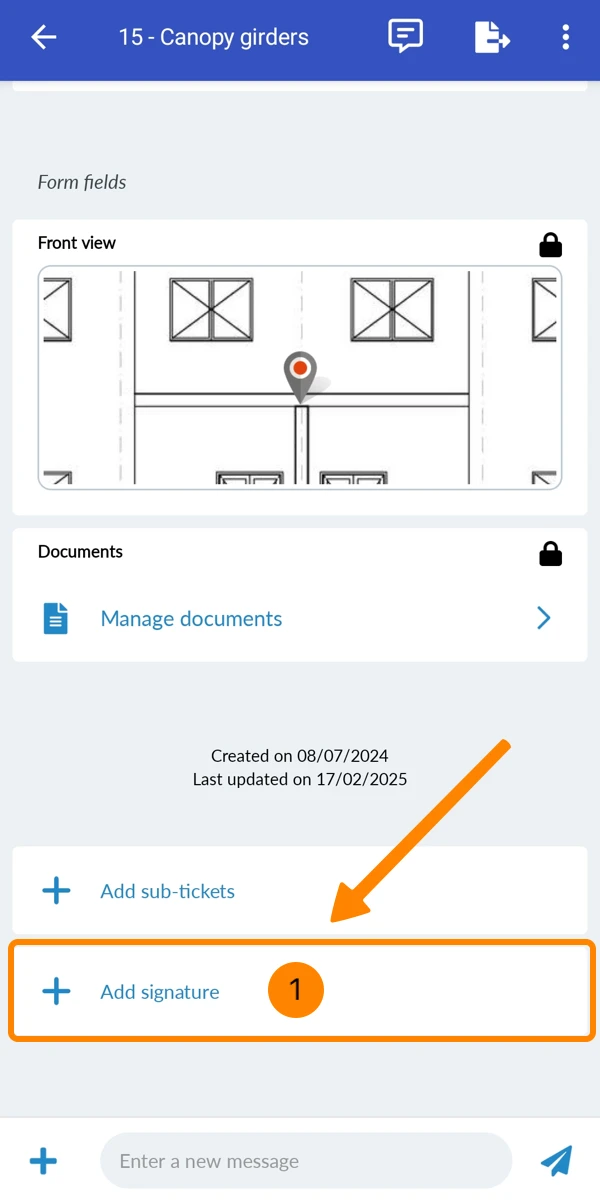
- Draw your signature
- Tap Sign
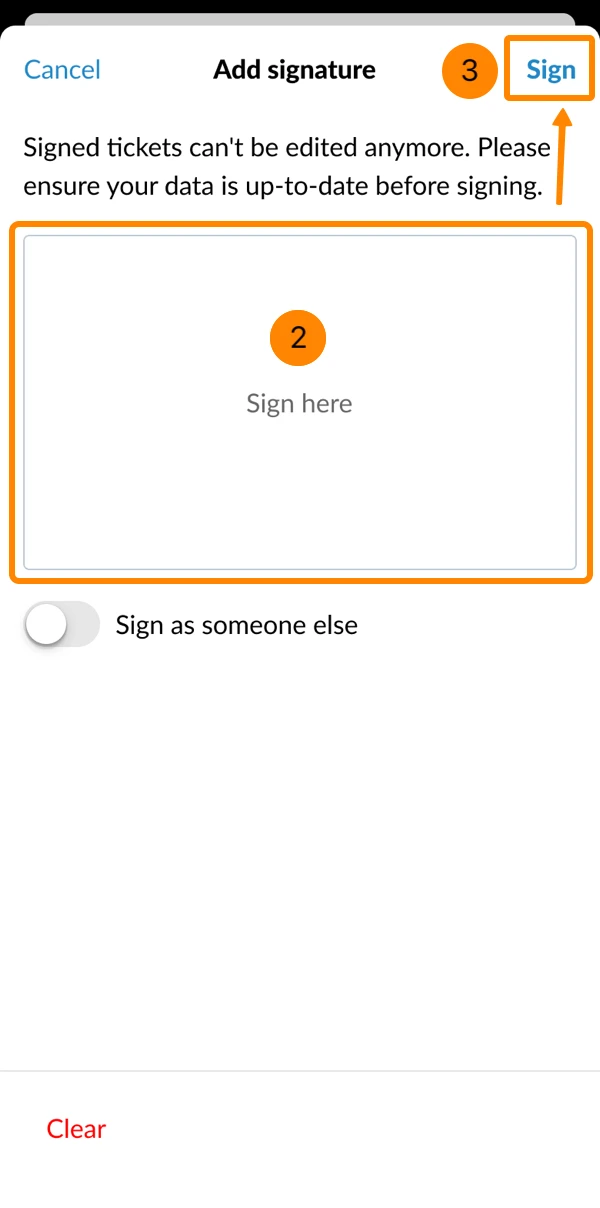
- Optional: Add up to 10 signatures by repeating steps 1 to 3.
- Tap the arrow button to close and save the ticket.
Sign as Someone Else
To sign a ticket as someone other than the logged-in user:
- Click + Add signature
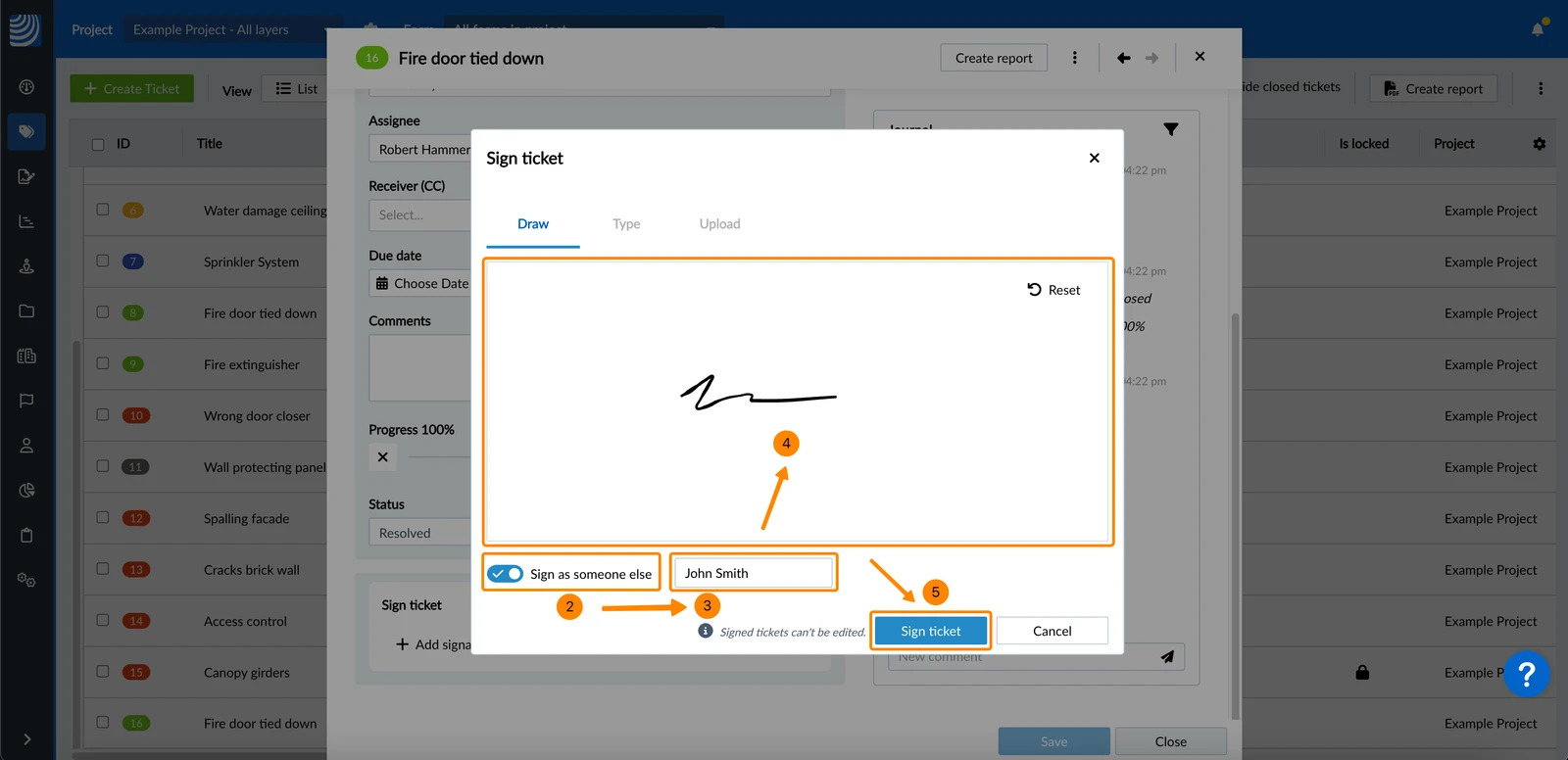
- Activate the Sign as someone else toggle
- Enter the name of the signer
- Sign by drawing
- Click Sign ticket
- Optional: Click Sign ticket to confirm it also gets locked (if not yet locked).
- See the signature entry
- Optional: Add up to 10 signatures by repeating steps 1 to 5.
- Click Save
- Tap + Add signature
- Activate the Sign as someone else toggle
- Enter the signer's name
- Draw the signature
- Tap Sign
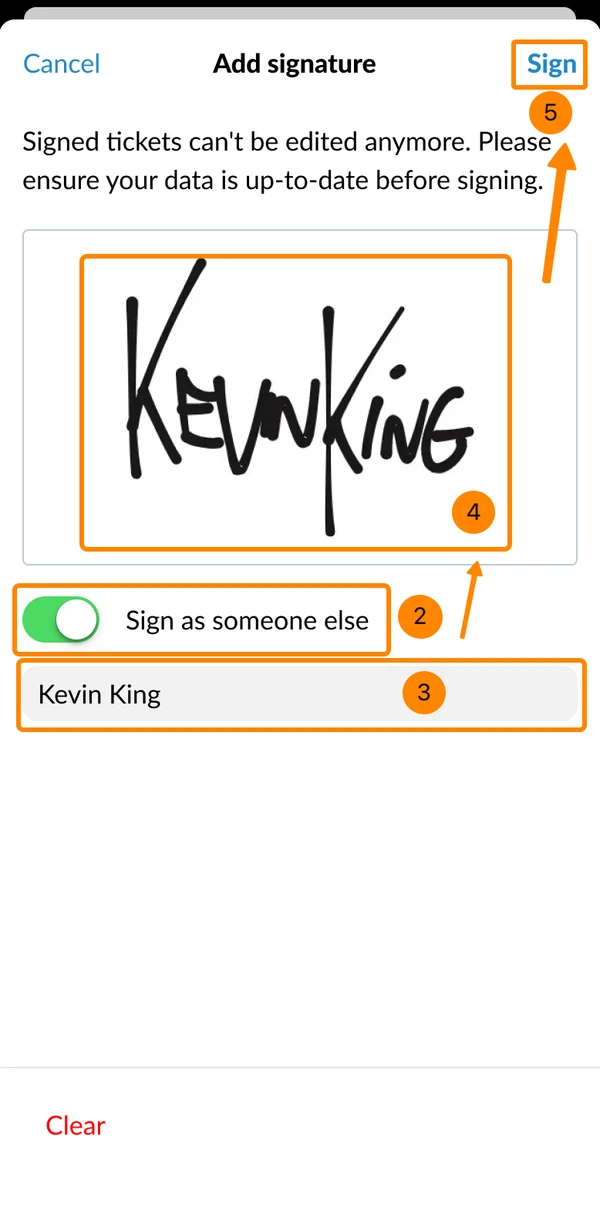
- Optional: Add up to 10 signatures by repeating steps 1 to 5.
- Tap the arrow button to close and save the ticket.
View a Signature
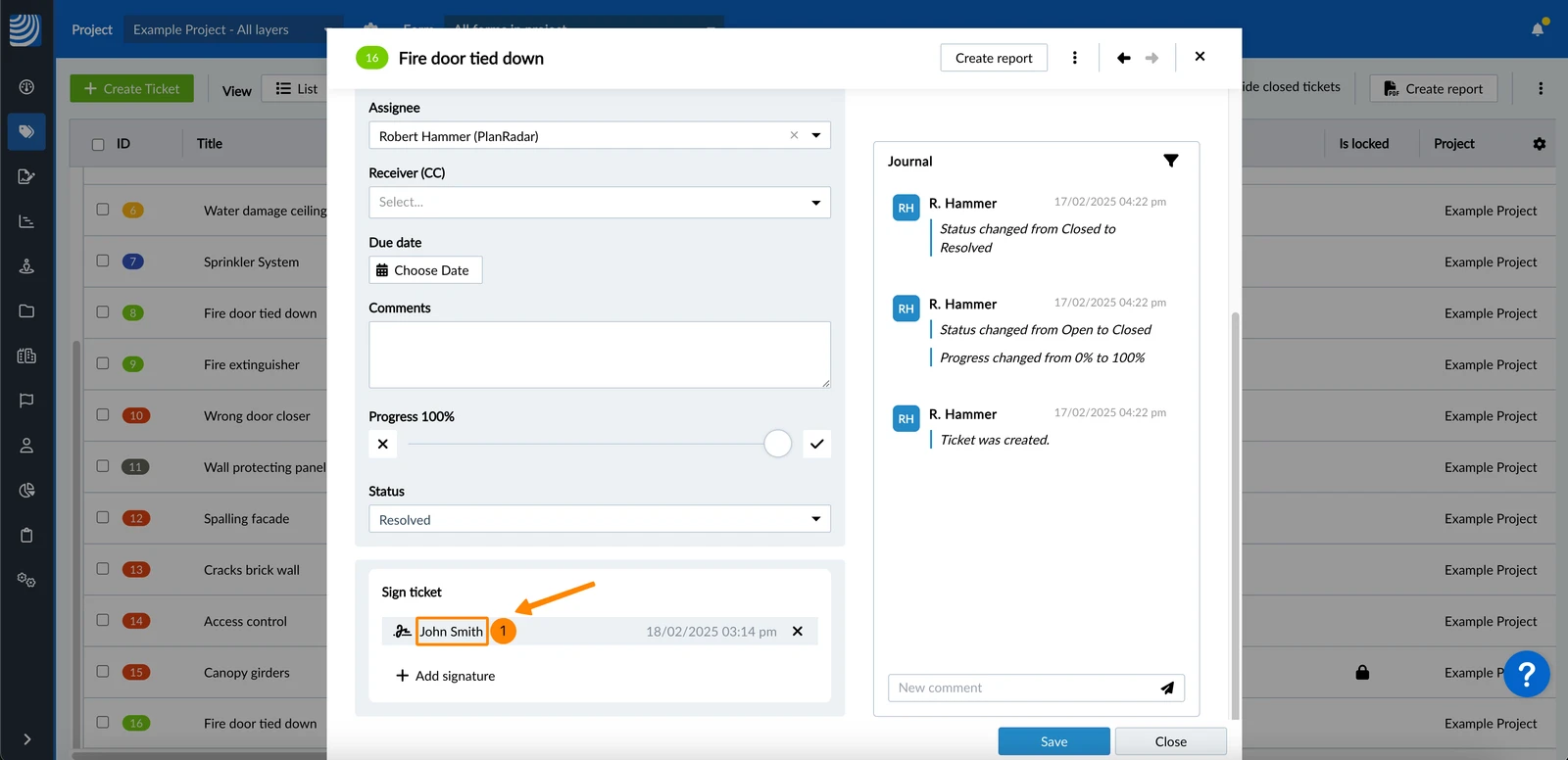
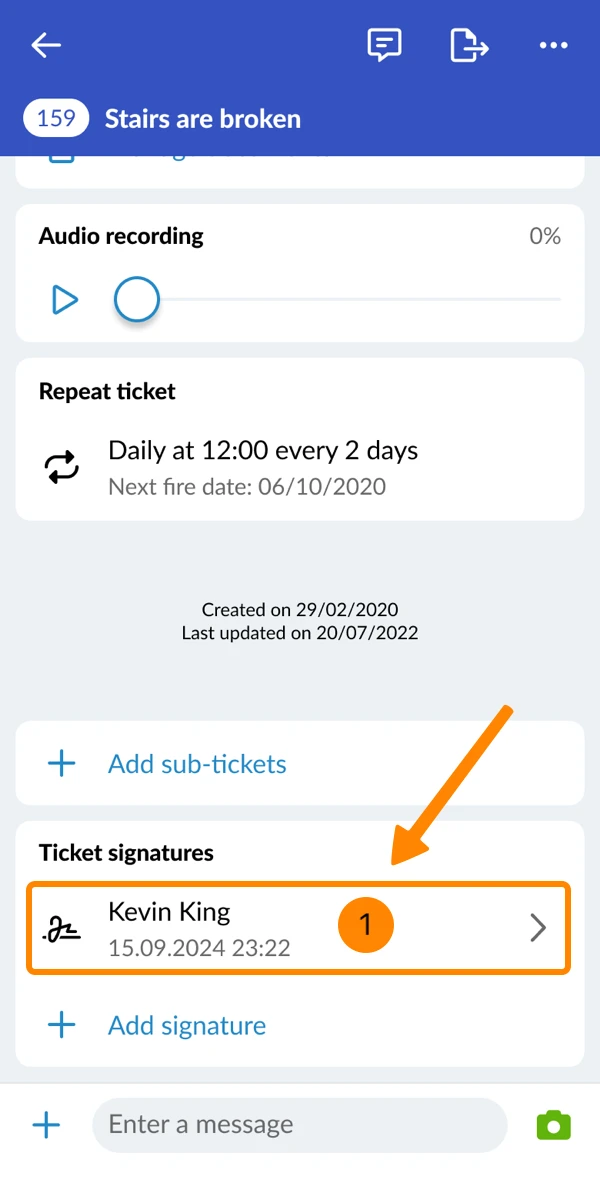
To view a signature:
- Click on the signer's name
- Tap on the signature entry
Correct a Signature
You can only correct a signature until you save the ticket after adding it.
To correct an unsaved signature and draw it again:
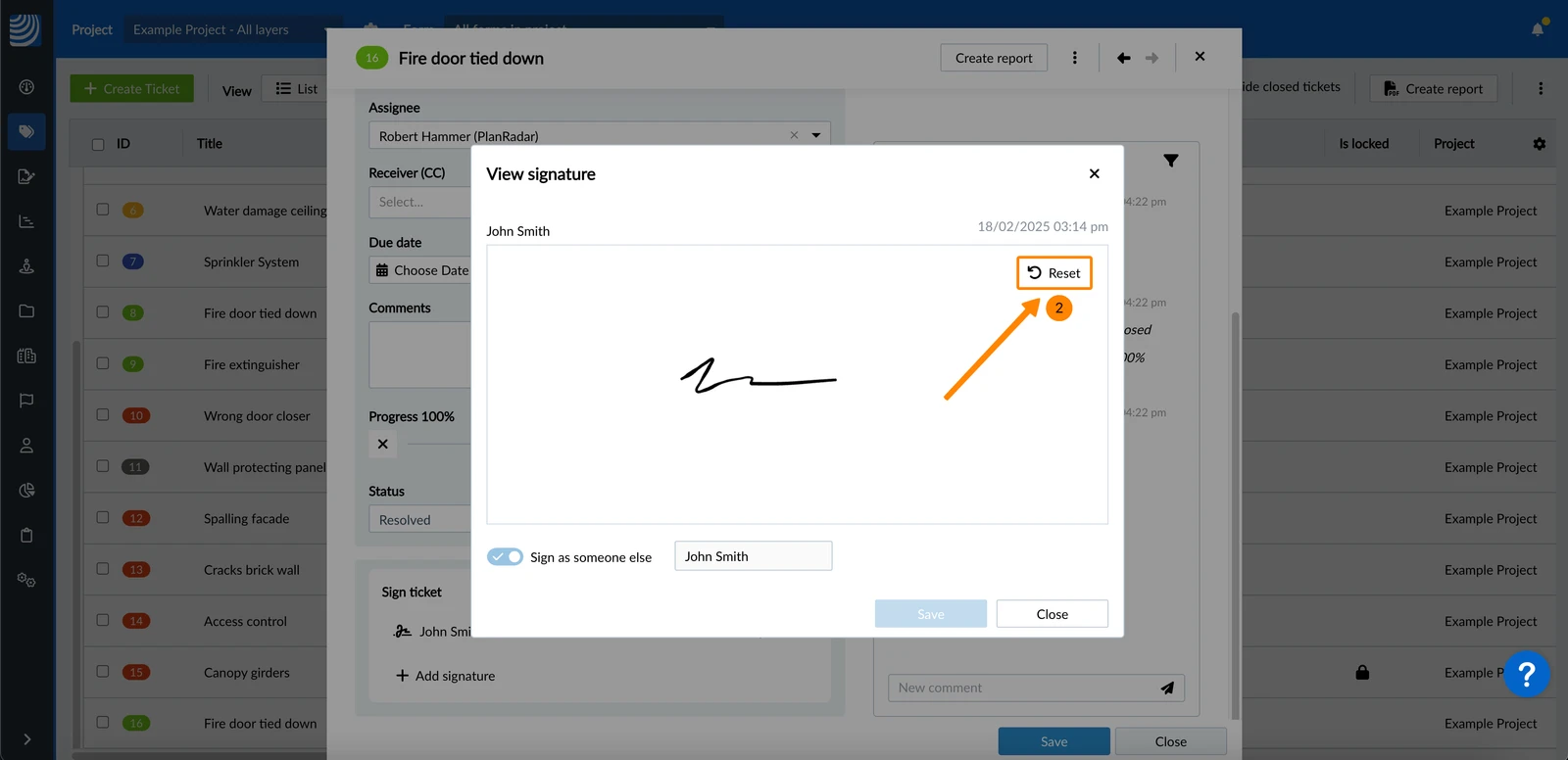
- Click on the signer's name
- Click Reset
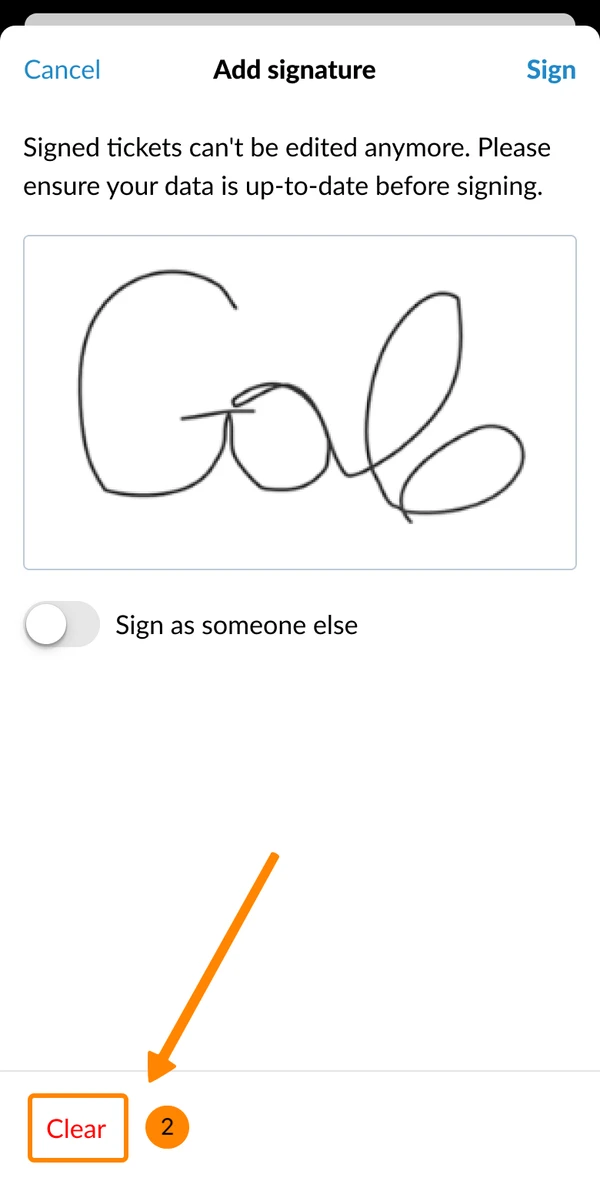
- Tap on the signature entry
- Tap Clear
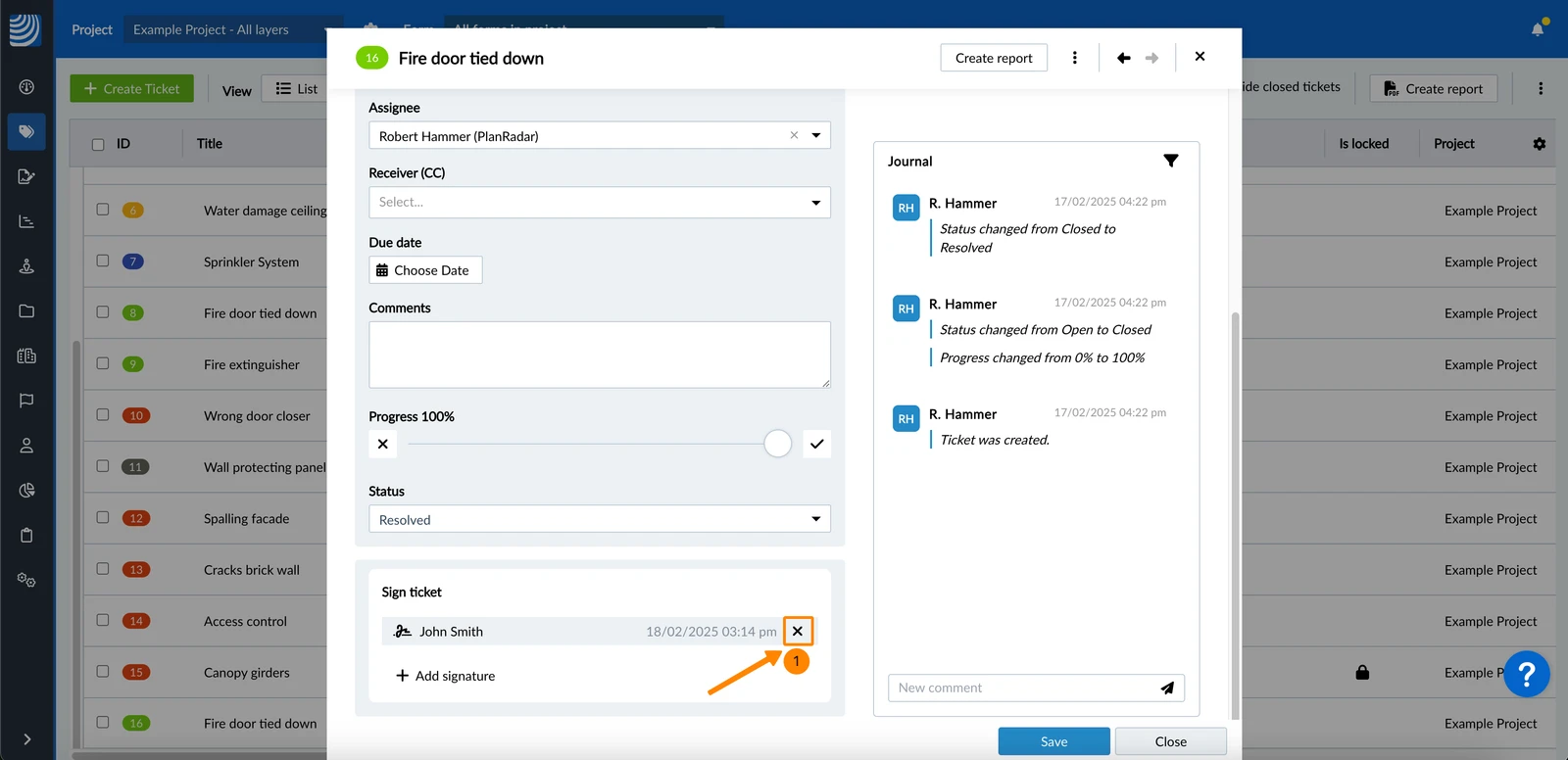
To delete an unsaved signature in the Webapp:
- Click the X button (hidden if signature is already saved)
Filter for Signed/Locked Tickets
The following related ticket filter criteria are available:
- Ticket signer
- Is signed
- Is locked
Show Signatures in Ticket Reports
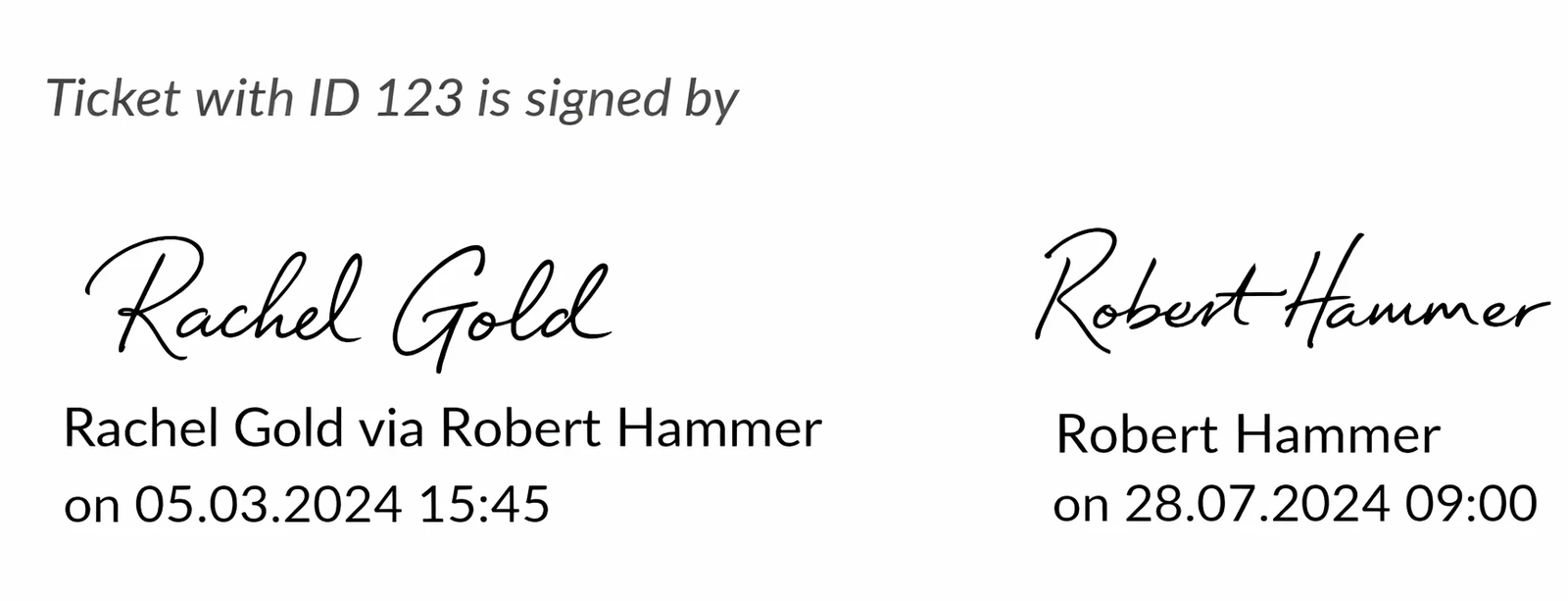
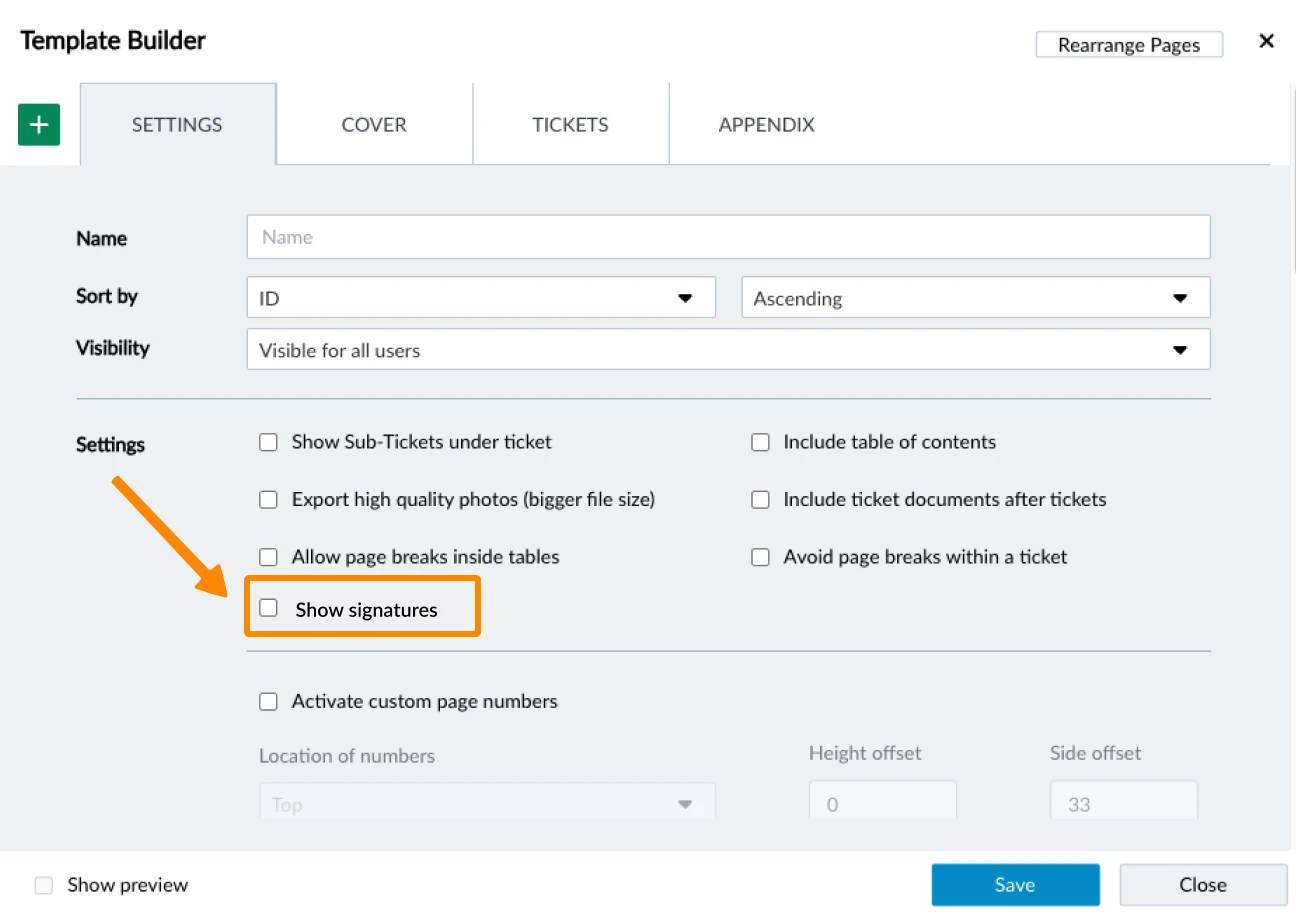
To show the signatures (including name and timestamp) in ticket reports, activate the Show signatures setting in the ticket report templates.
Updated February 20, 2026