

 Deutsch
 Español
 Français
 Hrvatski
 Italiano
 Polski
 Português (BR)
Set Status & Progress of a Ticket
Overview
Using the status field is recommended whenever you have a workflow where tasks or issues get assigned to be worked on and resolved. While the status field allows to transition tickets through workflow stages, the progress field tracks the progress of a ticket from 0% to 100%.
Set Ticket Status
Available values for the status field:
- Open: Default when tickets are created.
- In Progress: Typically set by the assignee once work has started.
- Resolved: Issue has been resolved by a subcontractor and needs to be reviewed and closed by an in-house user.
- Feedback: Assignee requires feedback to continue.
- Rejected: Used when there is a reason that the ticket cannot be resolved.
- Closed: Work is done.
To set the status of a ticket:
- Open a ticket or Create a Ticket
- Find the status field and select a status, e.g. In Progress
- Click Save or Save and close
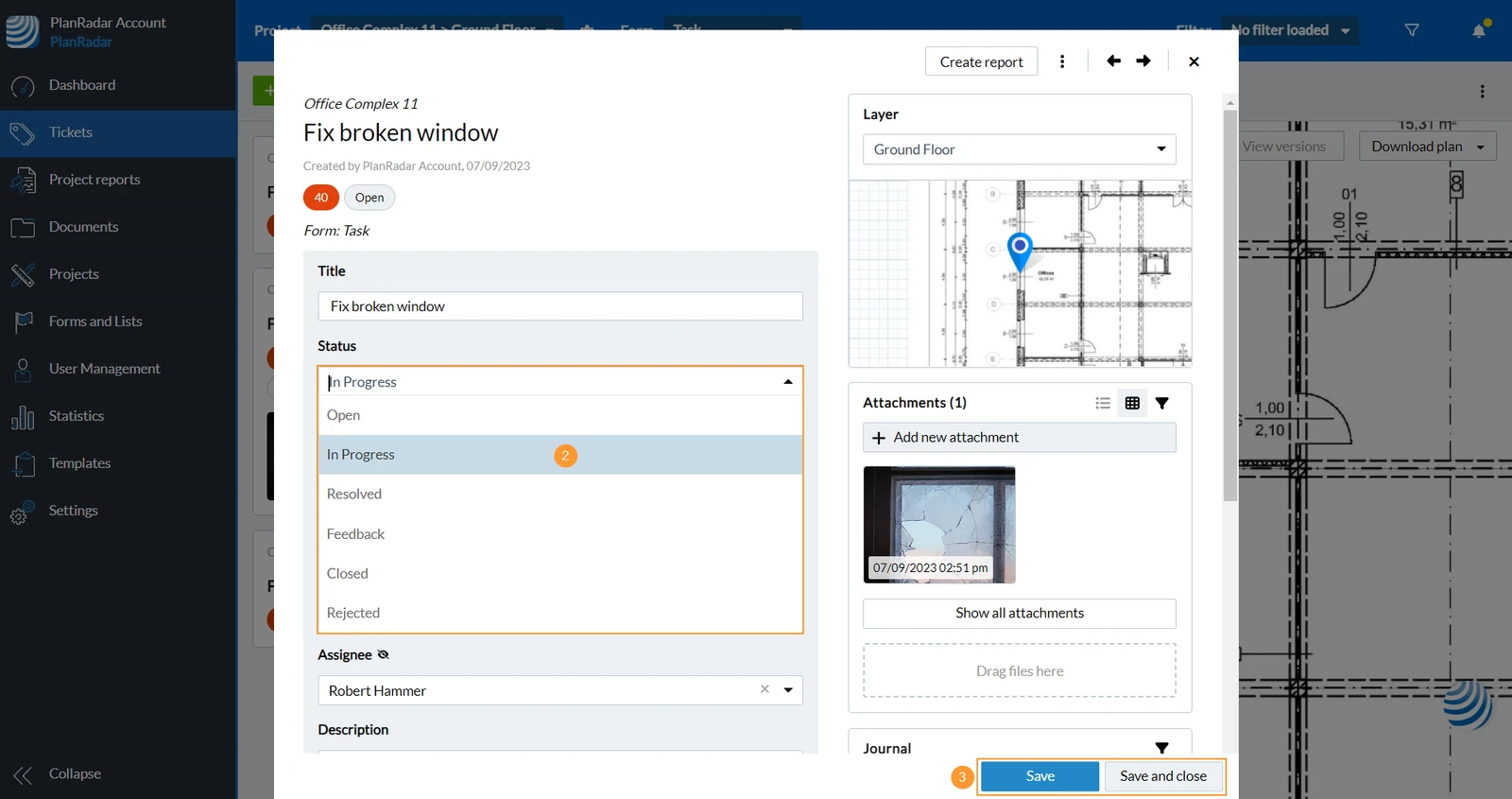
- Open a ticket or Create a Ticket
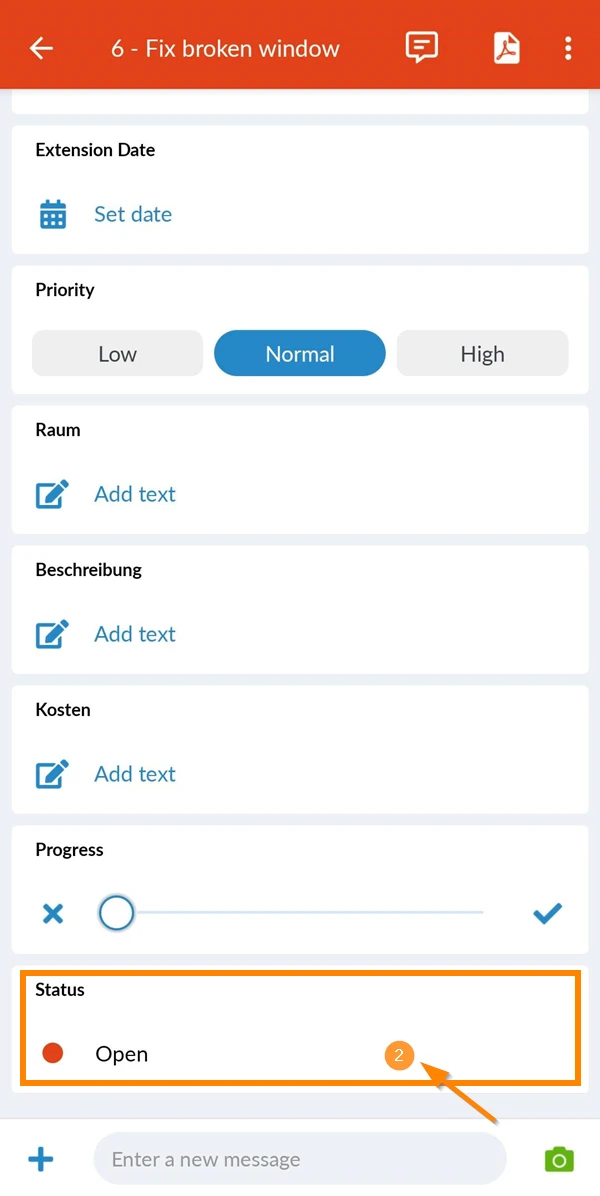
- Find and tap the Status field
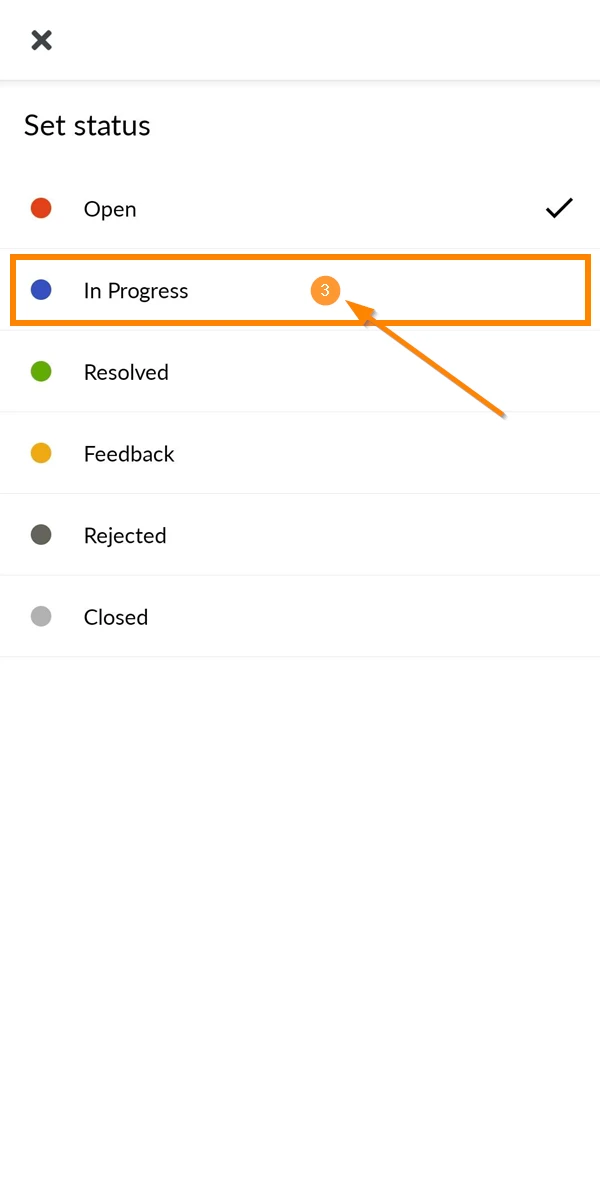
- Select a status from the list (for example In Progress)
- The status of the ticket gets changed and can be viewed in the ticket
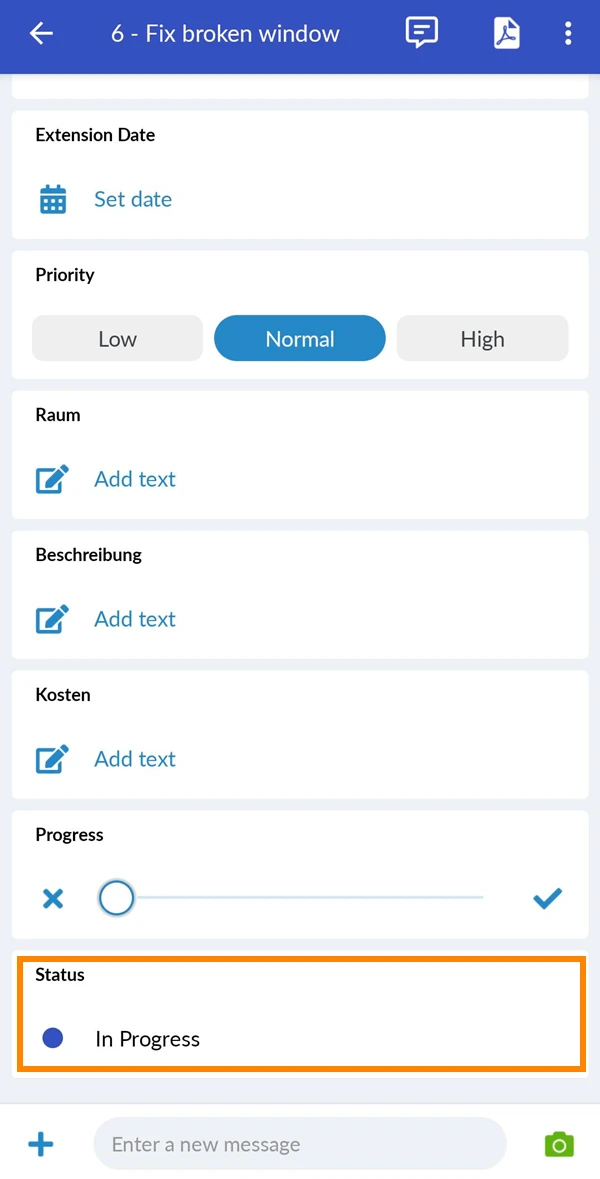
Set Ticket Progress
The default progress is 0%. The status and progress fields are not linked and have to be updated manually.
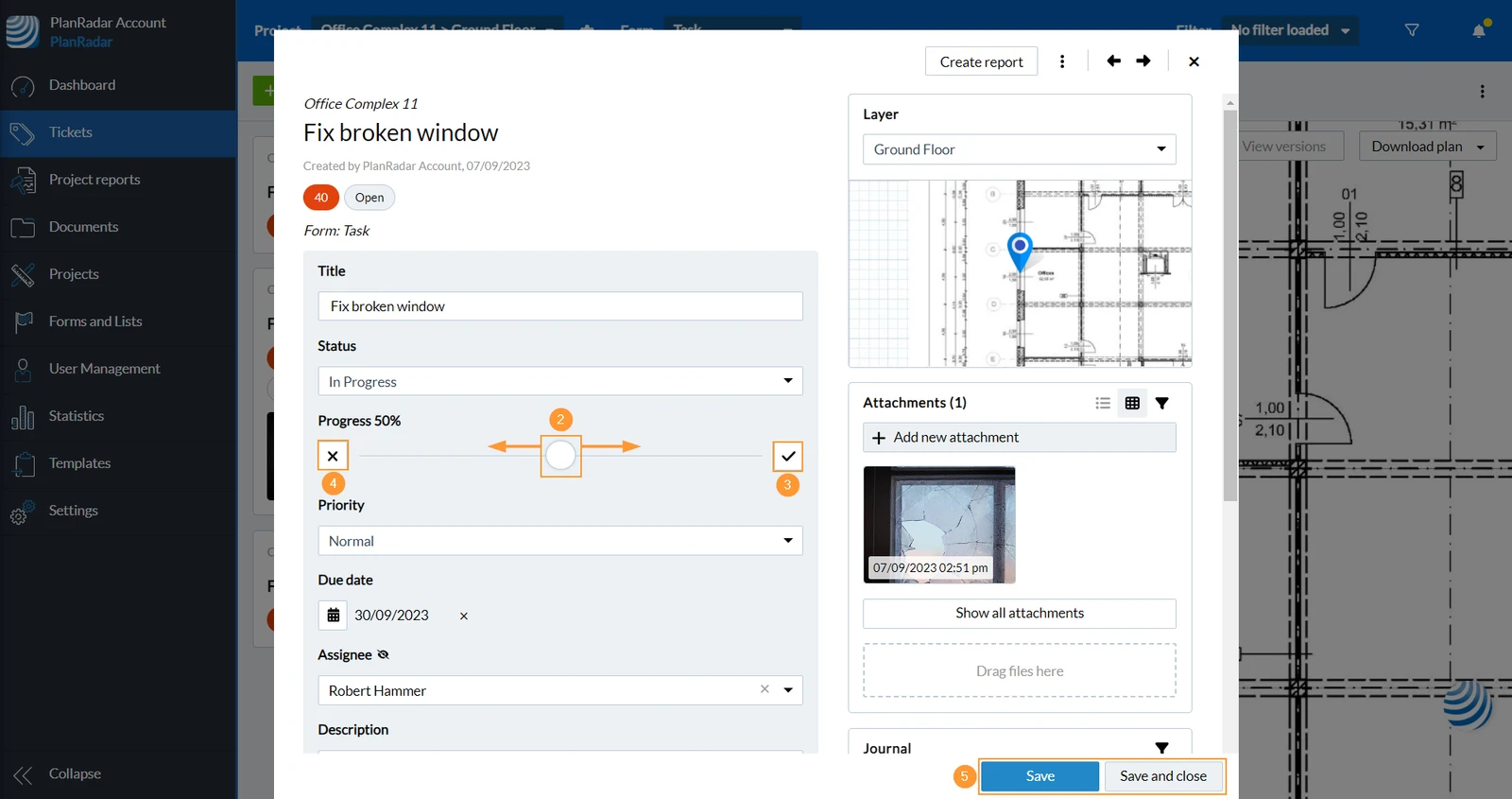
To set the progress of a ticket:
- Open a ticket or Create a Ticket
- Find the Progress field and click within the bar to set the slider
OR drag & drop the slider at the desired % - Optional: Click ✔ to set to 100%
- Optional: Click X to set to 0%.
- Click Save or Save and close
- Open a ticket or Create a Ticket
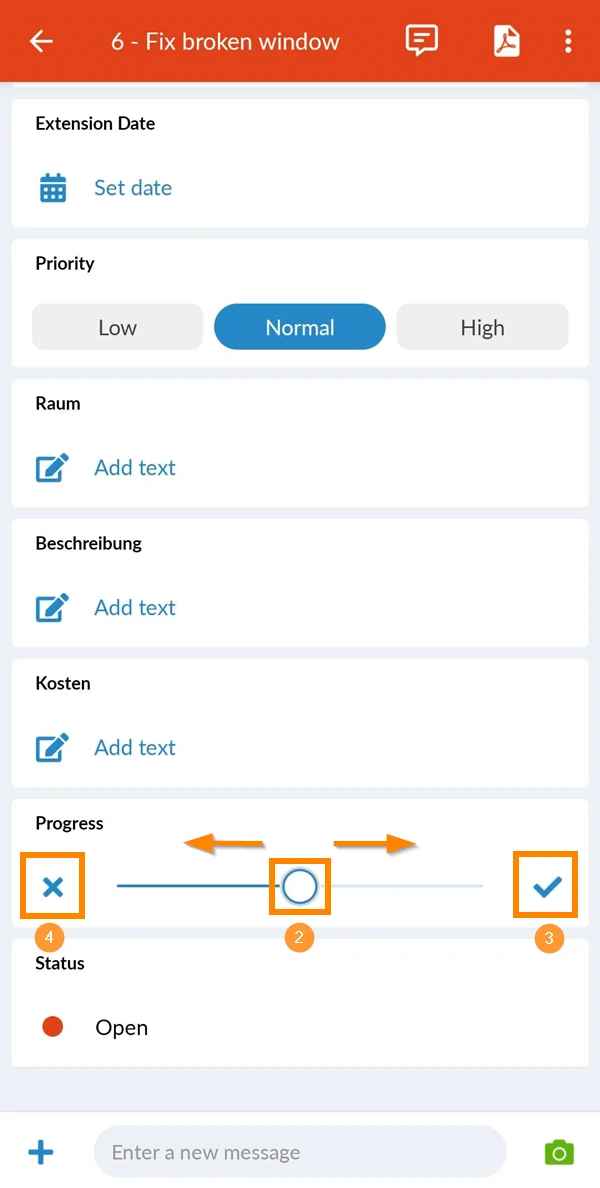
- Find the Progress field and tap within the bar to set the slider
OR drag & drop the slider at the desired % - Optional: Tap ✔ to set to 100%
- Optional: Tap X to set to 0%.
Updated February 17, 2025