

 Deutsch
 Español
 Français
 Hrvatski
 Italiano
 Polski
 Português (BR)
Copy & Paste Tickets
Overview
Use Copy & paste to save time when creating similar tickets.
Access & Permissions
Copy a Ticket
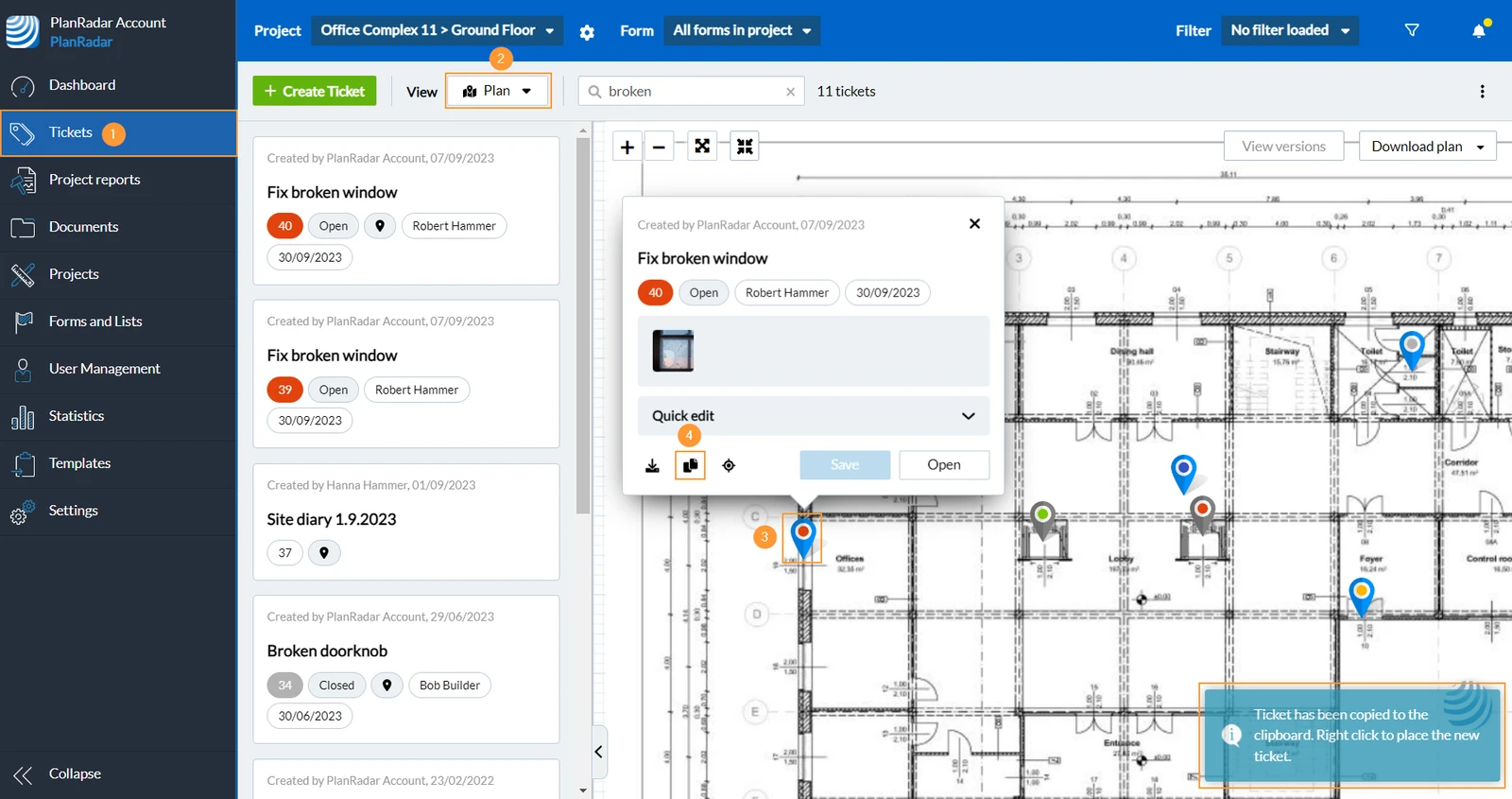
To copy a ticket:
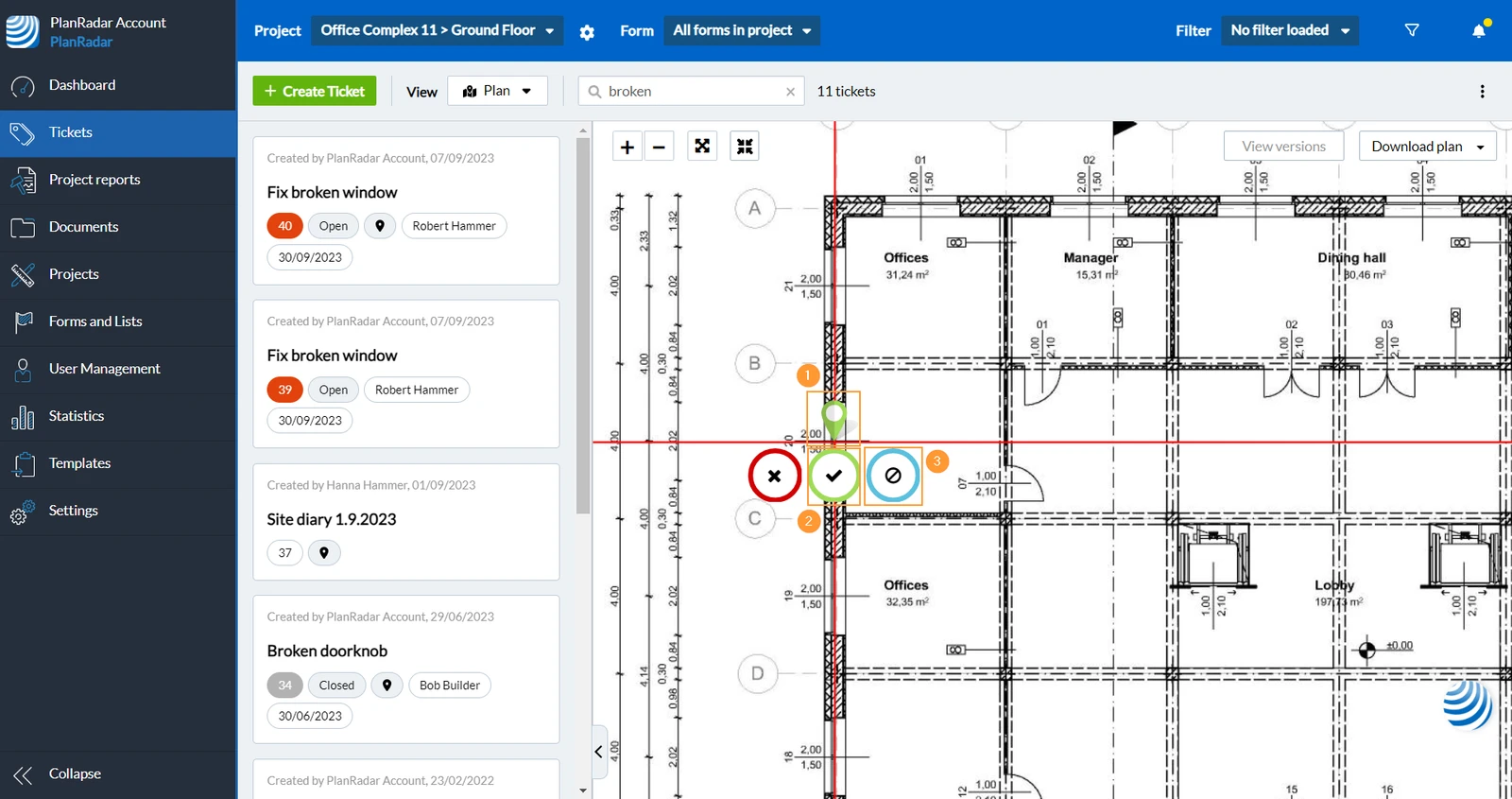
- Click Tickets
- Select Plan in the View drop-down.
- Click on the ticket pin to open the ticket preview.
- Click Copy
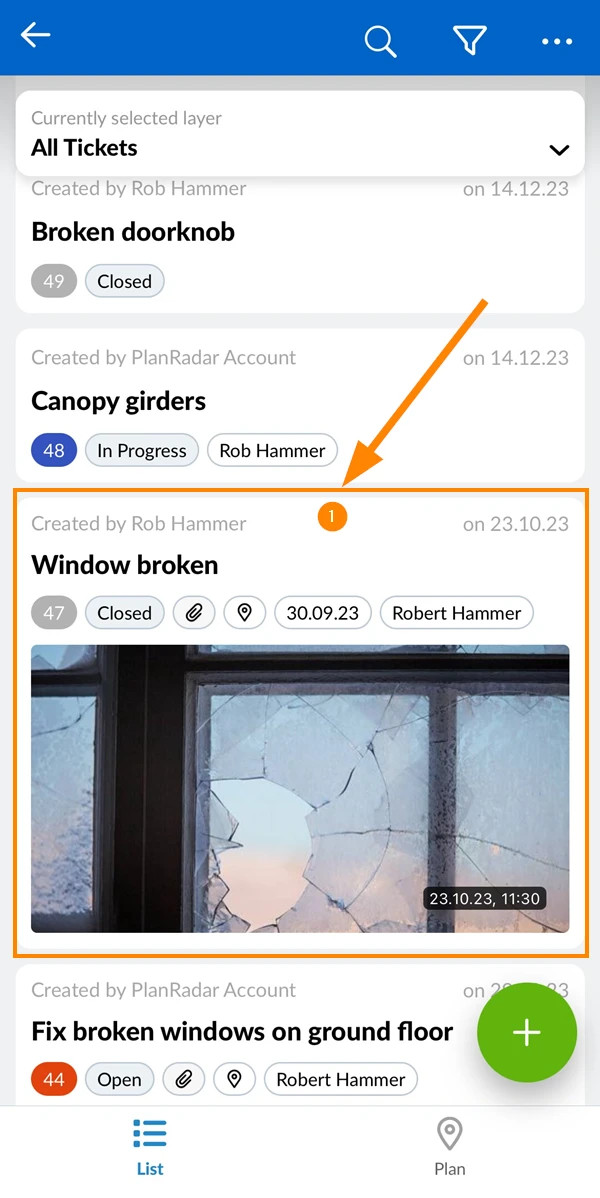
- Tap on a ticket to open it
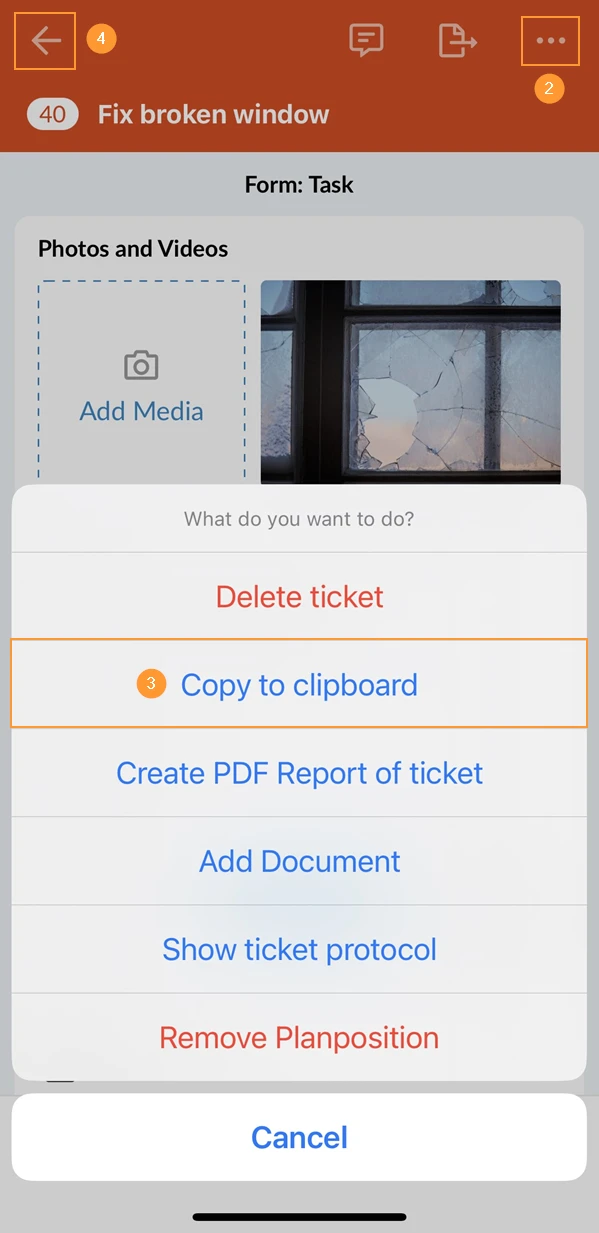
- Tap More
- Tap Copy to clipboard
- Tap Back
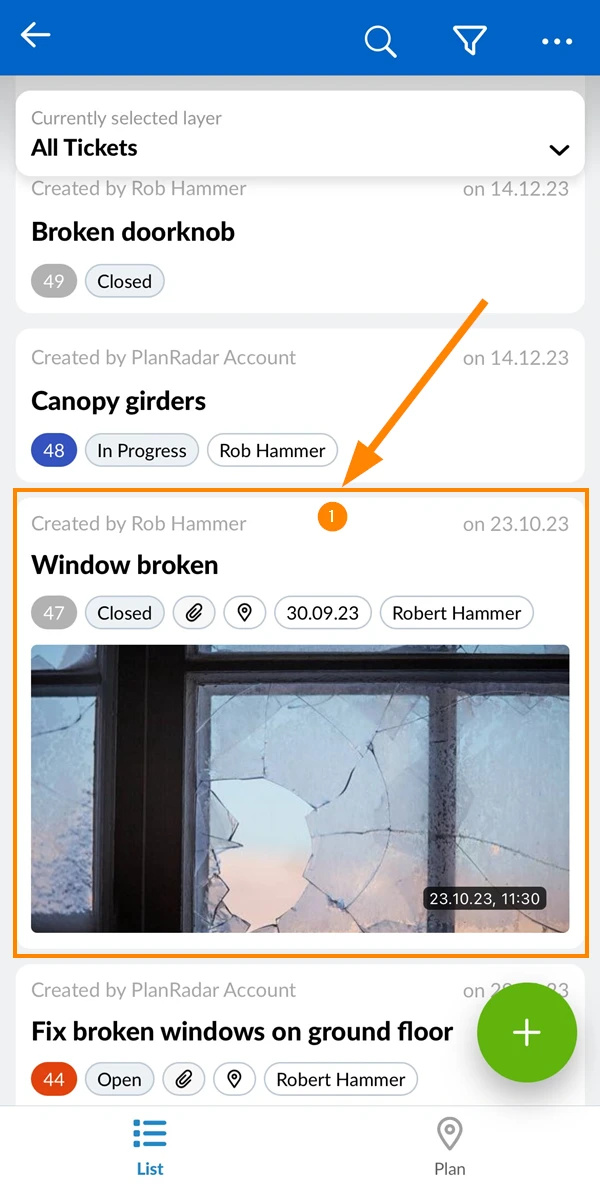
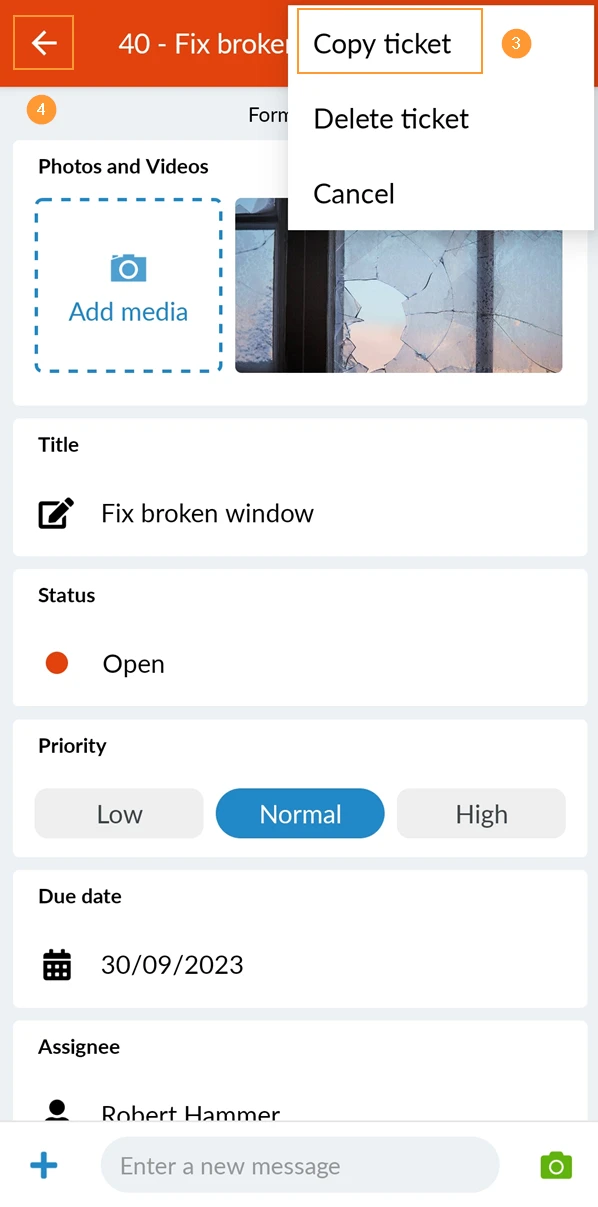
- Tap on a ticket to open it
- Tap More
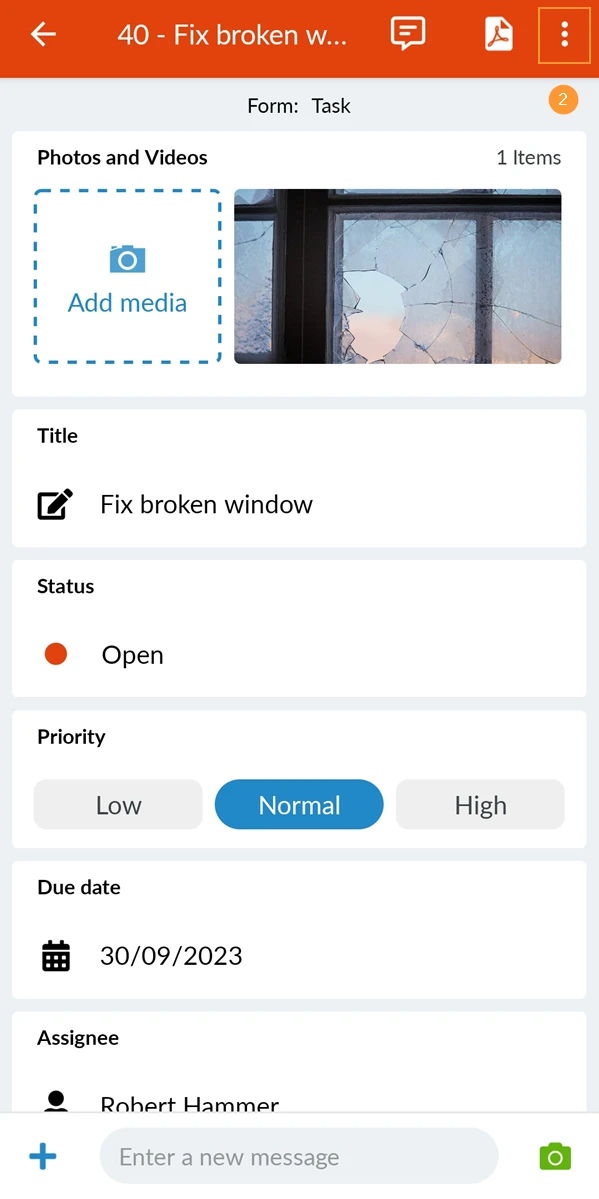
- Tap Copy ticket

- Tap Back
Paste a Ticket
You can paste a ticket if there is something saved in the clipboard:
- Right click on the plan to place a ticket pin.
- Click ✔ to confirm the plan position of the new ticket and open the 'Create new ticket' window.
- Optional: Click the blue button to empty the clipboard.
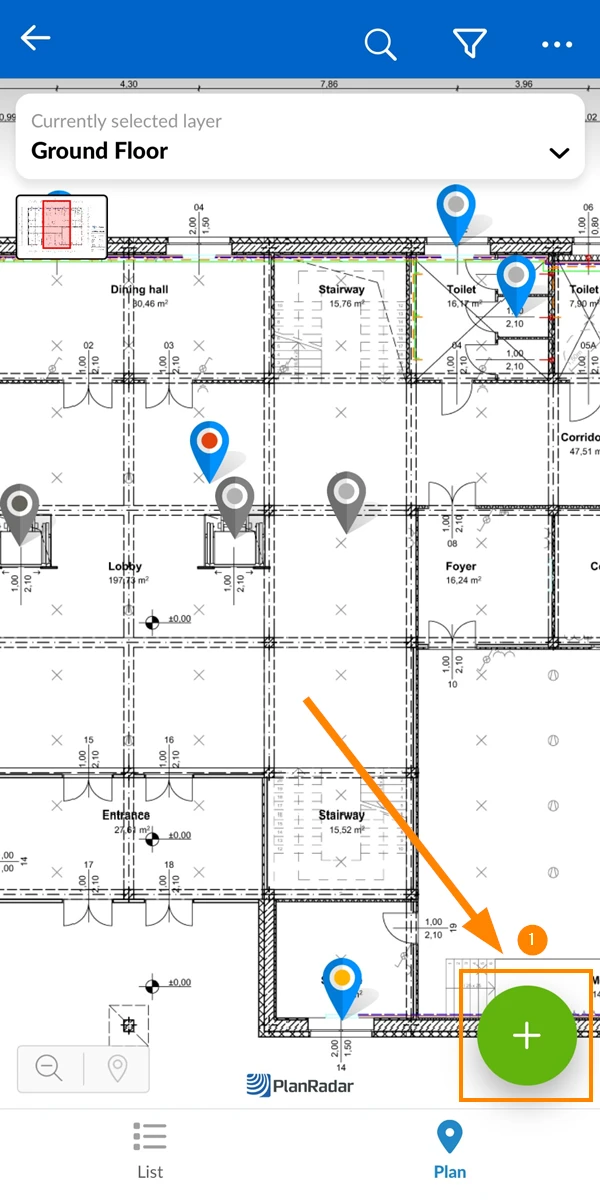
- Tap + to create a new ticket
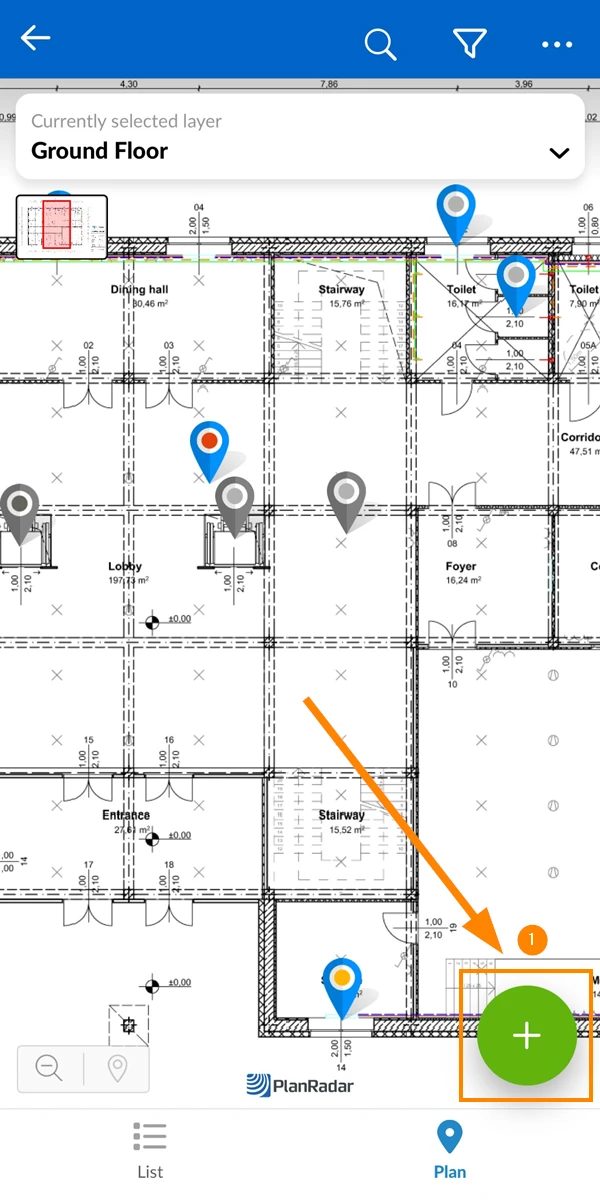
- Place the ticket pin on the plan
- Tap ✔ to confirm
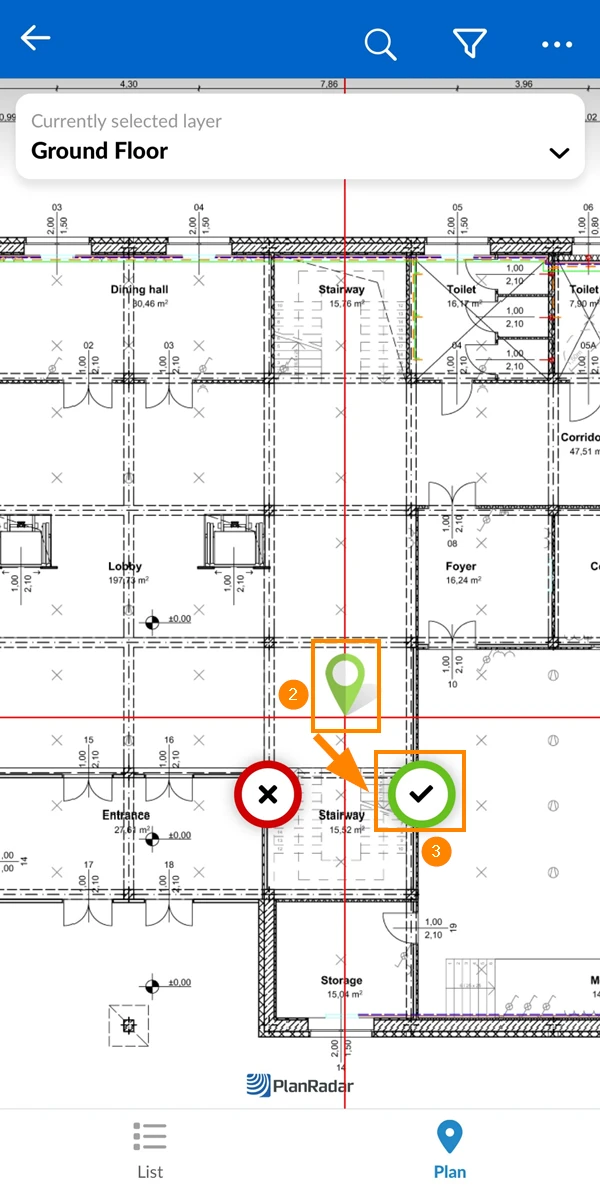
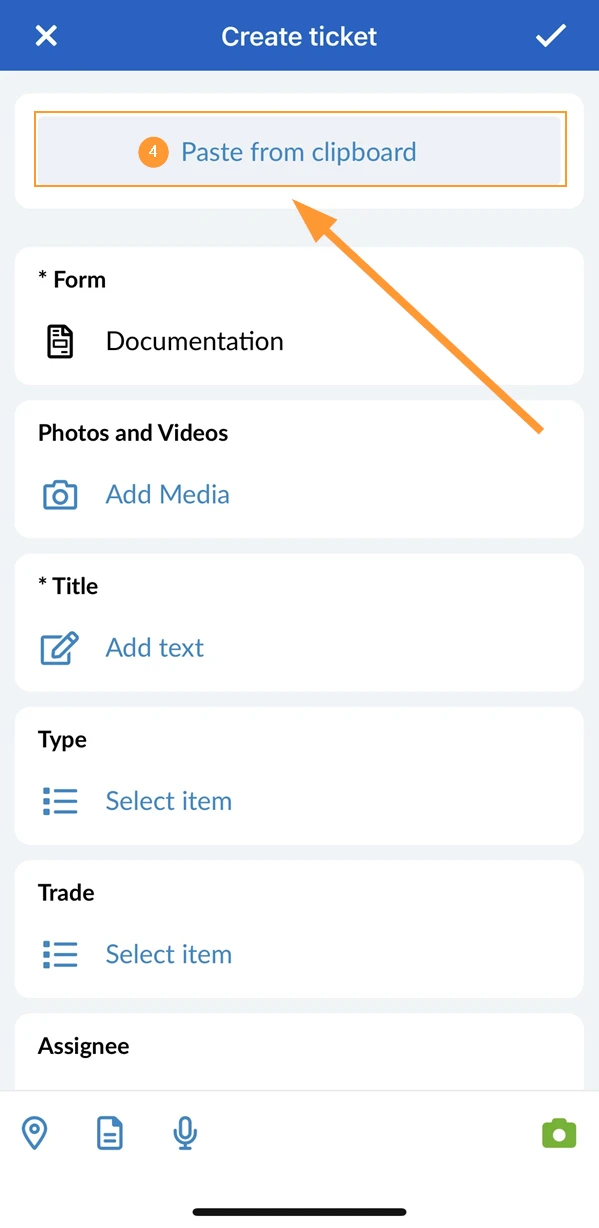
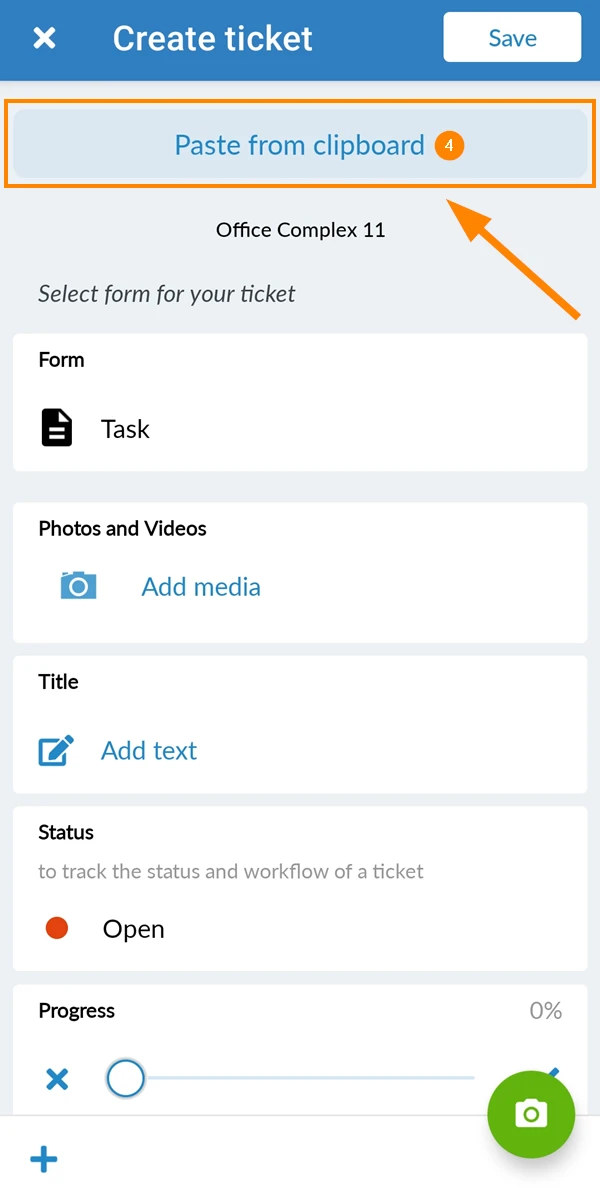
- Tap Paste from clipboard
- Tap +
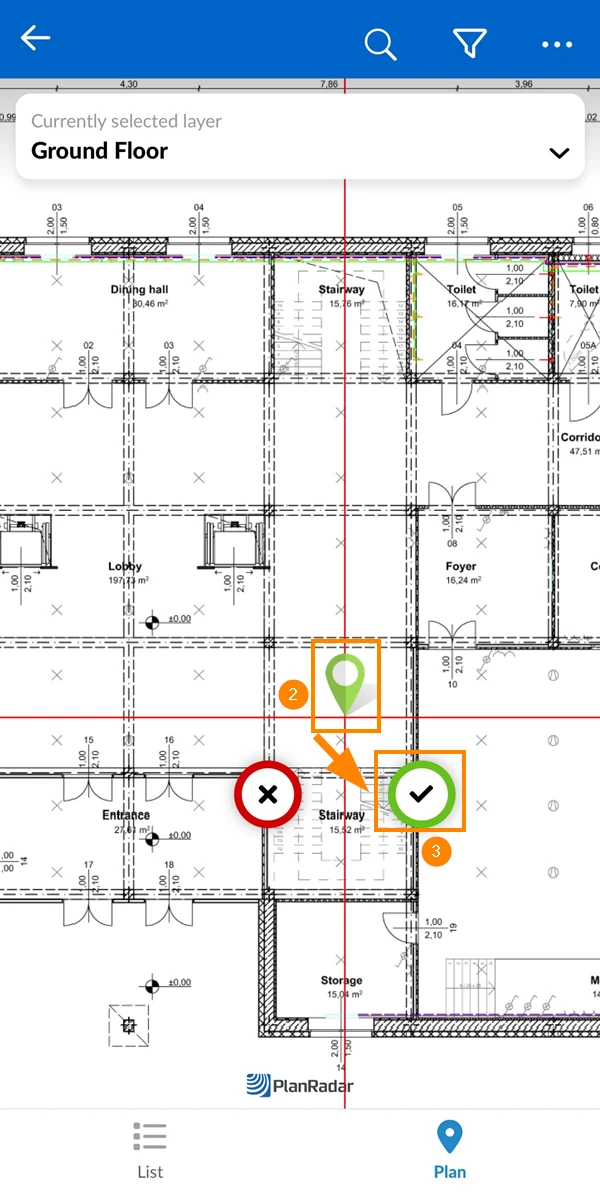
- Place the ticket pin on the plan
- Tap ✔ to confirm
- Tap Paste from clipboard
Related Articles
Updated February 17, 2025