

 Deutsch
 Español
 Français
 Hrvatski
 Italiano
 Polski
 Português (BR)
Webapp Navigation
Overview
Use the main menu on the left hand side to jump to the respective features of the PlanRadar Webapp, switch account, go to settings or sign out.
Access & Permissions
Show/Hide the Main Menu Titles
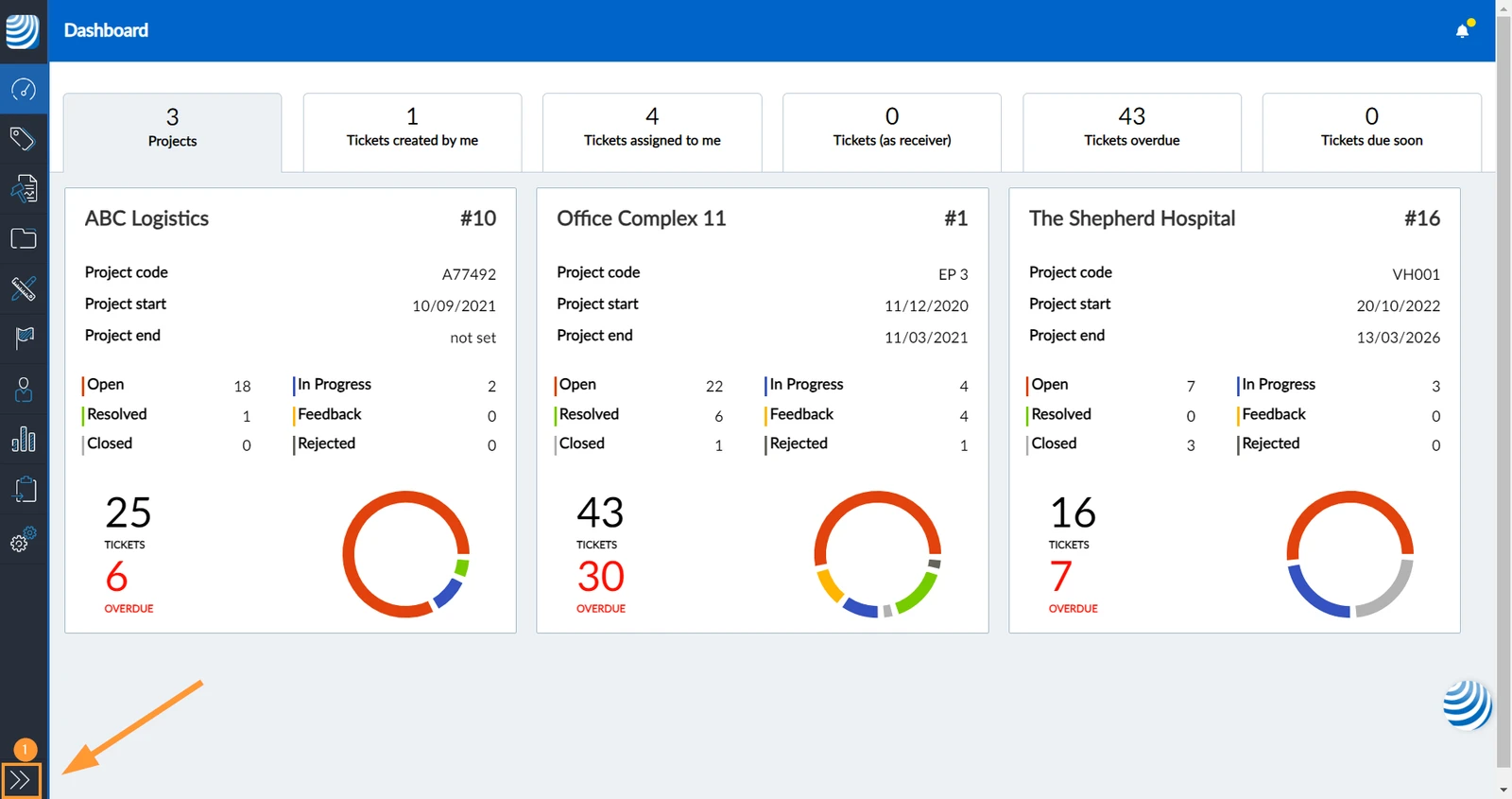
Expand the main menu to see the titles of each feature in addition to the icons:
- Click the arrow icon
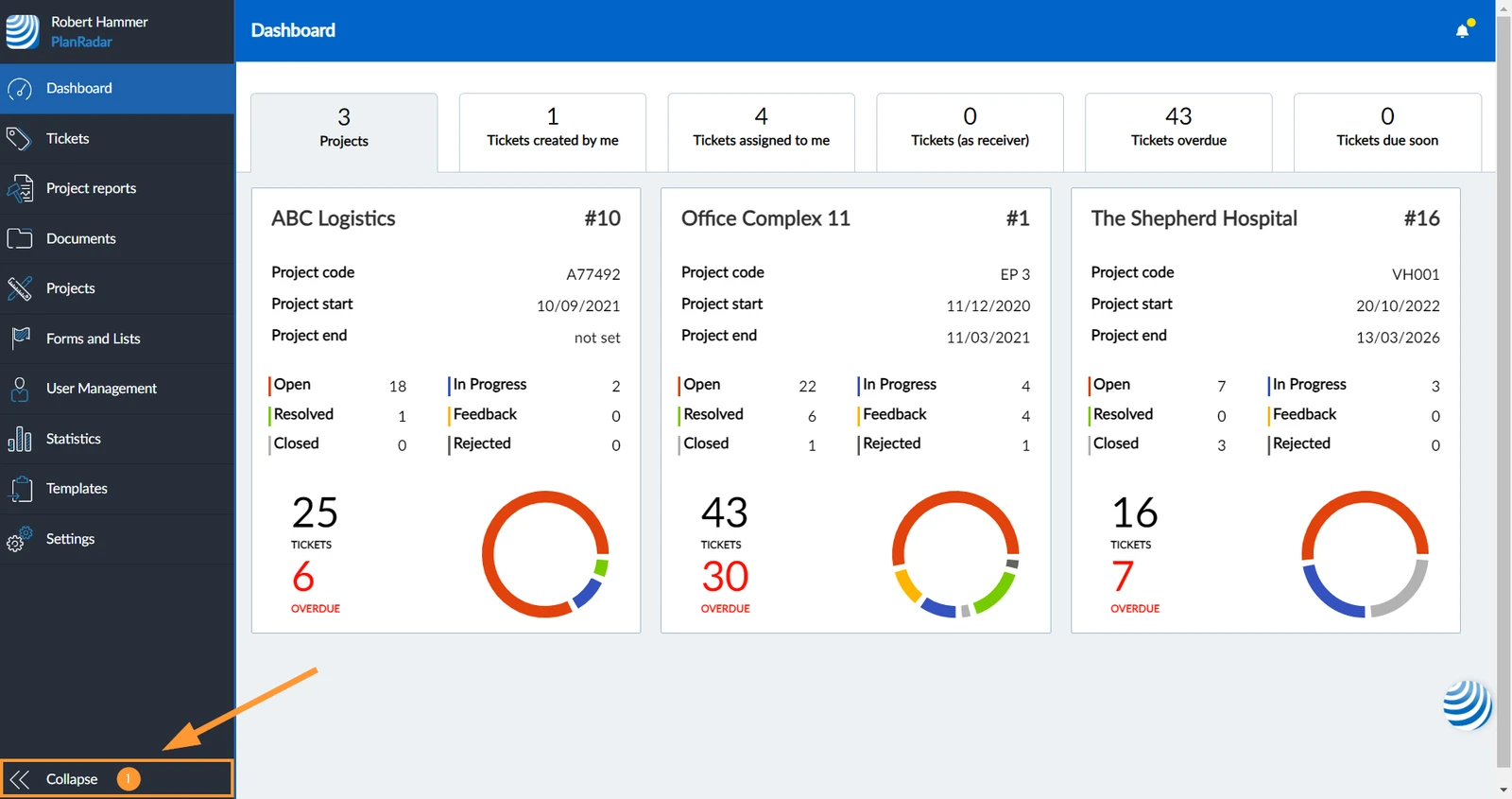
Collapse the main menu to save space:
- Click Collapse
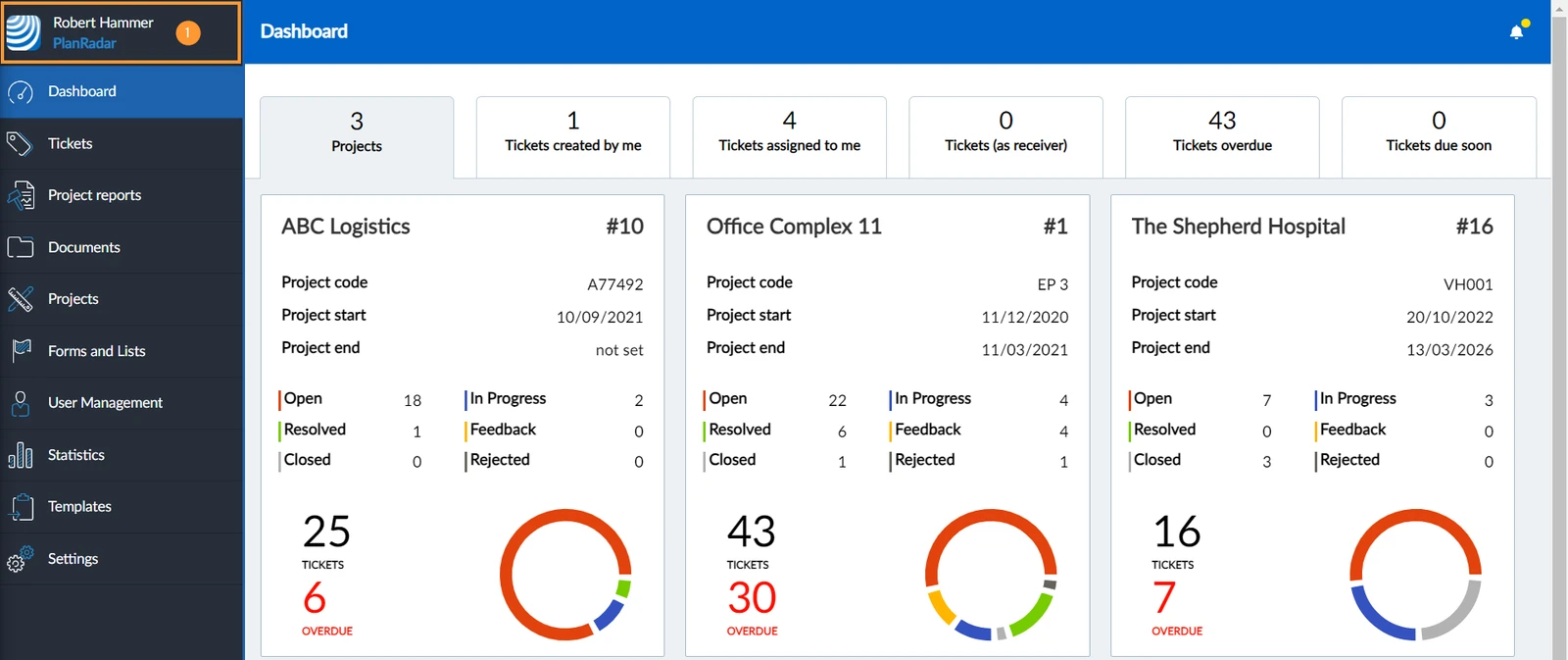
Account
- Here you see your user name and the account name.
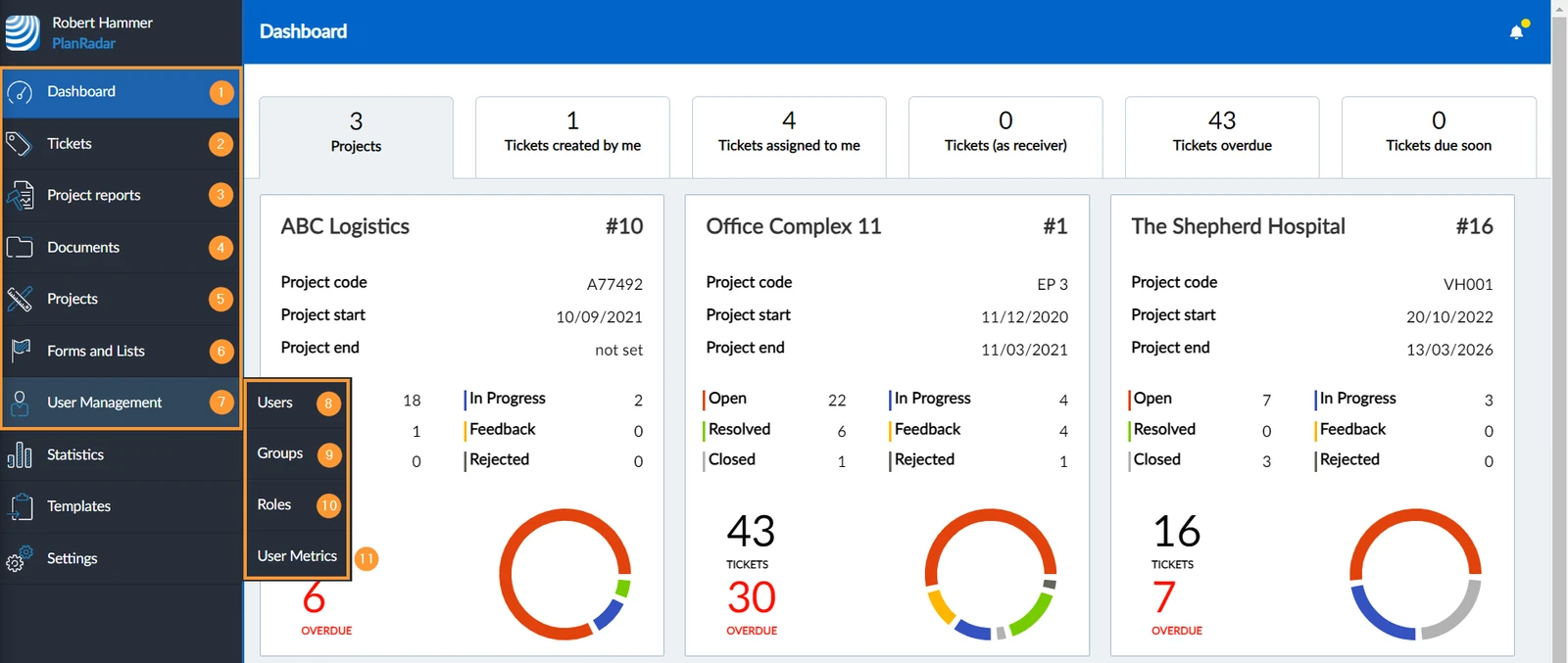
Features
- Dashboard: Read more in Webapp Dashboard.
- Tickets: Read more in Tickets.
- Project reports: Read more in Project Reports.
- Documents: Read more in Document Management.
- Projects: Read more in Projects.
- Forms and Lists: Read more in Forms and in Lists.
- User Management: Read more in Permissions.
- Users: Read more in Users & Groups.
- Groups: Read more in Users & Groups.
- Roles: Read more in Permissions.
- User Metrics Read more in User Metrics.
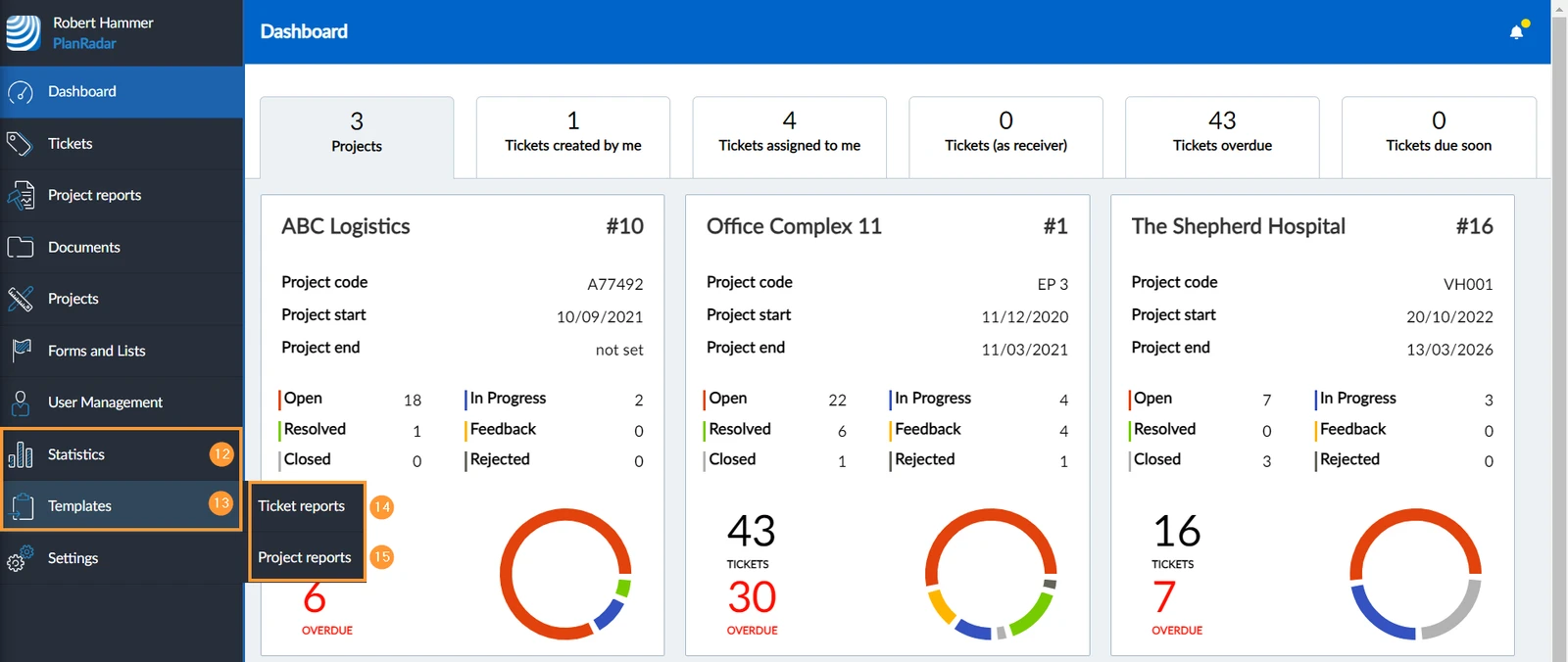
- Statistics: Read more in Statistics.
- Templates
- Ticket reports: Read more in Ticket Reports.
- Project reports: Read more in Project Reports
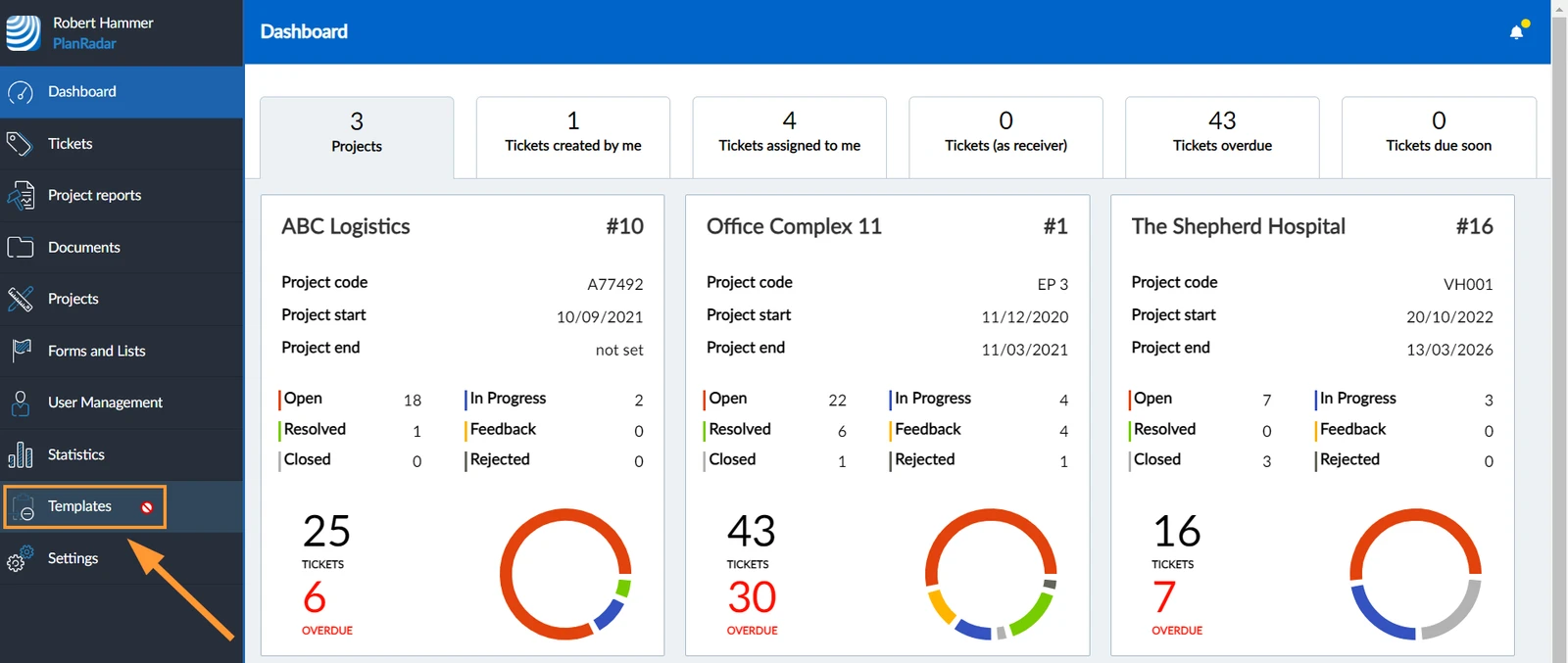
Not Accessible Features
If you don't have access to a feature because of your subscription plan or user permission, the icon changes, no sub menu items are displayed and you cannot access the feature.
Settings
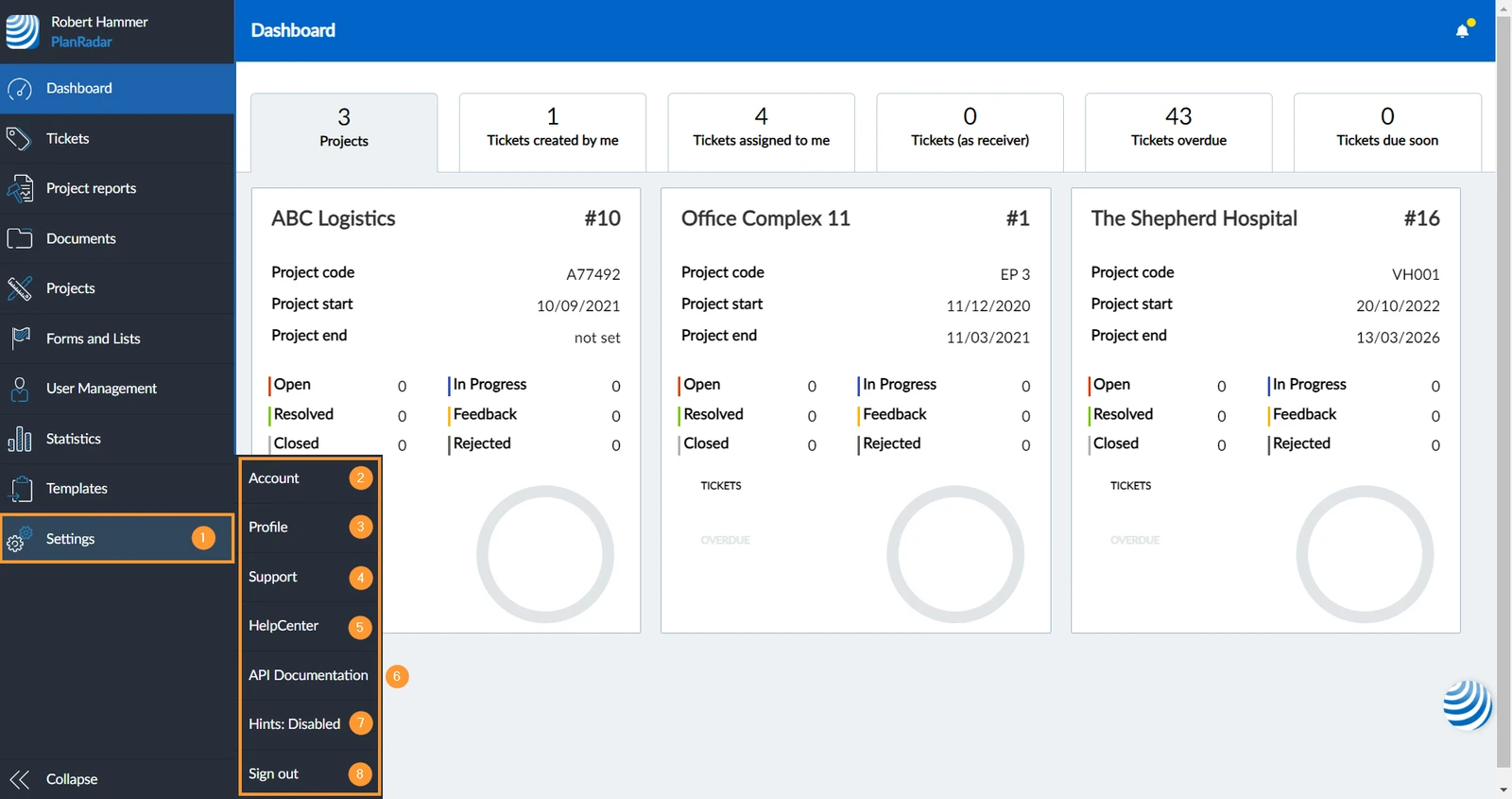
- Settings: In settings you find the following sub menu items:
- Account: Read more in Accounts.
- Profile: Read more in My Profile.
- Support: Read more in Get Support.
- HelpCenter: Click to open the HelpCenter.
- API Documentation: Click to open the API Documentation.
- Hints: Disabled/Enable: Read more in Get Support > How-To Guides in Webapp
- Sign out: Click to sign out of the PlanRadar Webapp.
Updated January 28, 2025