

 Deutsch
 Español
 Français
 Hrvatski
 Italiano
 Polski
 Português (BR)
[PRC] LREC-001 | Ticket report created => Send it by email
1 Overview
This PlanRadar Connect recipe automates the process of sending ticket reports via email whenever a new report is created. You can limit the automation to specific projects or report templates using filters in the trigger step.
2 Access & Prerequisites
Before using this recipe, make sure:
-
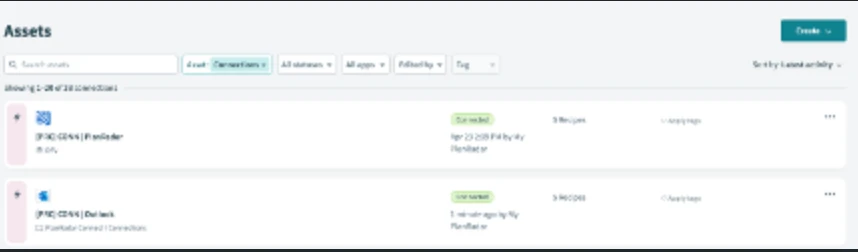
You have authorised PlanRadar and Outlook connectors with the Personal Access Token of your integration user
-
The integration user is added to projects where you want the recipe to work
-
You know where you want to send the reports
3 Use the Recipe from the Library
-
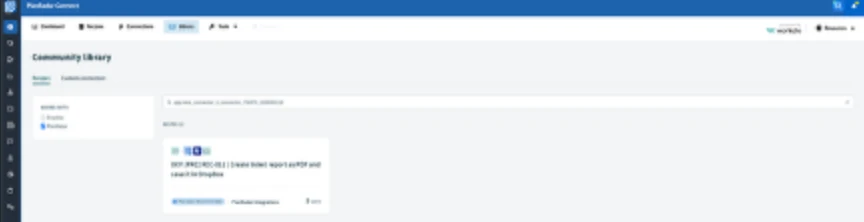
Go to the PlanRadar Connect Library.
-
Search for 'PlanRadar' and click the PlanRadar logo.
-
Find the recipe: [PRC] LREC-001 | Ticket report created => Send it by email
-
Click Use this recipe.
-
Choose where to save the recipe copy.
4 Configure the Recipe
-
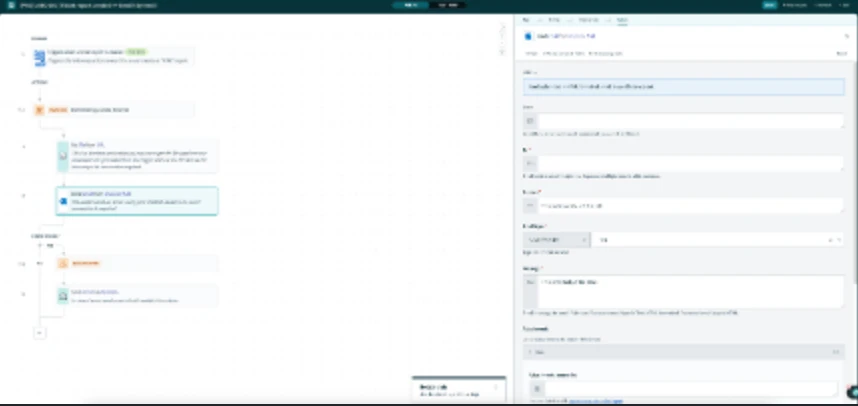
Click Edit to open the recipe.
-
In Step 4, fill in all mandatory fields (marked with a red asterisk).
-
Press Save.
-
Click Test recipe to validate behavior.
-
10. After testing, click Exit and then Start recipe.
5 Filter by Project (Optional)
To limit execution to specific projects:
-
Click Edit and open the trigger step.
-
Click Optional fields
-
Add the Project field in the trigger
-
Use the dropdown to choose the desired project.
-
Save and start the recipe again.

6 What Happens Next
Now, each time someone generates a ticket report in your PlanRadar account, the recipe will automatically send the file to the defined email addresses using the Outlook connector.
7 Further Exploration
To learn more about customizing recipes or using other connectors, visit the Resources tab in PlanRadar Connect.
Updated June 17, 2026