

 Deutsch
 Español
 Français
 Hrvatski
 Italiano
 Polski
 Português (BR)
[PRC] LREC-006 | Schedule ticket export as PDF => Save it in GDrive
1 Overview
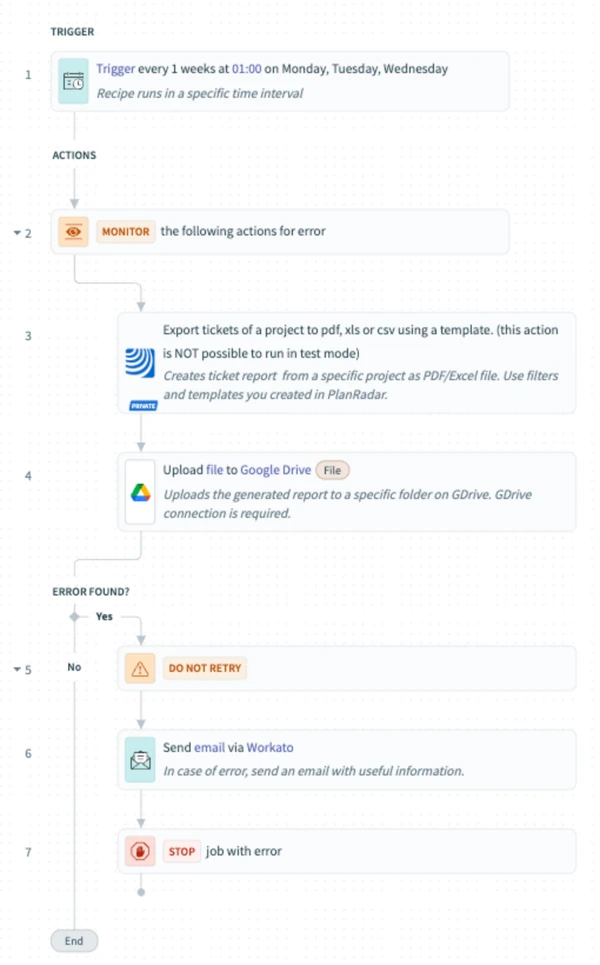
This recipe runs on a schedule to export ticket data as a PDF and store it in a specified Google Drive folder.
2 Access & Prerequisites
-
PlanRadar and Google Drive connectors must be active
-
A report template must be set up in PlanRadar
-
A target GDrive folder should be created
3 Use the Recipe from the Library
-
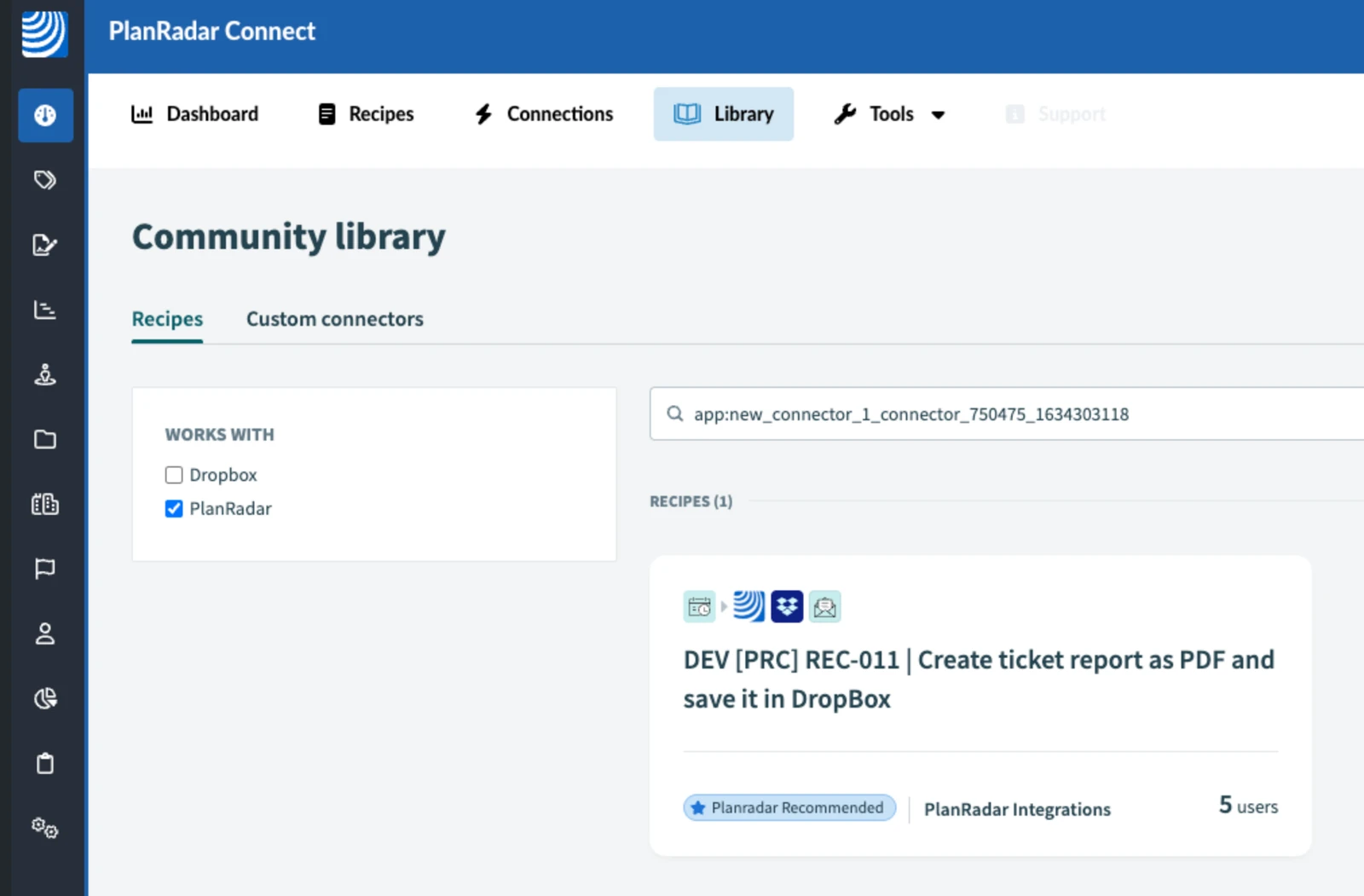
Navigate to PlanRadar Connect
-
Click Library and search 'PlanRadar'
-
Use [PRC] LREC-006 | Schedule ticket export as PDF ⇒ Save it in GDrive
4 Configure the Recipe
-
Click Edit
-
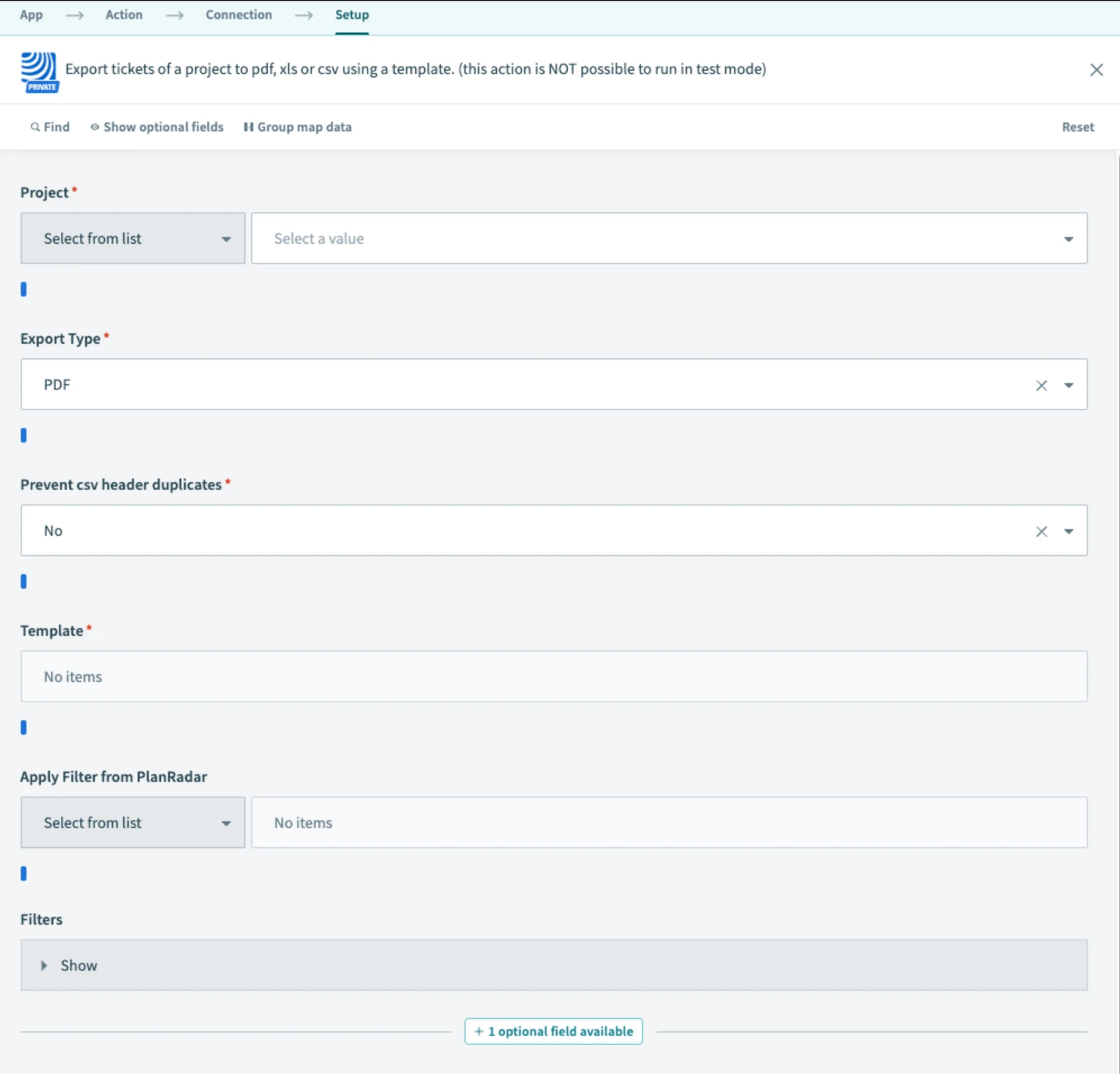
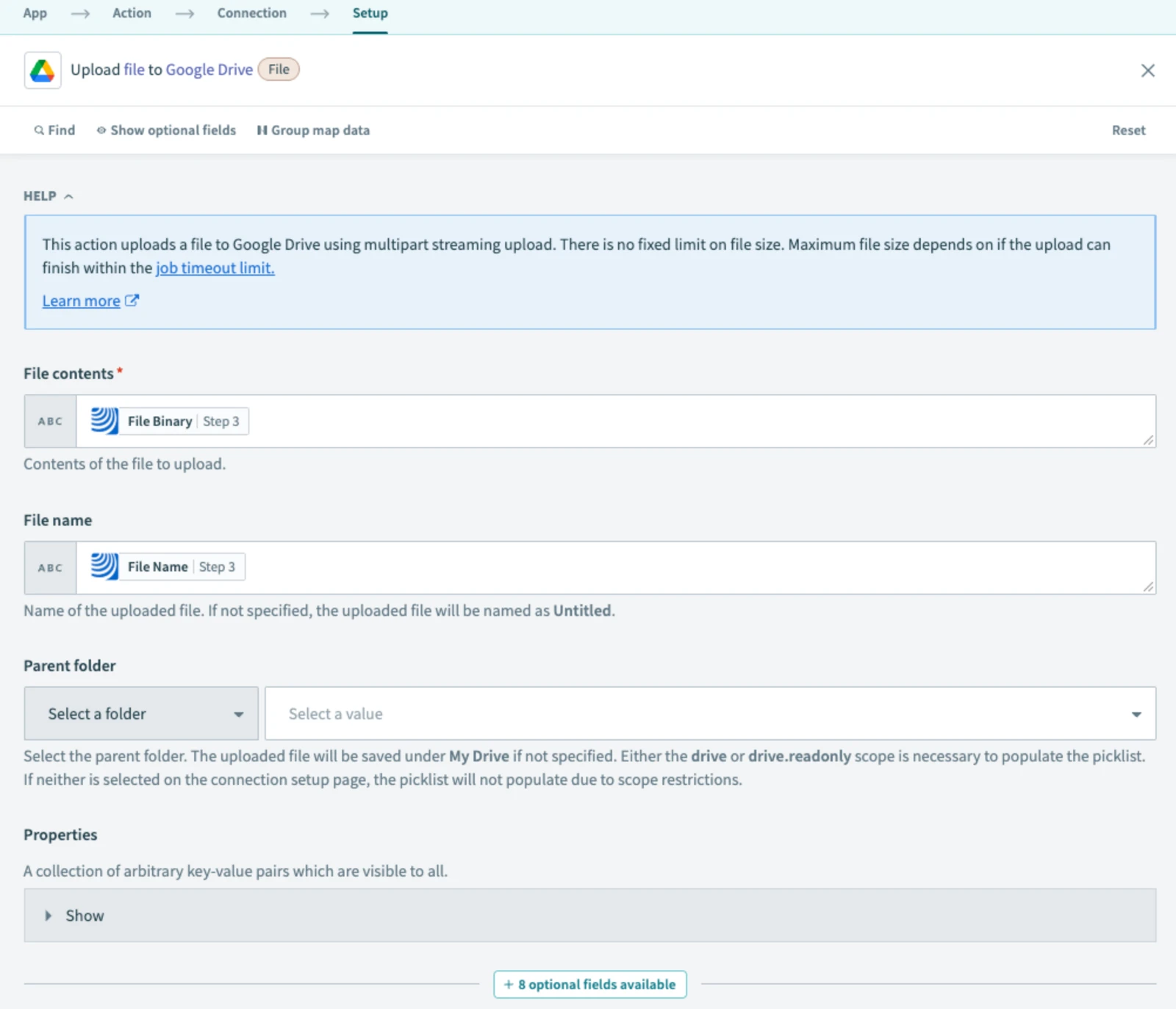
Fill in fields for PDF export and GDrive upload in recipe Steps 3 and 4
-
Go to Step 6 and fill in the email address to receive a notification in case of an error
-
Save and run a Test recipe
-
After confirming results, activate with Start recipe
5 What Happens Next
The recipe exports and uploads a PDF report to your chosen GDrive folder on schedule.
6 Further Exploration
More PDF automation use cases can be found in the Resources tab.
Updated May 12, 2026