

 Deutsch
 Español
 Français
 Hrvatski
 Italiano
 Polski
 Português (BR)
[PRC] LREC-004 | Schedule ticket export as XLS => Save it in GDrive
1 Overview
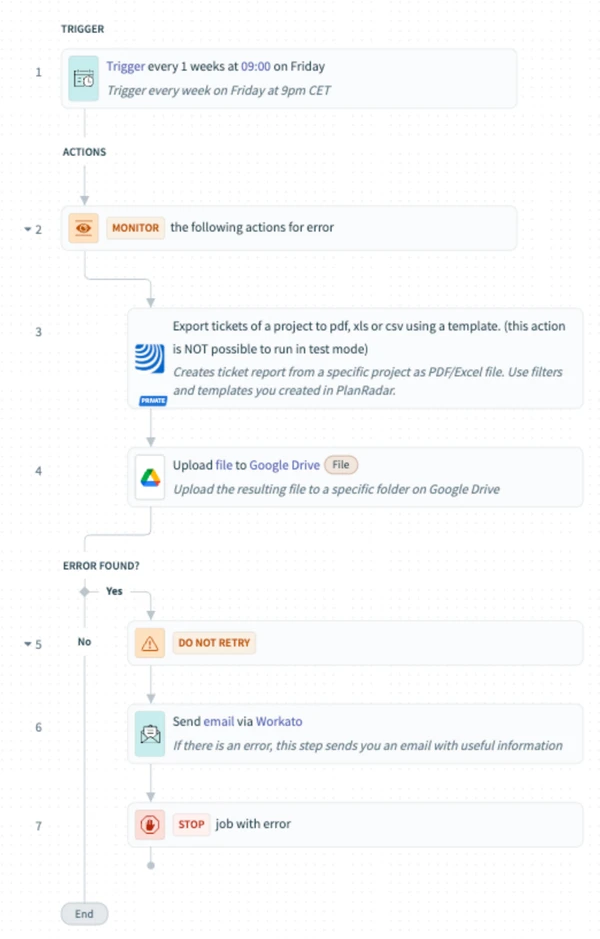
This scheduled recipe exports ticket data as an Excel file (.xls) from PlanRadar and saves it into a designated Google Drive folder. It’s best for recurring data exports to external platforms.
2 Access & Prerequisites
Ensure the following before use:
-
PlanRadar and Google Drive connectors are authorised
-
A valid export template is available in the source project
-
A target folder is prepared in Google Drive
3 Use the Recipe from the Library
-
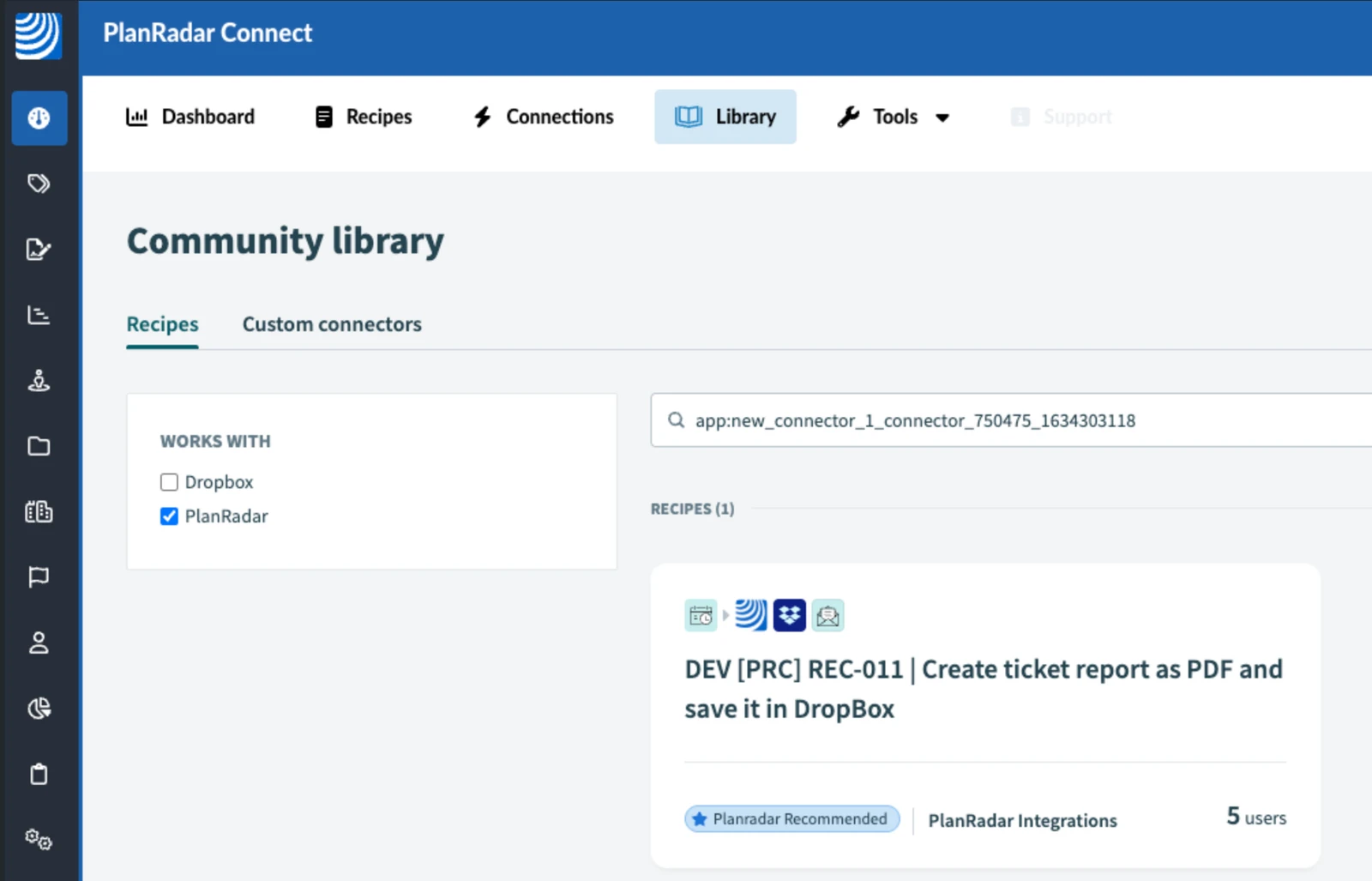
Open the PlanRadar Connect Library
-
Search for 'PlanRadar'
-
Locate: [PRC] LREC-004 | Schedule ticket export as XLS ⇒ Save it in GDrive
-
Click Use this recipe
-
Select your destination project
4 Configure the Recipe
-
Click Edit
-
In the Schedule trigger in Step 1, add time zone setting to select correct time zone
-
Then select the frequency and specify time when the recipe should run
-
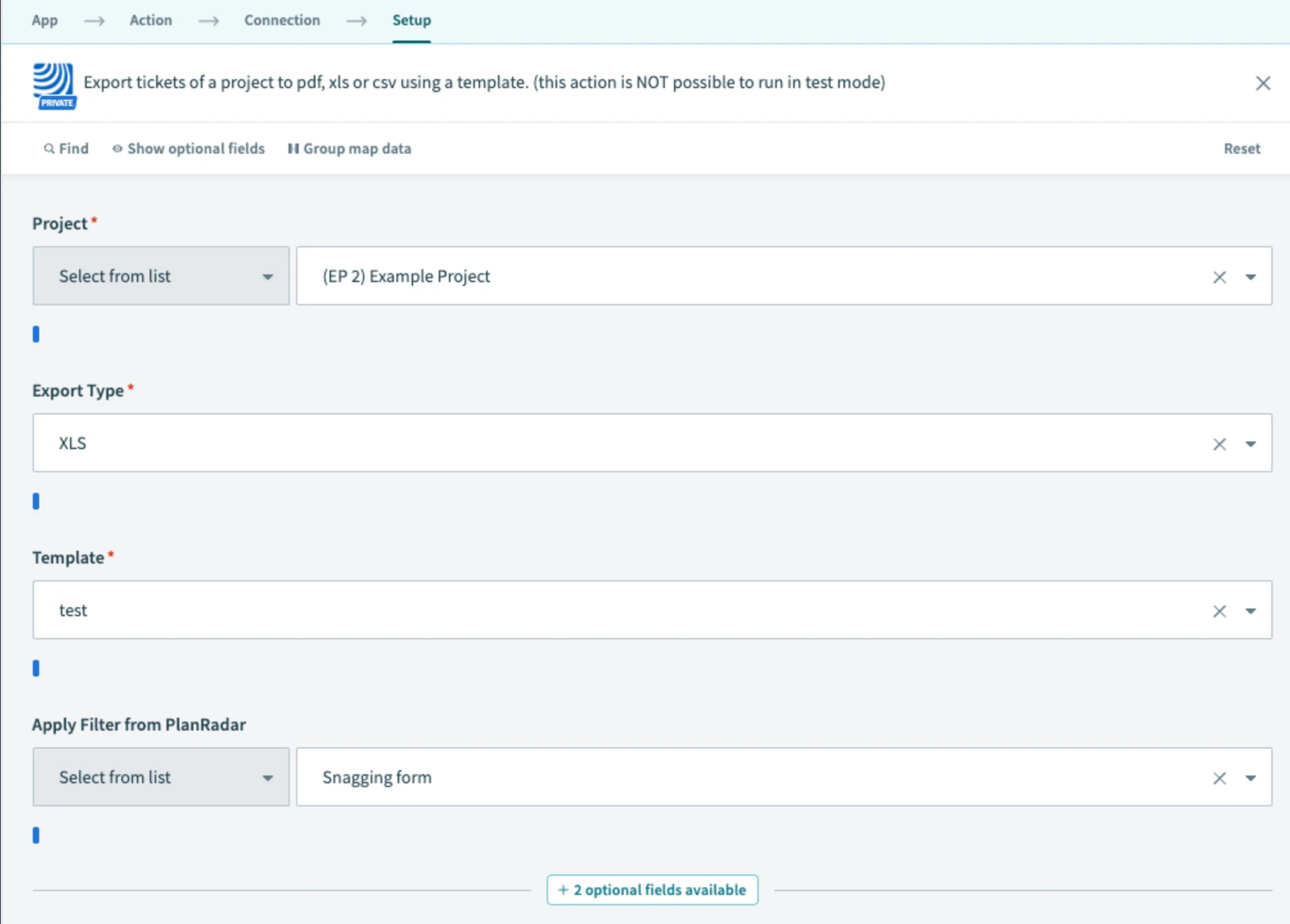
In the export step, pick the project and template
-
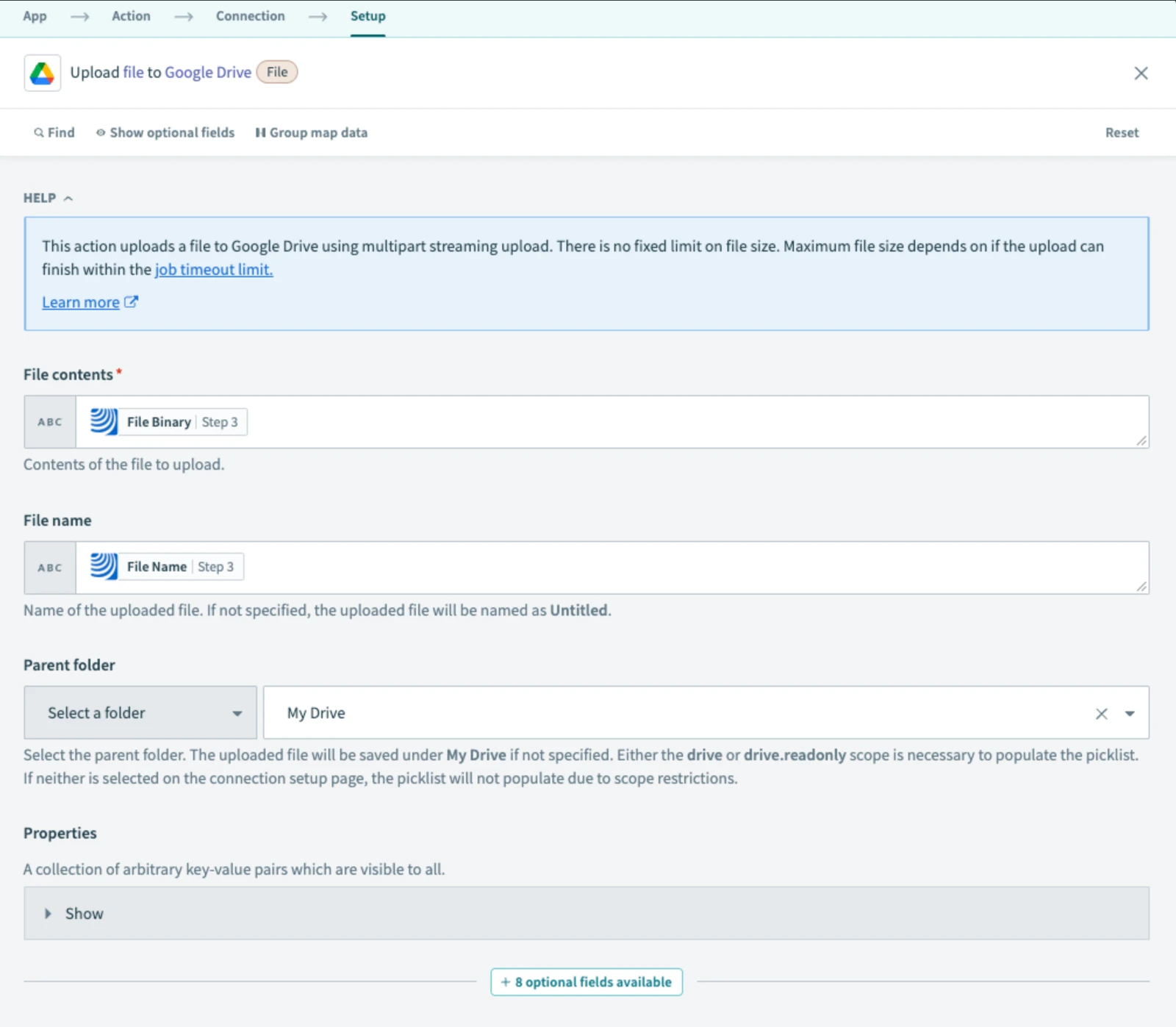
In the upload step, select the GDrive folder
-
In Step 6, fill in the email address which should receive the notification in case of error
-
Normally, next step would be to test your recipe in testing mode. However, the Step 3 which handles ticket exporting is a ‘long action’, this means it cannot be tested in test mode. Instead, Save the recipe and exit the editing mode.
-
Then press Start Recipe. When the recipe runs, you will see if there are any errors. To speed this up, set the Schedule step to trigger in next 5 minutes.
-
Finish with Start recipe
5 What Happens Next
Every week (or as scheduled), the recipe will generate an Excel ticket report and upload it to the selected Google Drive folder.
In case of errors, an email will be sent, and the job halted.
6 Further Exploration
Review more Google Drive integration tips in the Resources section.
Updated May 12, 2026