

 Deutsch
 Español
 Français
 Hrvatski
 Italiano
 Polski
 Português (BR)
[PRC] LREC-003 | Schedule a ticket report export => Save it in PlanRadar Documents
1 Overview
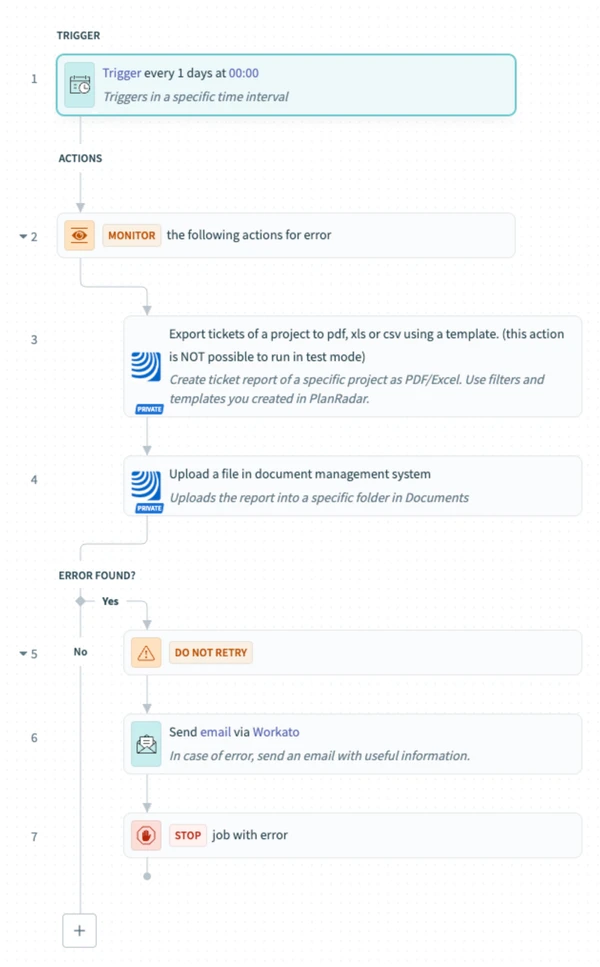
This recipe allows you to schedule regular ticket report exports and automatically store the output file inside PlanRadar Documents. It’s ideal for recurring reporting workflows that don’t require manual triggering.
2 Access & Prerequisites
Before using this recipe, ensure:
-
The PlanRadar connector is authorised and the integration user has access to the necessary project(s)
-
A report template is available in the target project
-
The destination folder in PlanRadar Documents is specified
3 Use the Recipe from the Library
-
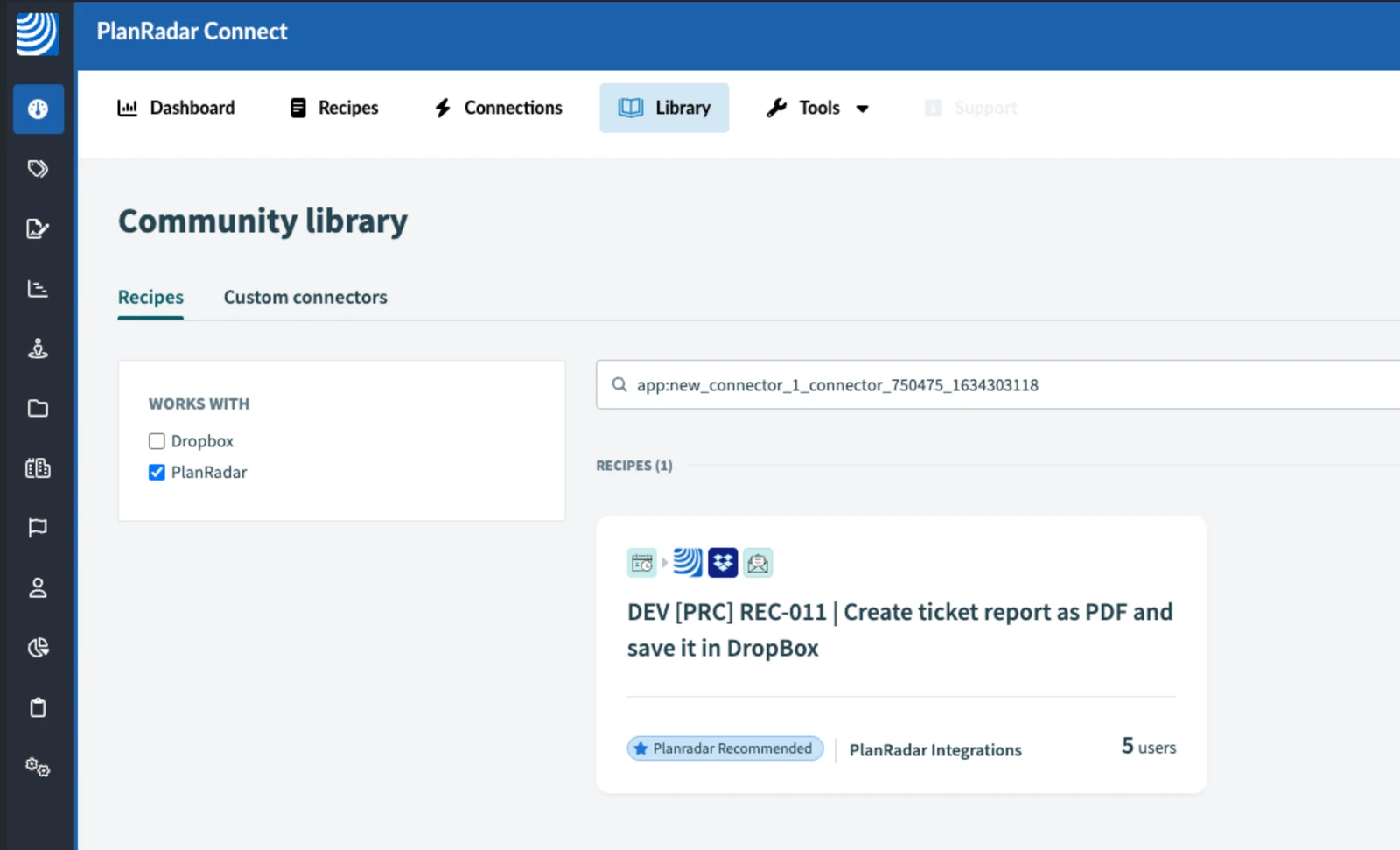
Navigate to the PlanRadar Connect Library
-
Search for 'PlanRadar'
-
Find the recipe: [PRC] LREC-003 | Schedule a ticket report export ⇒ Save it in PlanRadar Documents
-
Click Use this recipe
-
Choose the project to store the recipe
4 Configure the Recipe
-
Click Edit
-
In the Schedule trigger in Step 1, add time zone setting to select correct time zone.
-
Then select the frequency and specify time when the recipe should run.
-
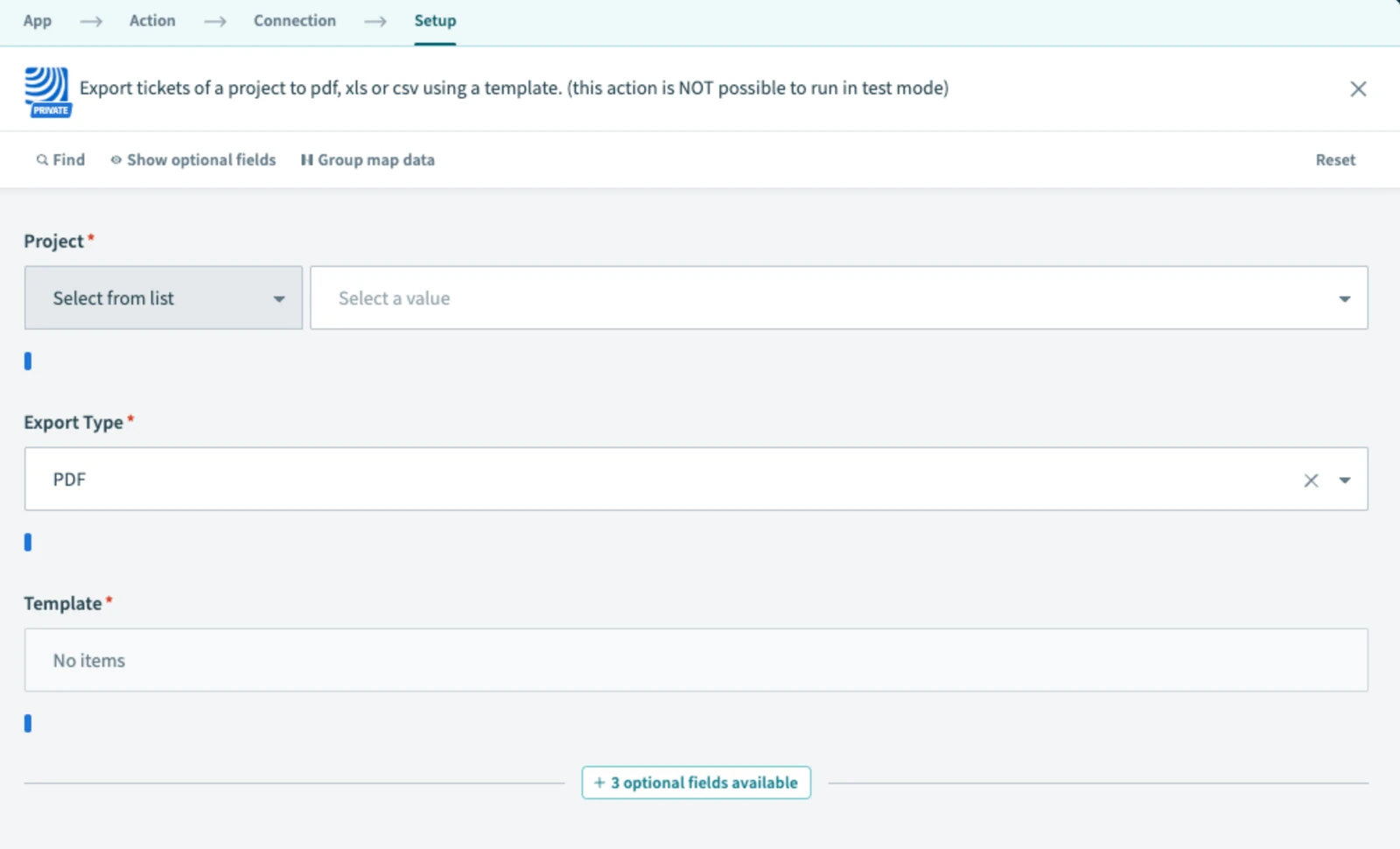
In Export tickets of a project step, select the right report template and project
-
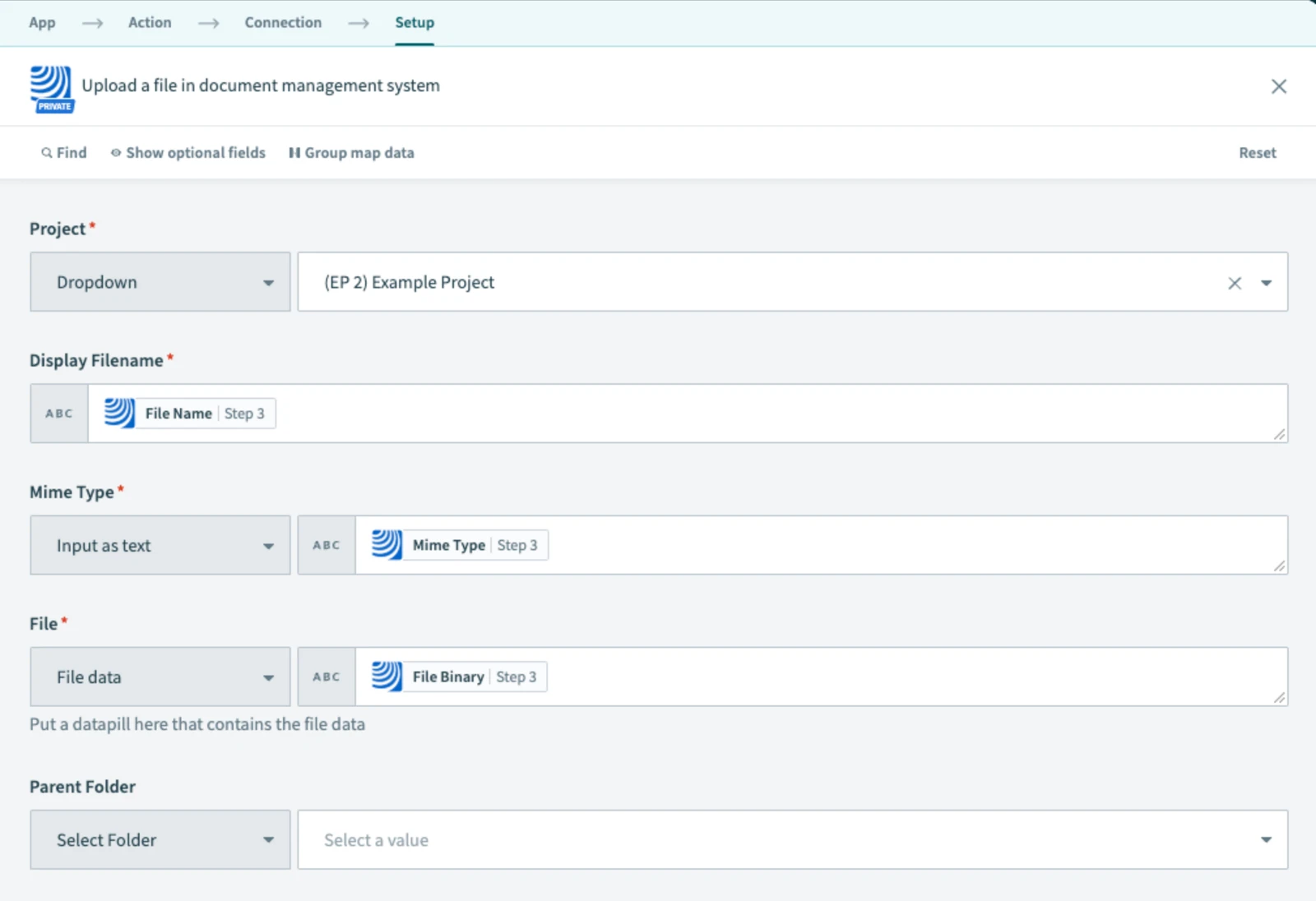
In Upload a file in document management system, select destination folder
-
In Step 6, fill in the email address which should receive the notification in case of error
-
Normally, next step would be to test your recipe in testing mode. However, the Step 3 which handles ticket exporting is a ‘long action’, this means it cannot be tested in test mode. Instead, Save the recipe and exit the editing mode.
-
Then press Start Recipe. When the recipe runs, you will see if there are any errors. To speed this up, set the Schedule step to trigger in next 5 minutes.
-
After successful testing, click Exit and then Start recipe
5 What Happens Next
The recipe triggers based on a scheduled interval (e.g., every day). It then generates the report and uploads it into the specified PlanRadar Documents folder.
In case of failure, a notification email is sent.
6 Further Exploration
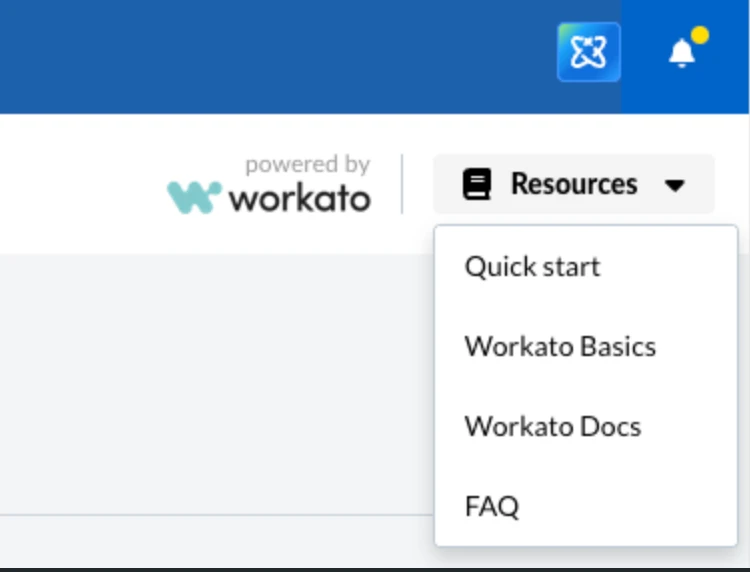
Learn about advanced report filtering and templating under the Resources tab in PlanRadar Connect.
Updated May 20, 2026