

 Deutsch
 Español
 Français
 Hrvatski
 Italiano
 Polski
 Português (BR)
[PRC] LREC-007 | Schedule ticket export as PDF => Save it in Dropbox
1 Overview
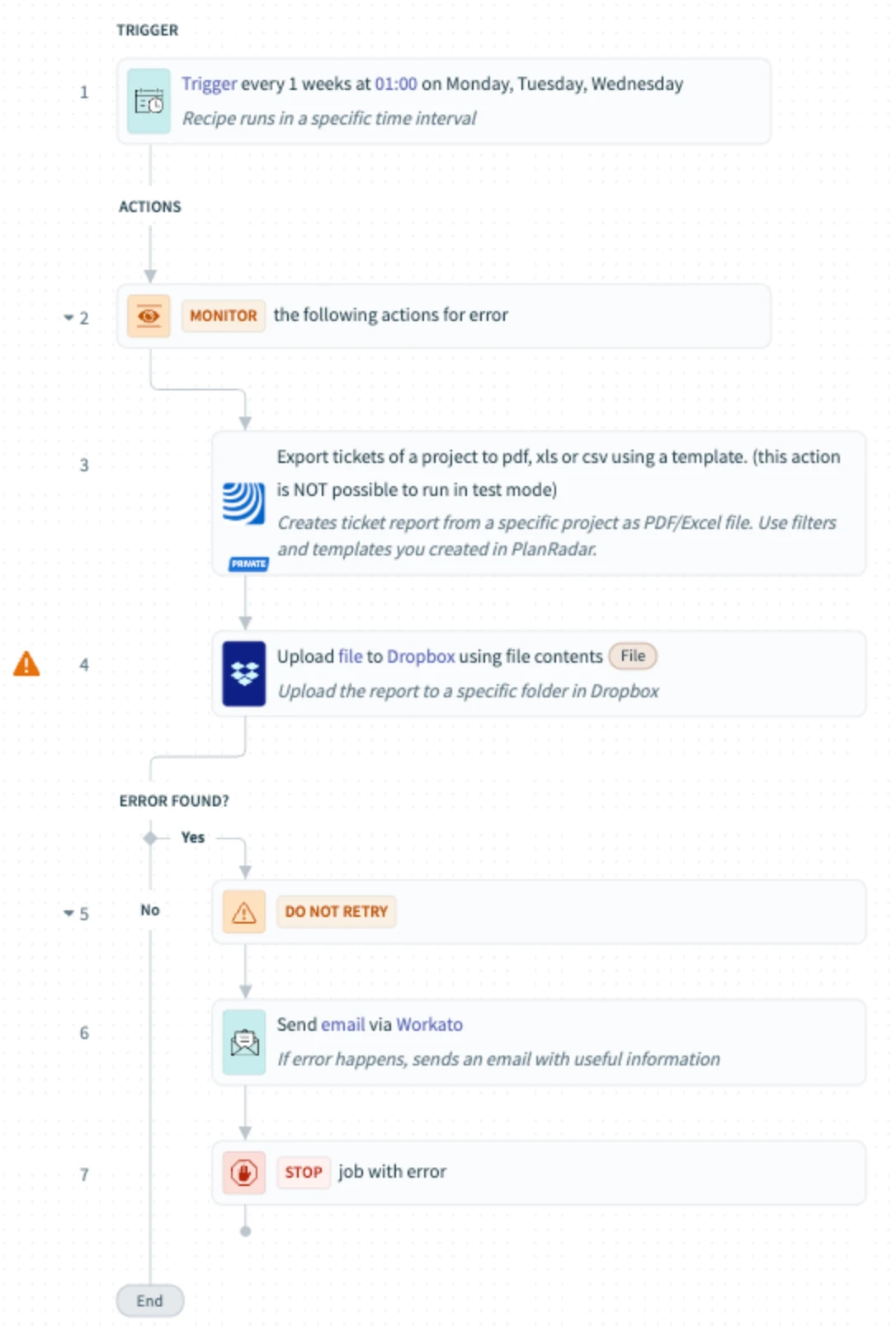
This scheduled recipe exports tickets as PDF and saves them in a Dropbox folder. It's ideal for teams using Dropbox for reporting or record keeping.
2 Access & Prerequisites
Make sure:
-
You have connected PlanRadar and Dropbox
-
Report templates are configured
-
Dropbox folder exists and is accessible
3 Use the Recipe from the Library
-
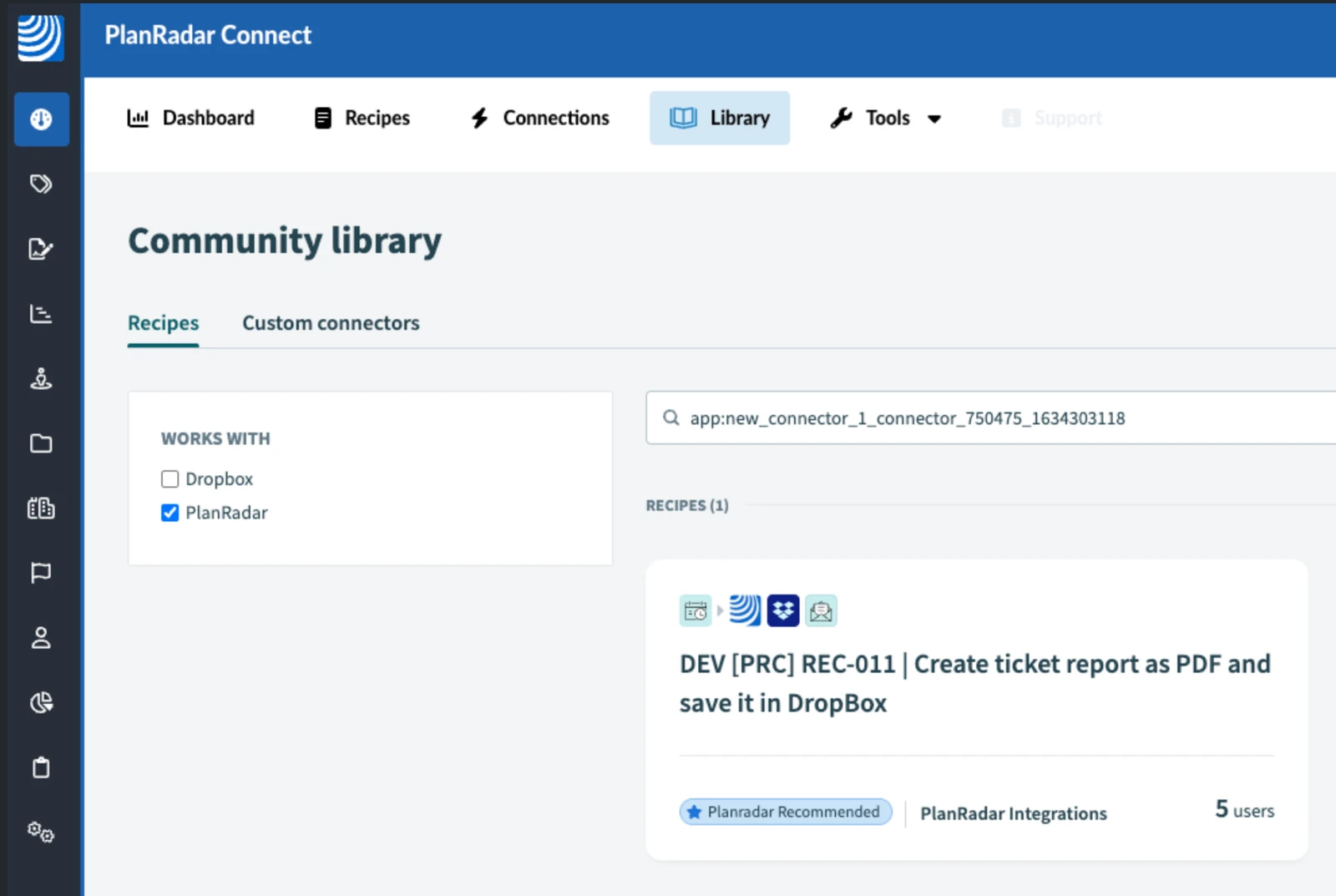
Open the Connect Library
-
Find [PRC] LREC-007 | Schedule ticket export as PDF ⇒ Save it in Dropbox
-
Use the recipe and assign to a workspace
4 Configure the Recipe
-
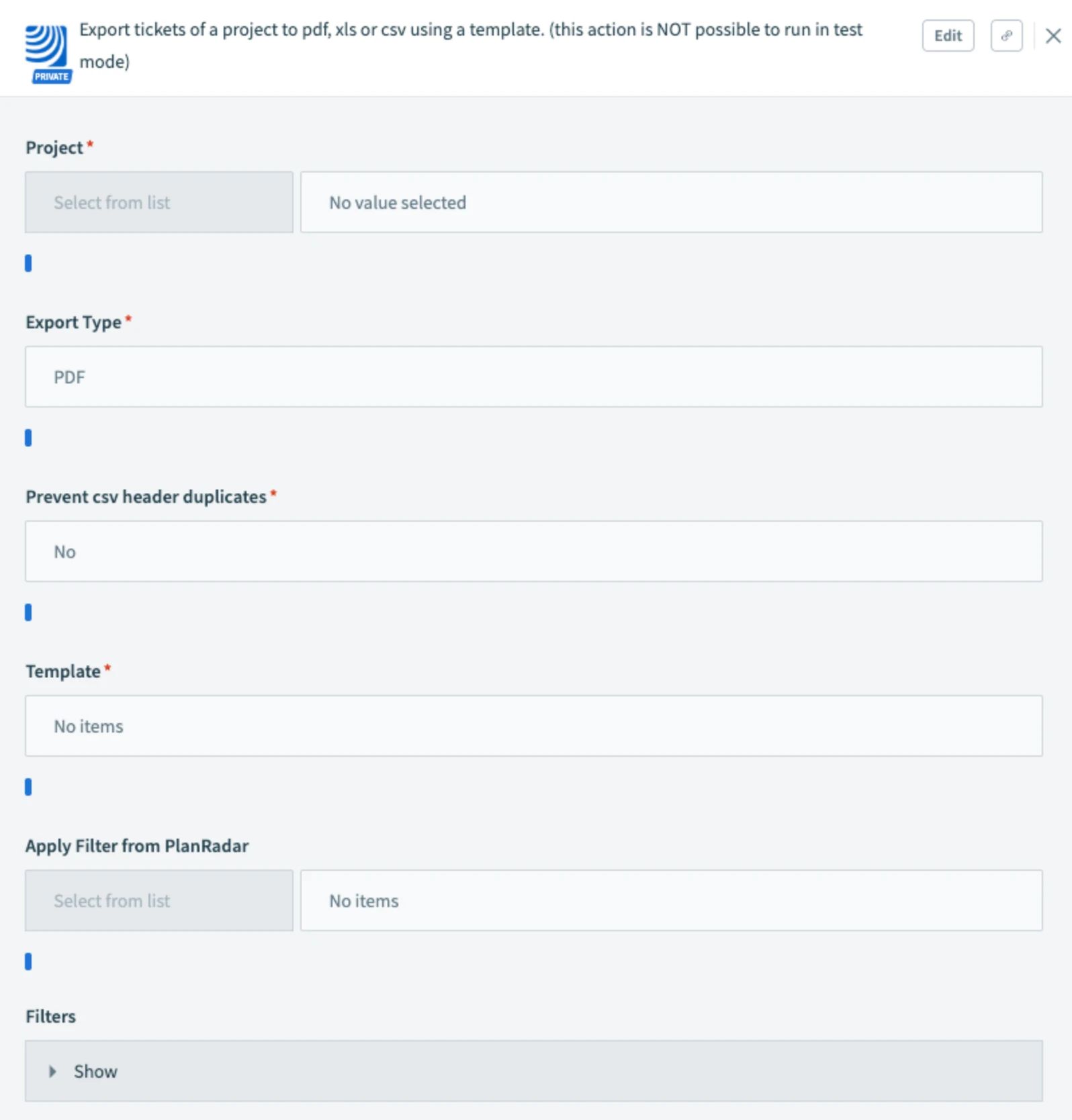
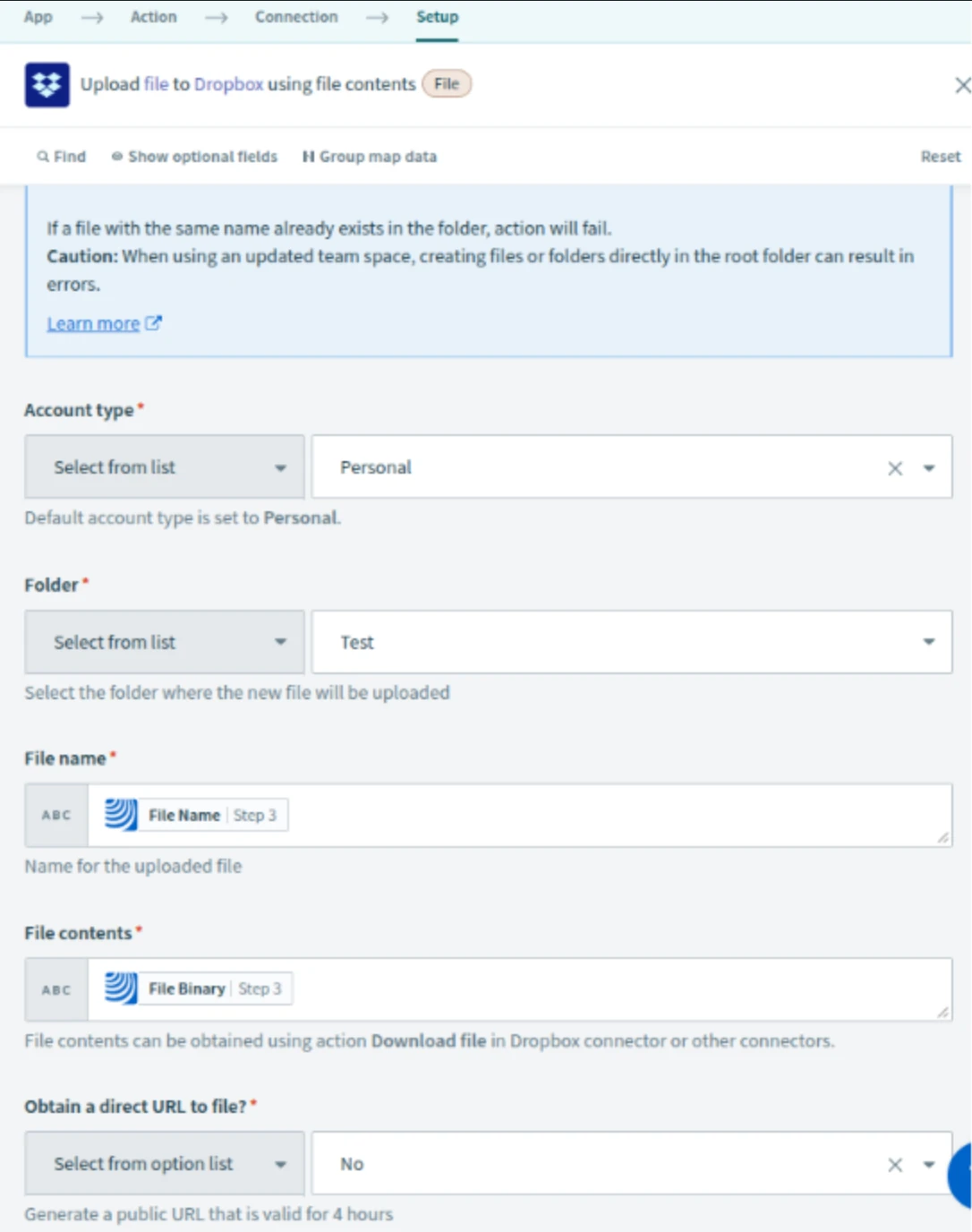
Edit the report and upload steps
-
Specify project, template, and Dropbox path
-
In step 6, fill in the email address which is supposed to receive notification in case of an error.
-
Normally, next step would be to test your recipe in testing mode. However, the Step 3 which handles ticket exporting is a ‘long action’, this means it cannot be tested in test mode. Instead, Save the recipe and exit the editing mode.
-
Then press Start Recipe. When the recipe runs, you will see if there are any errors. To speed this up, set the Schedule step to trigger in next 5 minutes.
-
Finish with Start recipe again to keep it running
5 What Happens Next
Each scheduled run creates and uploads a PDF report to Dropbox.
6 Further Exploration
Explore Dropbox workflows in PlanRadar Connect resources.
Updated May 12, 2026