

 Deutsch
 Español
 Français
 Hrvatski
 Italiano
 Polski
 Português (BR)
[PRC] LREC-011 | Ticket created => Create a subticket
1 Overview
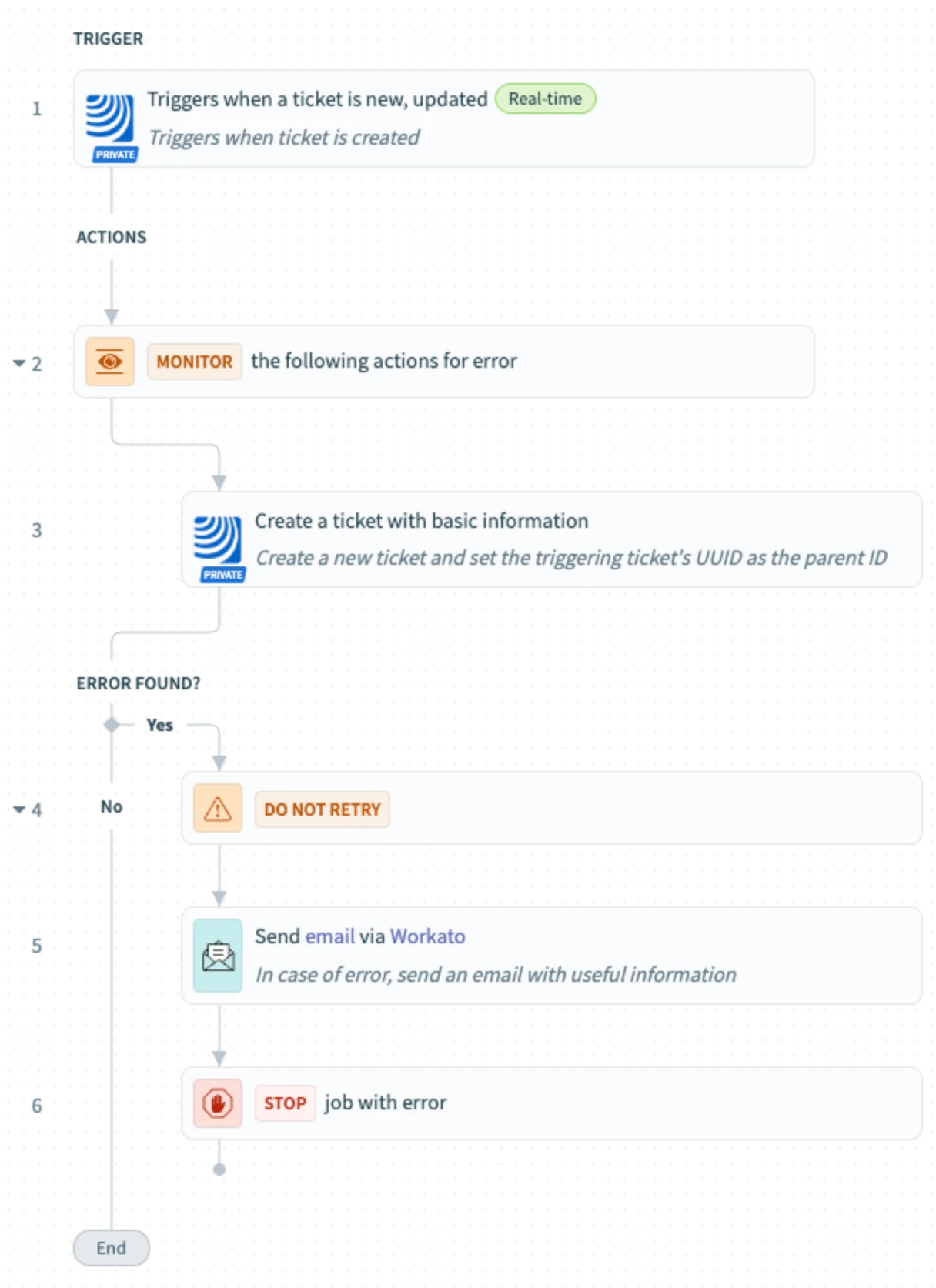
This recipe automatically creates a sub-ticket each time a new ticket is created in PlanRadar. It’s ideal when a follow-up action is always required and should be tracked as a separate but related task.
2 Access & Prerequisites
Before using this recipe, ensure:
-
The PlanRadar connector is authorised
-
The integration user has access to the project(s) where sub-tickets will be created
-
You understand the parent-child relationship between tickets
3 Use the Recipe from the Library
-
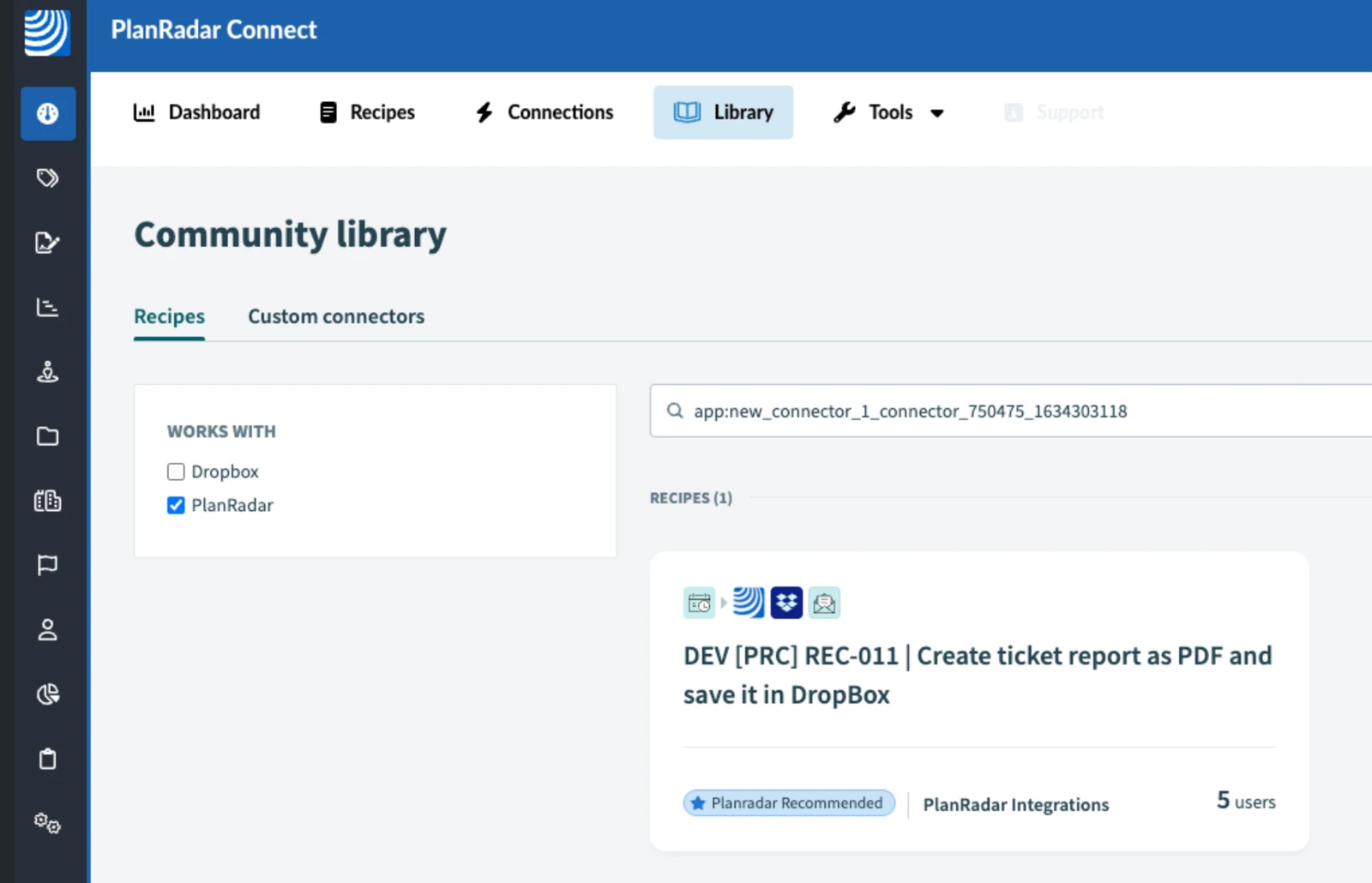
Go to the PlanRadar Connect Library
-
Search for 'PlanRadar'
-
Select: [PRC] LREC-011 | Ticket created ⇒ Create a sub-ticket
-
Click Use this recipe
-
Choose your workspace
4 Configure the Recipe
-
Click Edit
-
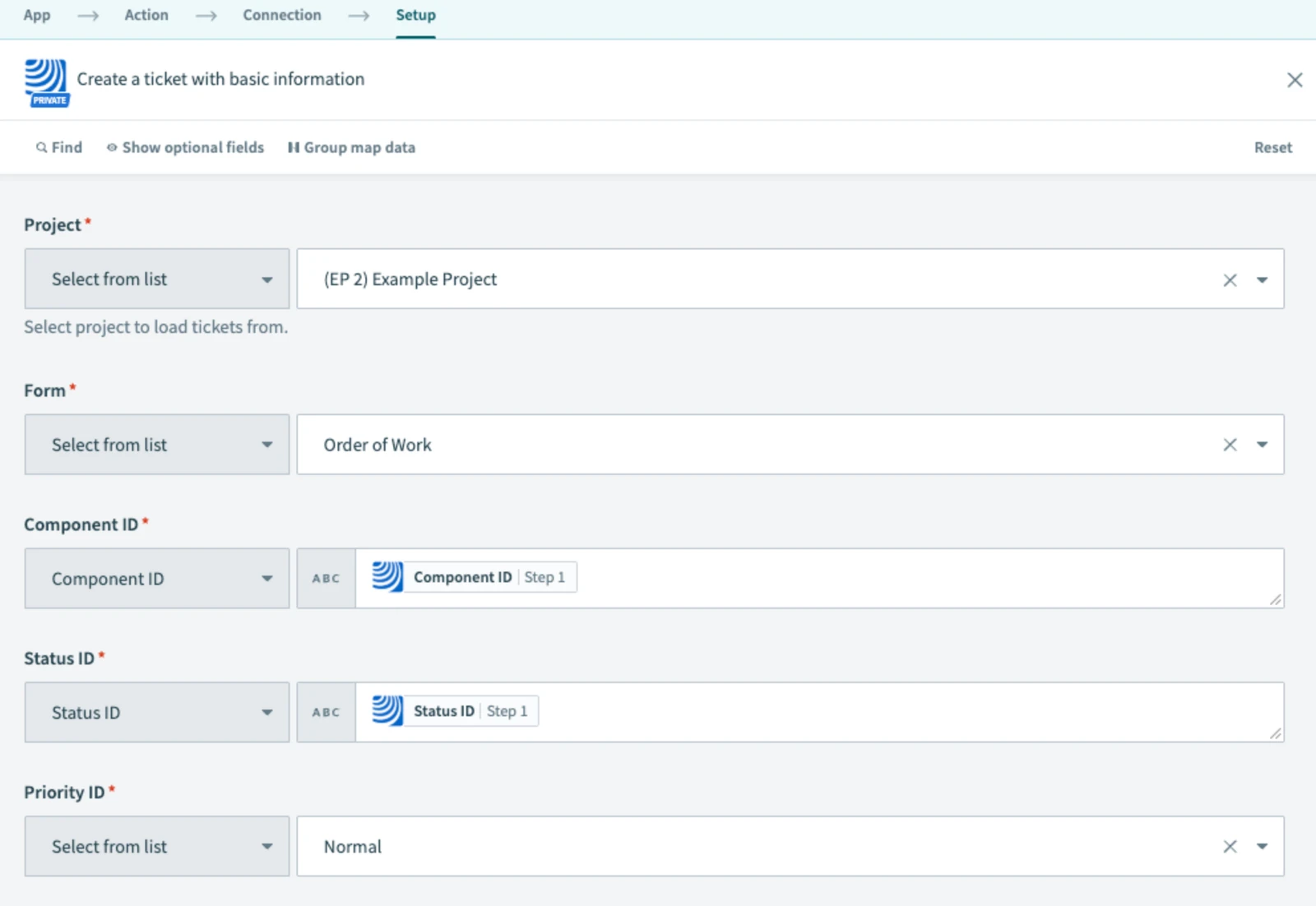
In Create a ticket with basic information, set the desired project and form
-
Make sure to map the parent ticket’s UUID in the “Parent ID” field
-
In step 5, fill in the email address to receive notifications in case of an error
-
Save the recipe, test it, then activate it

5 Filter by Project (Optional)
To restrict this recipe to a specific PlanRadar project:
-
Edit the trigger step
-
Click the filter icon
-
Enable Projects, choose the desired project
-
Save and restart the recipe
6 What Happens Next
When a new ticket is created, the recipe triggers and immediately creates a related sub-ticket with the defined settings.
7 Further Exploration
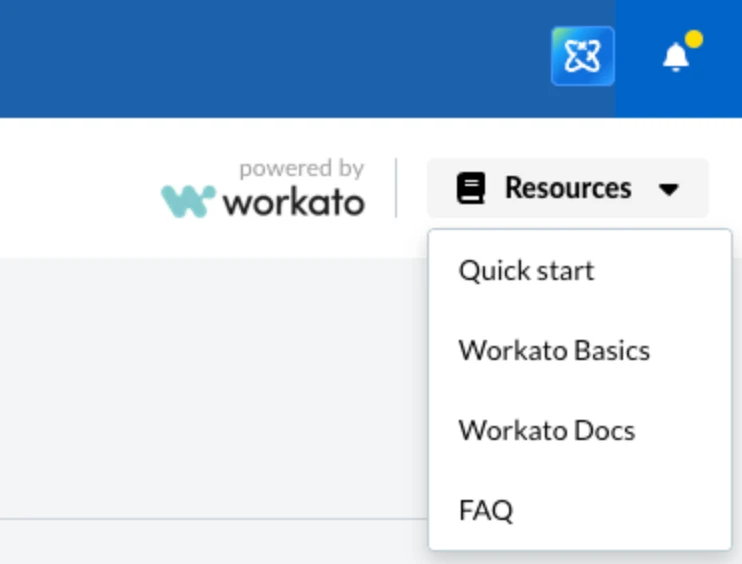
Use the Resources tab in PlanRadar Connect to learn more about ticket relationships and dynamic field mapping.
Updated May 12, 2026