

 Deutsch
 Español
 Français
 Hrvatski
 Italiano
 Polski
 Português (BR)
SiteView Quick Start Guide
Overview
Get an overview of the steps required to start using SiteView, including links to detailed instructions.
Activate the SiteView feature
SiteView is available for Starter, Pro and Enterprise accounts. Read more in Pricing and Subscription.
The feature only becomes available after you Activate SiteView in the Webapp.
Grant Permissions for Users
Once the feature is enabled for your PlanRadar account, you will need to give SiteView role permissions to the users you want to allow to use the feature. By default only the account owner has access.
Read more in Permissions.
Subcontractors and watchers can see all runs of their projects. Subcontractors can only see tickets that are assigned to them or if they are set as receivers.
Read more in User Types.
To prepare your plans for SiteView, you need an in-house user with the user permission 'Projects.
Purchase the Necessary Hardware
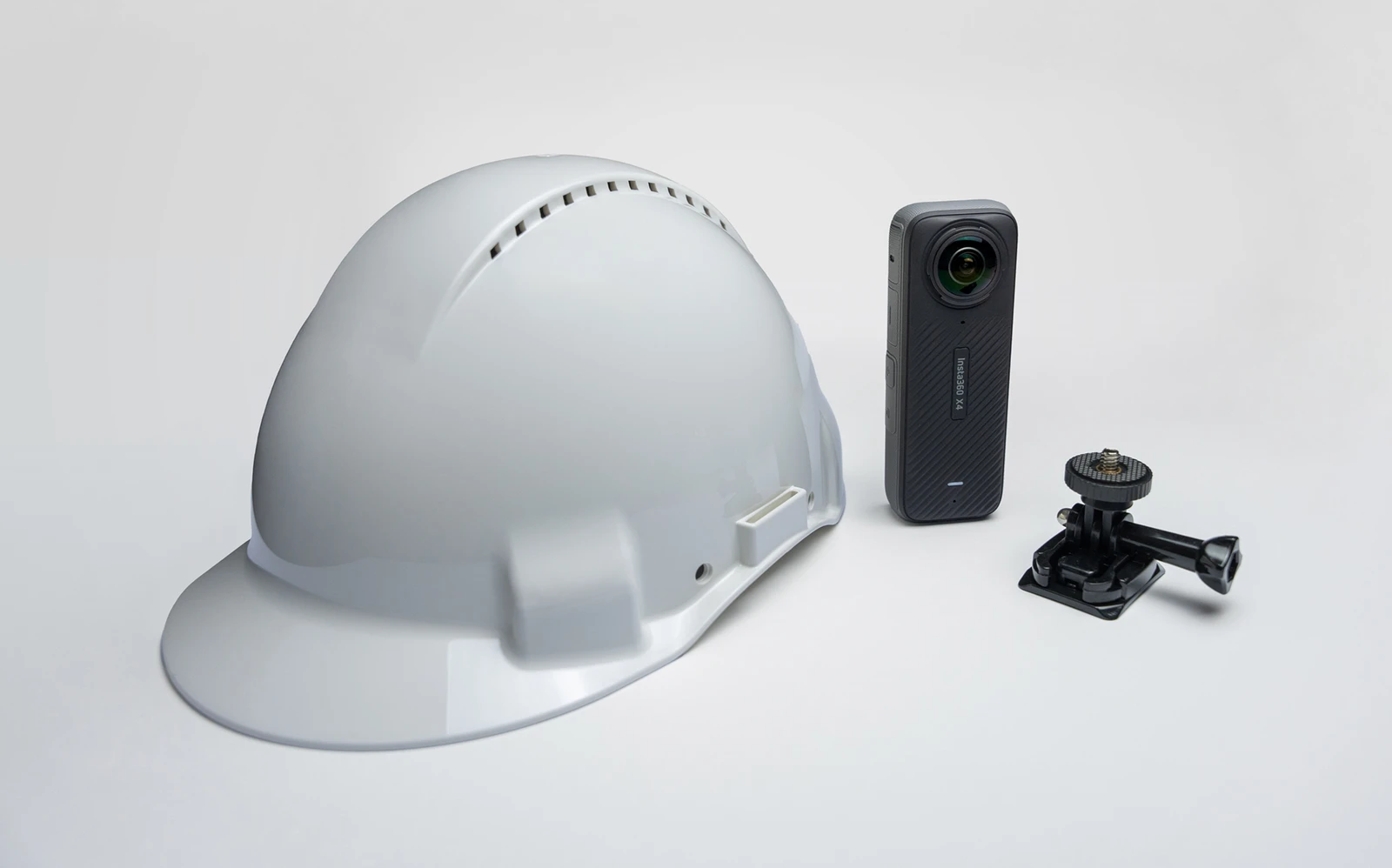
You need the following hardware:
- Insta360 X4 camera or X5
- Micro SD card
- Helmet & Camera mount
- Lamps on the helmet (only necessary in low light conditions)
Prepare your Plans
- Use architectural plans.
It is important that structural elements like walls are the most prominent elements. - Calibrate the scale for indoor runs
- Calibrate the scale and the north arrow for outdoor runs
Create a Run
Use the PlanRadar mobile app to control your X4/X5 camera to record runs and to transfer them to your device (smartphone or tablet) for uploading them to the PlanRadar servers for processing.
-
Checklist: Before the recording
- Choose a good starting position in dense structural areas.
- Prepare location, lighting and check your hardware.
-
Checklist: During the recording
-
Recording duration 1-5 minutes
-
Keep a moderate and steady walking pace.
-
Don't stand still for too long.
-
Your path should cover the entire room.
-
Keep your head steady and straight.
-
Don't change floors.
-
Don't close the app or answer calls.
-
-
- Use Bluetooth to automatically set up the Wi-Fi connection between your camera and device
- OR connect your device manually to the camera's Wi-Fi
-
- Set the starting position
- Record one or more runs
- Transfer to your device
- Upload to PlanRadar servers

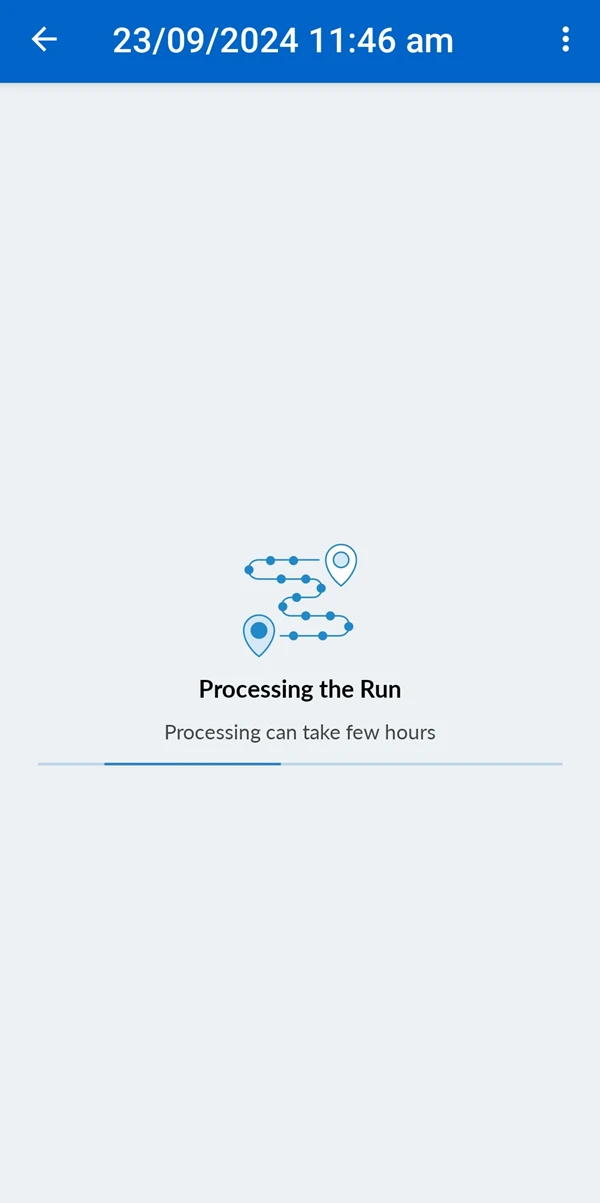
Wait for Processing
Mapping the 360° images onto the 2D plan can take several hours. 5 minutes of video takes about 2 hours to process. You will be notified per email when the processing is done.
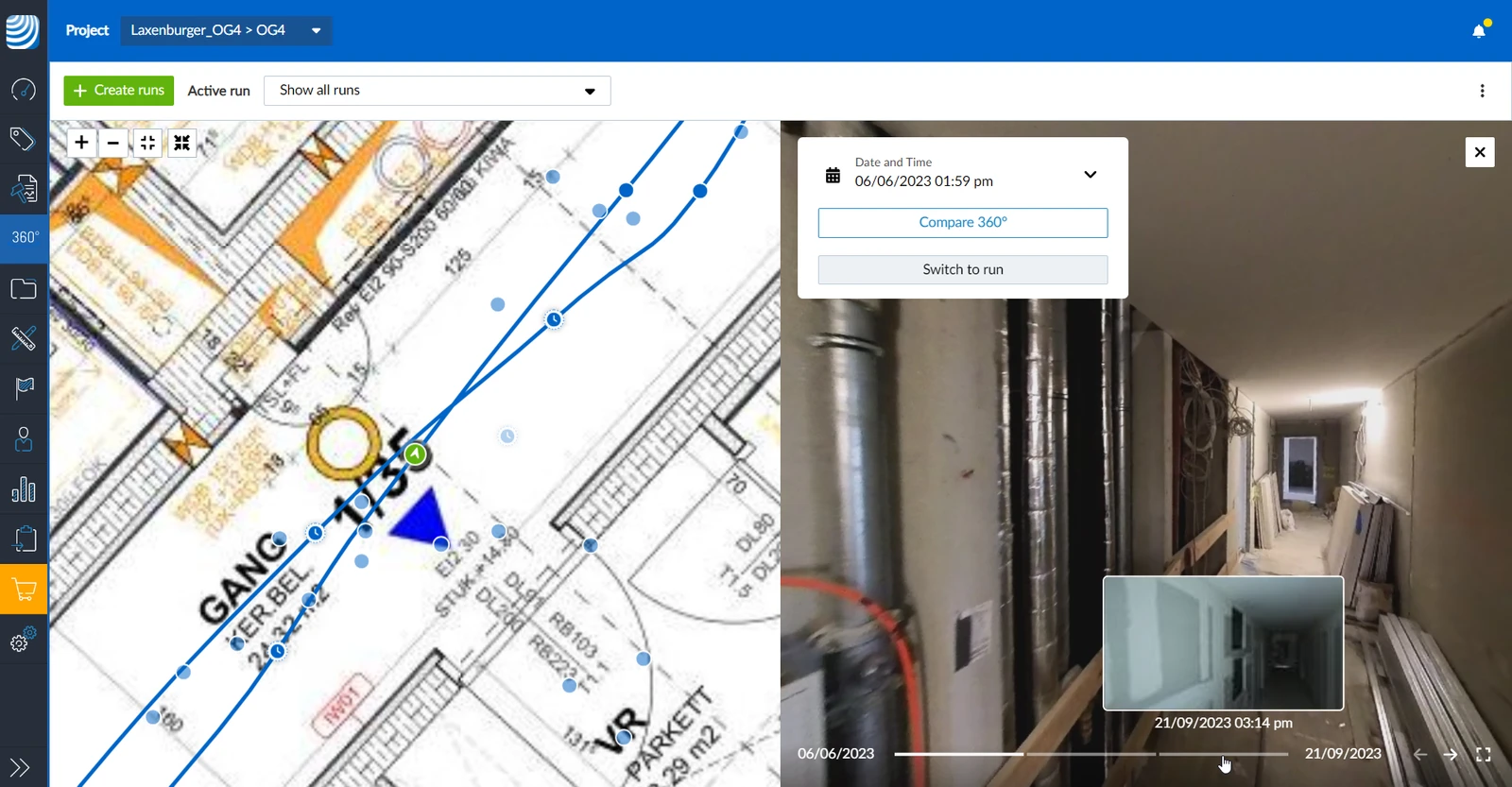
View and Navigate your Runs
After processing, you can navigate and view all 360° images. If you have multiple runs from the same location, you can compare different points in time.
Updated June 24, 2026