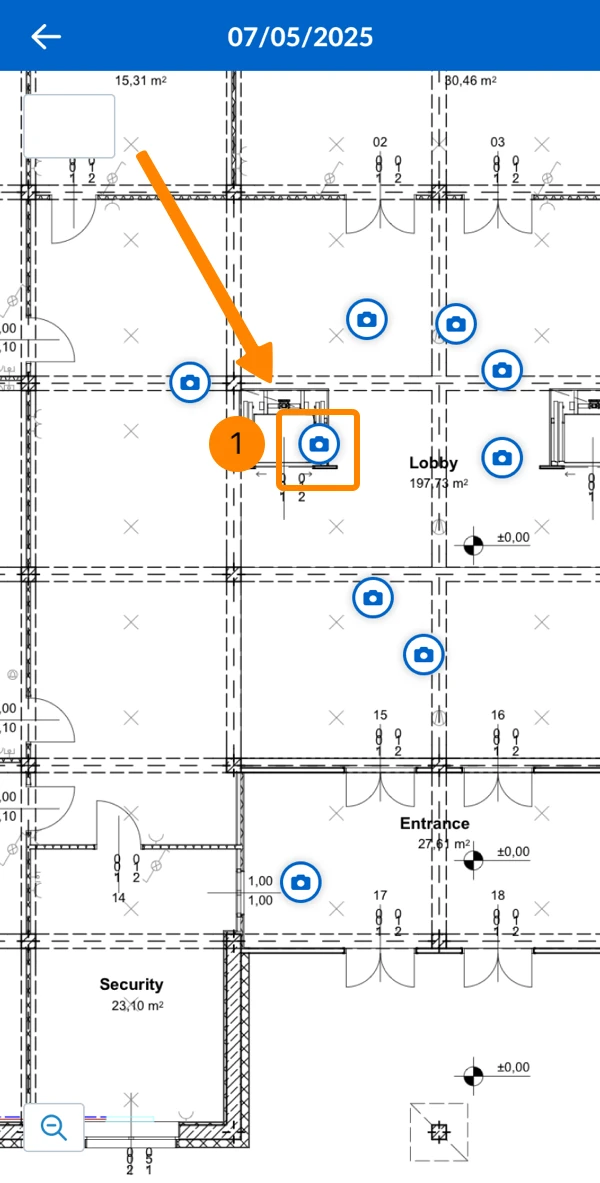
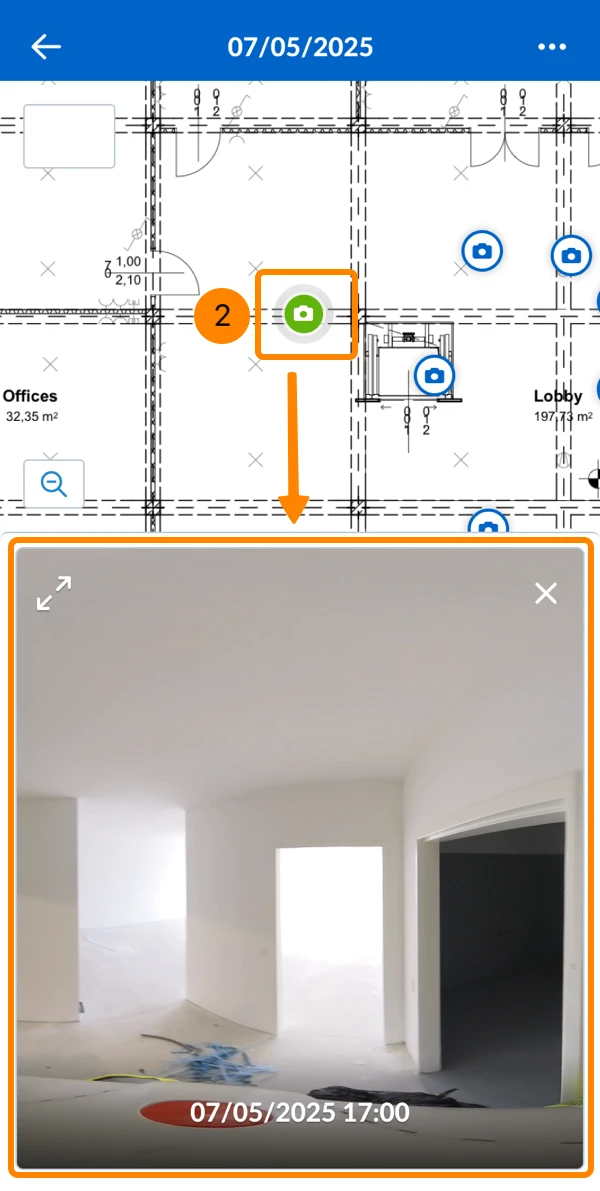
SiteView high-resolution 360° still images are photos you take and place on the plan manually — they are not extracted from a video recording of a run. (See also Create a Run with the PlanRadar Mobile App).
Still images deliver the highest quality: 72MP resolution, no motion blur, and sharp detail even in challenging lighting conditions.
This article explains how to take still images using a smartphone connected to an Insta360 X4 or X5 camera (the process is the same for tablets).
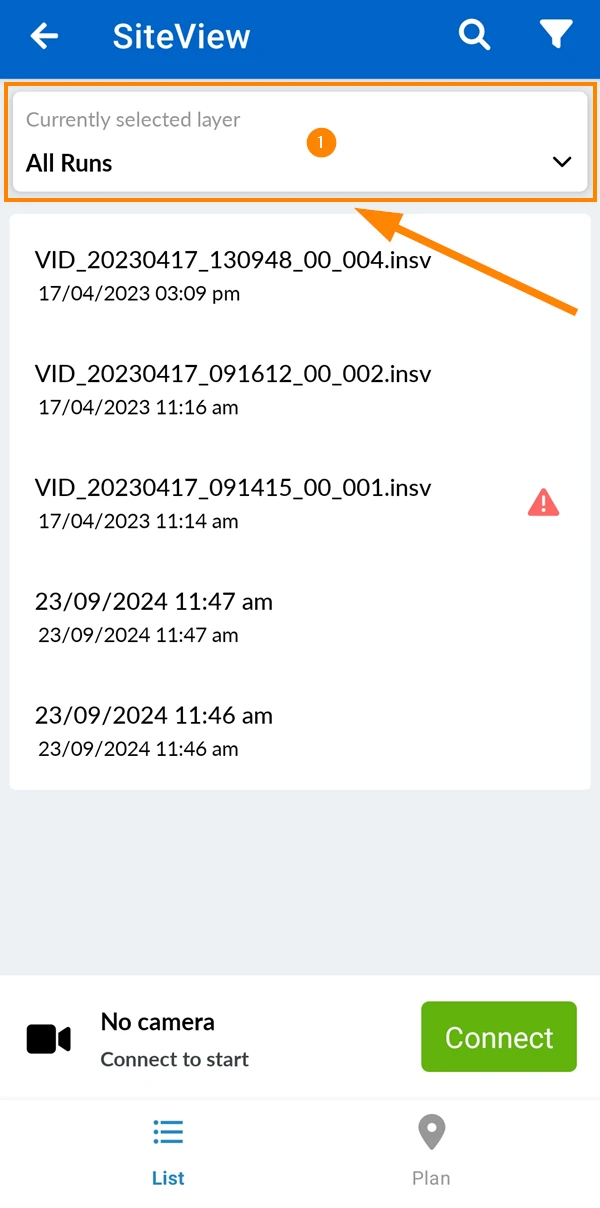
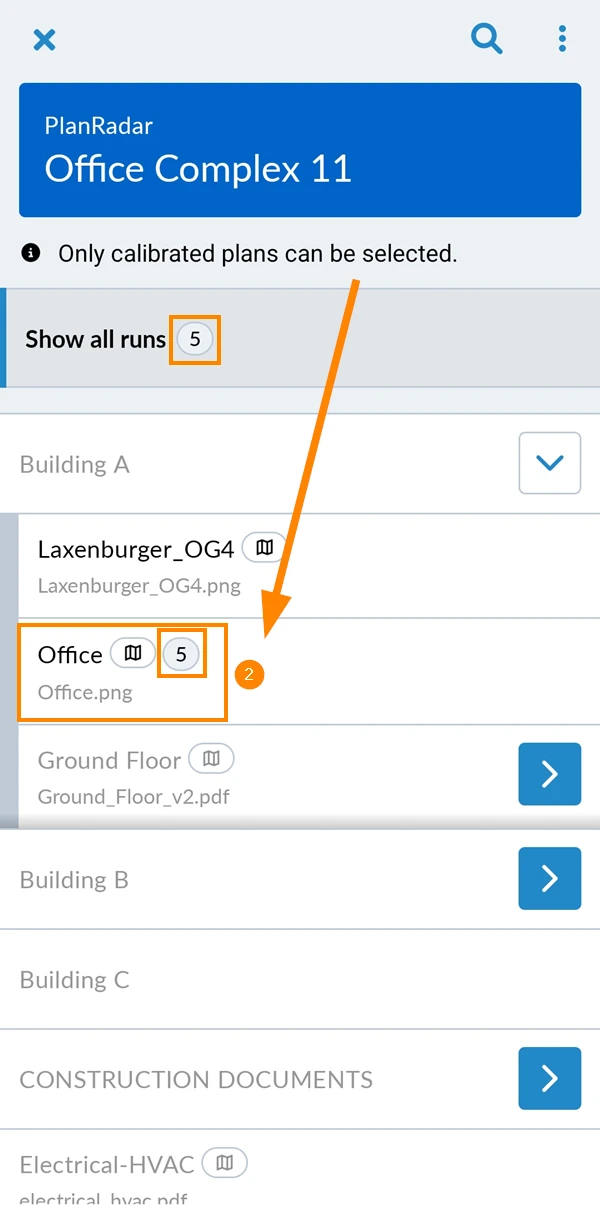
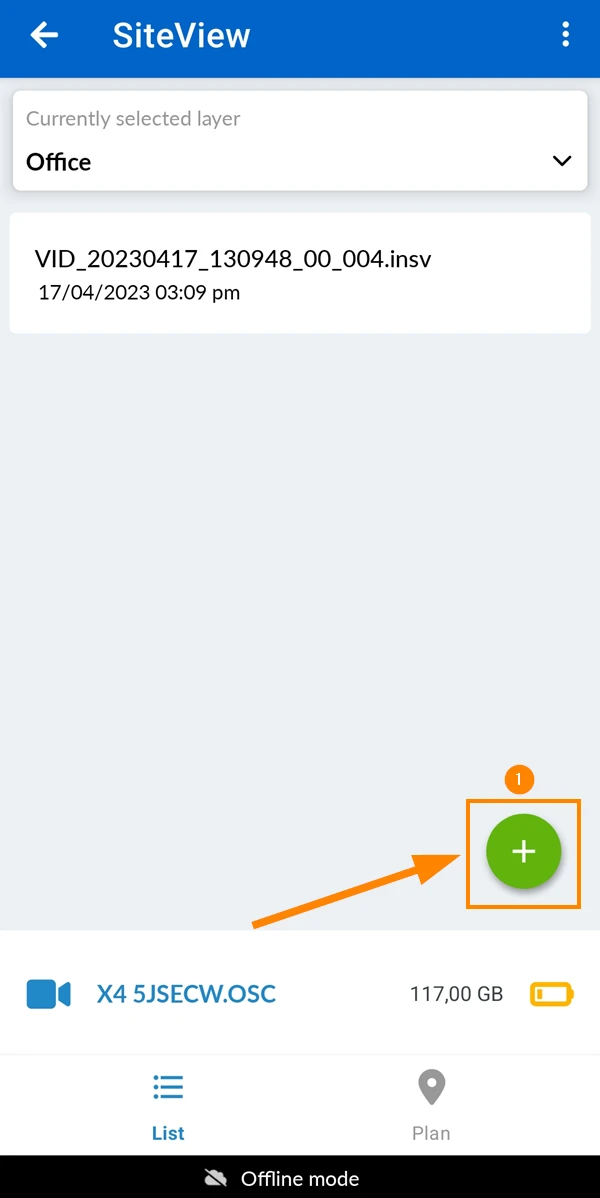
Tap the layer e.g. Office.
See the number of runs on that layer e.g. 5.
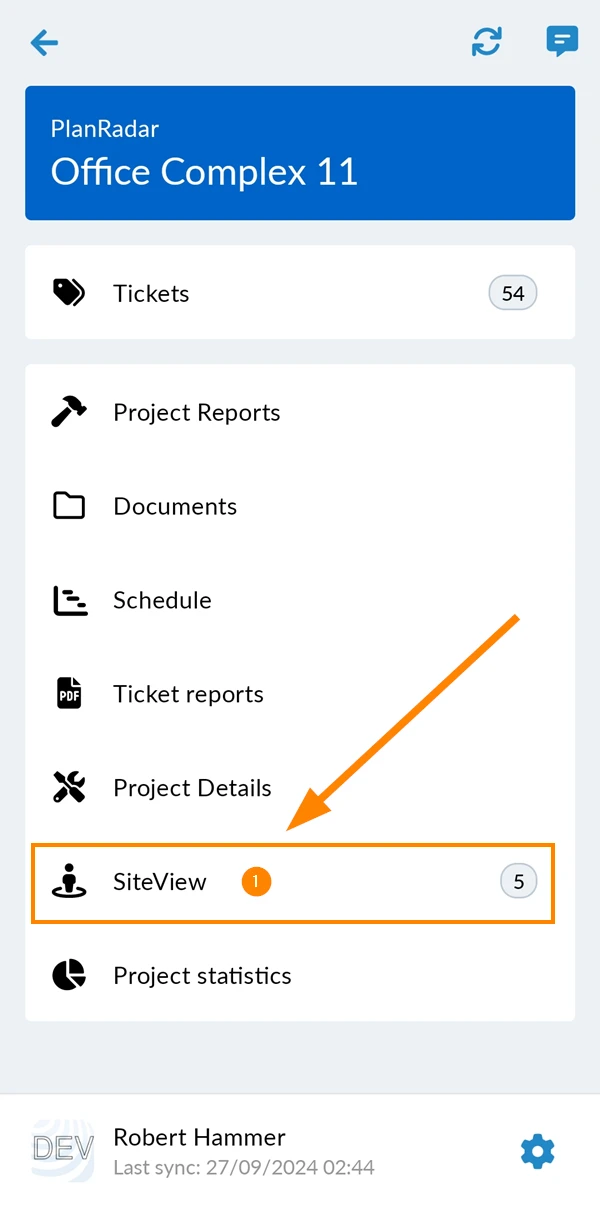
To start taking a still image:
Tap the + button
2. Set the Plan Position
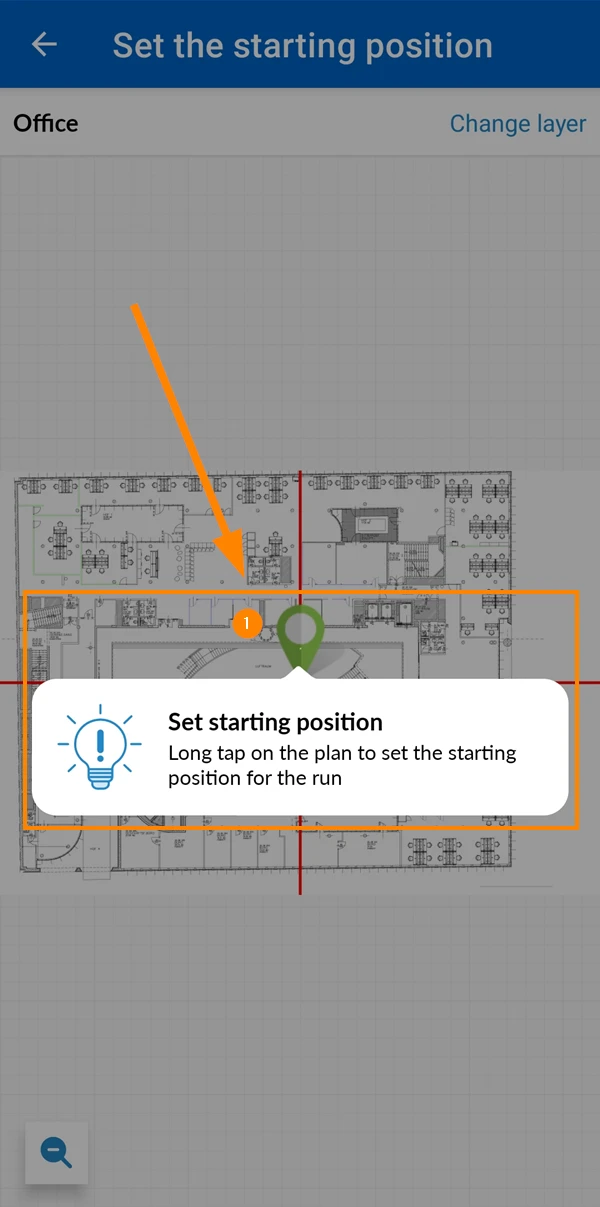
Set the plan position the same way as the starting position of a run. Unlike runs, still images require no processing, so you can change the position later without any waiting time.
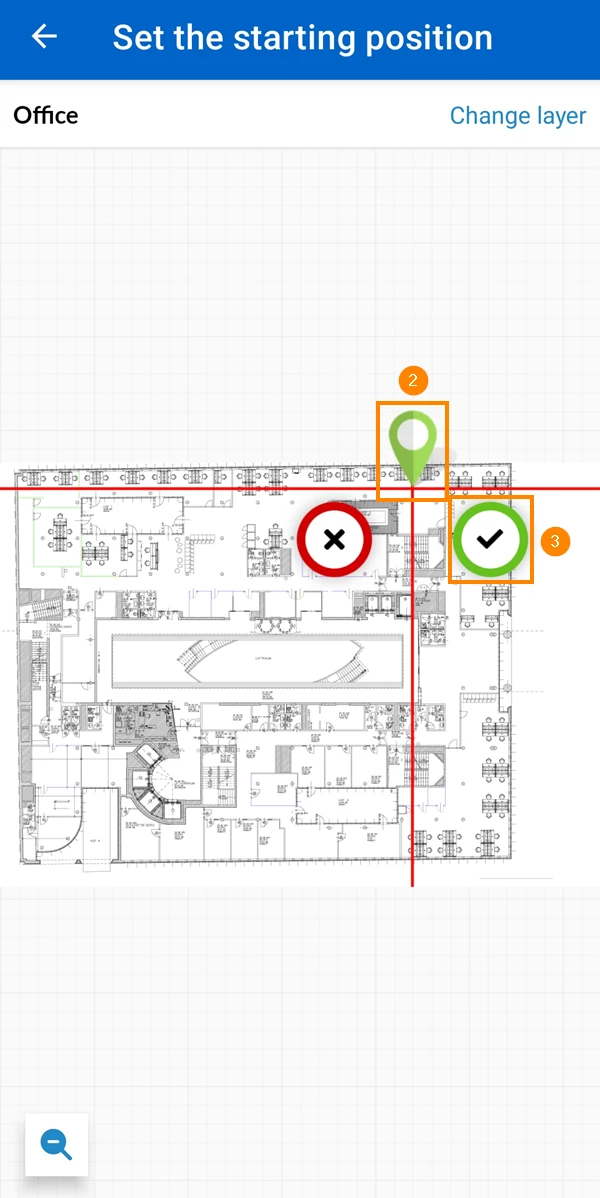
To set the starting position:
Tap to confirm the explanation
Drag and drop the pin for the starting position
Tap ✔ to confirm
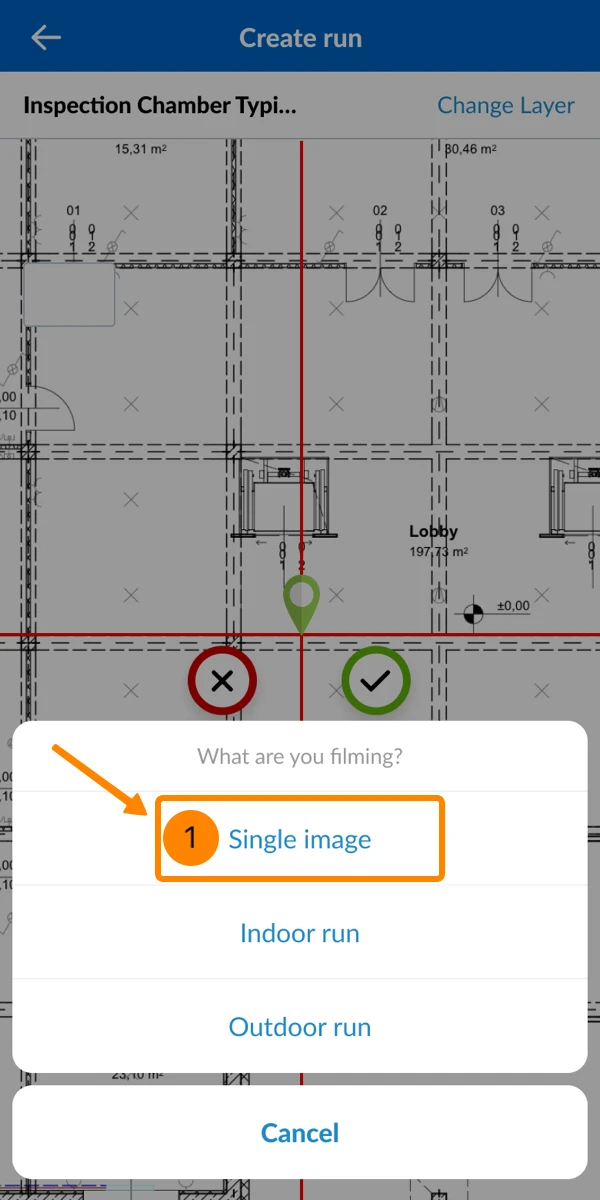
3. What are you capturing?
To take a single still image instead of recording a run:
Tap Single image
4. Take the Image
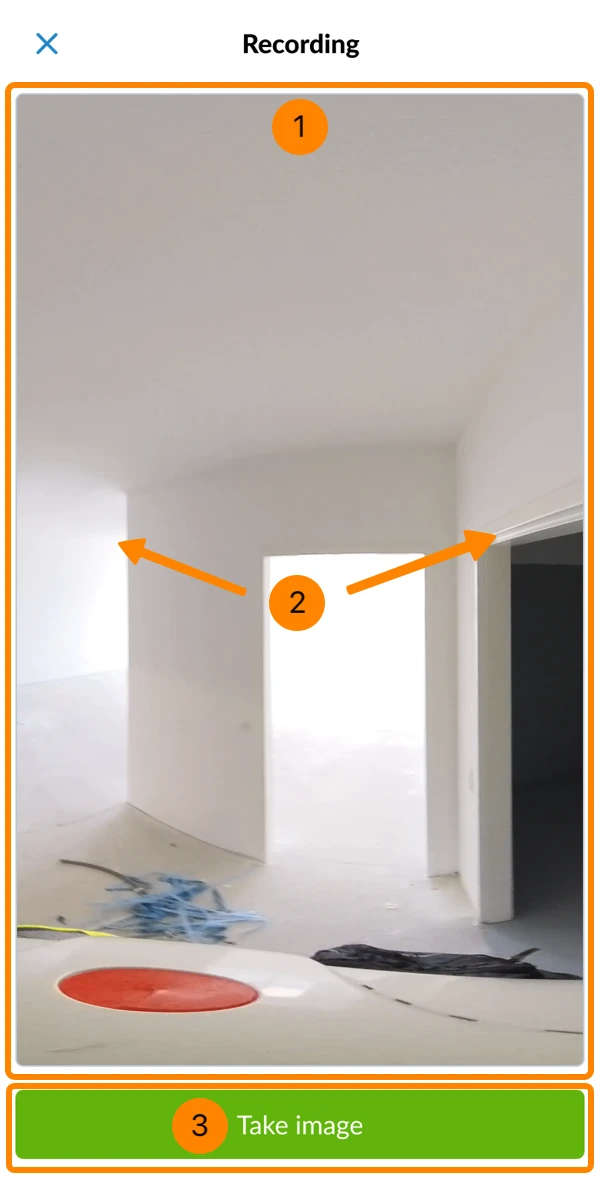
The live stream from the camera appears on your phone.
Drag to adjust the view and preview all angles of the 360° still image.
Tap Take image
5. Saving and Uploading the Image
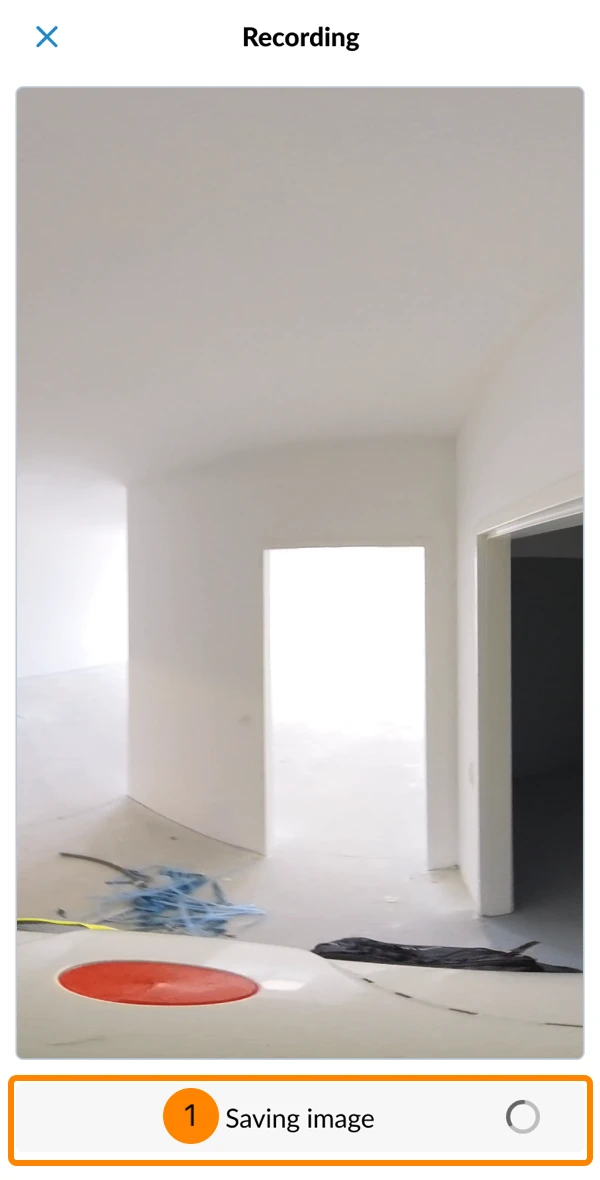
After you take the image, it is automatically transferred to your phone and saved in the PlanRadar app’s local storage.
You see Saving image and a loading icon until complete.
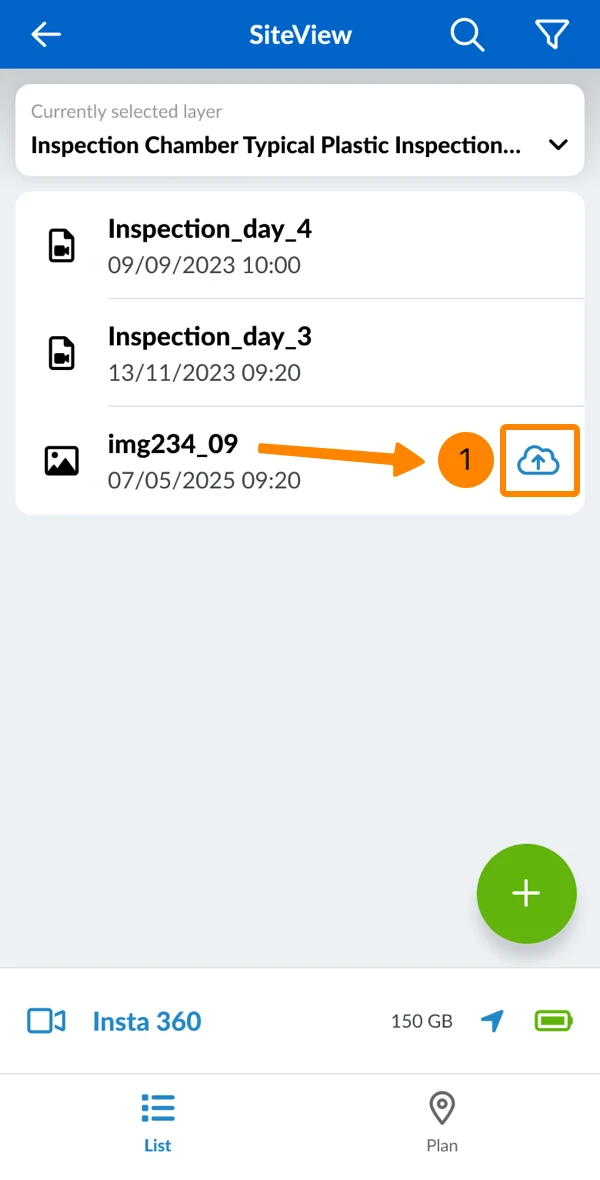
When your phone is connected to the internet (and not to the camera), images are uploaded automatically to the PlanRadar server.
A cloud icon appears next to images that are not yet uploaded.
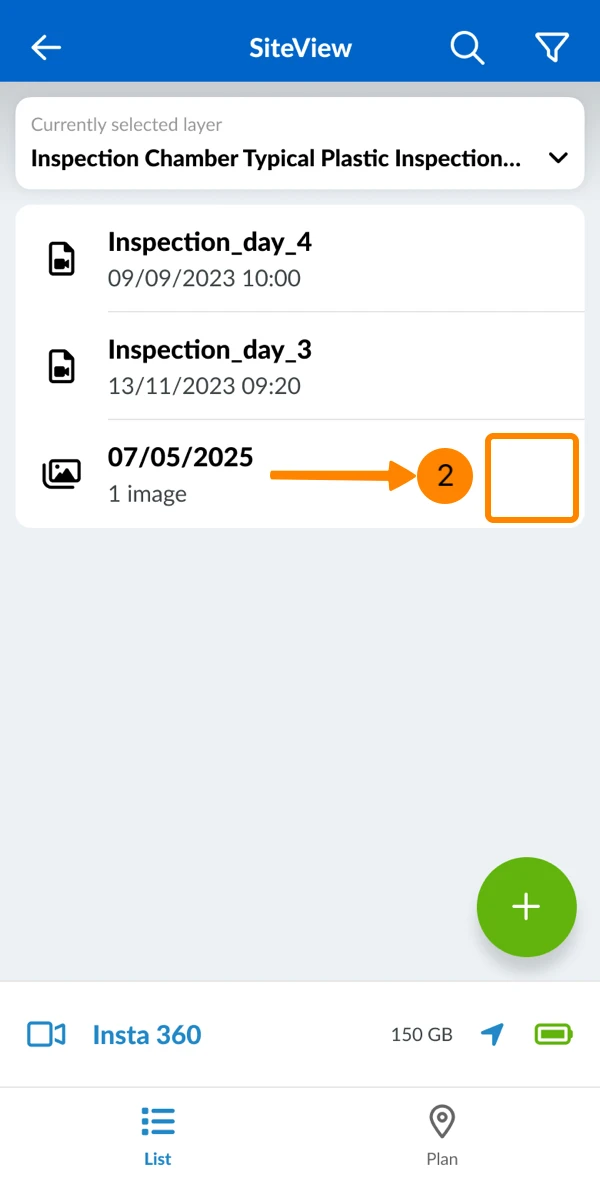
Once uploaded, the cloud icon disappears.
View Still Images
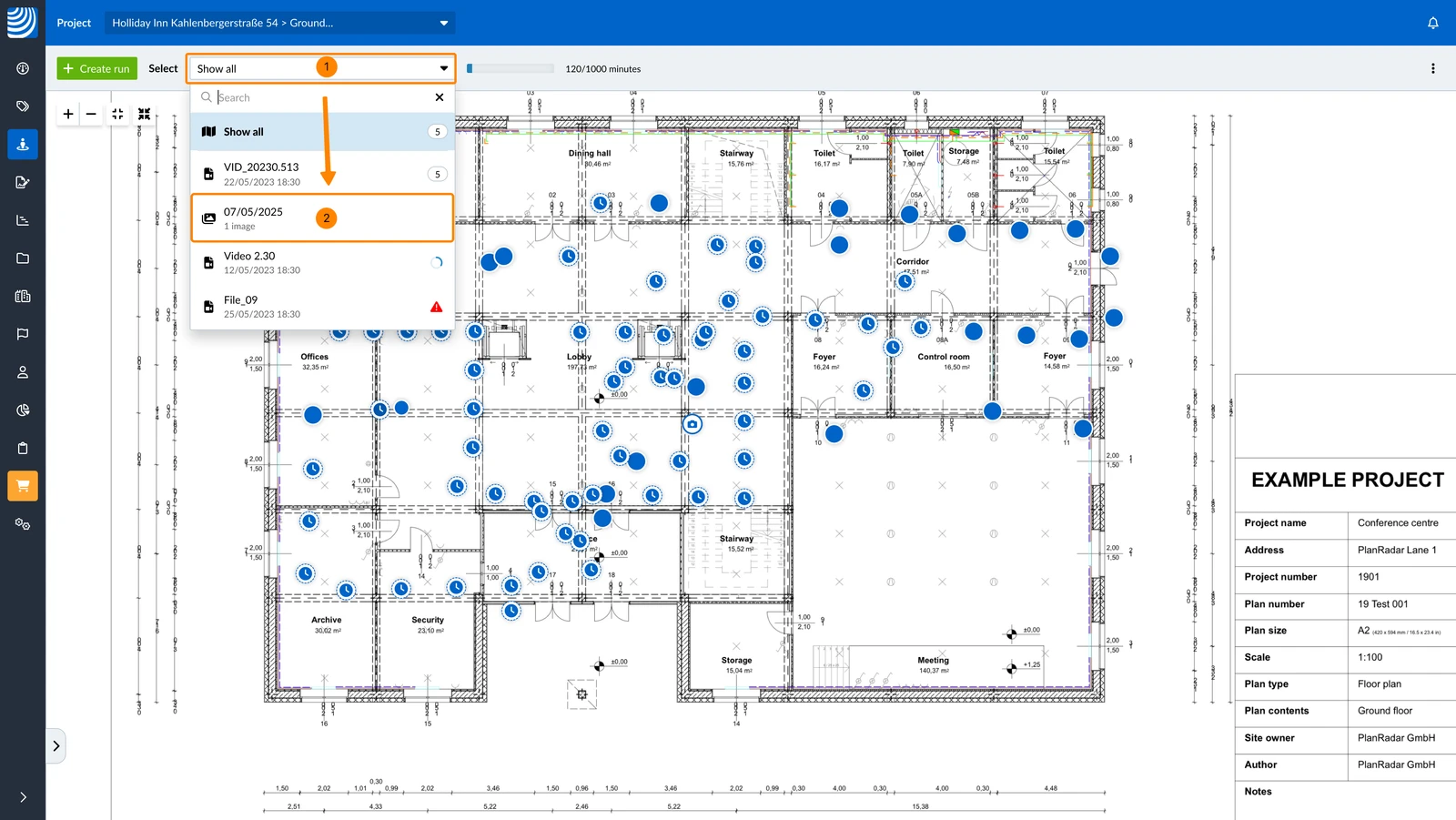
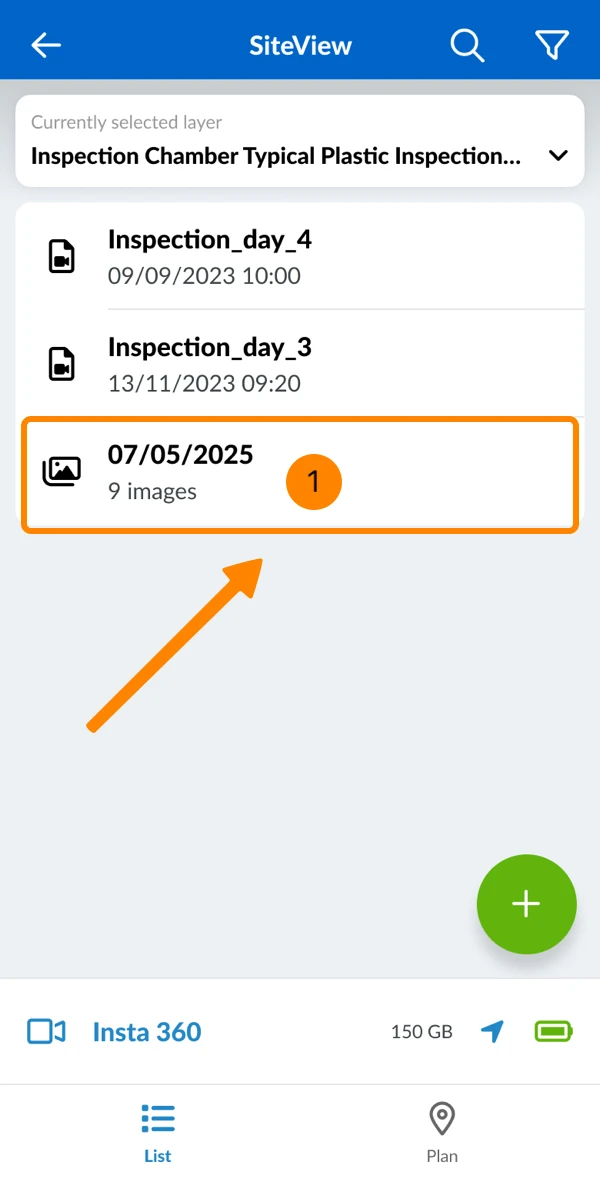
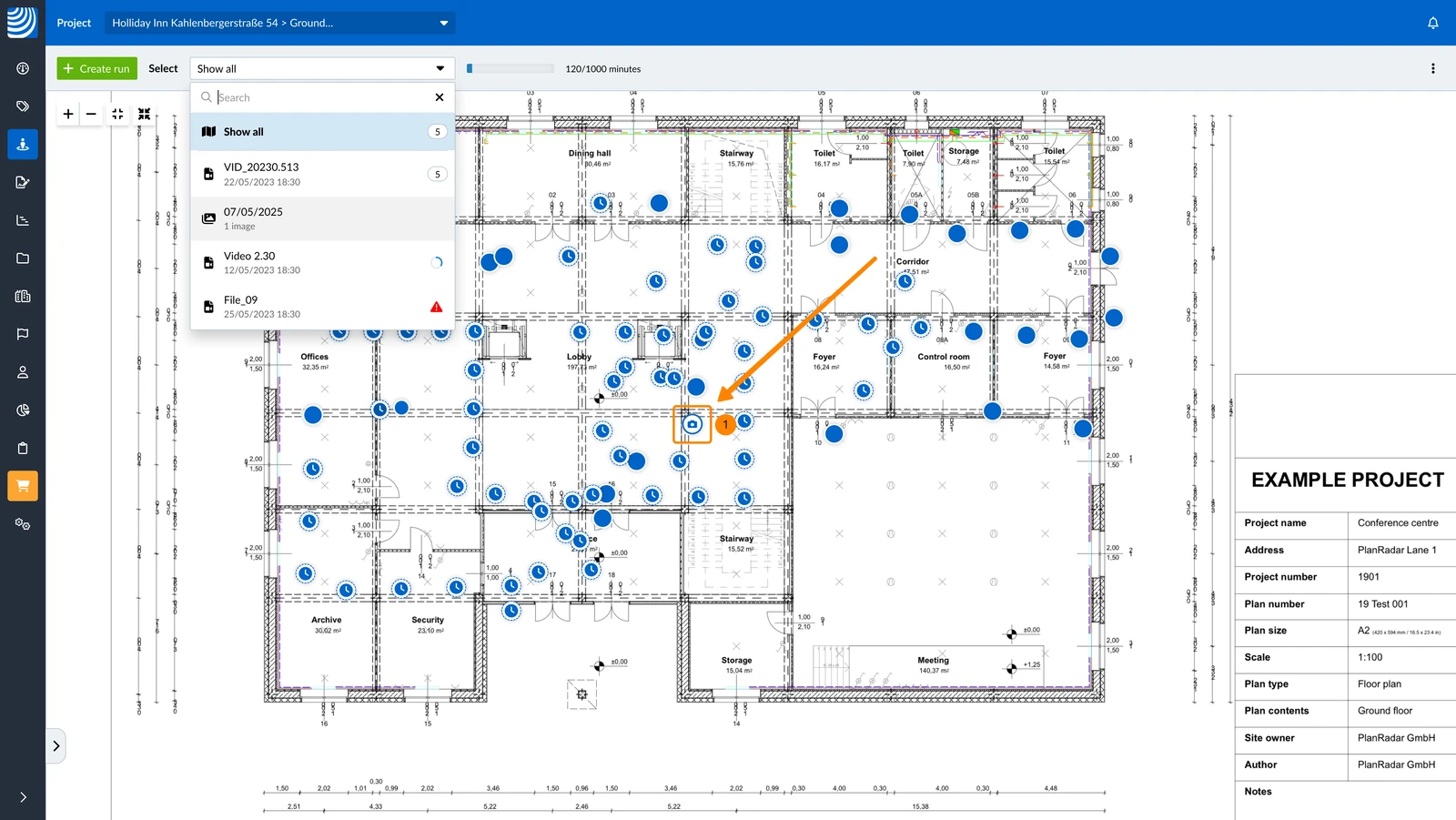
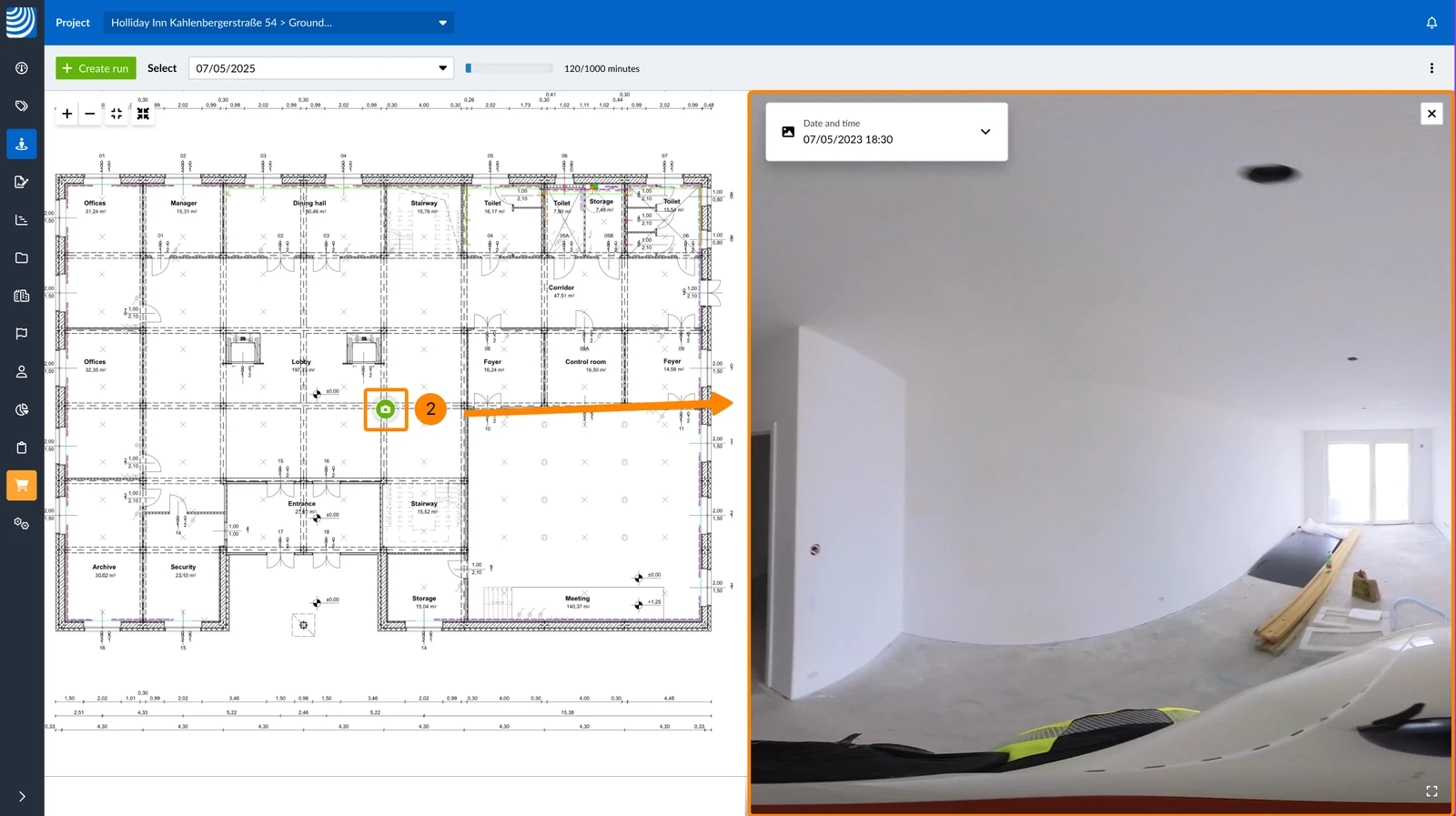
Still images are automatically grouped by day. Groups appear alongside runs in the list and are marked with a different icon.


 Deutsch
 Español
 Français
 Hrvatski
 Italiano
 Polski
 Português (BR)