

 Deutsch
 Español
 Français
 Hrvatski
 Italiano
 Polski
 Português (BR)
View Tickets of a Layer in the Mobile App
Overview
View all tickets of a layer in the tickets plan view or list view in the mobile app.
Layer Selection
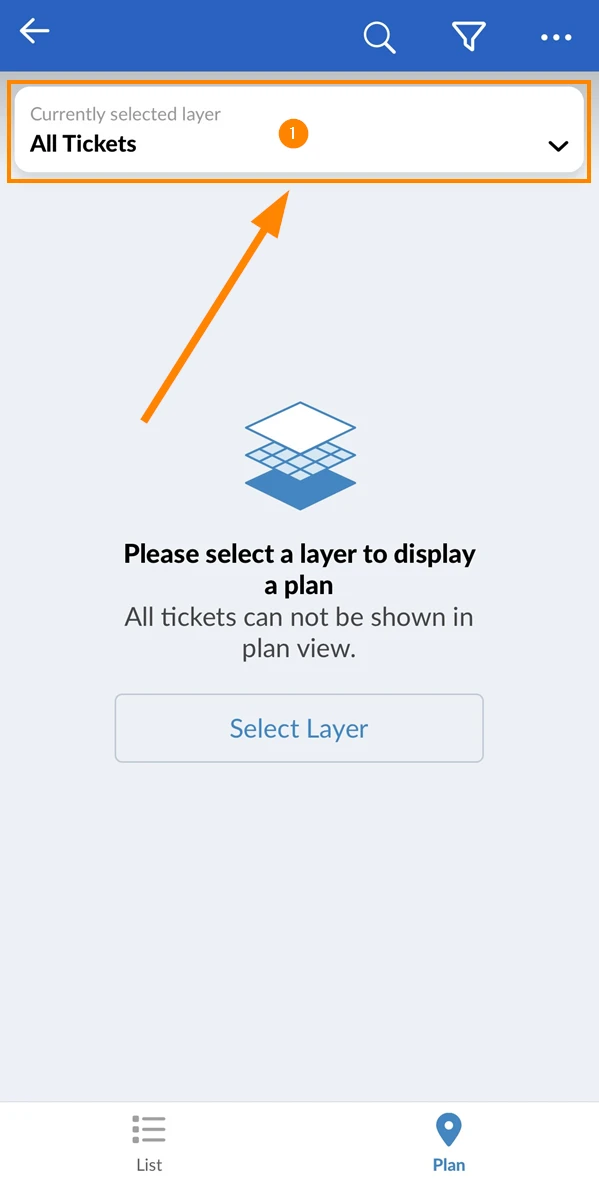
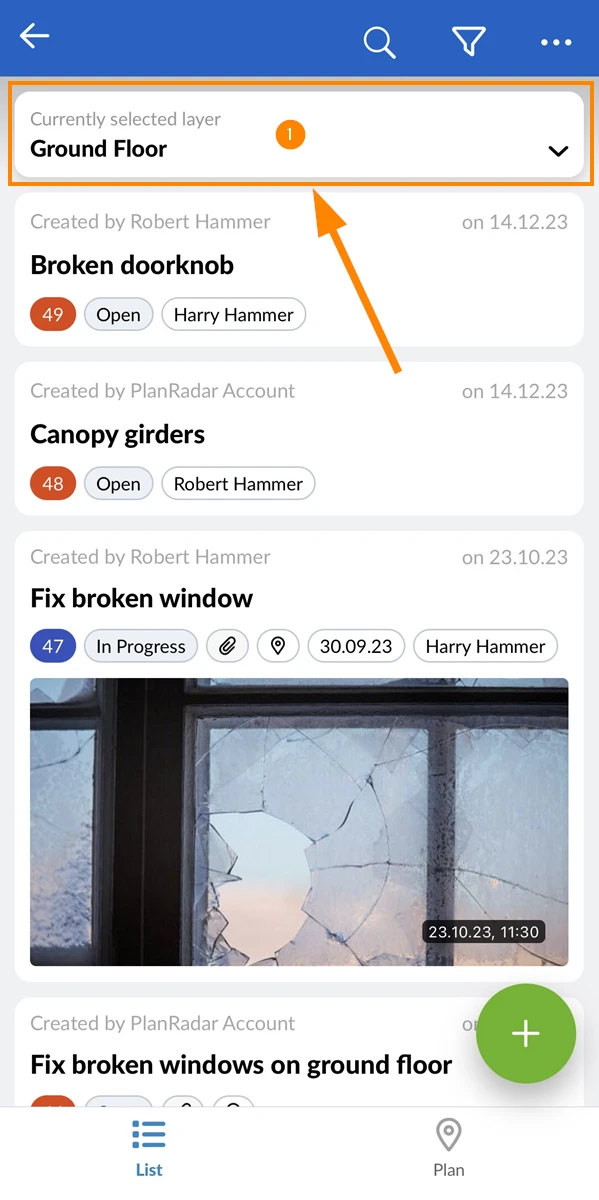
The layer selection works like a filter to show only tickets from that layer. It works in the same for ticket list and plan views. Initially no layer is selected and you will see all tickets from all layers. Plan view only works if a layer is selected.
Select a Layer
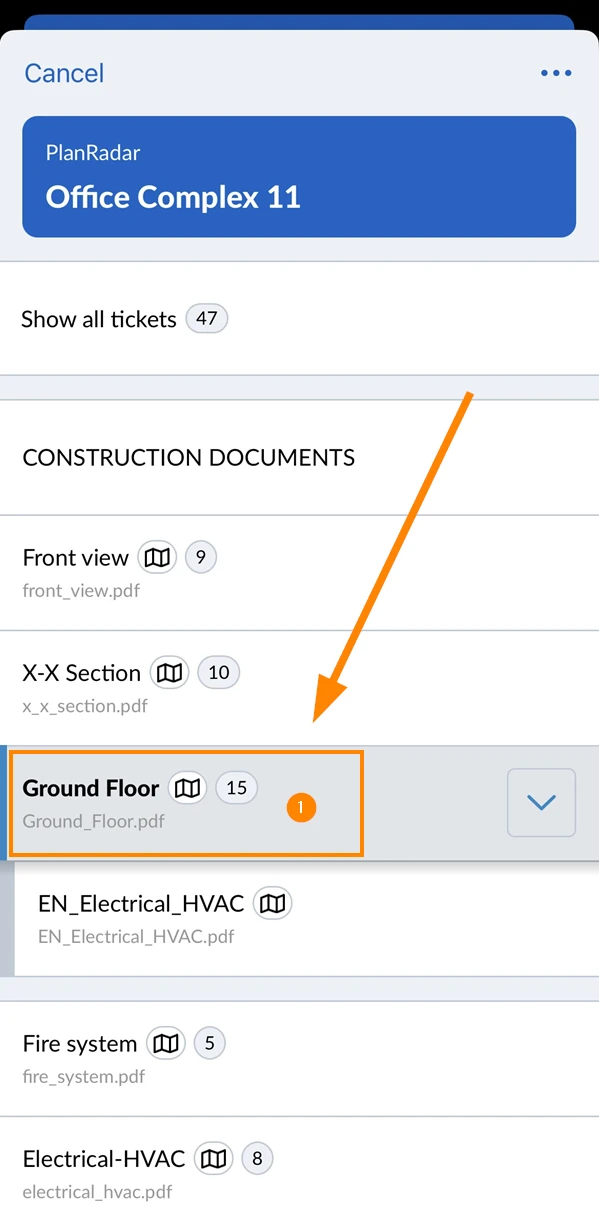
To select a layer:
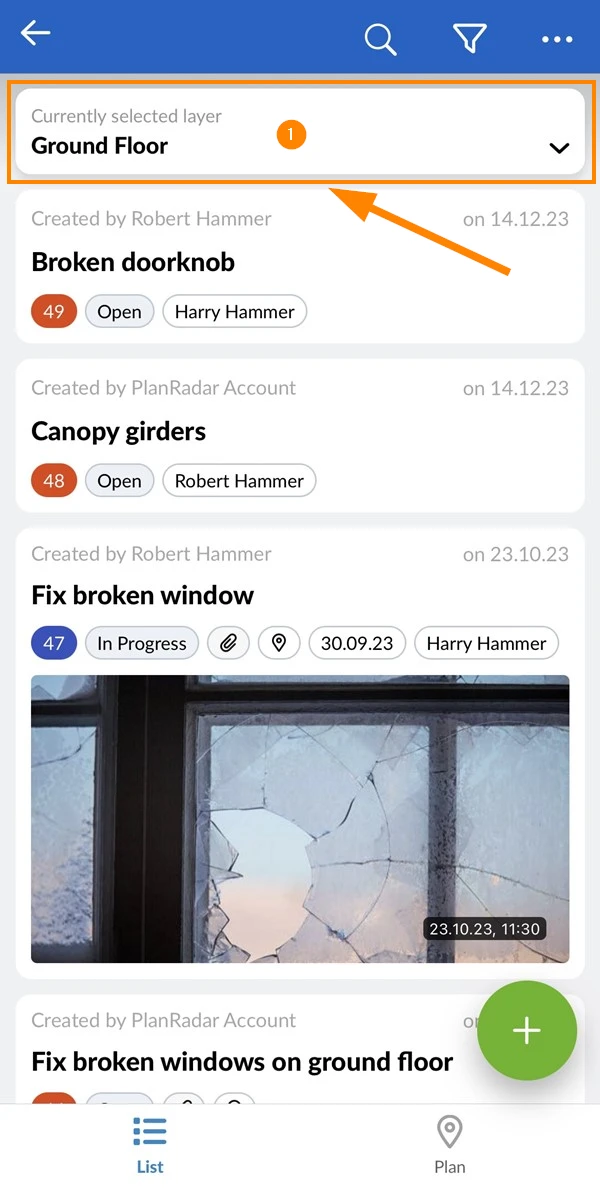
- Tap on the layer selector
- Tap on the desired layer e.g. Ground Floor
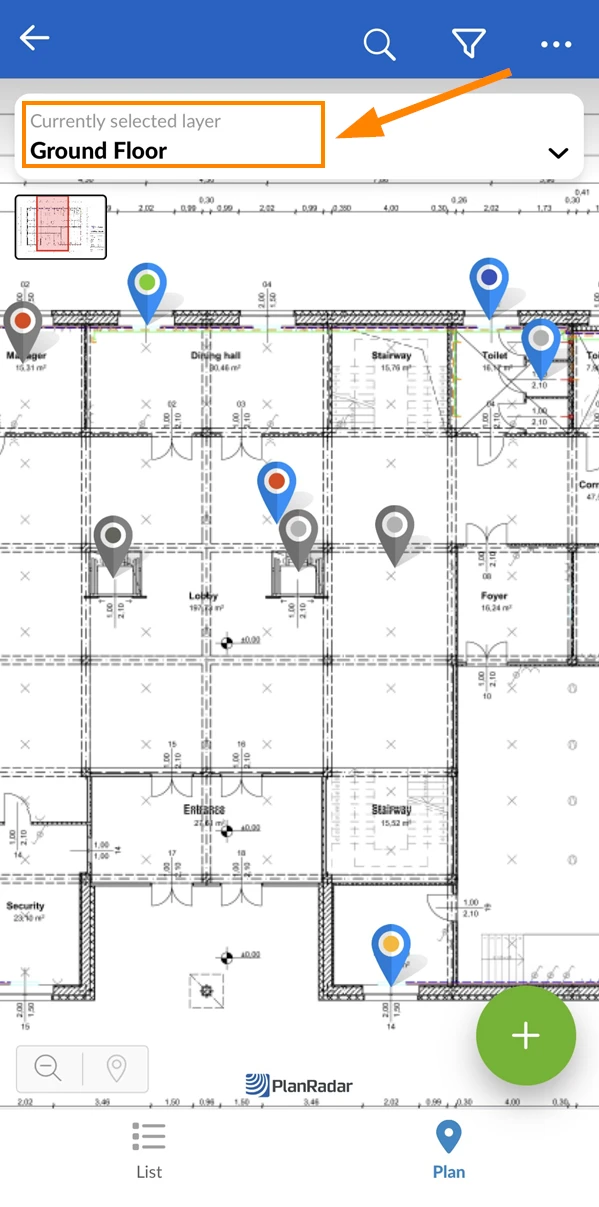
The layer selector always shows the currently selected layer:
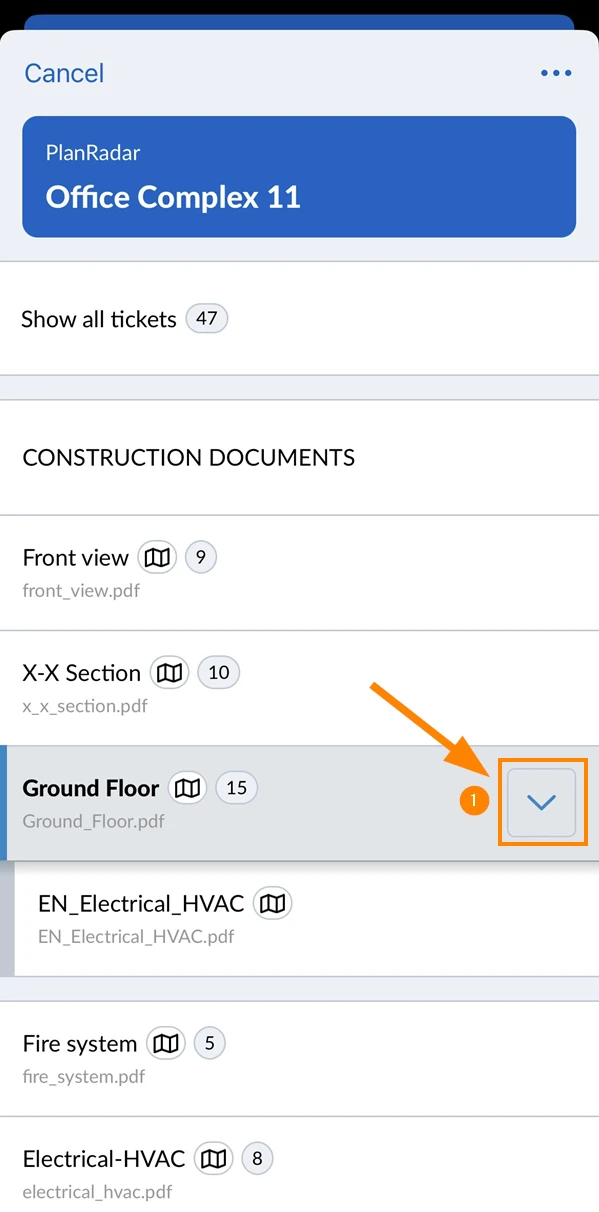
Show/Hide Sub-Layers
To show sub-layers while you are in the layer selector:
- Tap the arrow button next to the parent layer
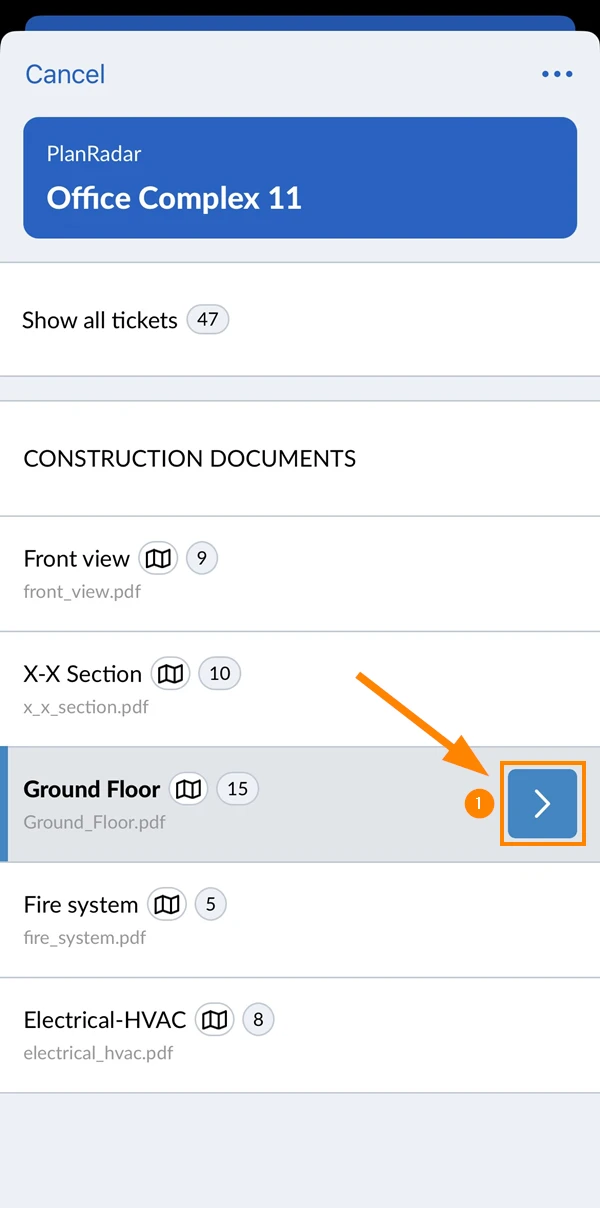
To hide sub-layers:
- Tap the arrow button
Show All Tickets
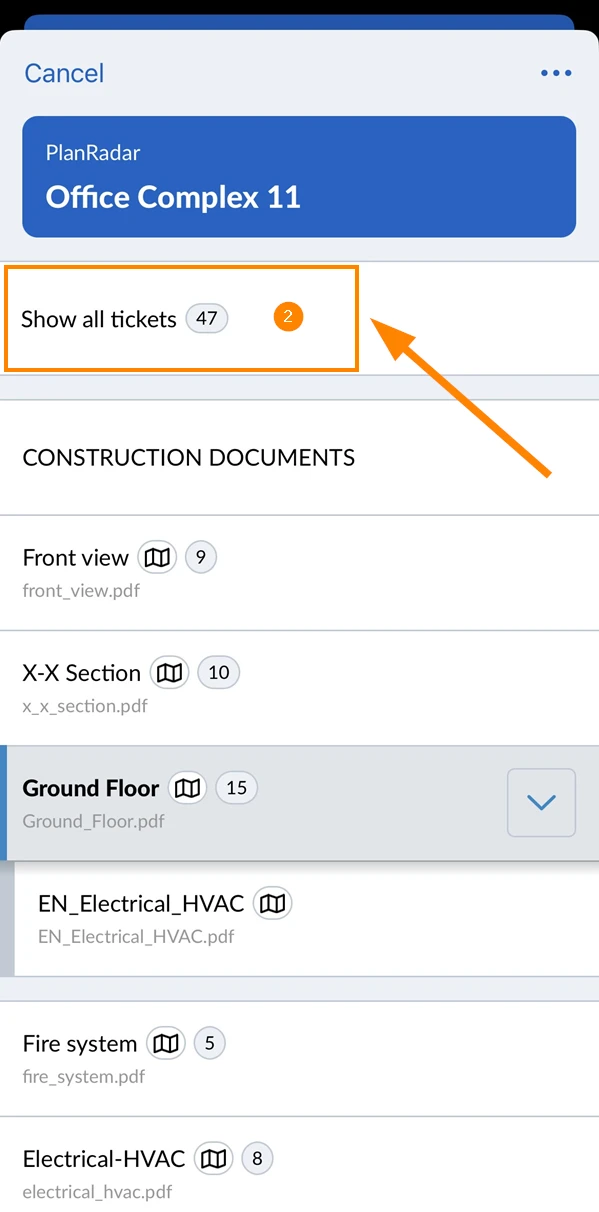
To show all tickets of all layers of the selected project:
- Tap on the layer selector
- Tap Show all tickets
Change Layer Selector View Settings
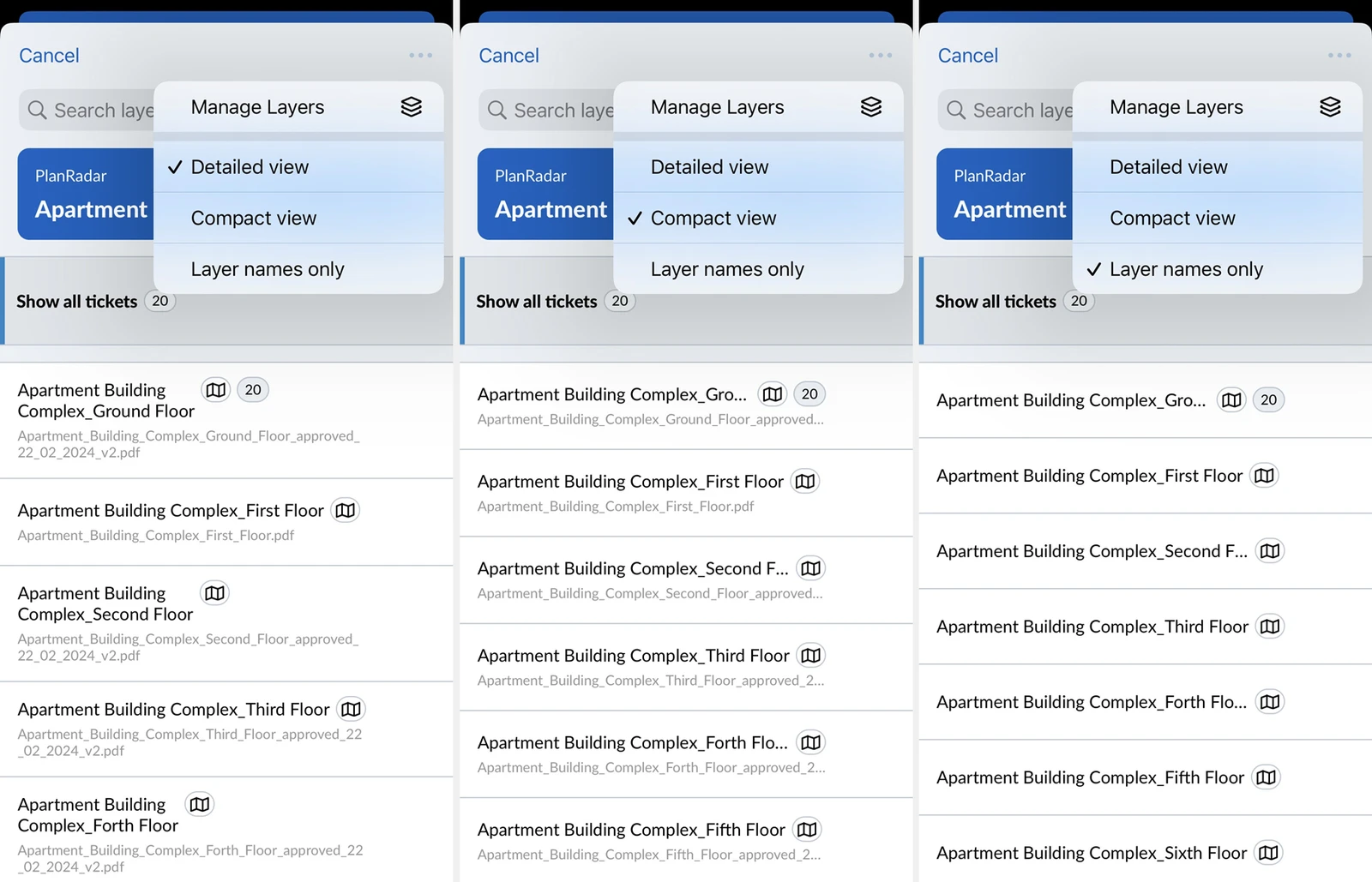
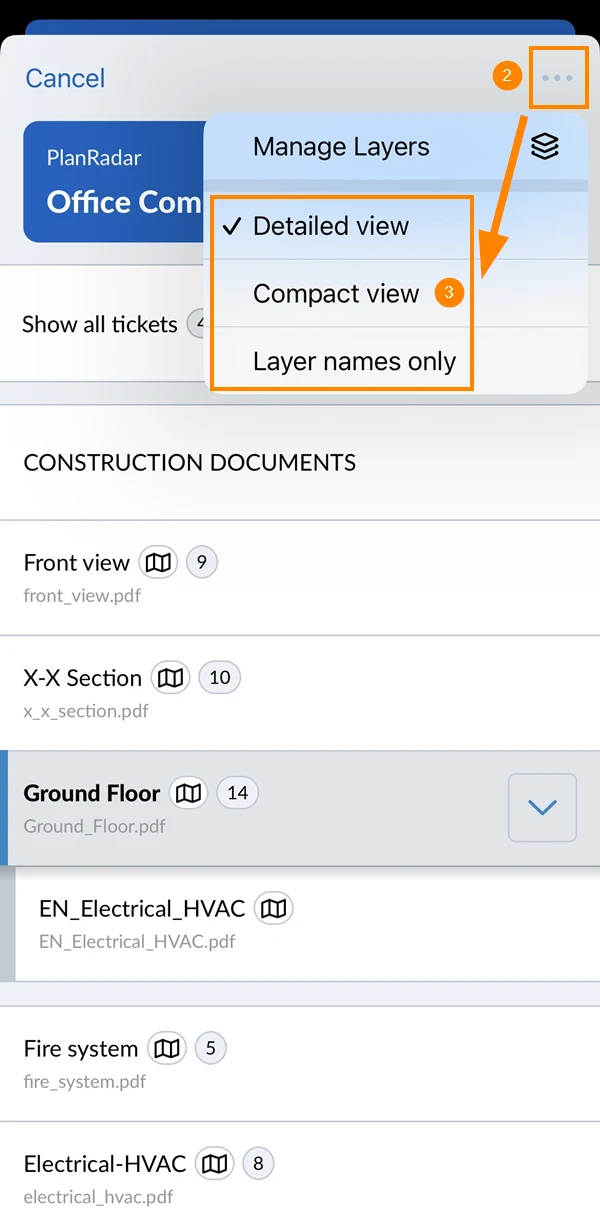
You can change the view settings for the list of layers in the layer selector to save space and view more layers at once. The detailed view is selected by default and shows the layer names and plan file names.
Available settings:
- Detailed view: Shows multiple lines per layer name and per plan file name.
- Compact view: Shows only a single line per layer name and per plan file name.
- Layer names only: Doesn't show the plan file names.
Example of each setting:
To change the layer selector view settings:
- Tap on the layer selector
- Open the more menu
- Tap on the desired setting e.g. Compact view
Updated May 20, 2025