

 Deutsch
 Español
 Français
 Hrvatski
 Italiano
 Polski
 Português (BR)
Tickets Calendar View
Overview
Use the Calendar view to get an overview of your tickets based on the date fields that are currently relevant for you.
Access & Permissions
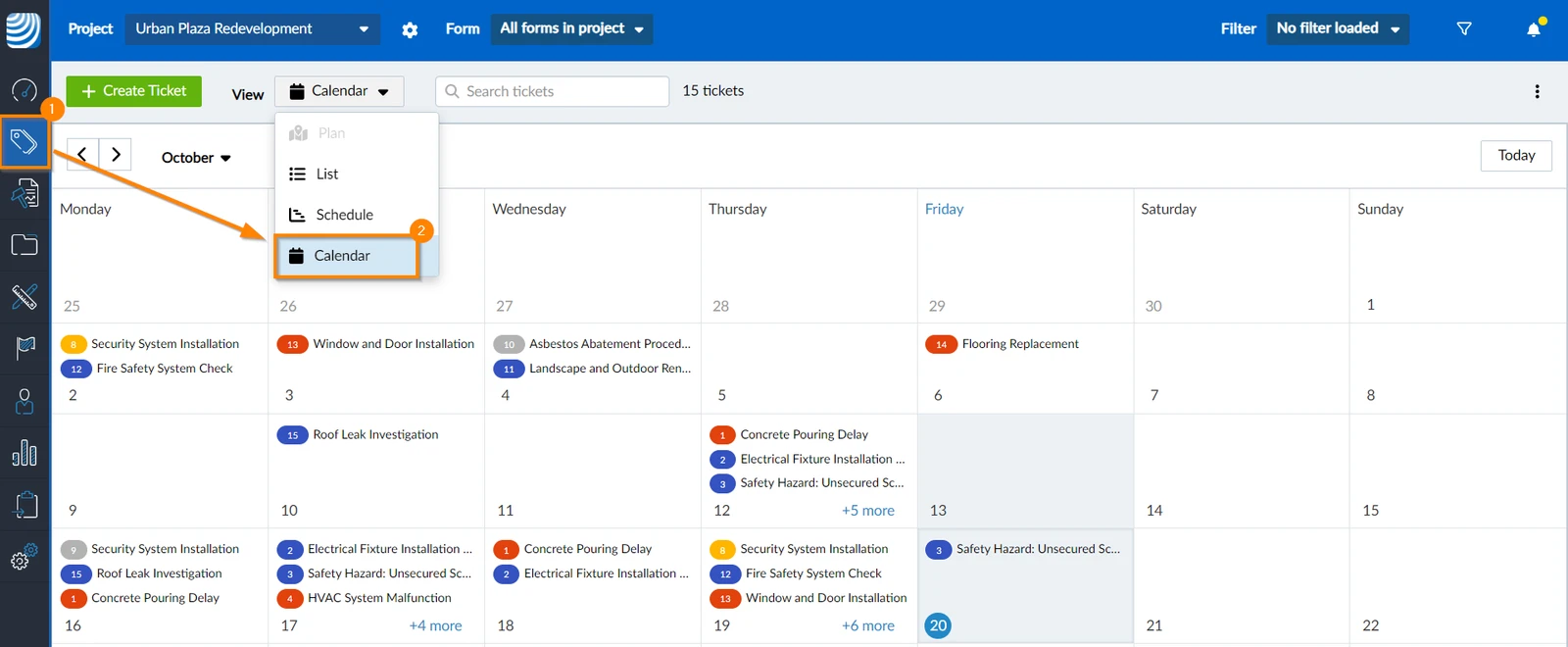
How to access the Calendar View
- Click Tickets
- In the View drop-down select Calendar
Select Date Fields
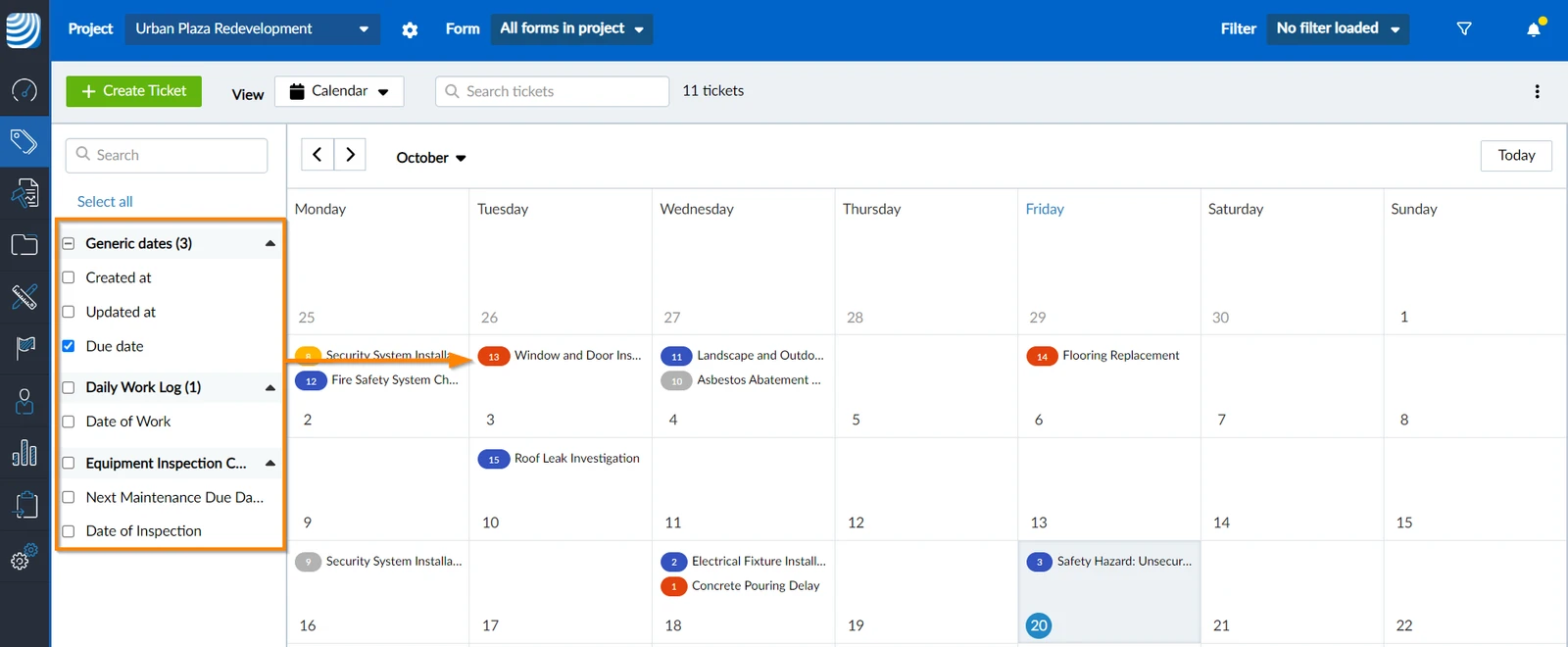
Each ticket might have multiple date fields, such as 'Due Date', 'Created Date', or 'Updated at'. You can choose which date field(s) you want the calendar to display.
To select a date field:
- Select the check boxes of the date fields that you want to view.
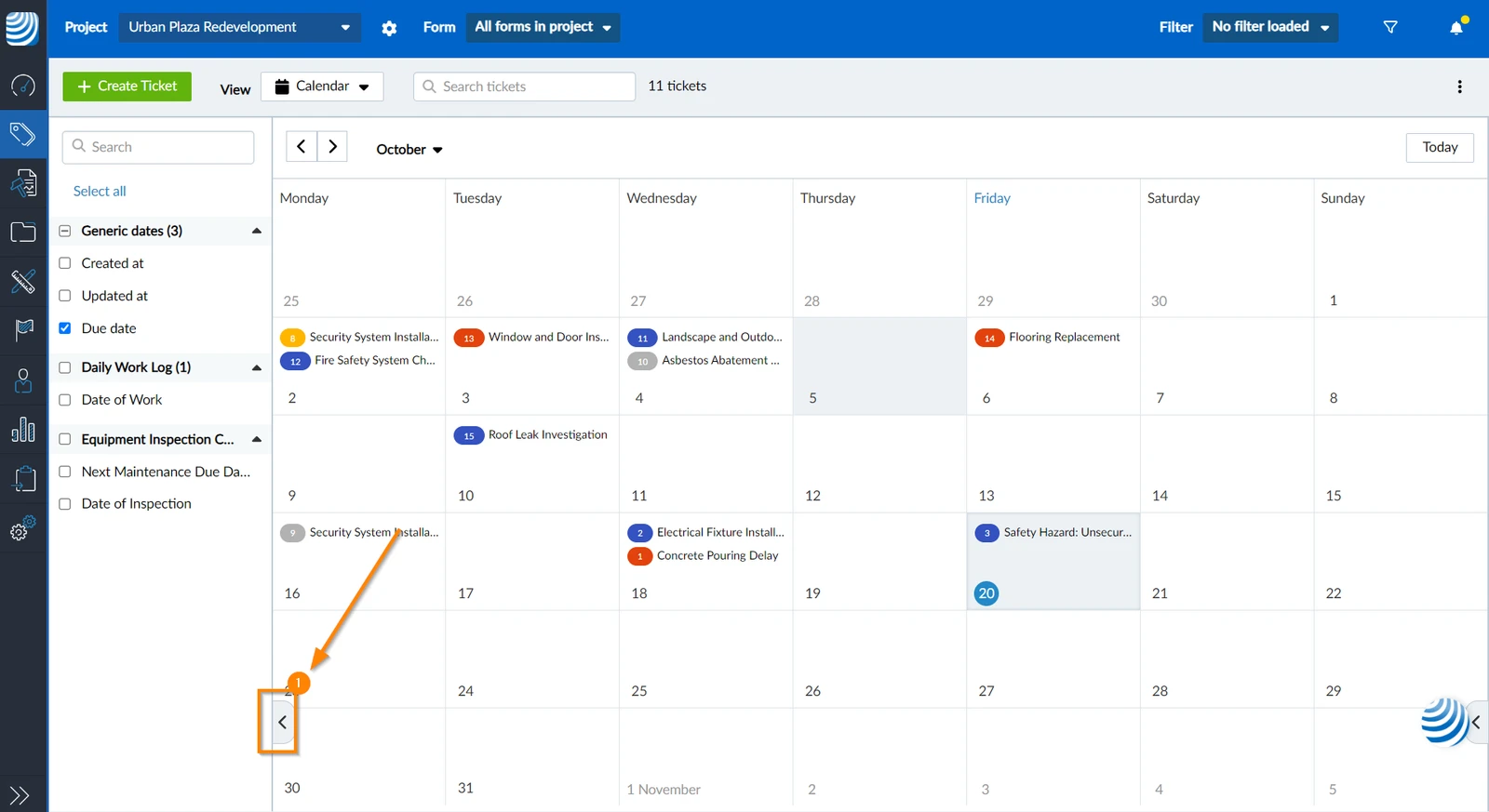
Show/Hide Date Field List
To hide the date field list:
- Click the arrow button
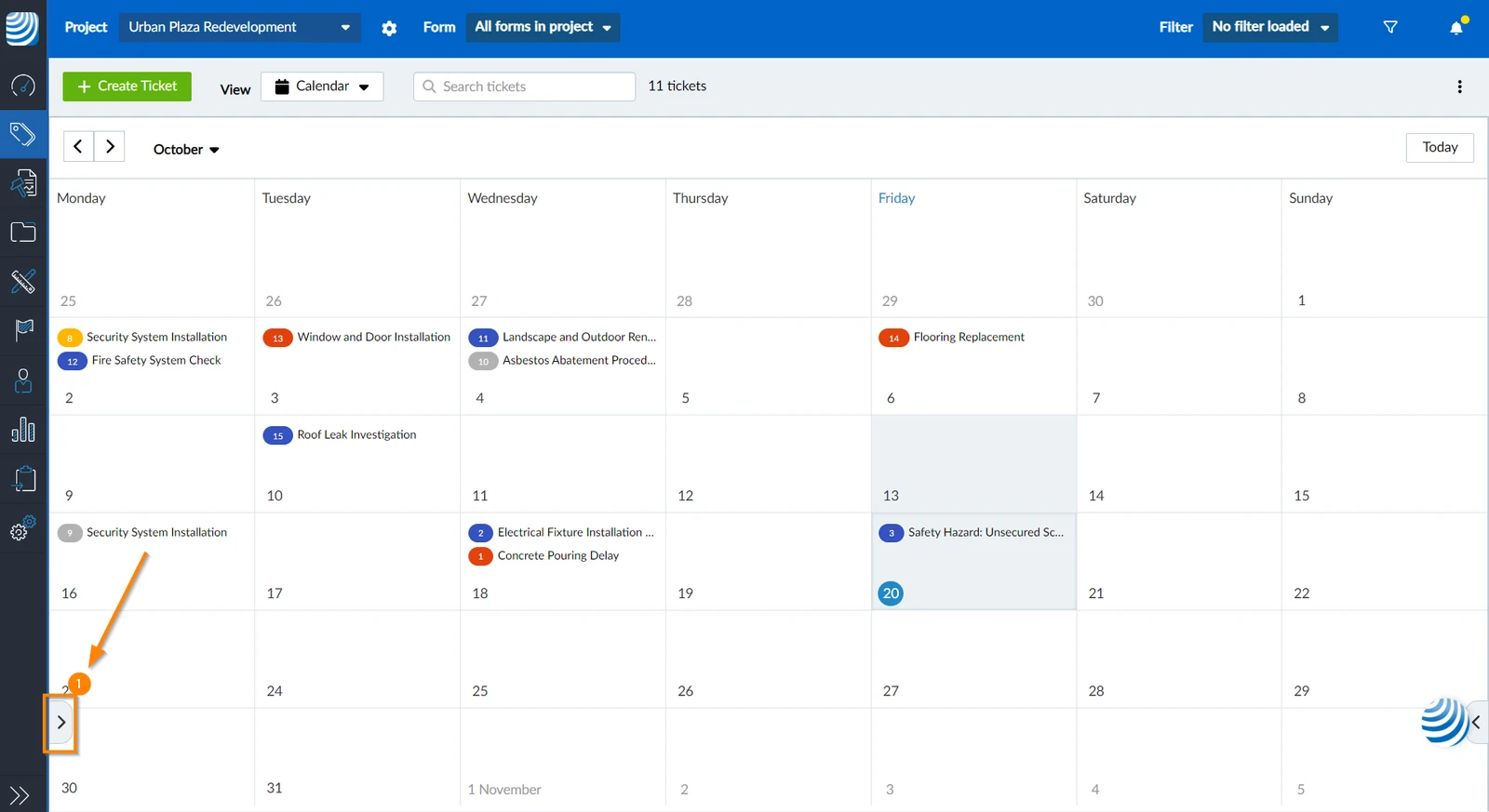
To show the date field list:
- Click the arrow button
Open a Ticket
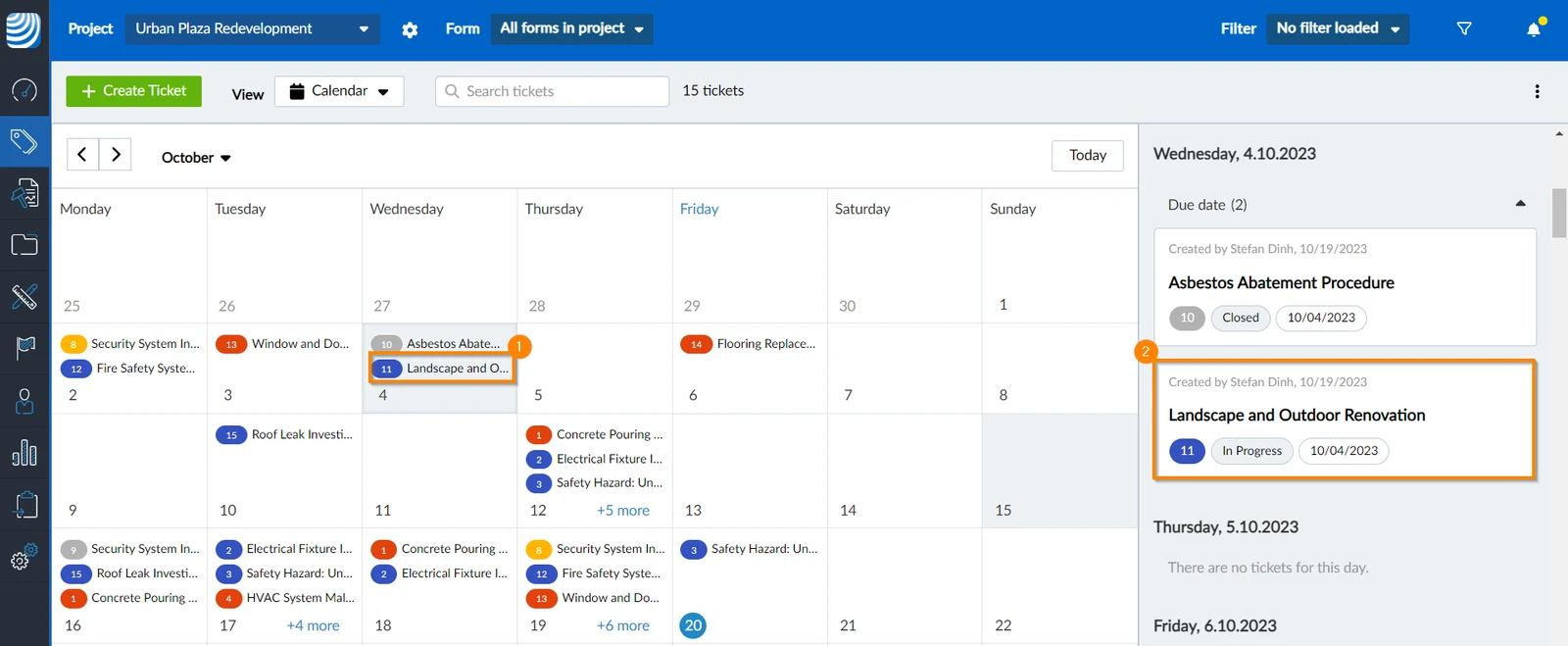
You can open a ticket in the calendar as well as in the ticket list.
To open a ticket and view it's details or edit it:
- Click on the ticket in the calendar.
- OR Click on the ticket in the ticket list.
Navigate in the Calendar
Date selection
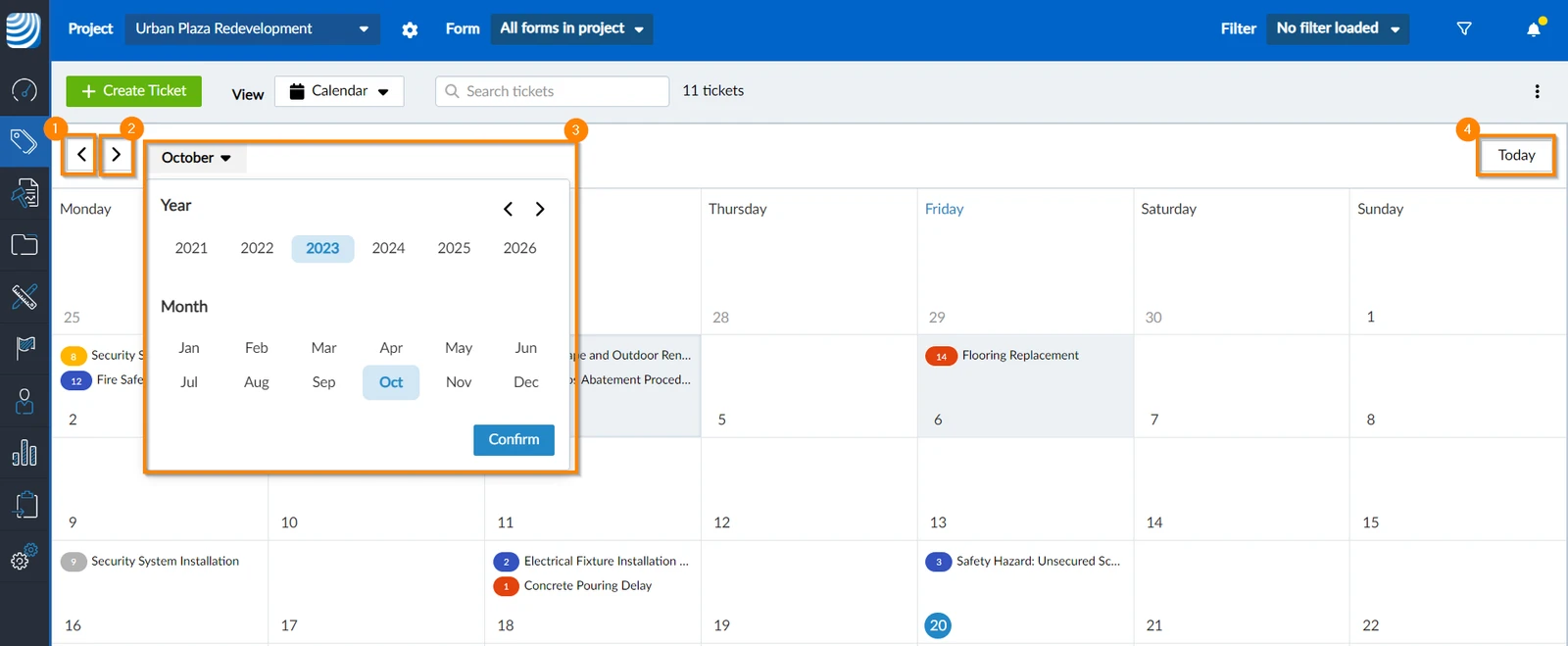
The calendar and the ticket list show all tickets of the currently selected month.
To select a month, you can use:
- Previous month
- Next month
- Date picker
- Jump to today's date
Show/Hide Ticket List
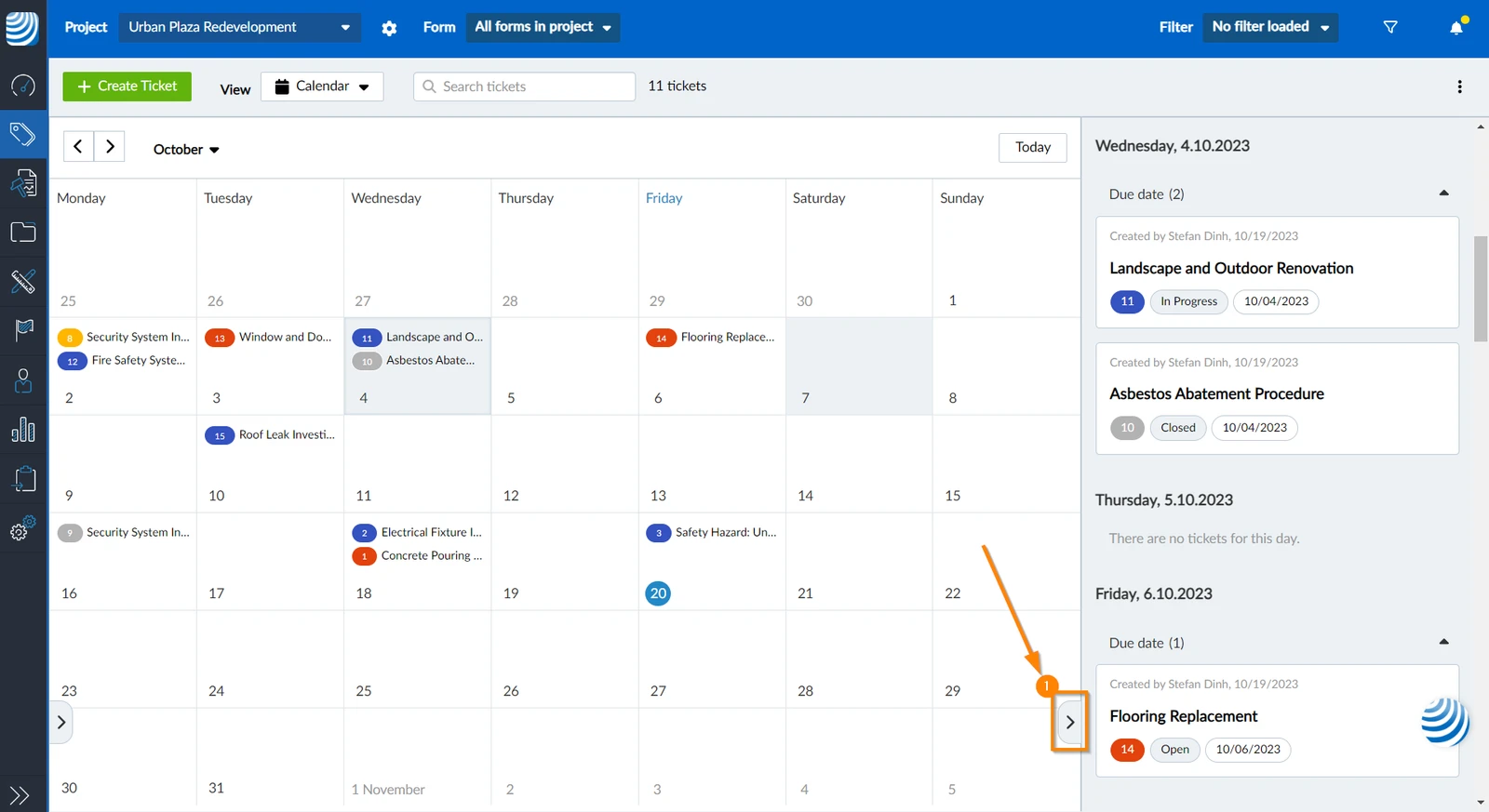
To hide the ticket list:
- Click the arrow button
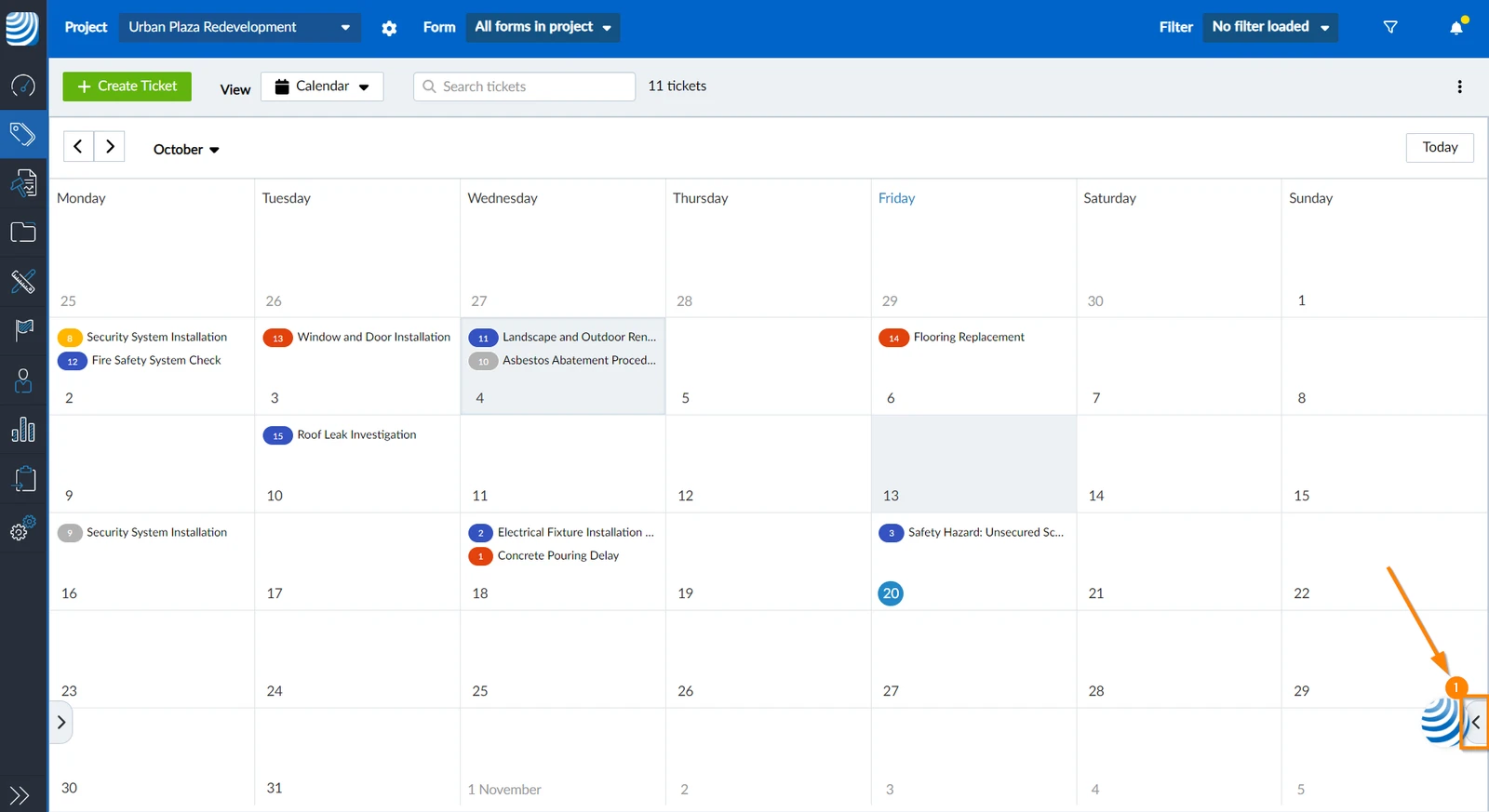
To show the ticket list:
- Click the arrow button
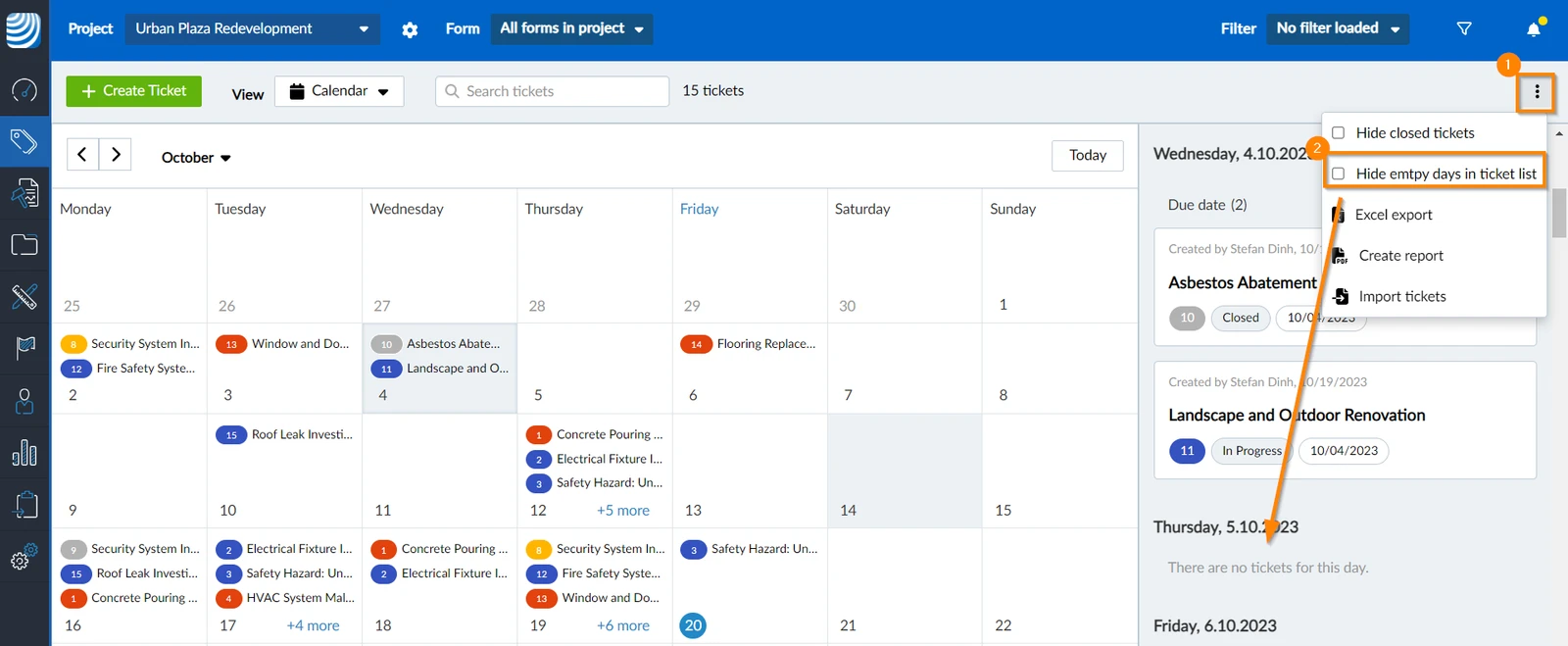
Hide Empty Days in Ticket List
To hide days without a ticket from the ticket list:
-
Open the more menu
-
Select the Hide Empty Days in Ticket List check box.
Updated May 20, 2025