

 Deutsch
 Español
 Français
 Hrvatski
 Italiano
 Polski
 Português (BR)
Delete Tickets
Overview
Deleting tickets can be useful if you have accidentally created duplicates and you are absolutely sure that you no longer need the information stored in the ticket.
Access & Permissions
Delete a Single Ticket
- Open the ticket
- Click More
- Click Delete ticket
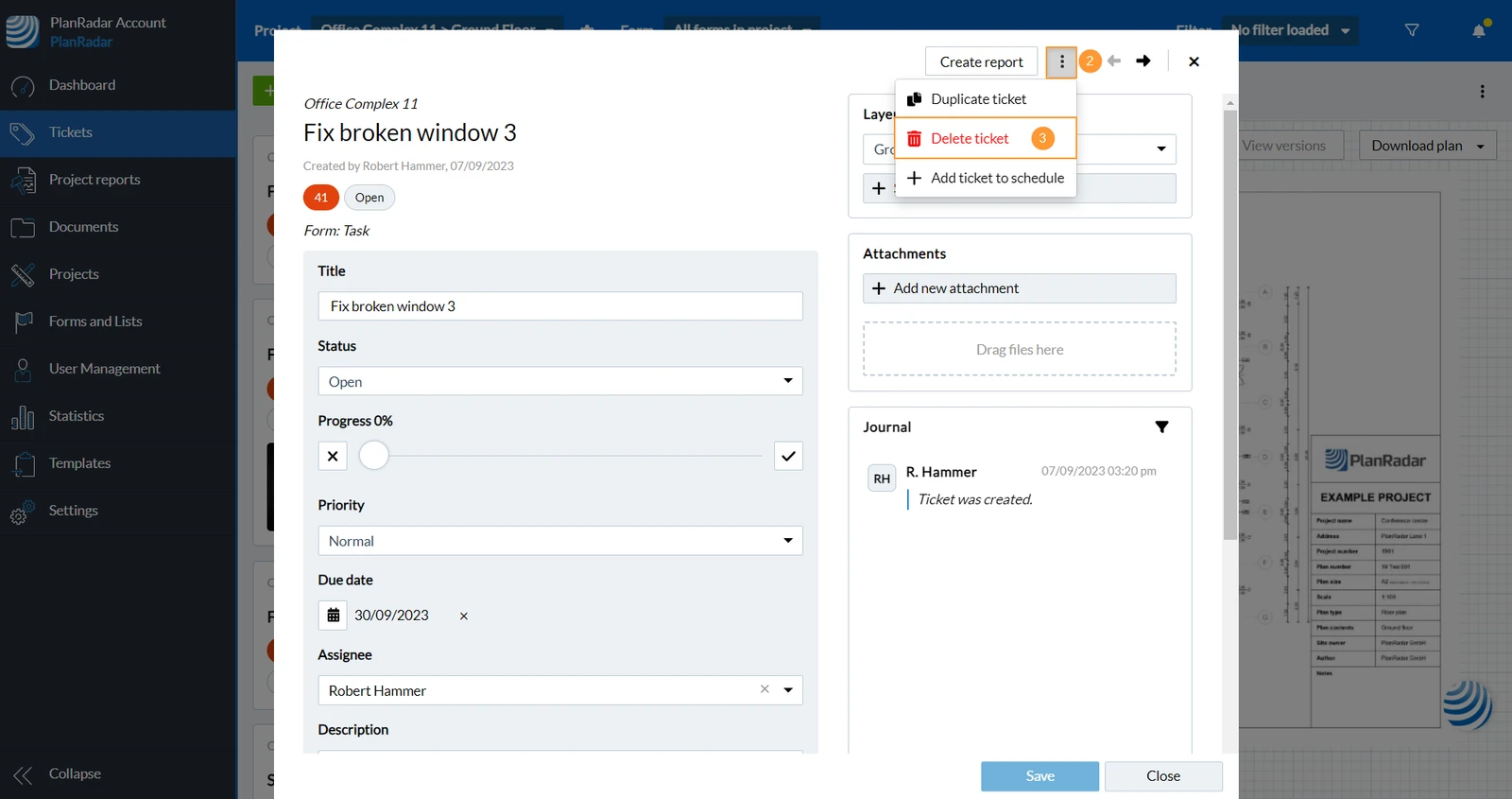
- Click Delete in the confirmation dialogue.
- Open the ticket
- Tap the more icon
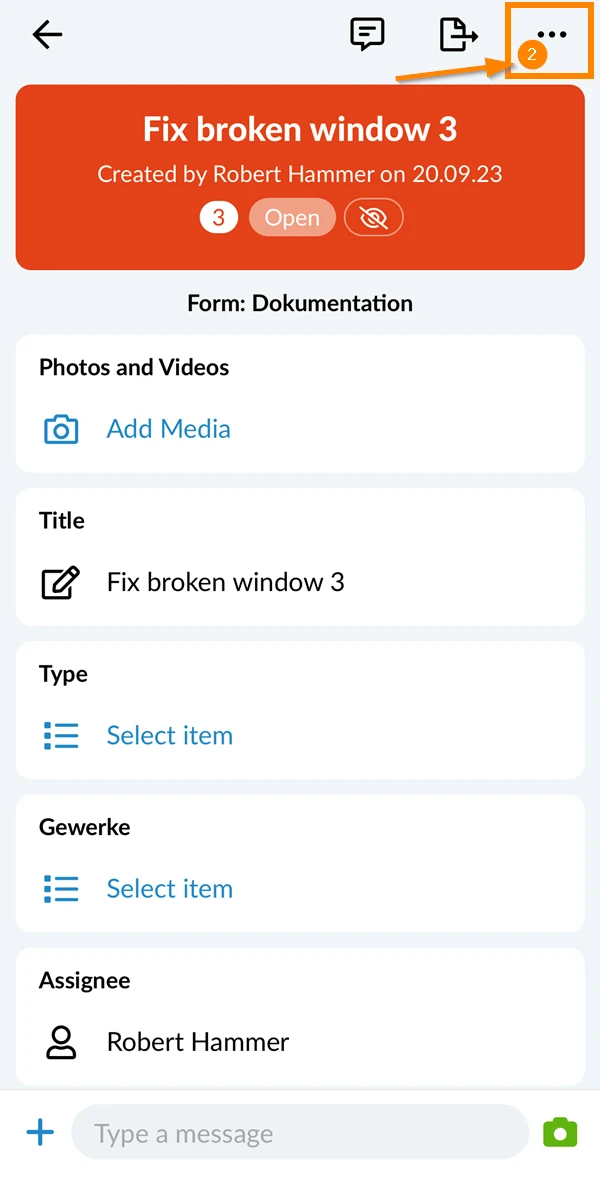
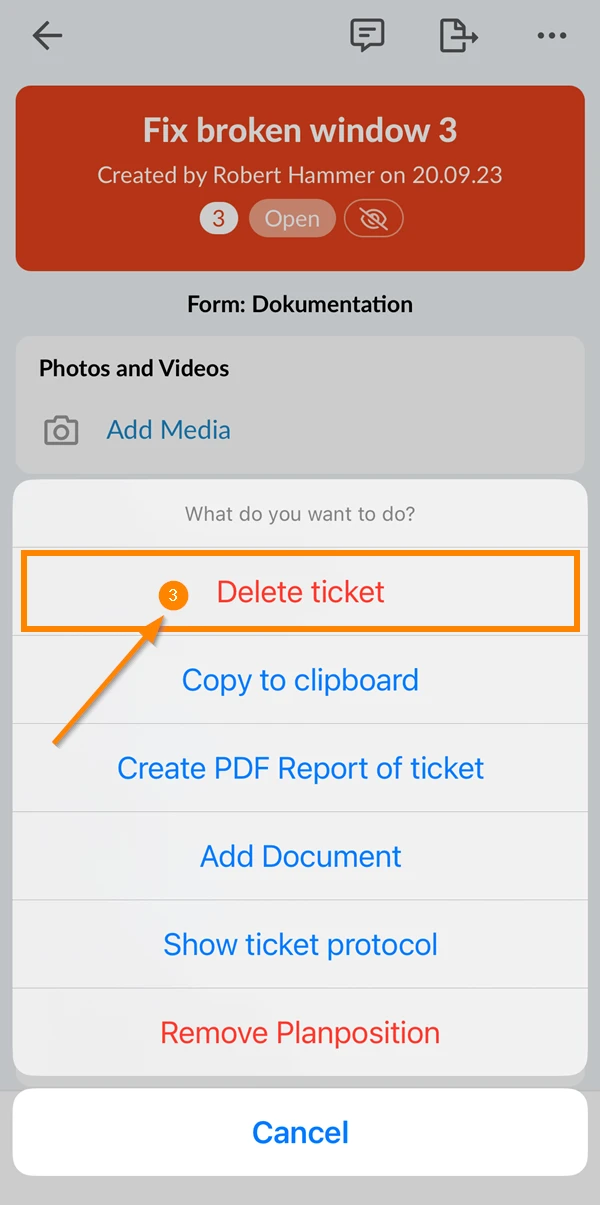
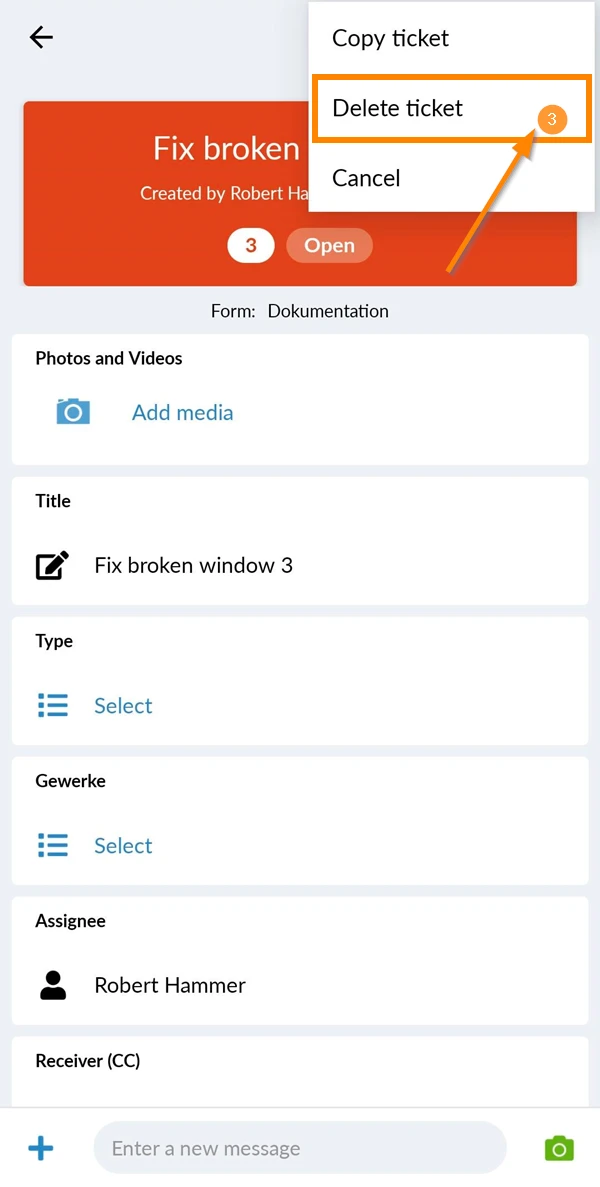
- Tap Delete ticket
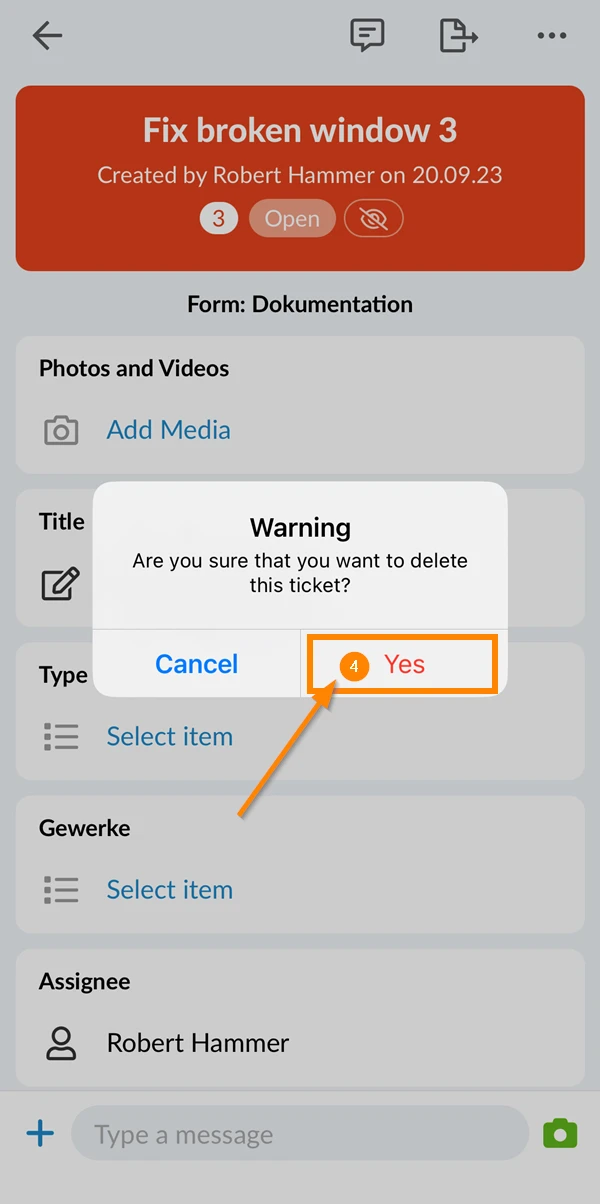
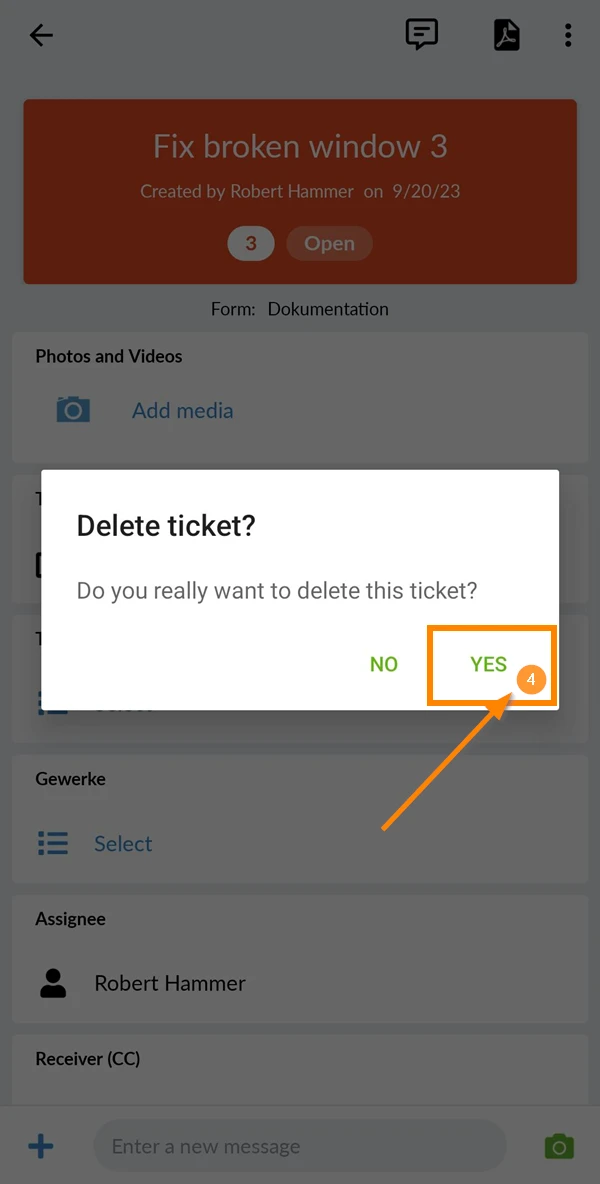
- Tap Yes to confirm the deletion
- Open the ticket
- Tap the more icon
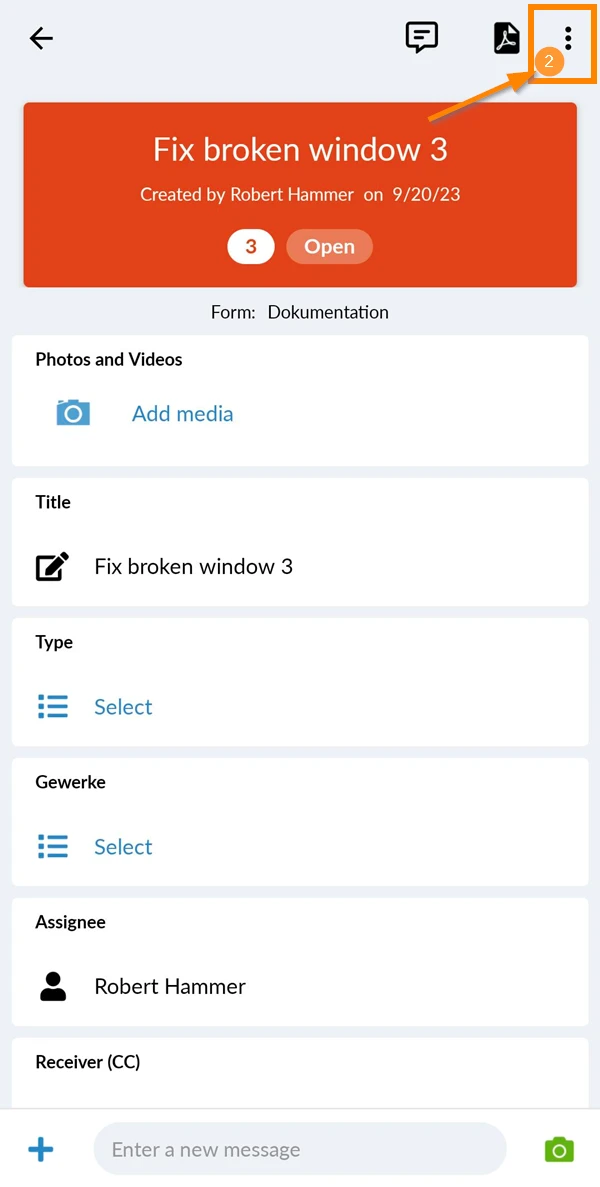
- Tap Delete ticket
- Tap Yes to confirm the deletion
Delete Multiple Tickets
To delete multiple tickets:
- Click Tickets
- Select List in View drop down.
- Select the tickets
- Click Bulk actions
- Click Delete
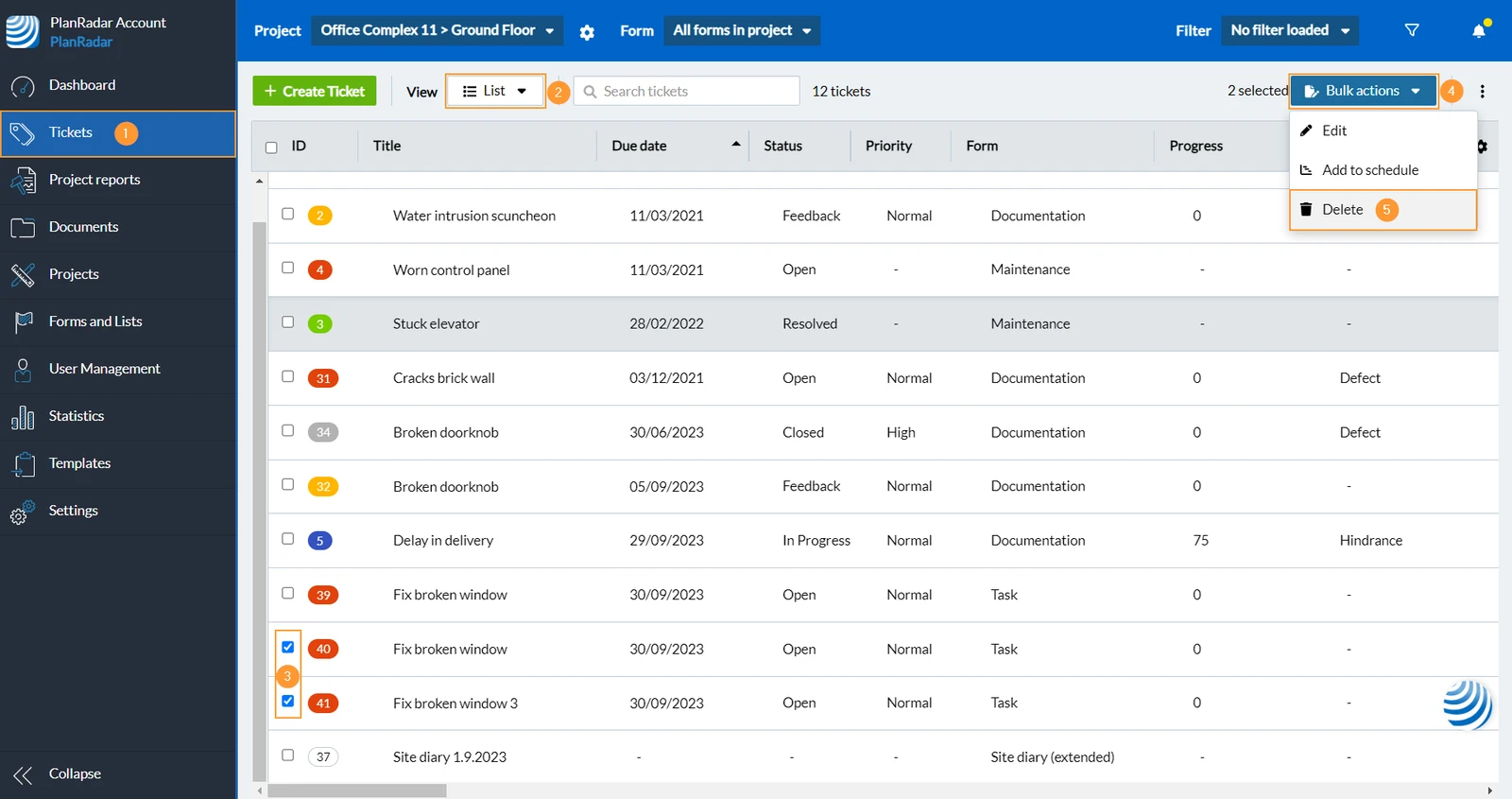
- Click Delete in the confirmation dialogue.
Updated February 17, 2025