

 Deutsch
 Español
 Français
 Hrvatski
 Italiano
 Polski
 Português (BR)
Record a Run with the Insta360 App
Overview
To record a run for PlanRadar SiteView, you must first prepare the camera and the Insta360 app. Follow the checklists and instructions below to meet all the requirements for optimal results when processing the recording after you Upload a Run in the Webapp.
Insta360 App
While it is possible to record runs with the Insta360 X4 camera alone, we strongly recommend using the Insta360 app for convenient camera control, especially when the camera is mounted on your helmet.
To familiarise yourself with the camera and Insta360 app, go to onlinemanual.insta360.com/firstuse.
Install the Insta360 App
Install the Insta360 app from Apple App Store or Google Play Store on your phone.
Connect your Camera to the Insta360 App
For instructions on connecting your camera, go to onlinemanual.insta360.com/appconnect.
Camera Settings for Video Recording
Recommended video capture settings for SiteView:
- 4K resolution
- 30 frames per second
- Auto 360 recording mode
(do not use single lens mode)
4K vs. 8K resolution

We recommend recording videos in 4K resolution for the best balance between quality and performance. If higher image quality is required in specific situations, you can change the camera setting to 8K resolution. Keep in mind that 8K videos have approximately four times the file size of 4K videos, which significantly increases upload and processing times.
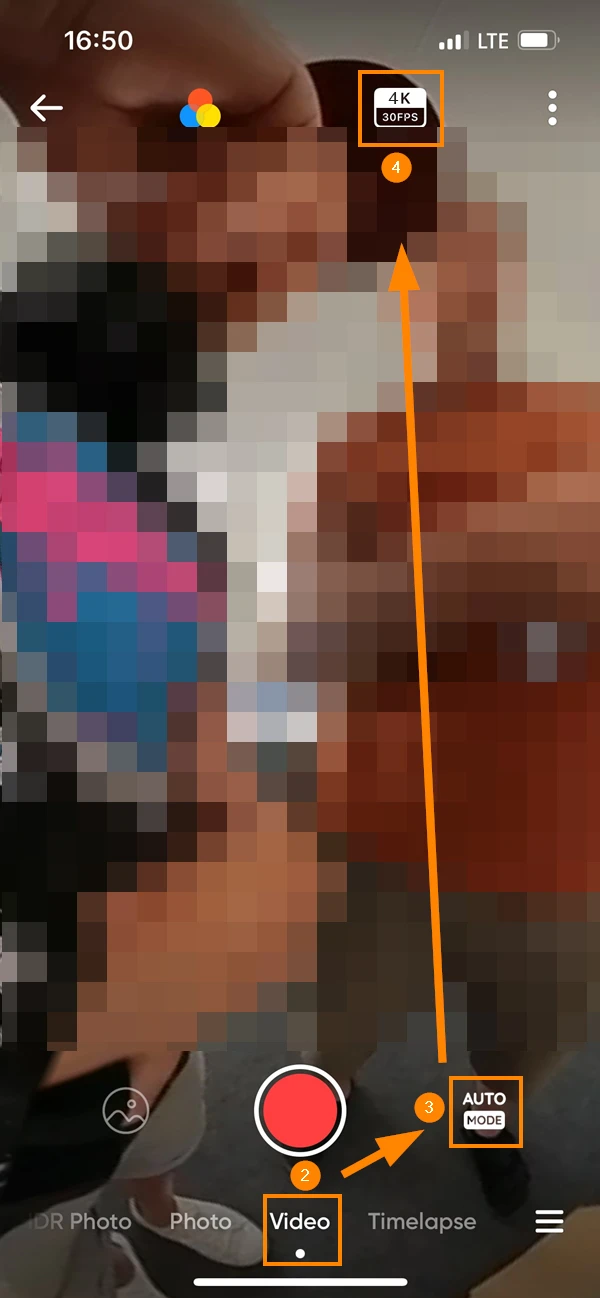
To change these settings in the Insta360 app:
- Enter the camera mode
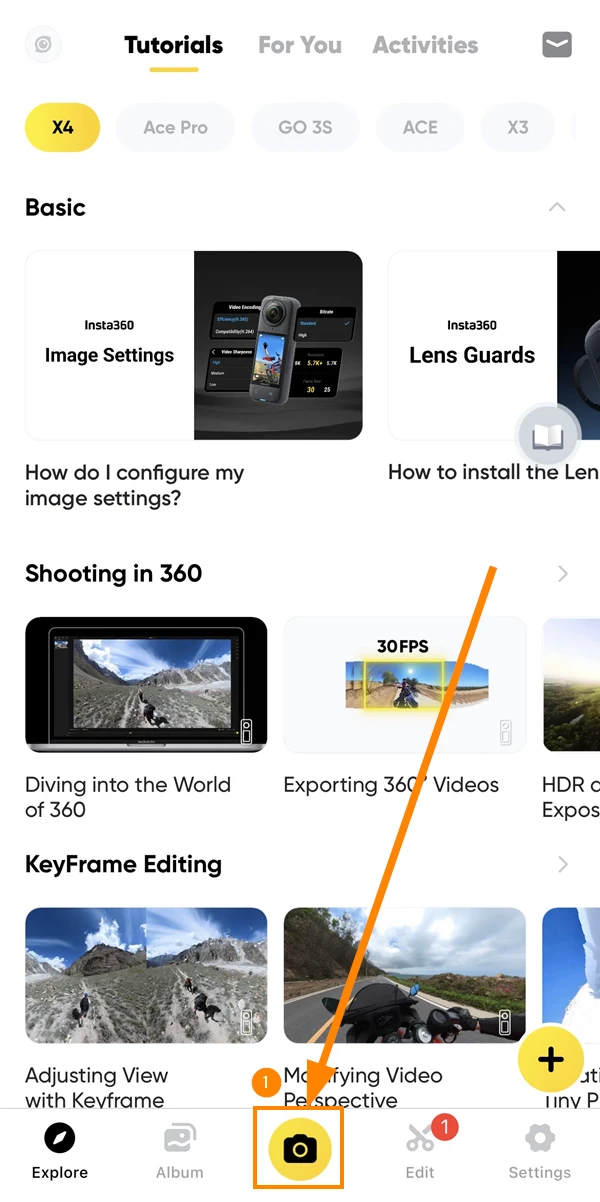
- Select Video recording mode
- Select Auto Mode
- Select 4k and 30FPS
Alternatively you could use the camera's touchscreen to change the settings, as described here: onlinemanual.insta360.com/usingthescreen.
Checklist: Before the Recording
Choose a Good Starting Position
- A good starting position has a huge impact on the quality of the algorithm's run positioning.
- Define a precise starting position every run.
Prepare the Location
- Ensure good lighting conditions. Bring a portable lamp if necessary.
- Open all doors to avoid interruptions during the run.
Define Starting Position
- Define a precise starting position every run.
Prepare Equipment
-
See SiteView Hardware Requirements
- Camera is mounted on the helmet.
- SD card has sufficient free space.
- Battery has sufficient charge.
- Lamps on the helmet (only necessary in low light conditions)
-
Connect your Camera to the Insta360 App as described above.
-
Check Camera Settings for Video Recording as described above.
- For example, if you are using single lens mode, you will not be able to use the recording for SiteView.
Checklist: During the Recording
Recording Duration
- Each recording should be no less than 1 minute and no more than 5 minutes.
Walking
-
Keep a moderate and steady pace.
- Do not run.
- Do not stand still.
-
Do not shake your head more than necessary.
- The camera and software can only handle a certain amount of vibration and movement.
-
Do not turn your head or look up and down more than necessary.
- You are using a 360° camera, so there is no need to point the camera in any direction.
-
Your path should cover the entire room.
Start the Recording
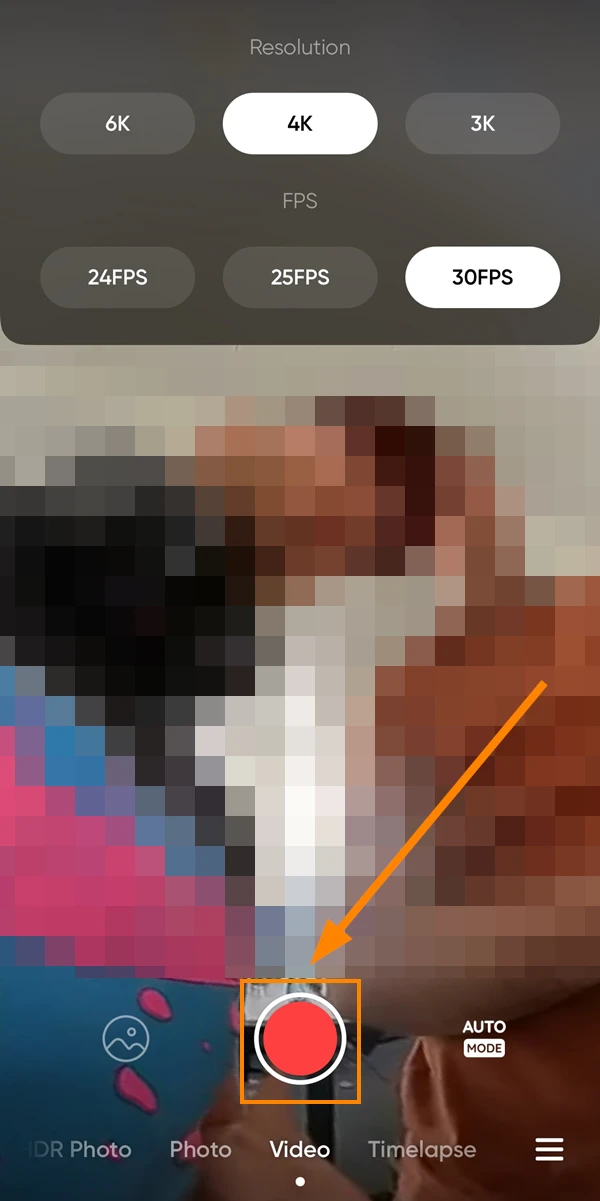
To start the recording tap the red recording button:
Stop the Recording
After you complete the run tap stop:
Updated December 17, 2025