To upload your recorded run from the camera to the PlanRadar Webapp, follow the steps below.
Processing a Run
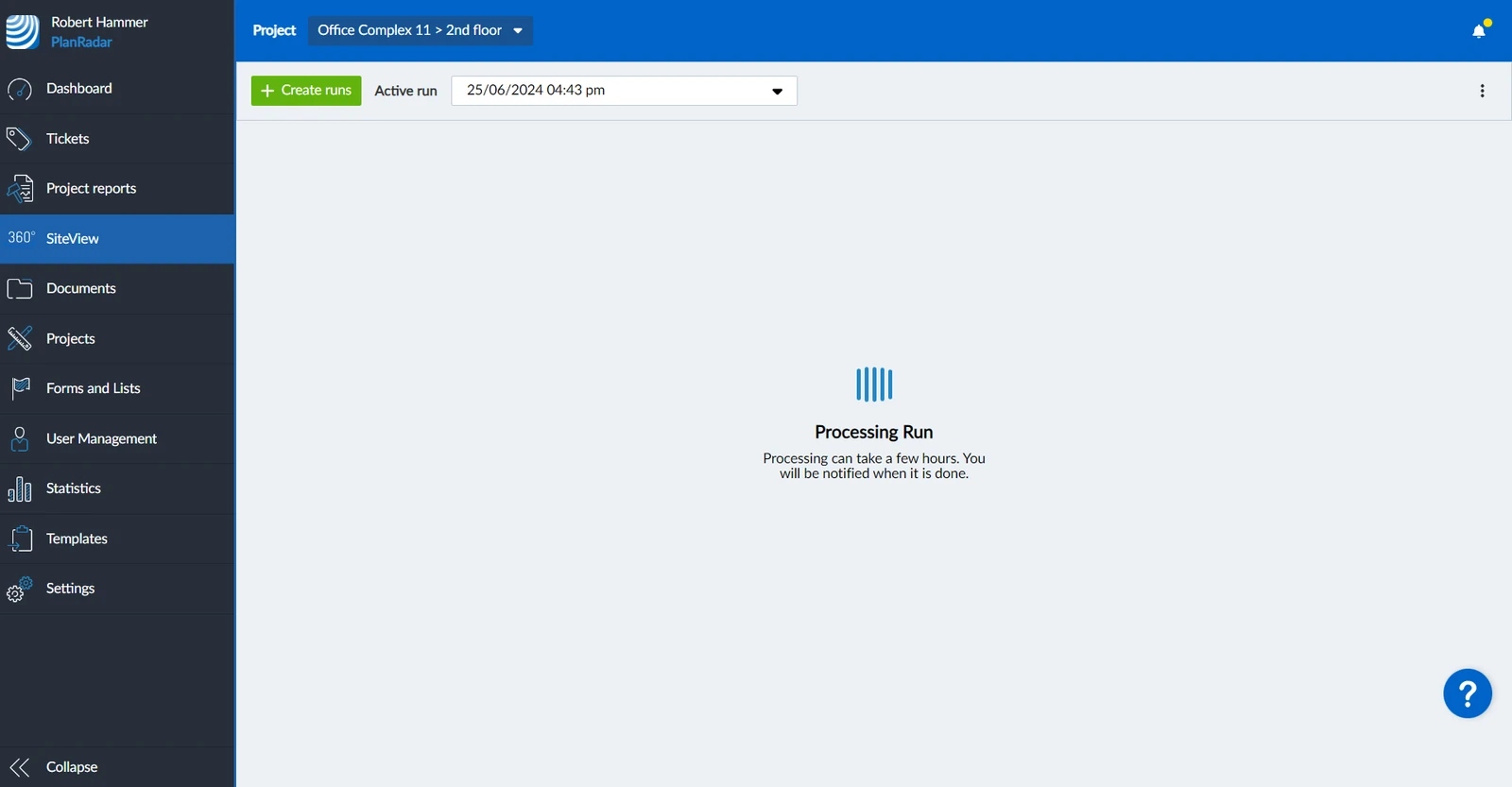
Once the recording is uploaded, it will be processed by PlanRadar servers to become available as a run in PlanRadar SiteView. Note that this process can be time-consuming, typically taking about 2 hours for every 5 minutes of video. You will receive a notification once the processing is complete.
Access & Permissions
How to Access SiteView
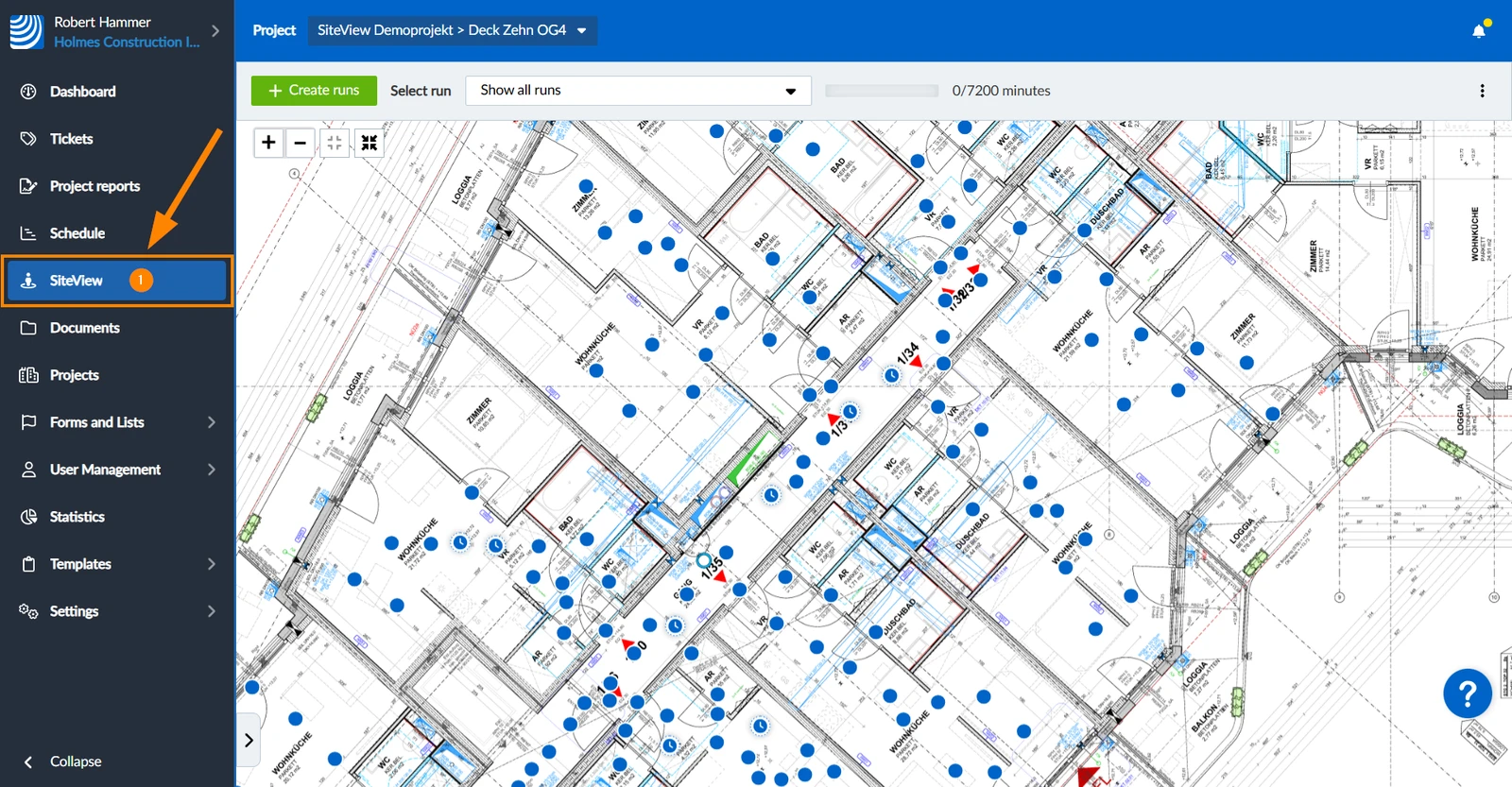
Click SiteView
Plan Requirements
For optimal results it is recommended to use architectural plans. It is important that structural elements like walls are the most prominent elements.
Connect the camera to your computer with a USB cable.
Copy the original video files (.insv) to your computer.
Alternatively, you can remove the micro SD card from the camera and insert it into a card reader in your computer to copy the video files. However, copying directly from the camera is recommended for convenience, as the SD card is not easily accessible.
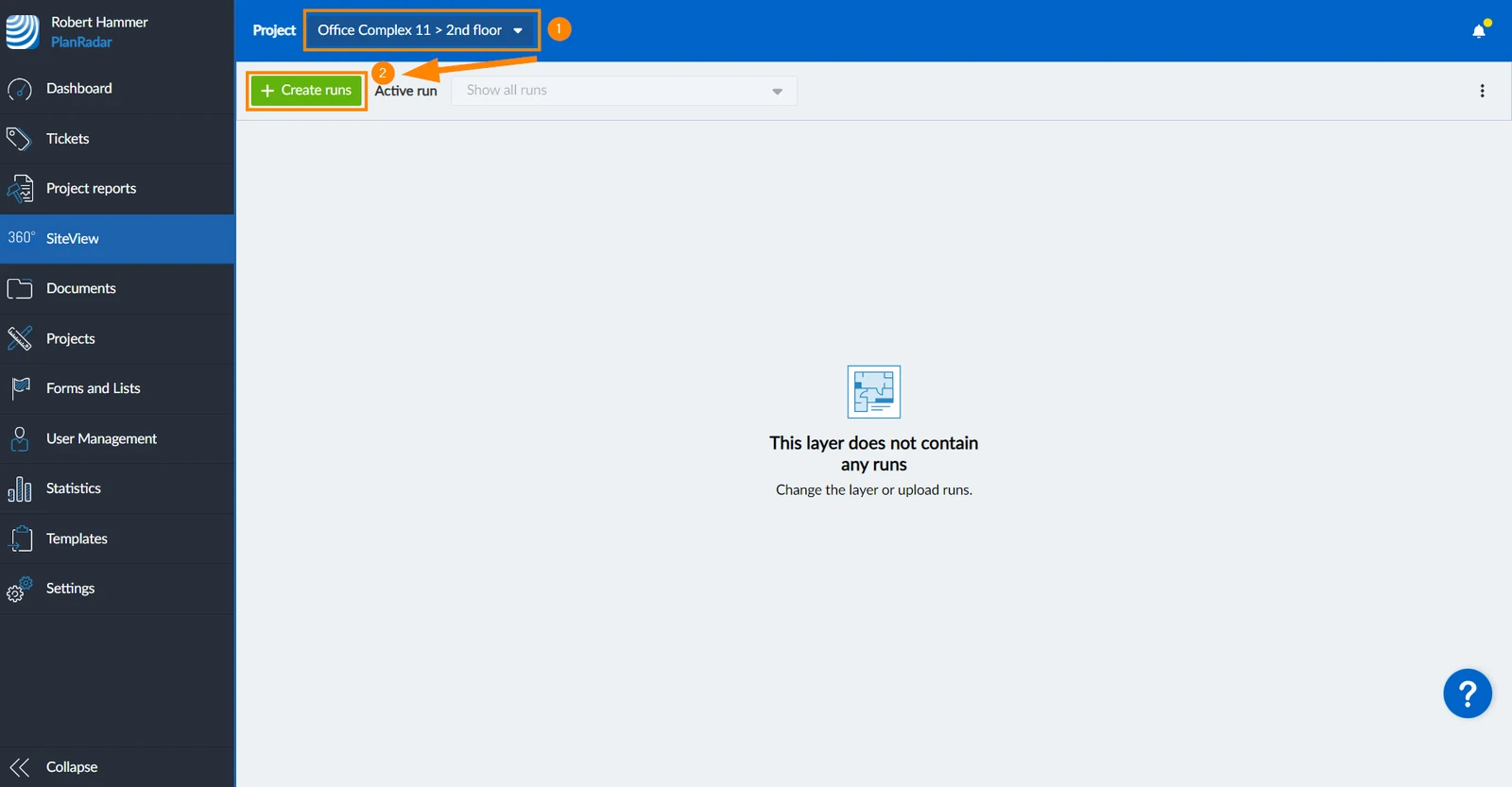
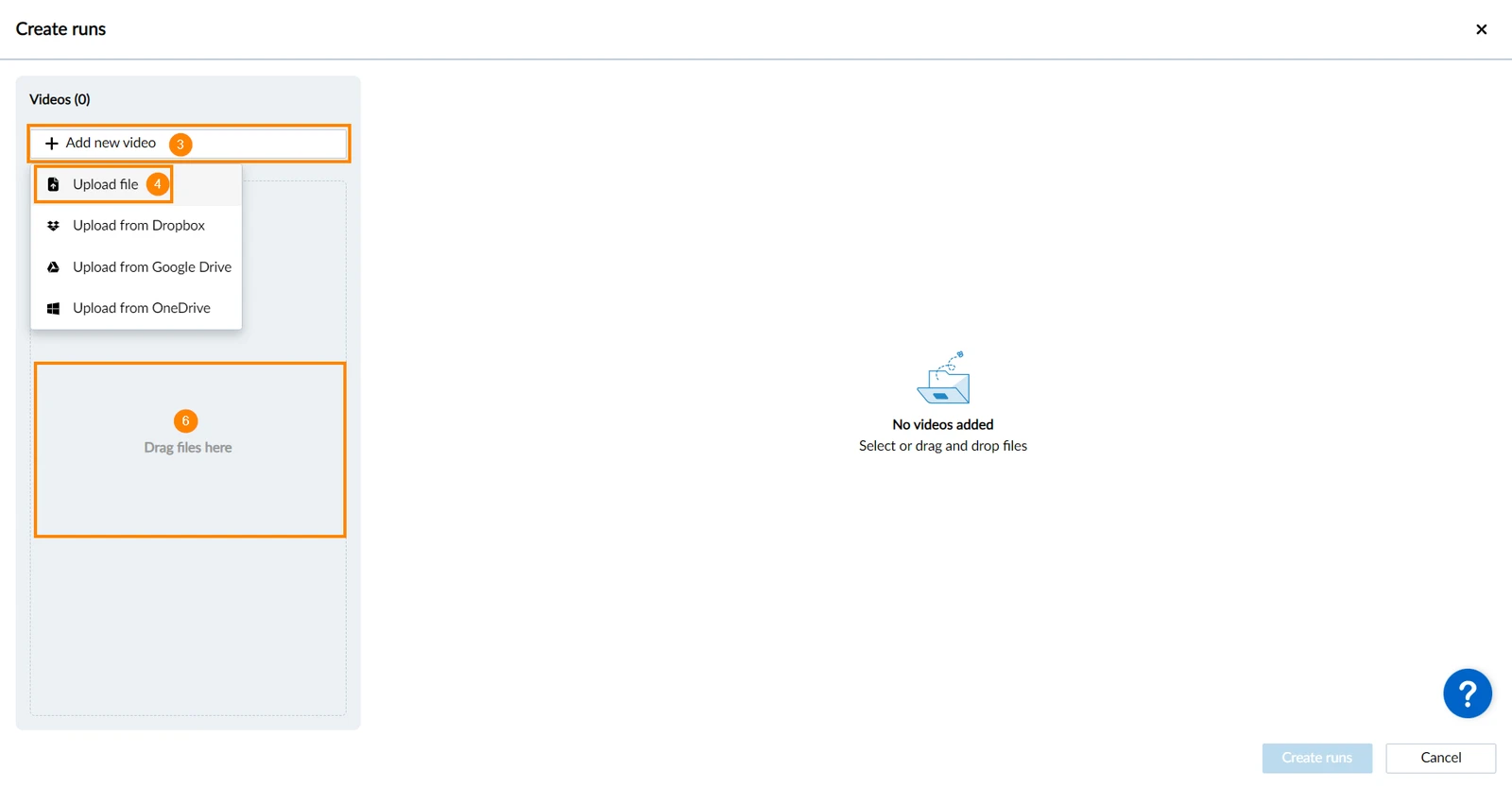
Create & Upload a Run
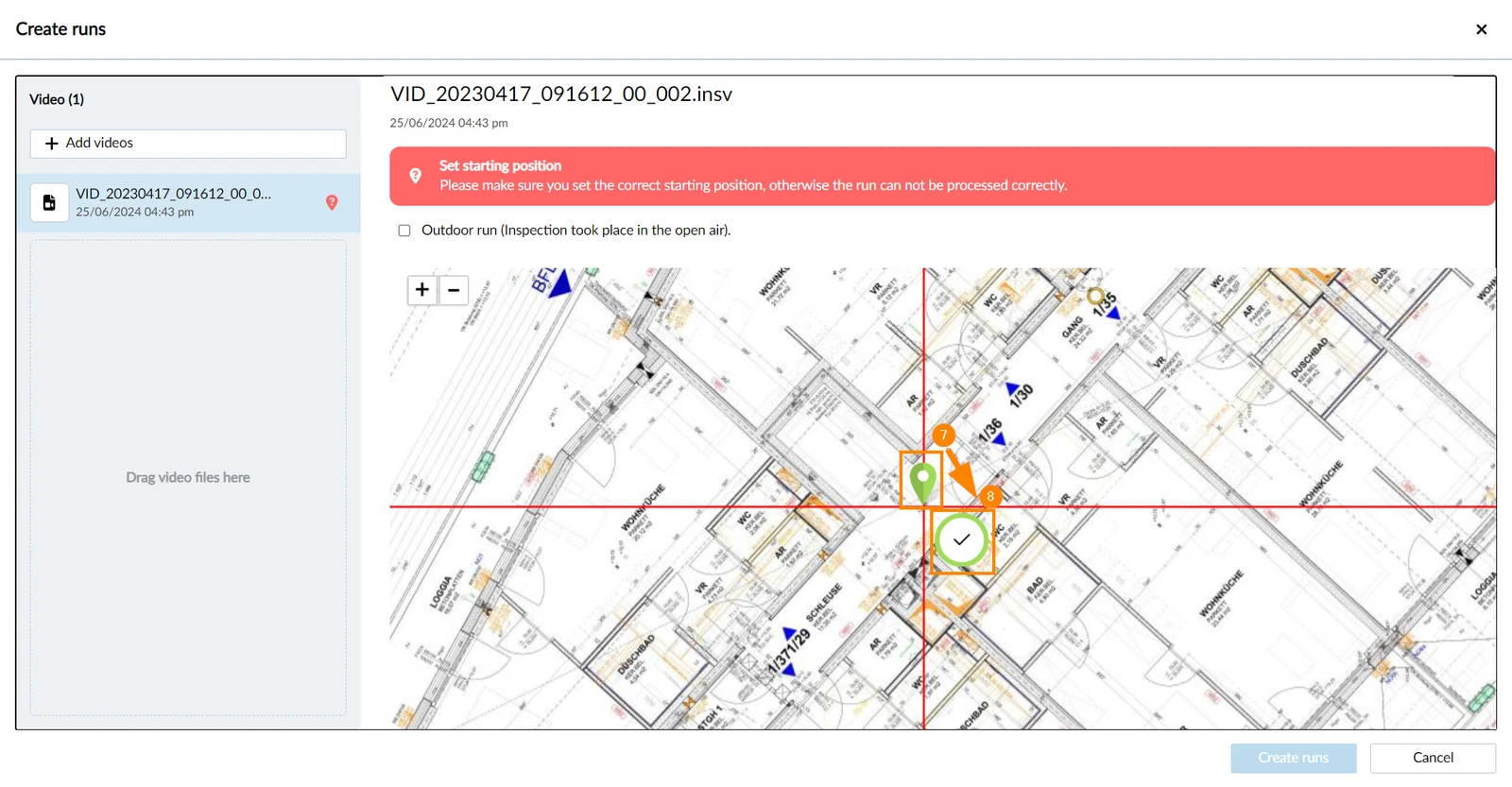
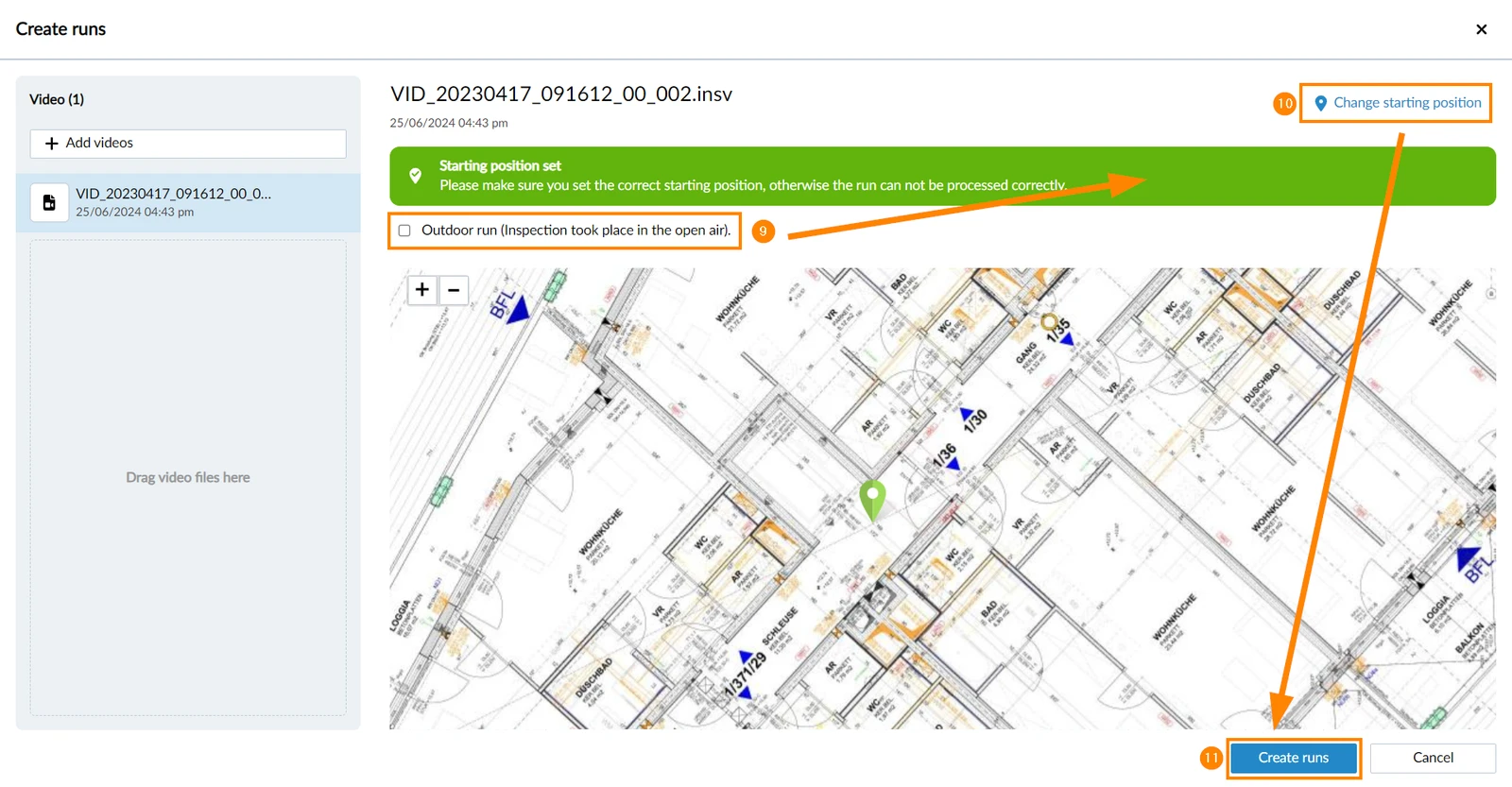
Before you can start uploading, you need to set the position on the plan where you began recording.
Optional: Click Change starting position, if you have confirmed it on an incorrect position.
Click Create run to start the upload
From Uploading to Processing a Run
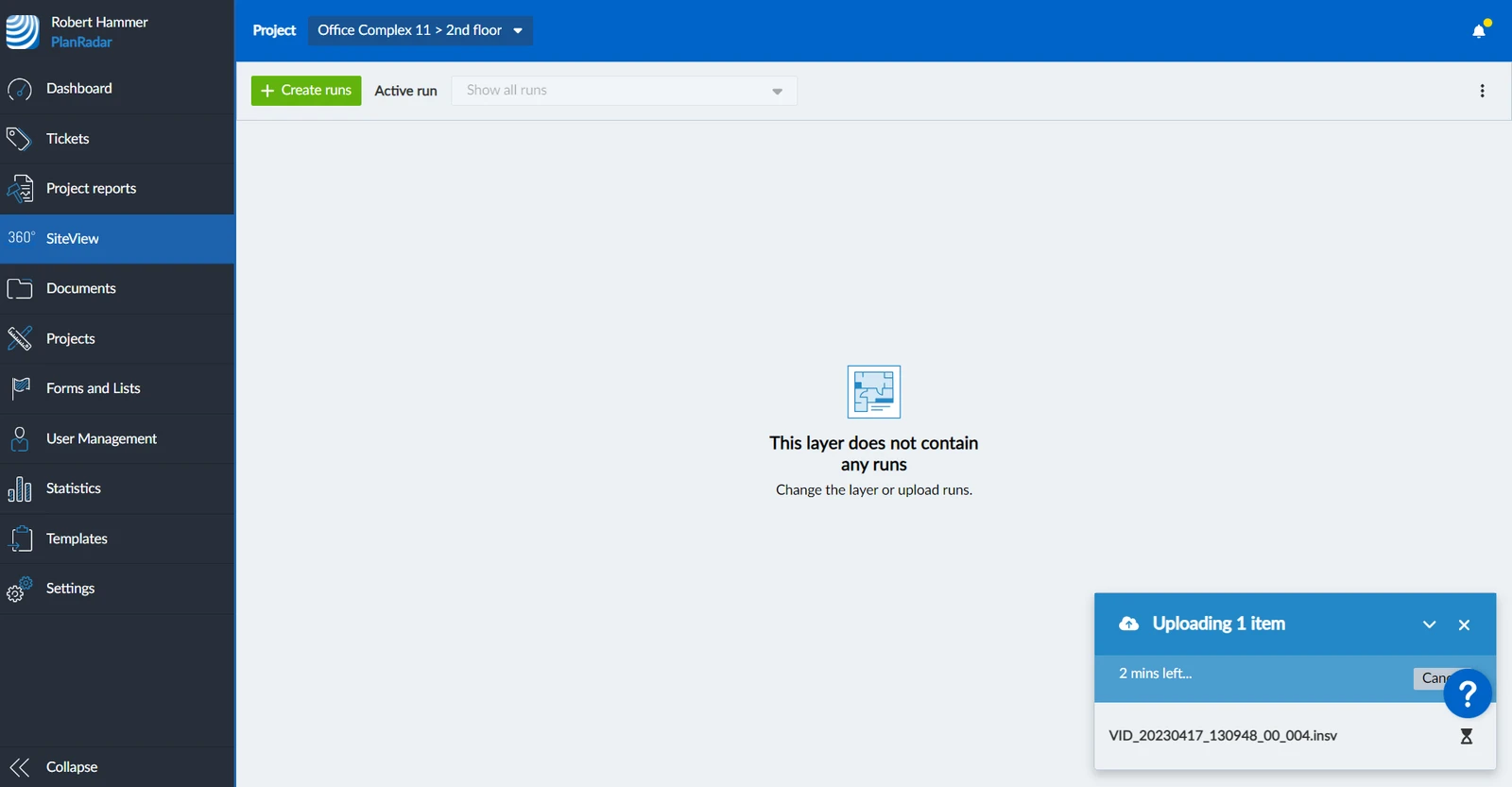
Once you click Create run, the recording will upload in the background. This may take a few minutes depending on the file size and your internet connection.
You can monitor the upload status here:
Once the upload is complete, processing will begin automatically and may take a few hours. Processing will continue even if you close your browser or PlanRadar session. You will be notified once it is finished.
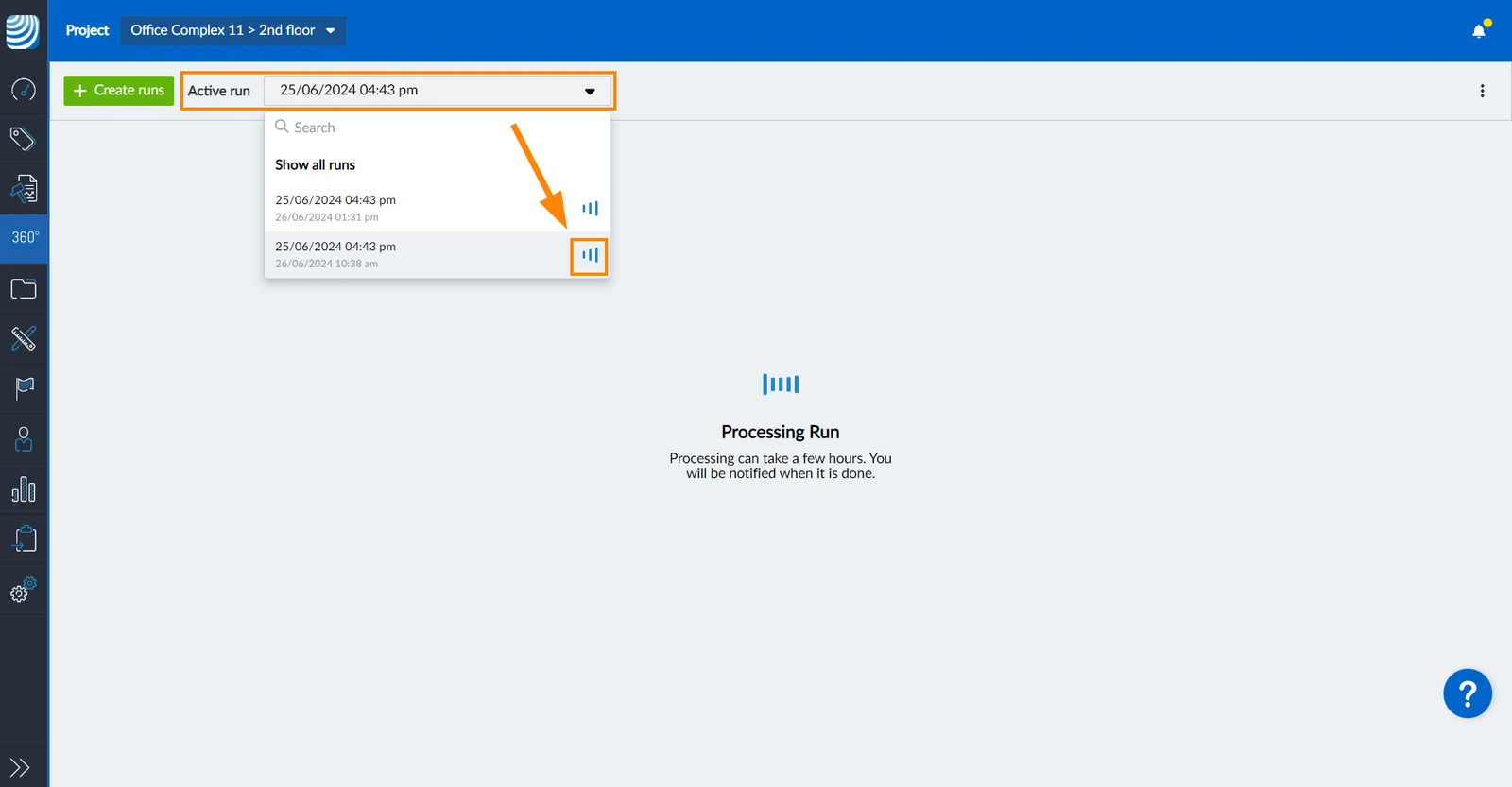
The Select run drop-down list shows which runs are still processing:


 Deutsch
 Español
 Français
 Hrvatski
 Italiano
 Polski
 Português (BR)