

 Deutsch
 Español
 Français
 Hrvatski
 Italiano
 Polski
 Português (BR)
Use Project Templates in the Webapp
Overview
Prepare project templates with a pre-defined structure such as layers, forms, users, etc. and duplicate them to create new projects. This can save a lot of time by reducing repetitive setup tasks.
Mark a project as a template to show it only on the Projects page and hide it everywhere else.
Access & Permissions
Mark a Project as a Template
Projects that are marked as a template are:
- accessible only from the Projects page and are hidden from all other pages such as Tickets, Statistics, etc.
- not available in the mobile application.
- not sending notifications to users when they are added.
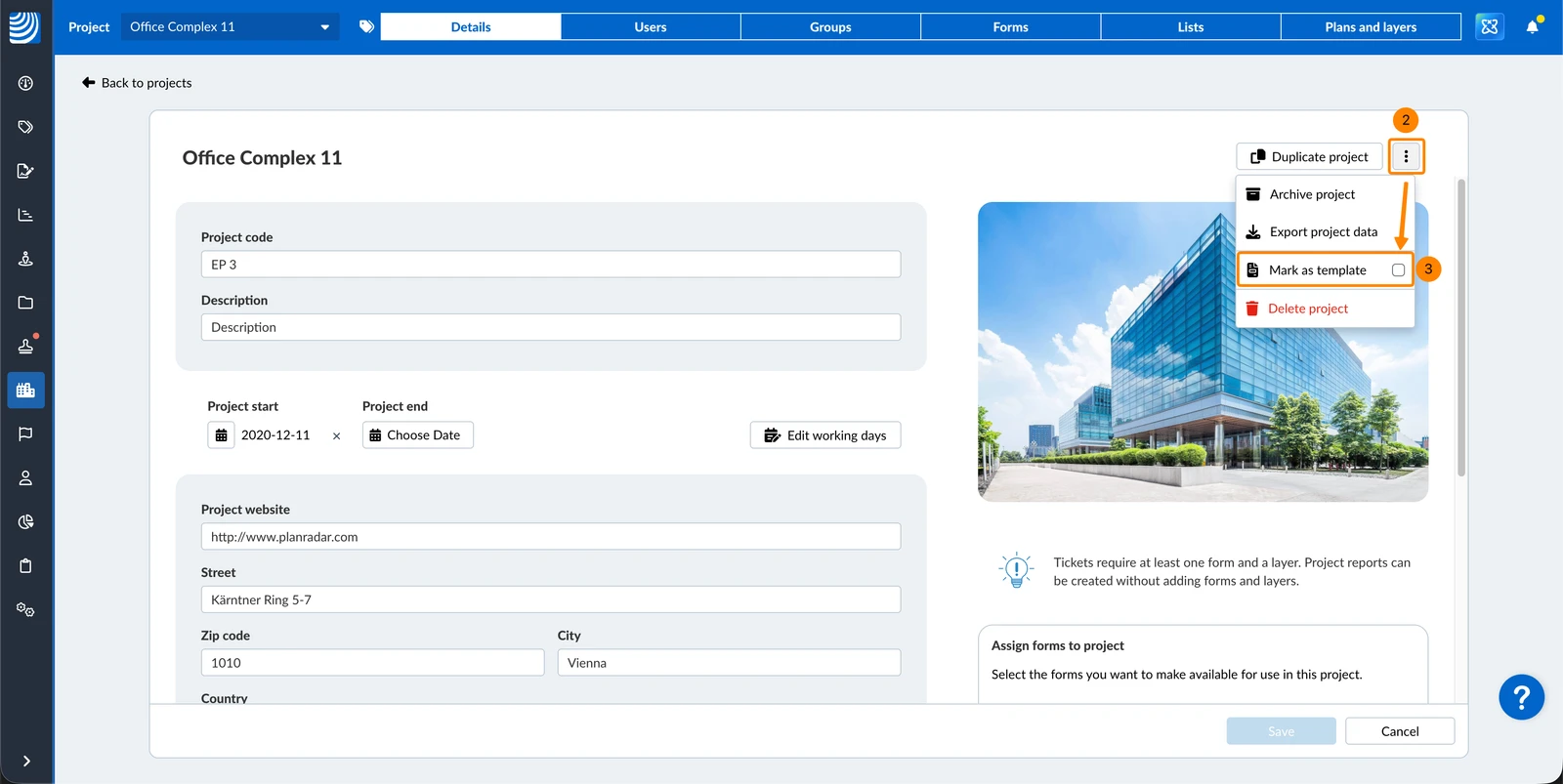
To mark a project as a template:
- Click Projects
- Open the project
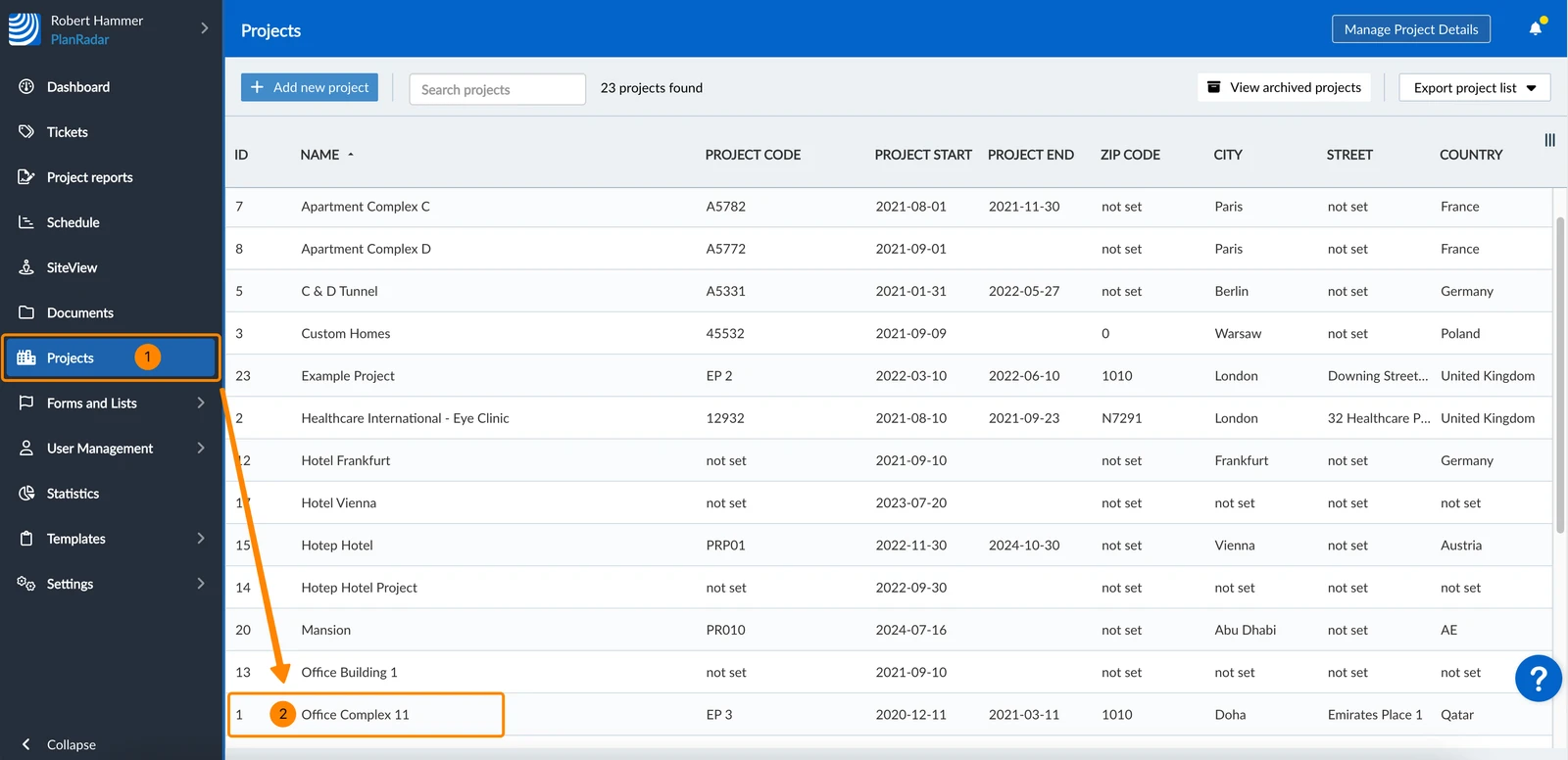
- Open the More menu
- Select the Mark as template checkbox
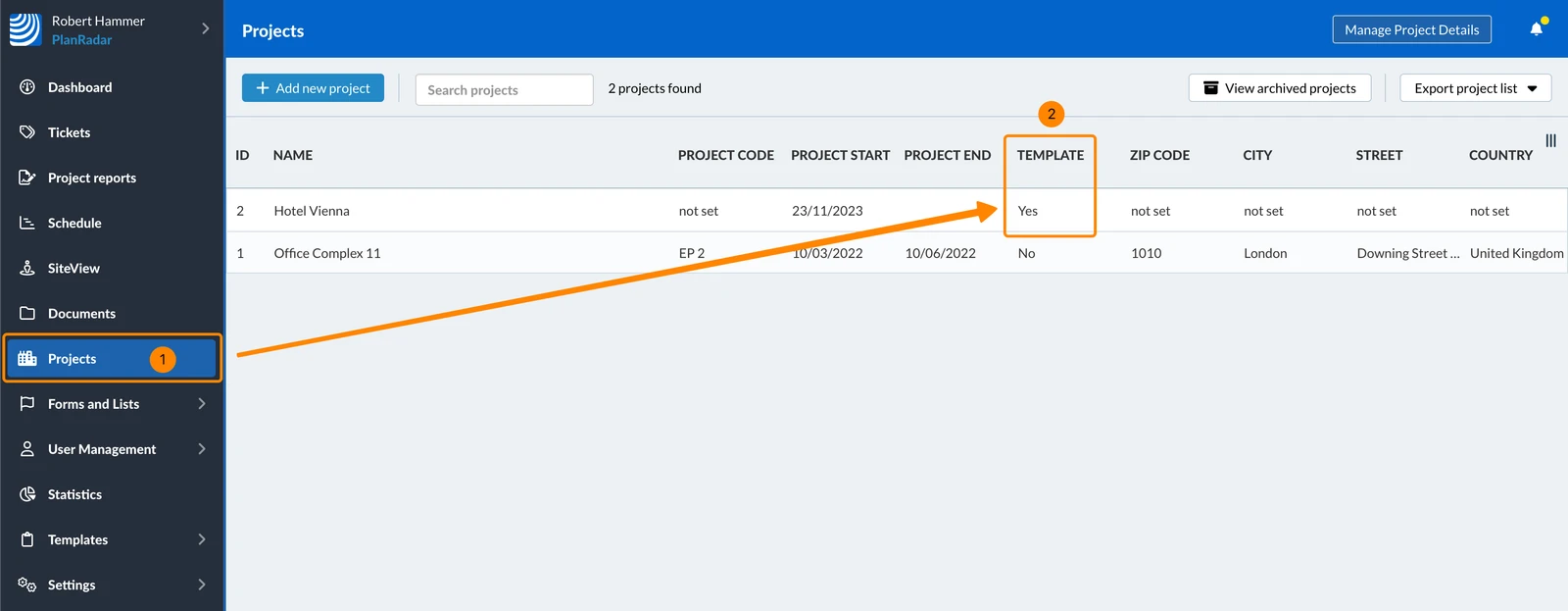
To find and view a project template:
- Click Projects
- Look for projects with the value Yes in the Template column.
Also see Sort & Customise Tables in the Webapp > Show/Hide a Column.
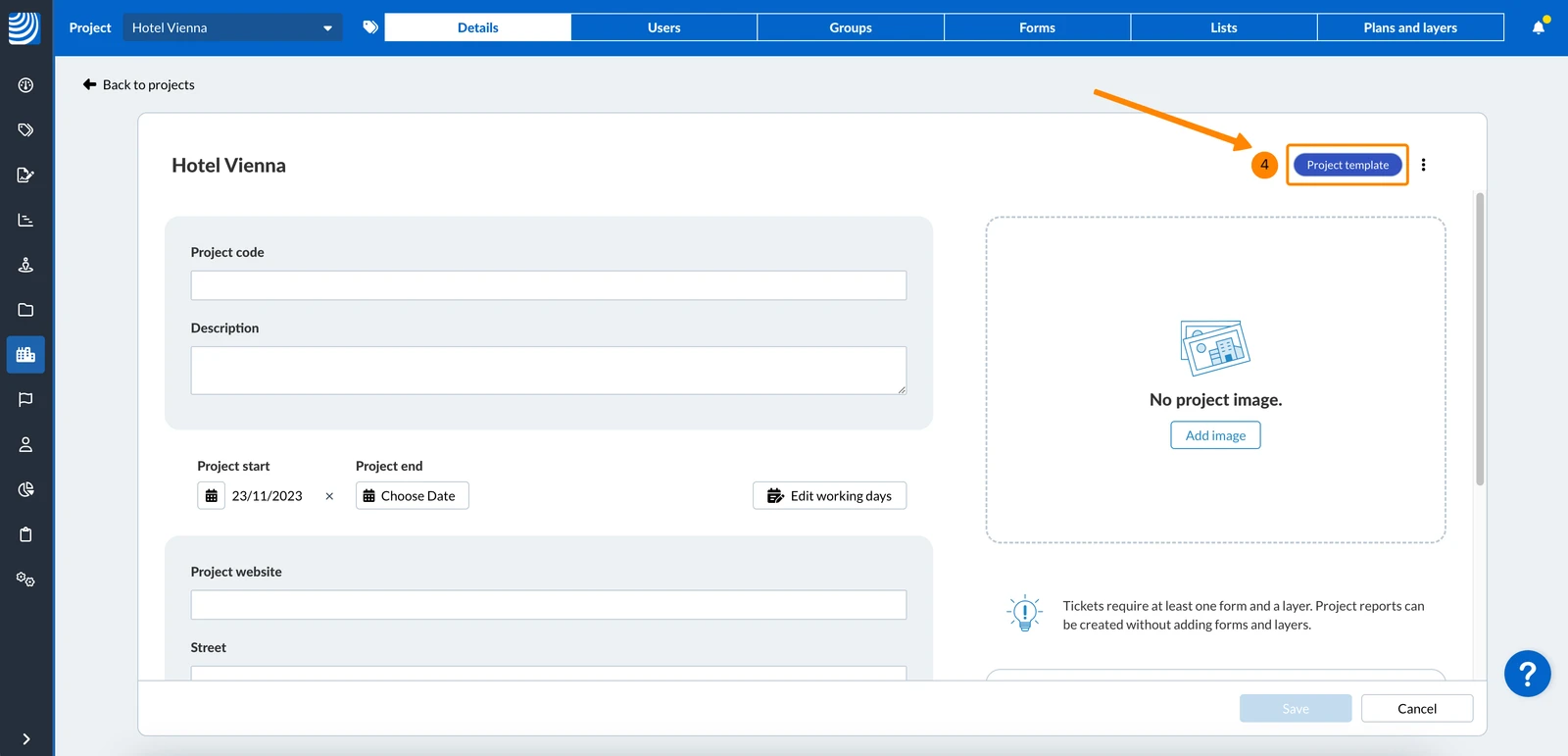
- Click the project
- Note the Project template label
Updated May 11, 2026