

 Deutsch
 Español
 Français
 Hrvatski
 Italiano
 Polski
 Português (BR)
Dictate Text when Creating Tickets in the Mobile App
Overview
PlanRadar offers support for using the speech-to-text functionality on your smartphone to fill in various ticket fields. This capability is available in both our Android and iOS mobile applications.
Requirements
In order to use the speech-to-text feature, you must enable the dictation feature on your phone. To do so:
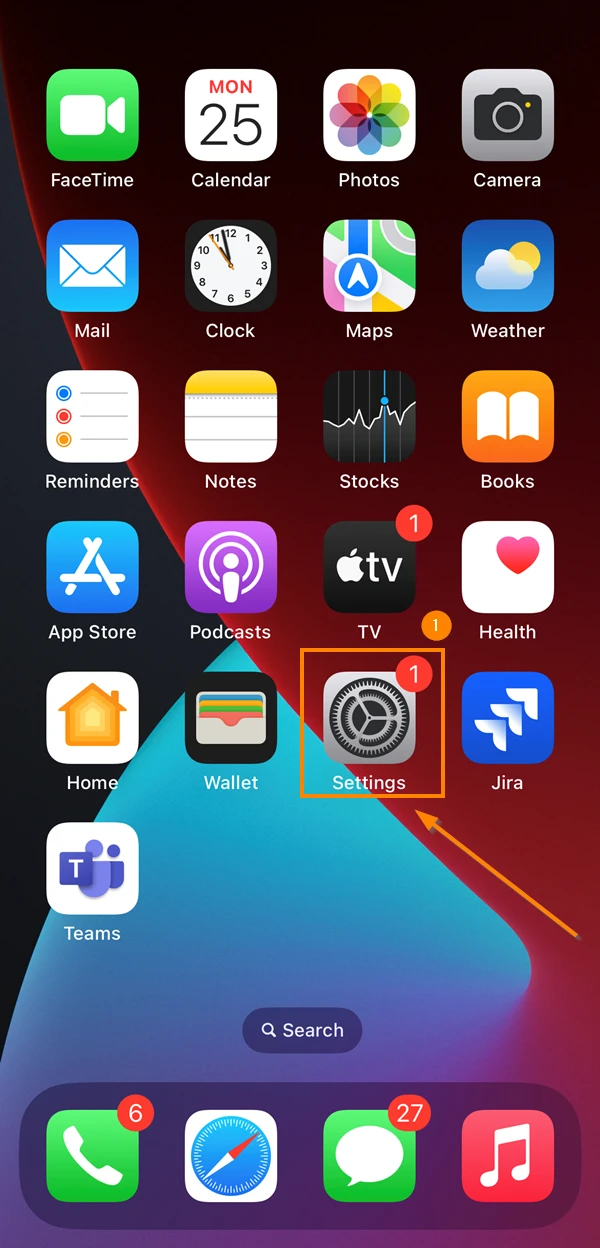
- Tap Settings
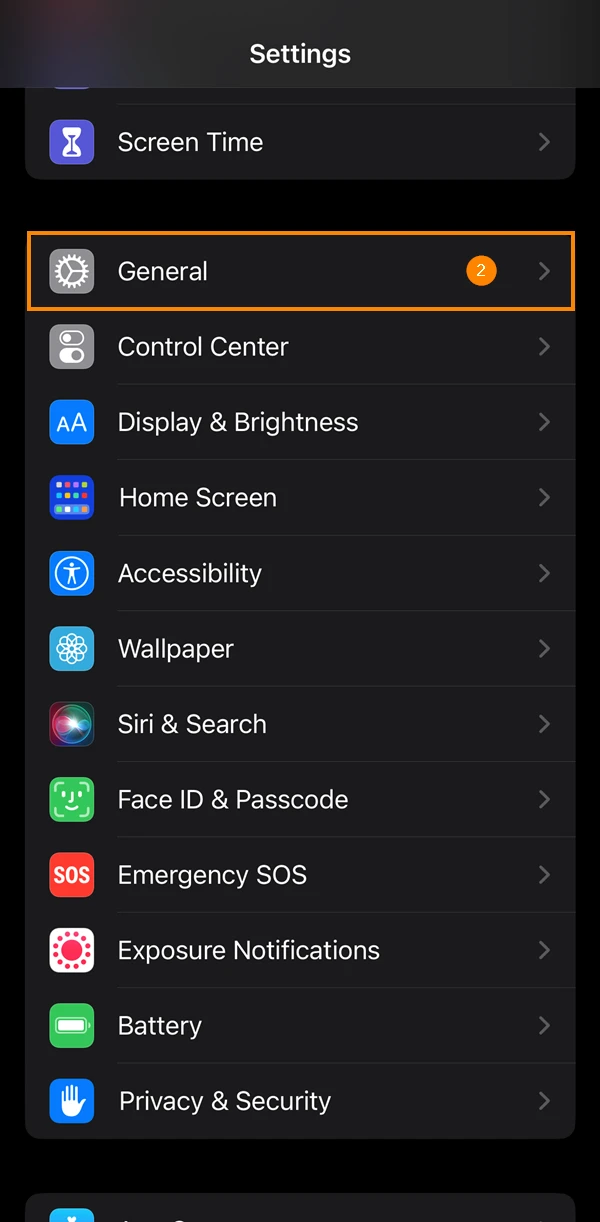
- Tap General
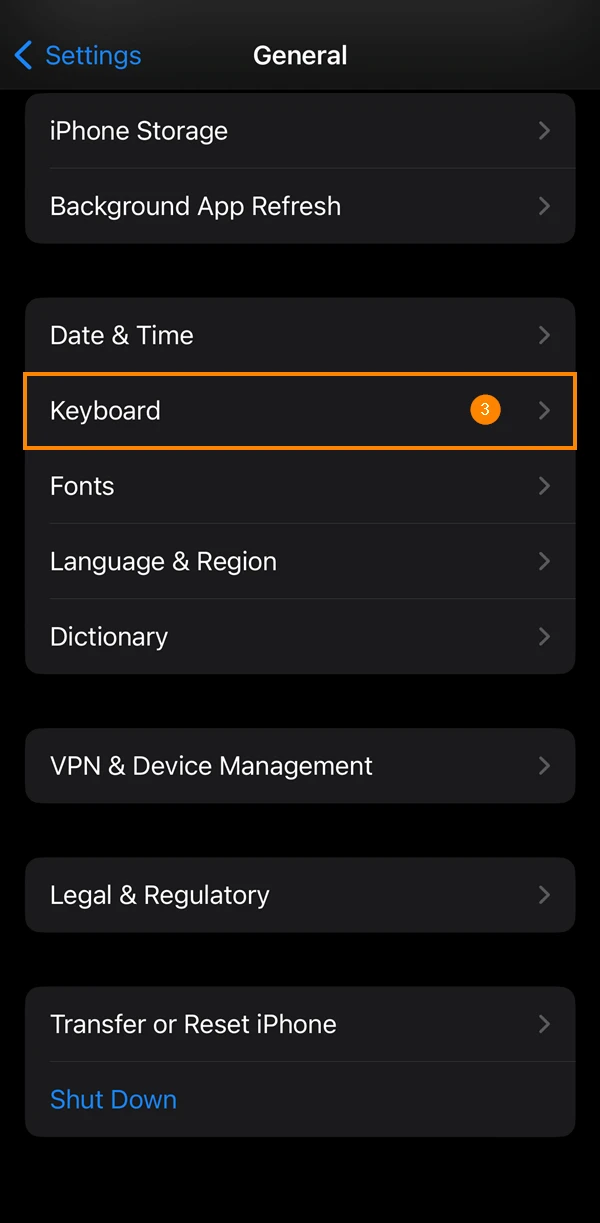
- Tap Keyboard
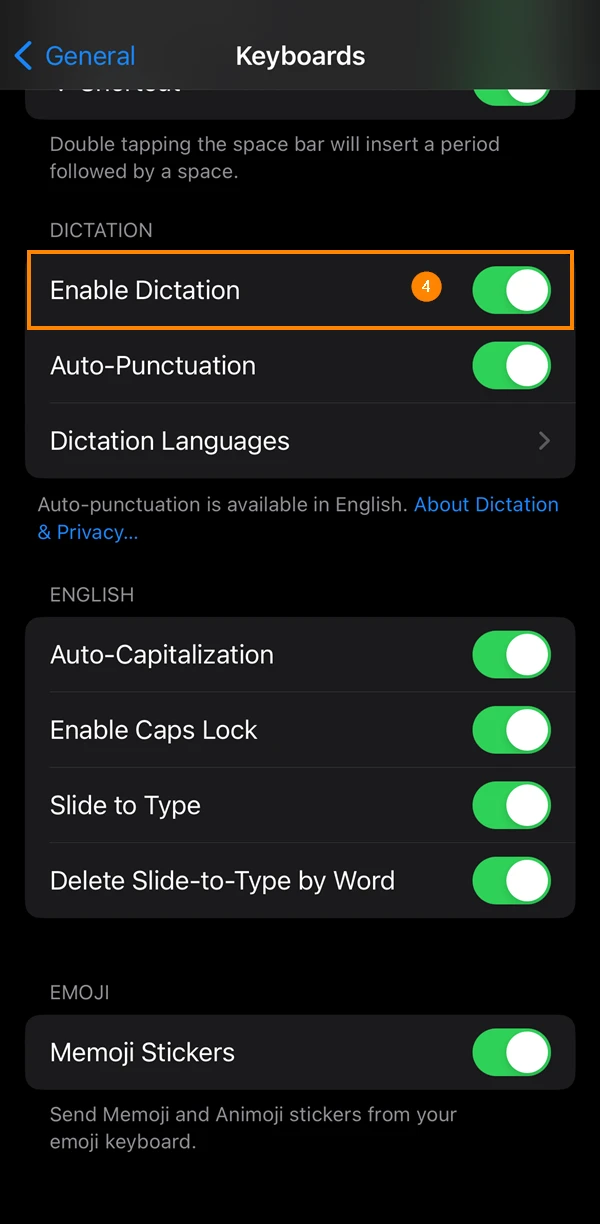
- Activate Enable Dictation toggle
Settings may vary between Android devices.
- Tap Settings
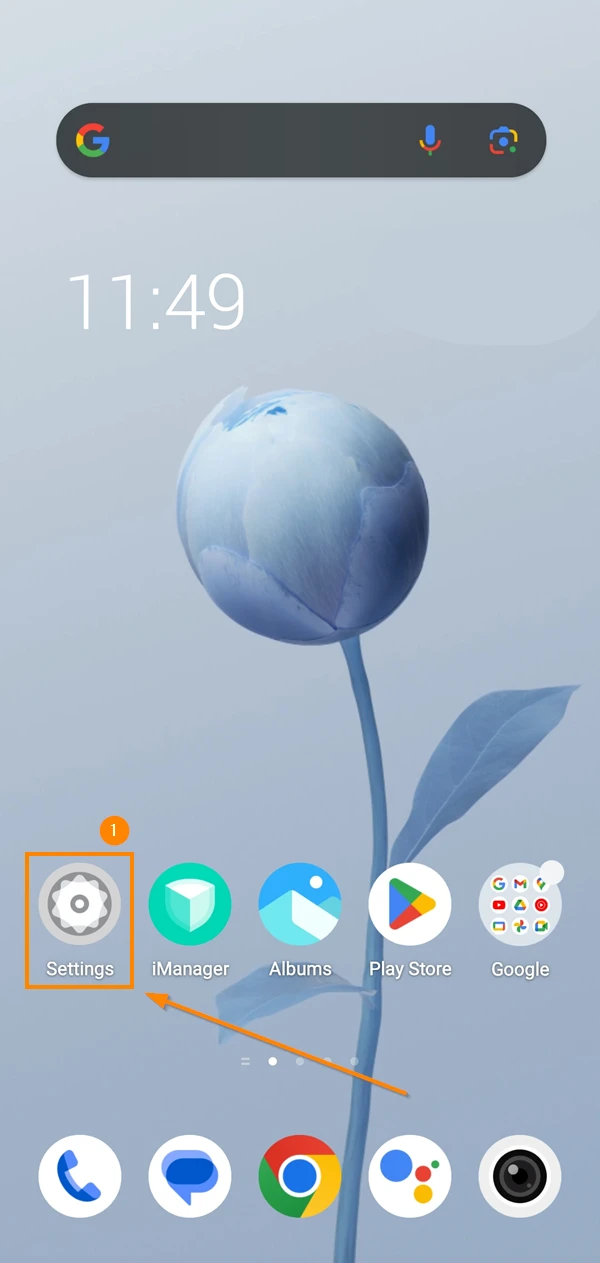
- Tap System
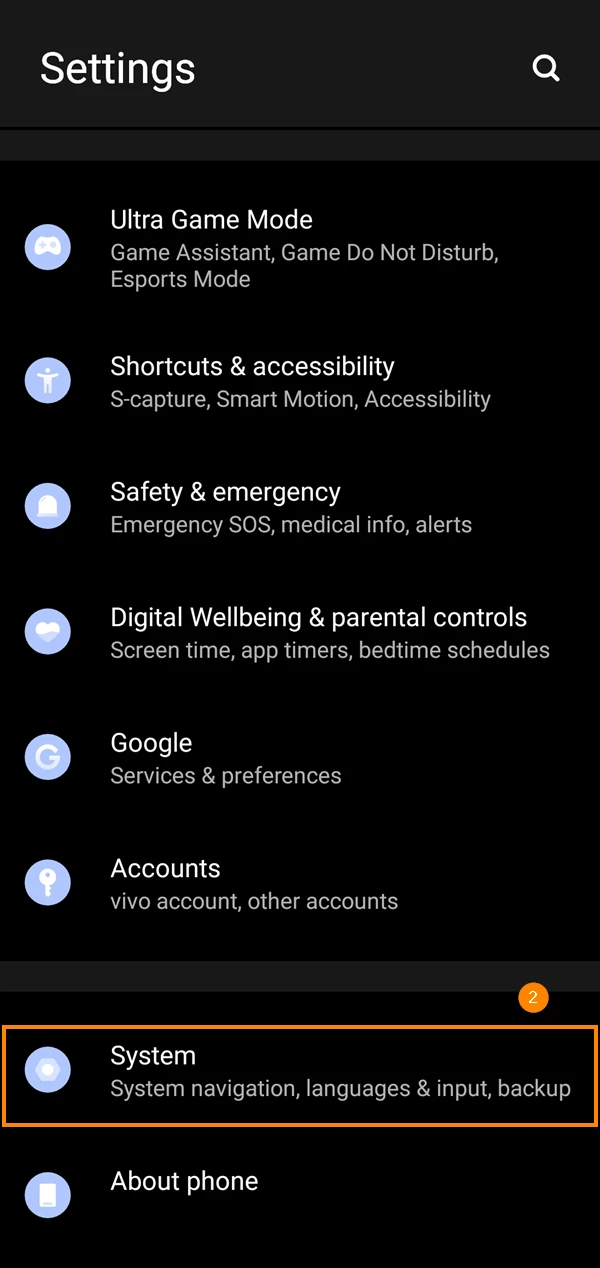
- Tap Language & input
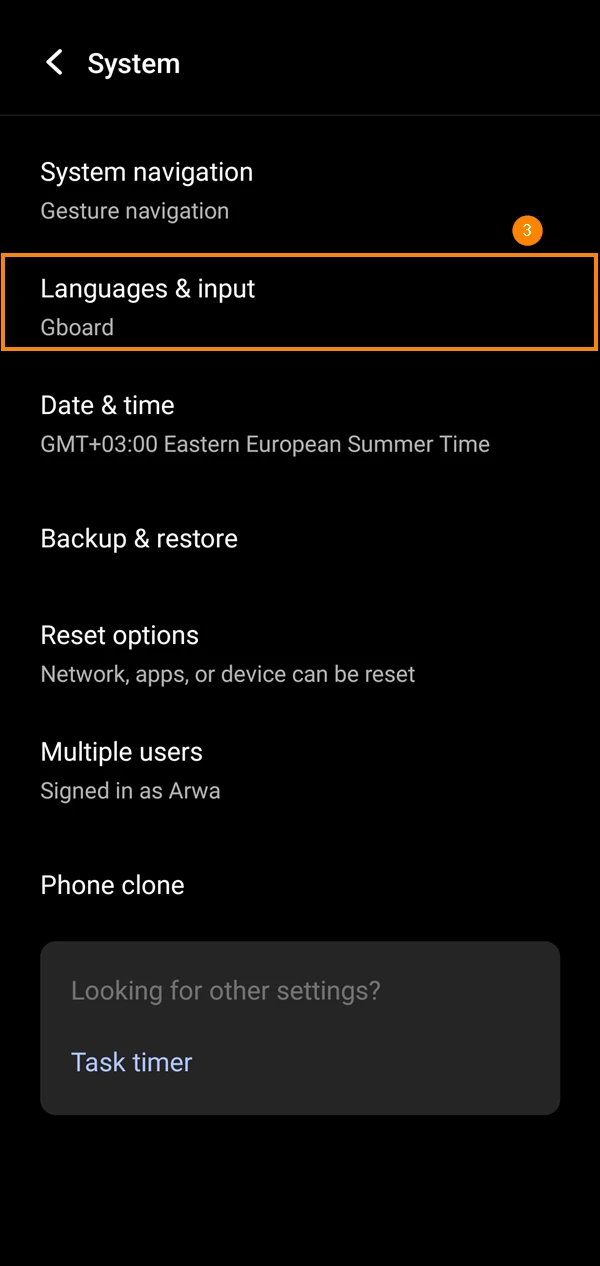
- Tap On-screen keyboard
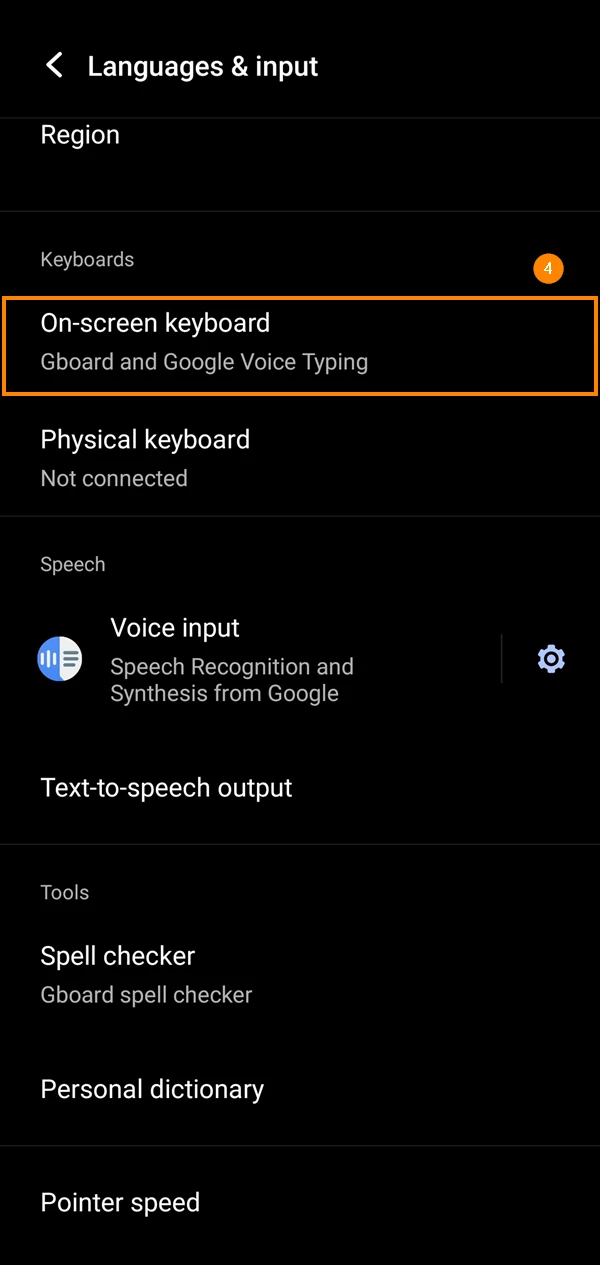
- Tap + Manage on-screen keyboards
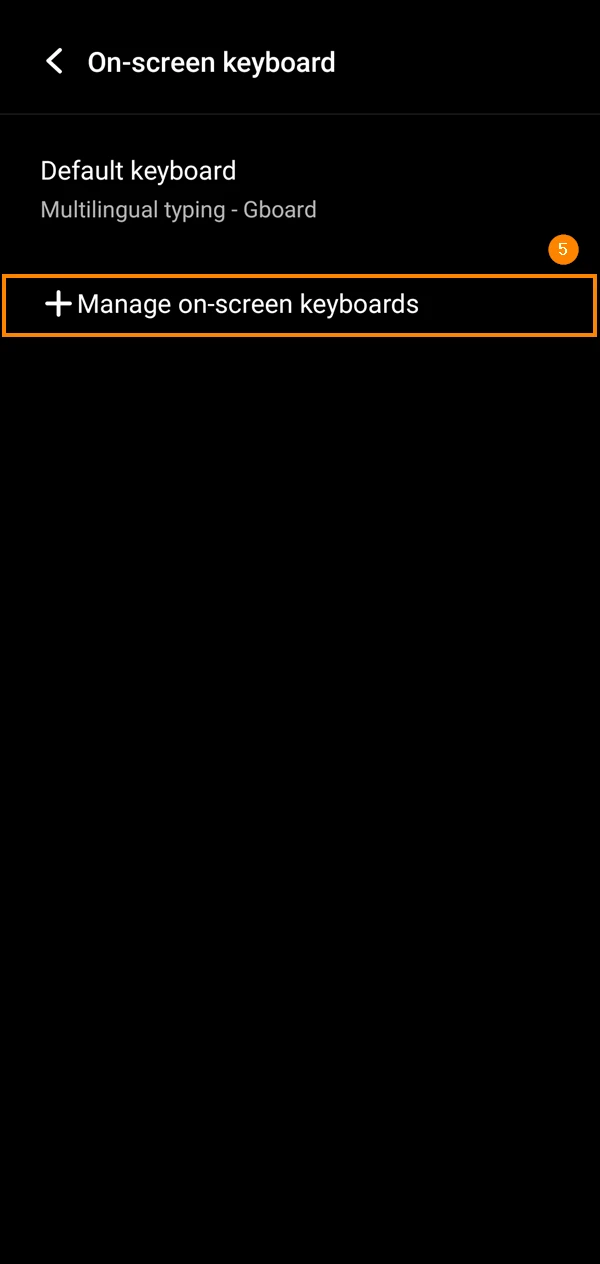
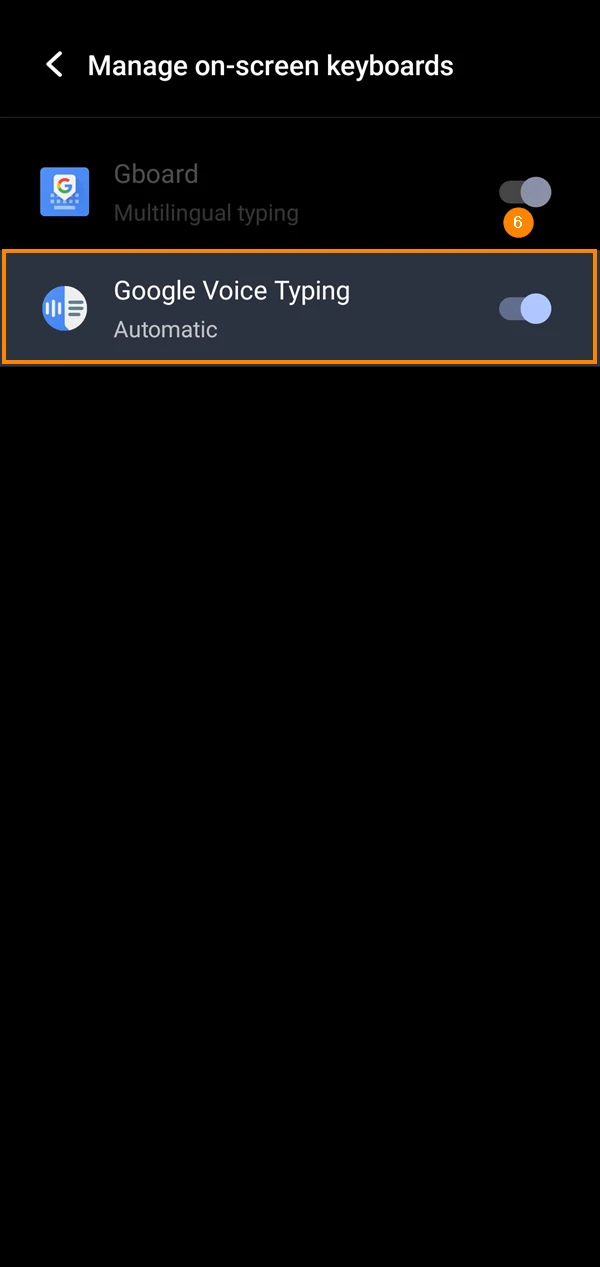
- Activate Google Voice Typing toggle
Dictate Text to Fill Ticket Fields
You can use speech-to-text/dictation to fill in any text field.
Here's an example of how to use this feature to add ticket title:
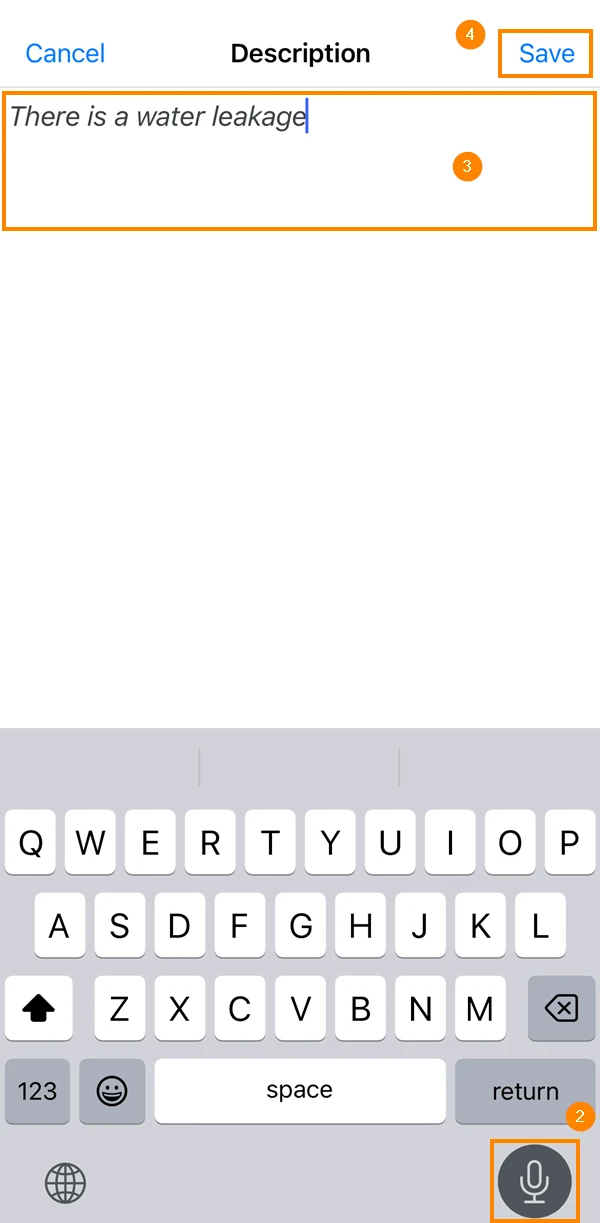
- Tap the field you want to fill in your ticket
- Tap the microphone icon on your keyboard
- Speak into the microphone and the text will appear on the screen
- Tap Save
- Tap the field you want to fill in your ticket
- Tap the microphone icon on your keyboard
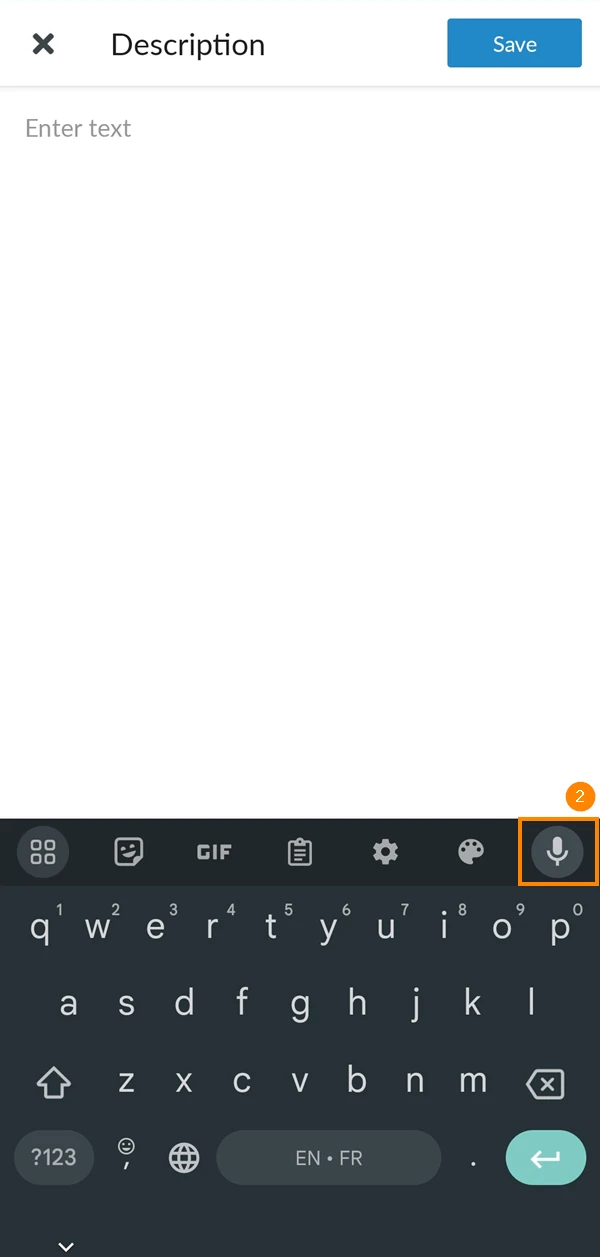
- Select your preferred mic permission option
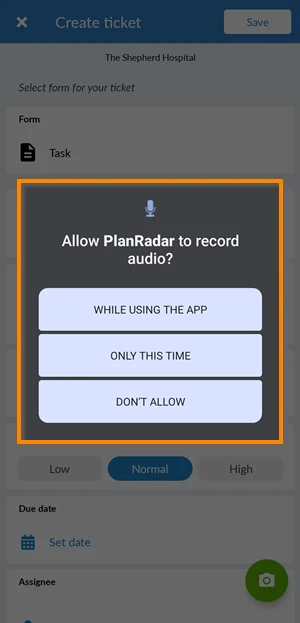
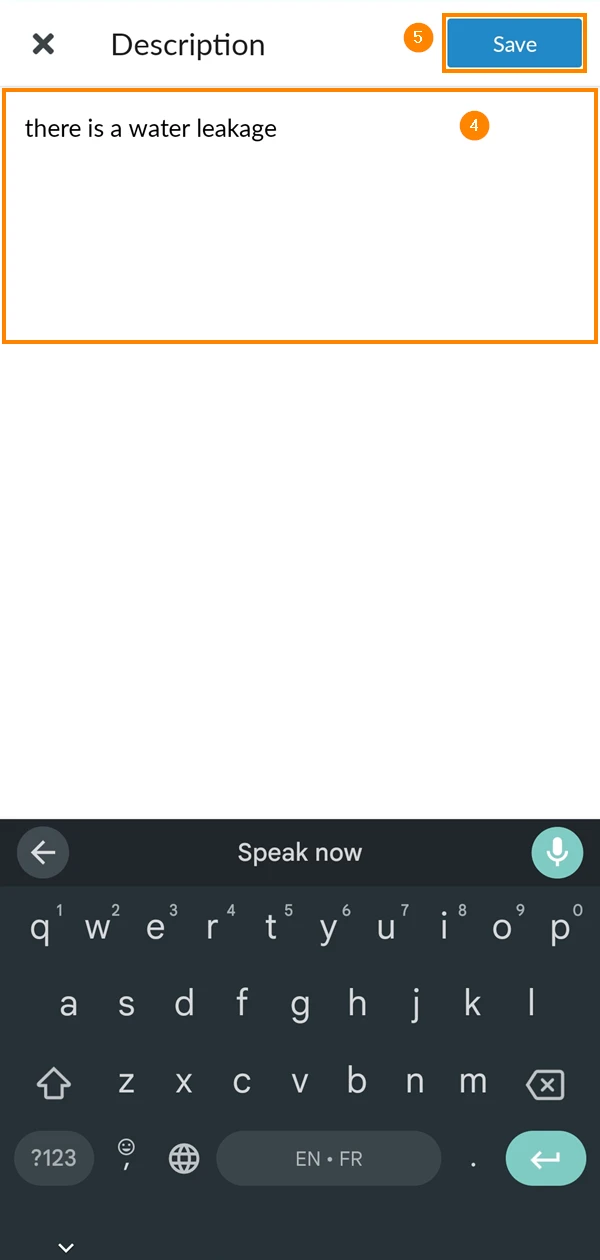
- Speak into the microphone and the text will appear on the screen
- Tap Save
Updated June 26, 2025