

 Deutsch
 Español
 Français
 Hrvatski
 Italiano
 Polski
 Português (BR)
Export a Project in the Webapp
Overview
Export and download a ZIP file of a project's data including all (or certain filtered) tickets, attachments and plans. Optionally, you can choose to include all documents.
This feature can be useful if you want to archive data or need to process data with other tools outside of PlanRadar.
It is not possible to import a project.
Access & Permissions
How to access Projects
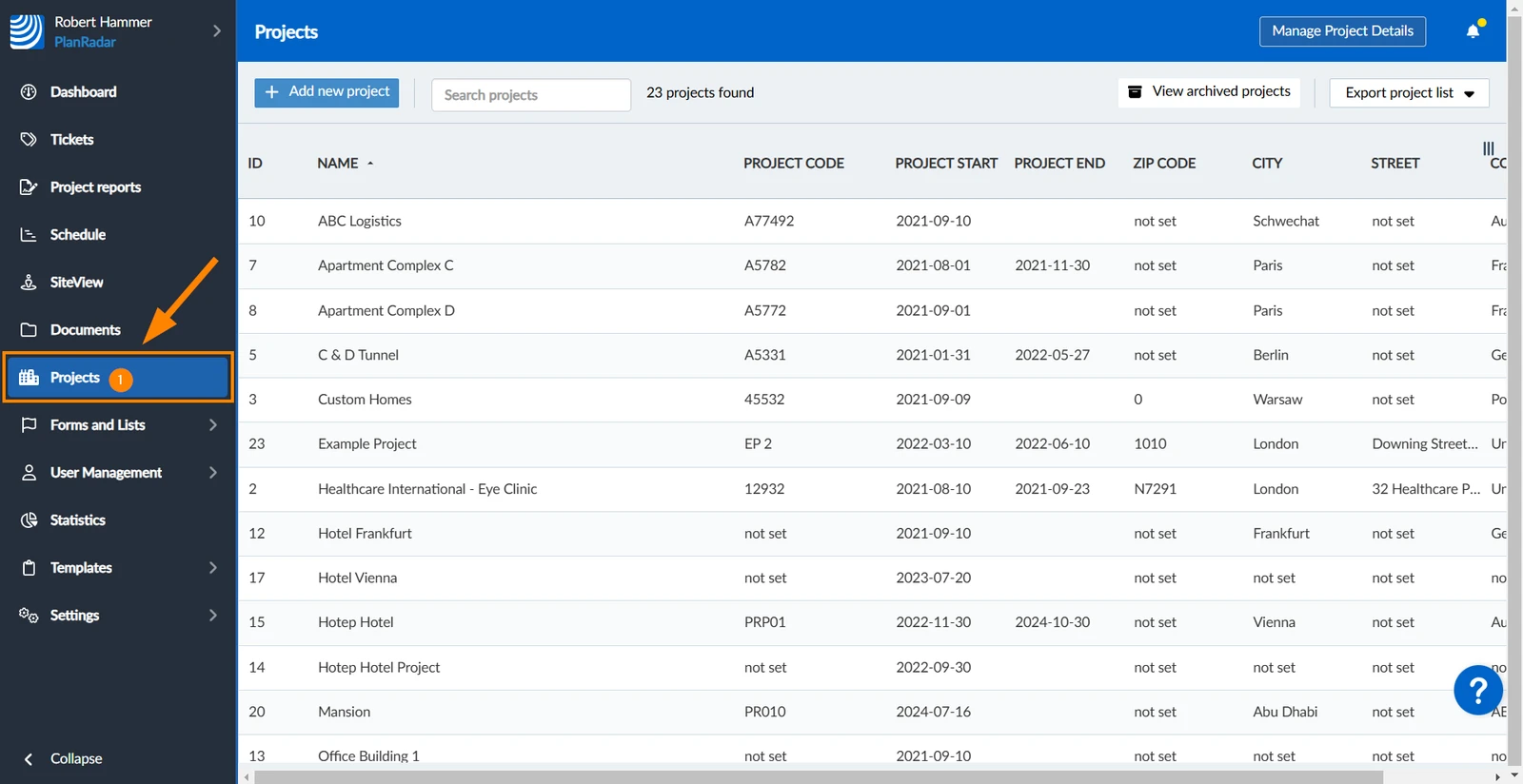
- Click Projects
Export a Project
By default, all tickets of the project are included. Alternatively, you can select a filter to choose which tickets you want to include. Read more in Filter Tickets. Tickets are listed in an Excel file with a column for each ticket field and a backlink to each ticket in PlanRadar.
By default, the ZIP file contains a folder for each layer with its plan file and an annotated PDF showing the ticket locations. If you specify a filter for exporting tickets, layers that don't contain included tickets are automatically excluded.
By default only photos, videos and audio recordings are included. Select the checkbox to include all documents.
All project reports are included.
To export a project (optionally with a filter and/or with all documents):
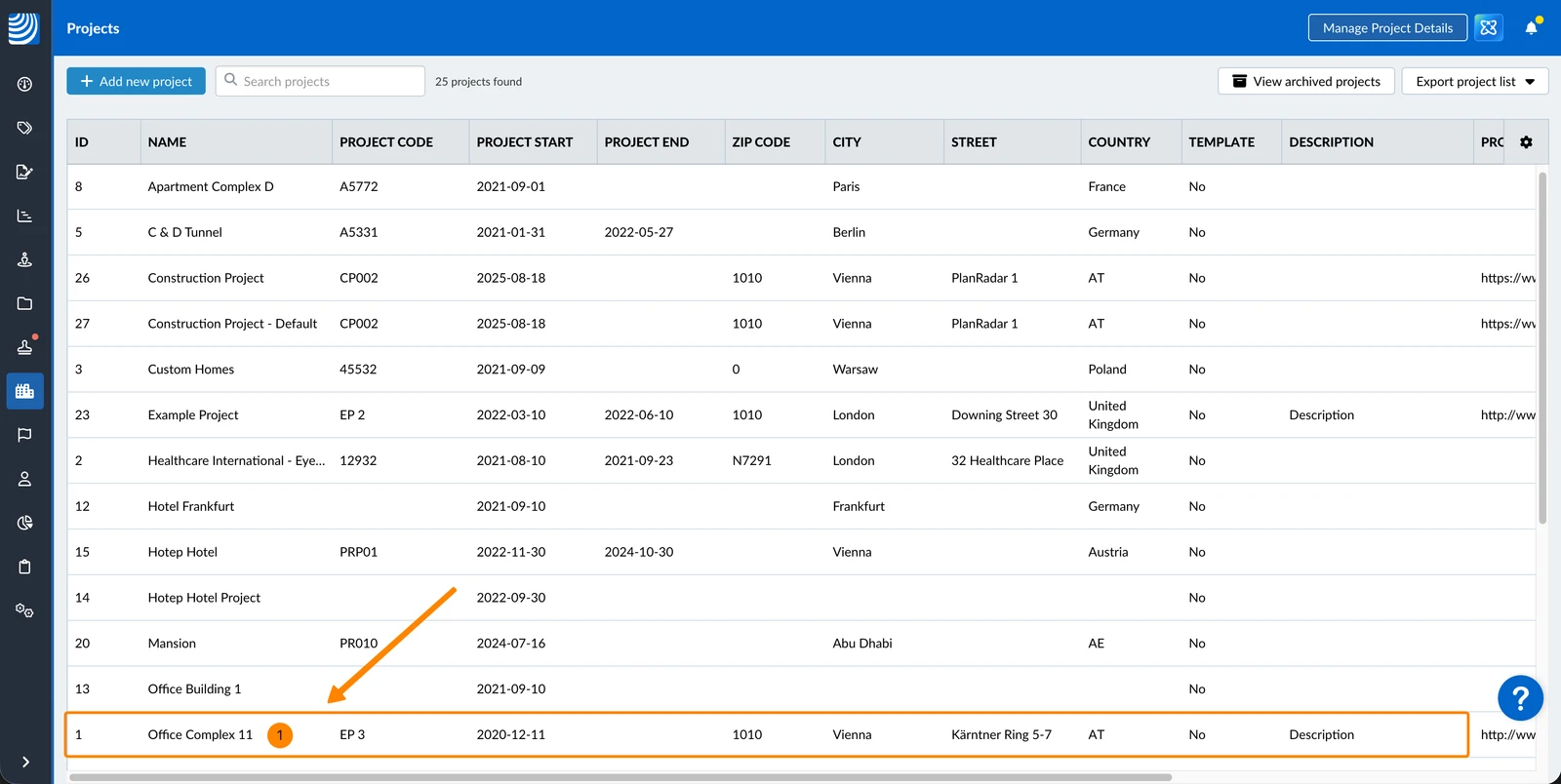
- Select the project
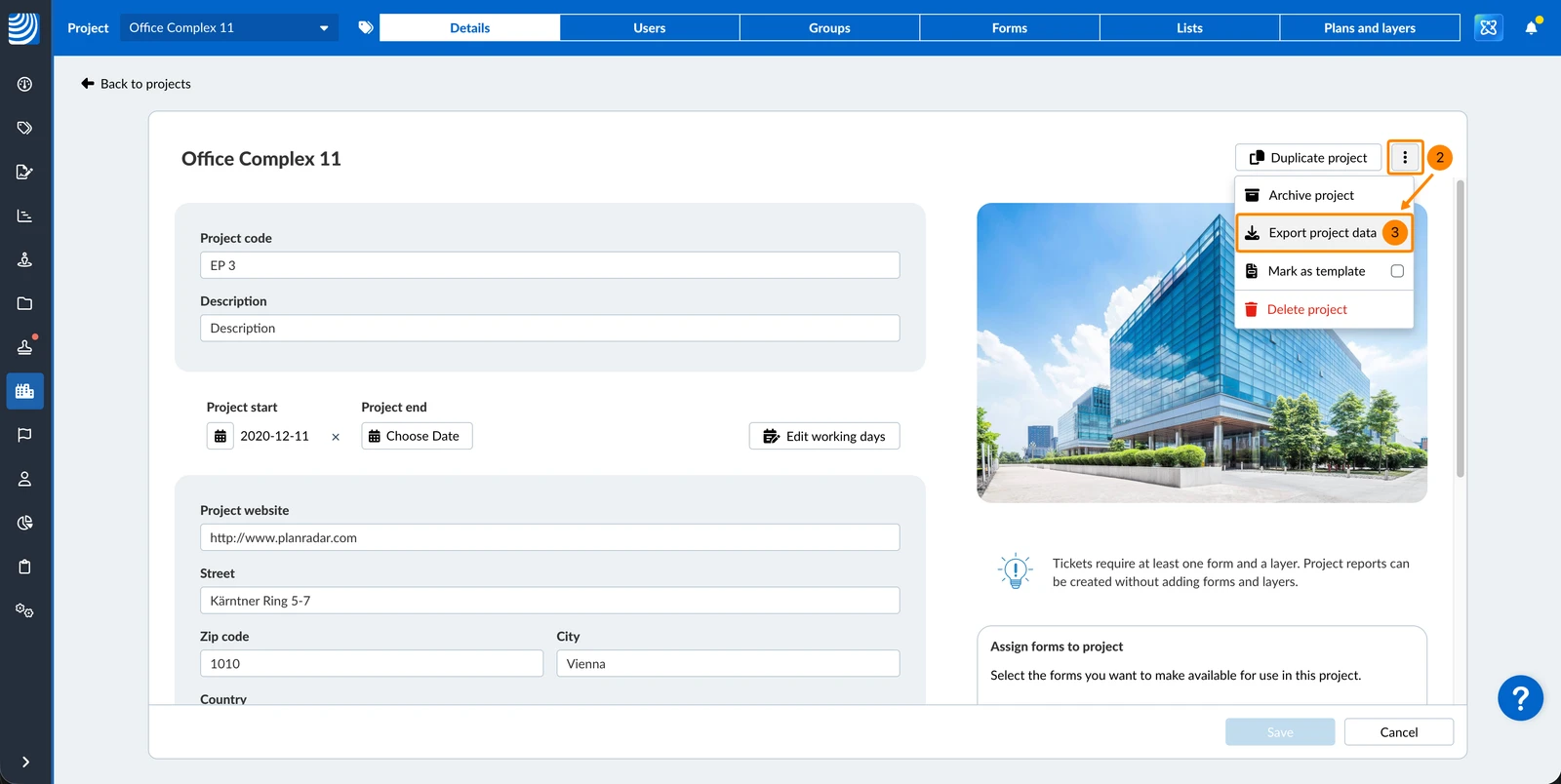
- Open the more menu
- Click Export project data
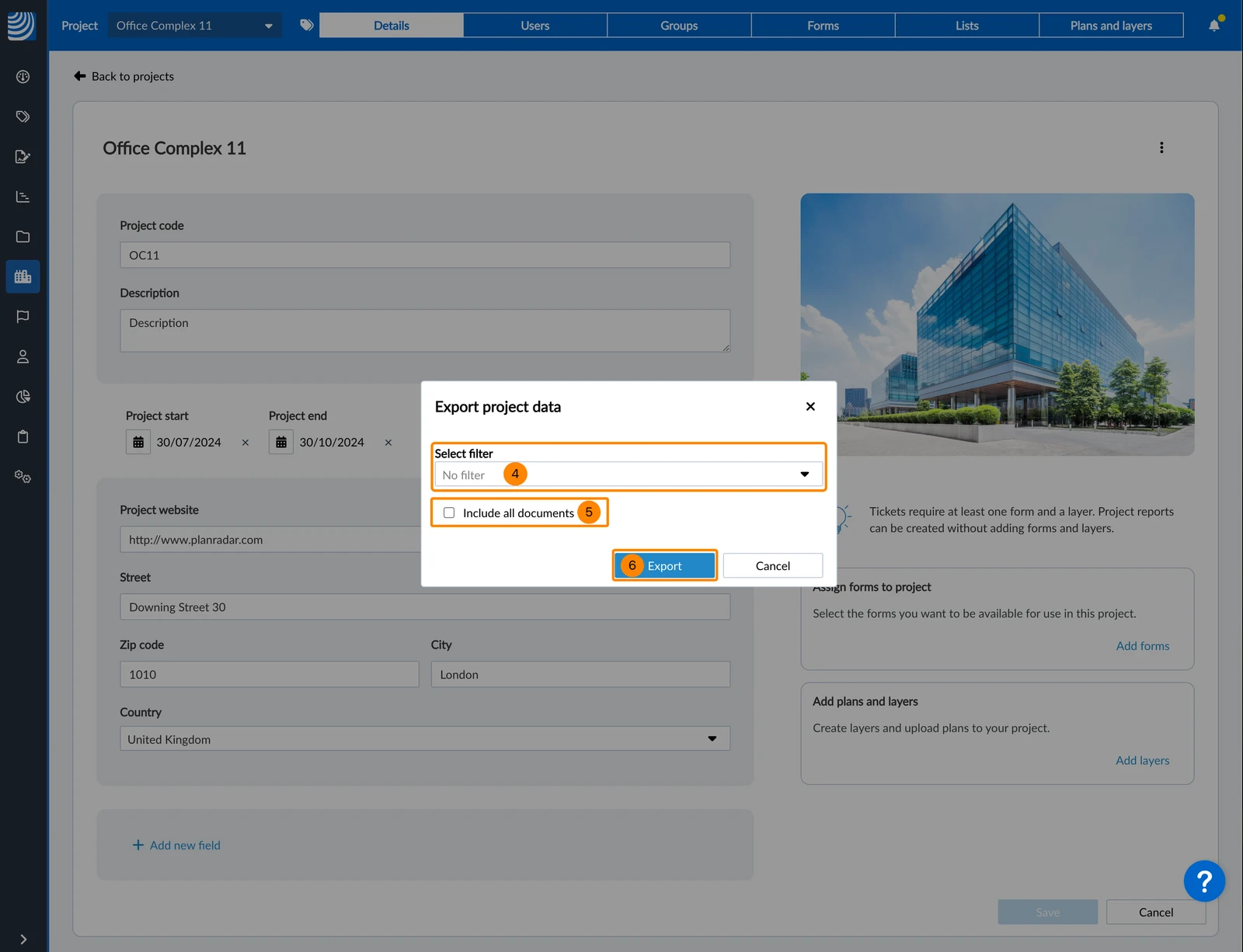
- Optional: Select a filter in the drop-down e.g. Closed tickets
- Optional: Select/clear the Include all documents checkbox (estimated file size is calculated and shown)
- Click Export
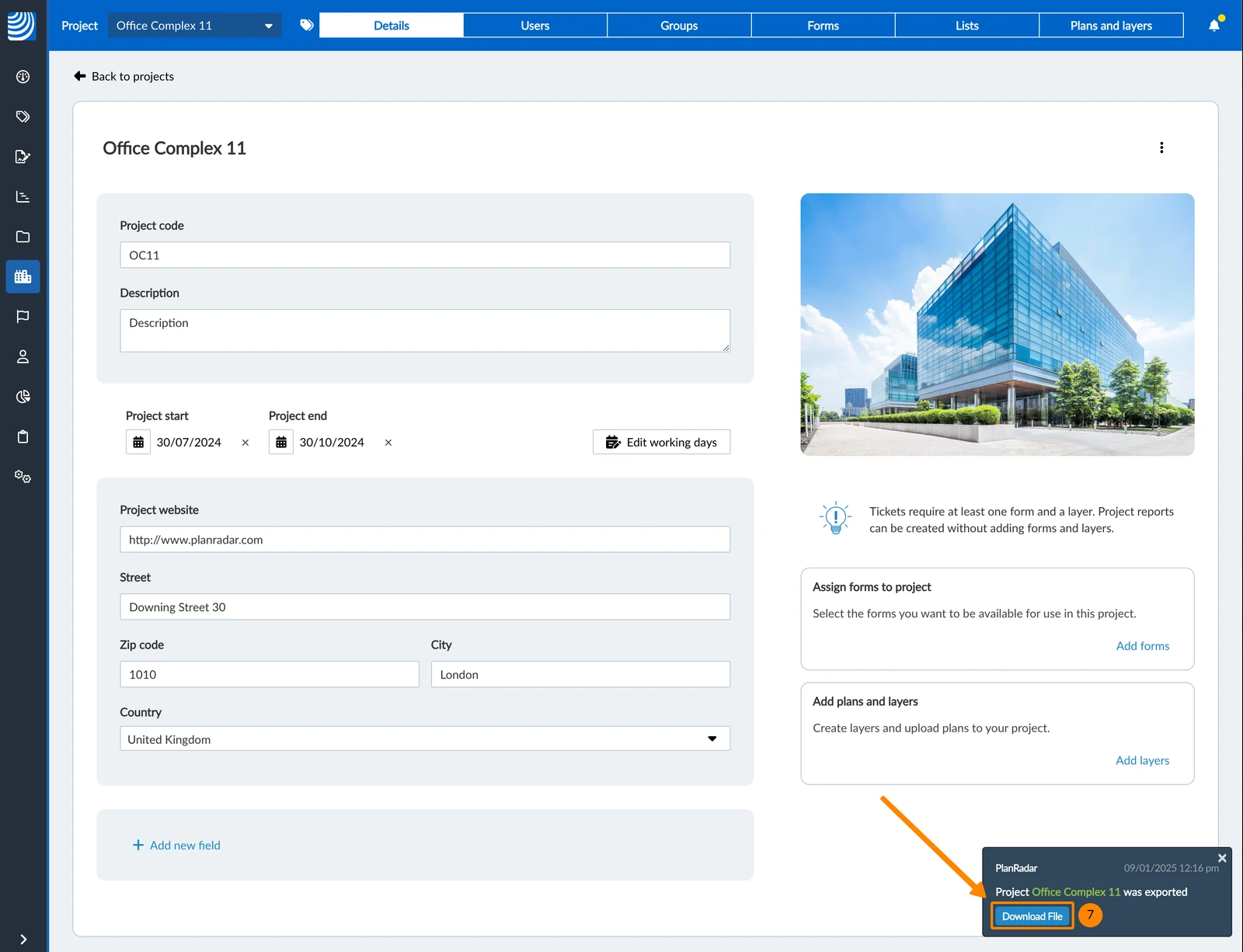
- You will be notified when the file has been generated.
Click Download File.
Updated May 11, 2026