

 Deutsch
 Español
 Français
 Hrvatski
 Italiano
 Polski
 Português (BR)
Webapp Dashboard
Overview
Get an overview of all your projects and tickets using the dashboard in the Webapp.
Access & Permissions
How to access the Dashboard
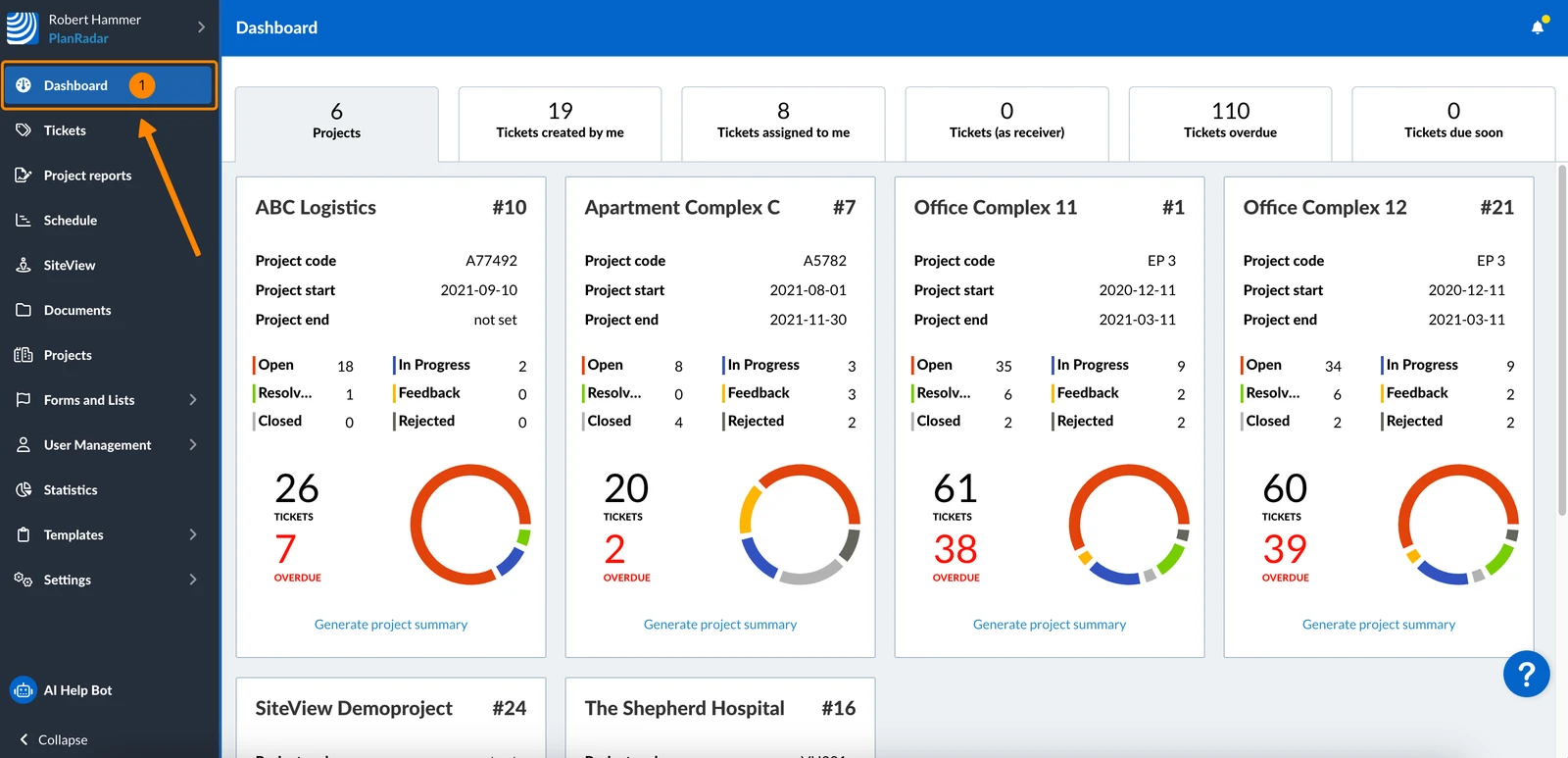
The dashboard is shown after each new login.
To view the dashboard:
- Click Dashboard
Projects Tab
-
Projects tab displays all your projects.
-
Project card for each project with the following information:
-
Project name and project ID.
-
Project details including the project code, start and end date.
-
Number of tickets grouped by their status.
-
Total number of tickets & number of tickets that are overdue.
-
Diagram showing the number of tickets grouped by status.
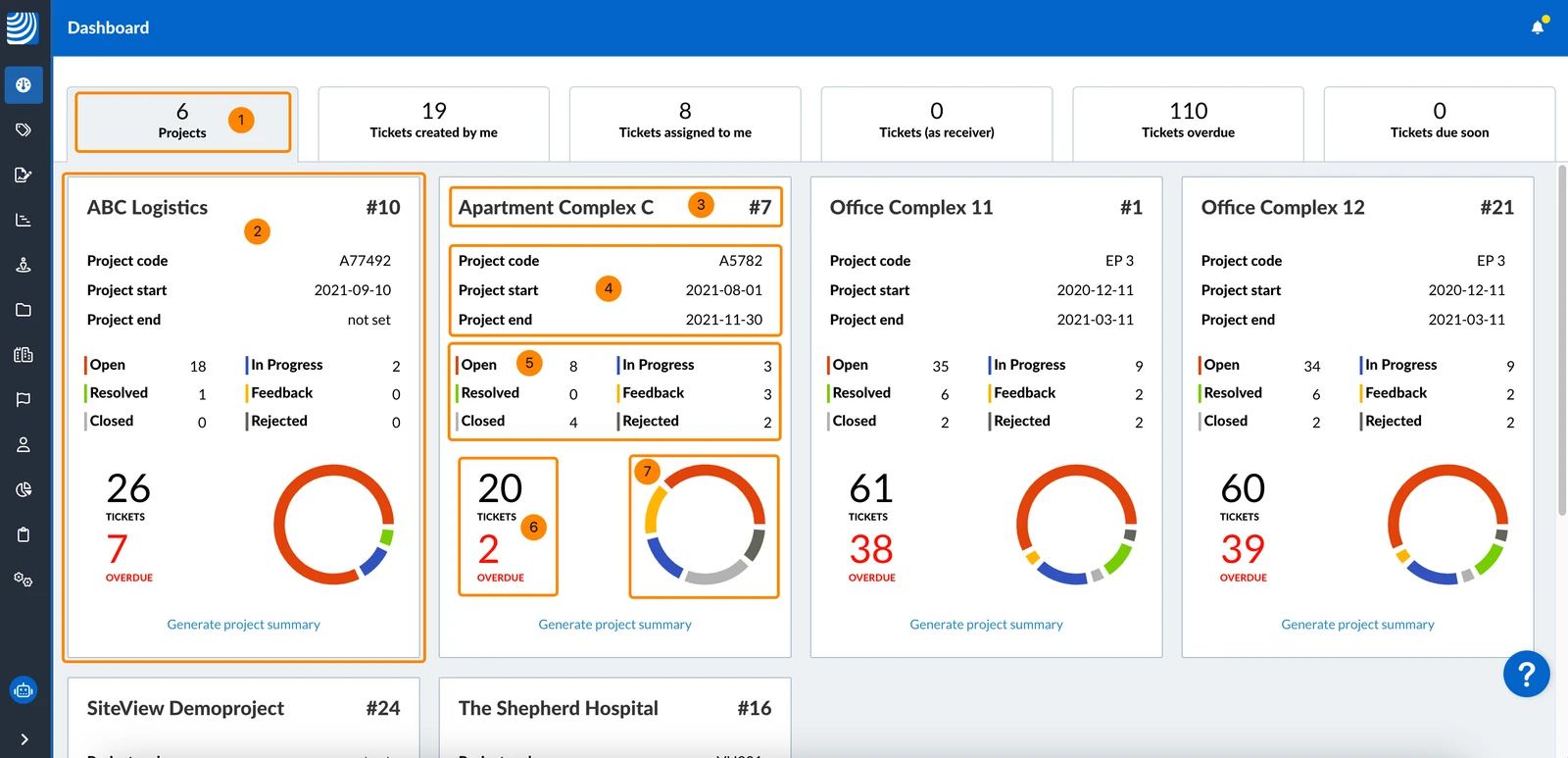
The projects are sorted alphabetically by their project names.
Search for Projects
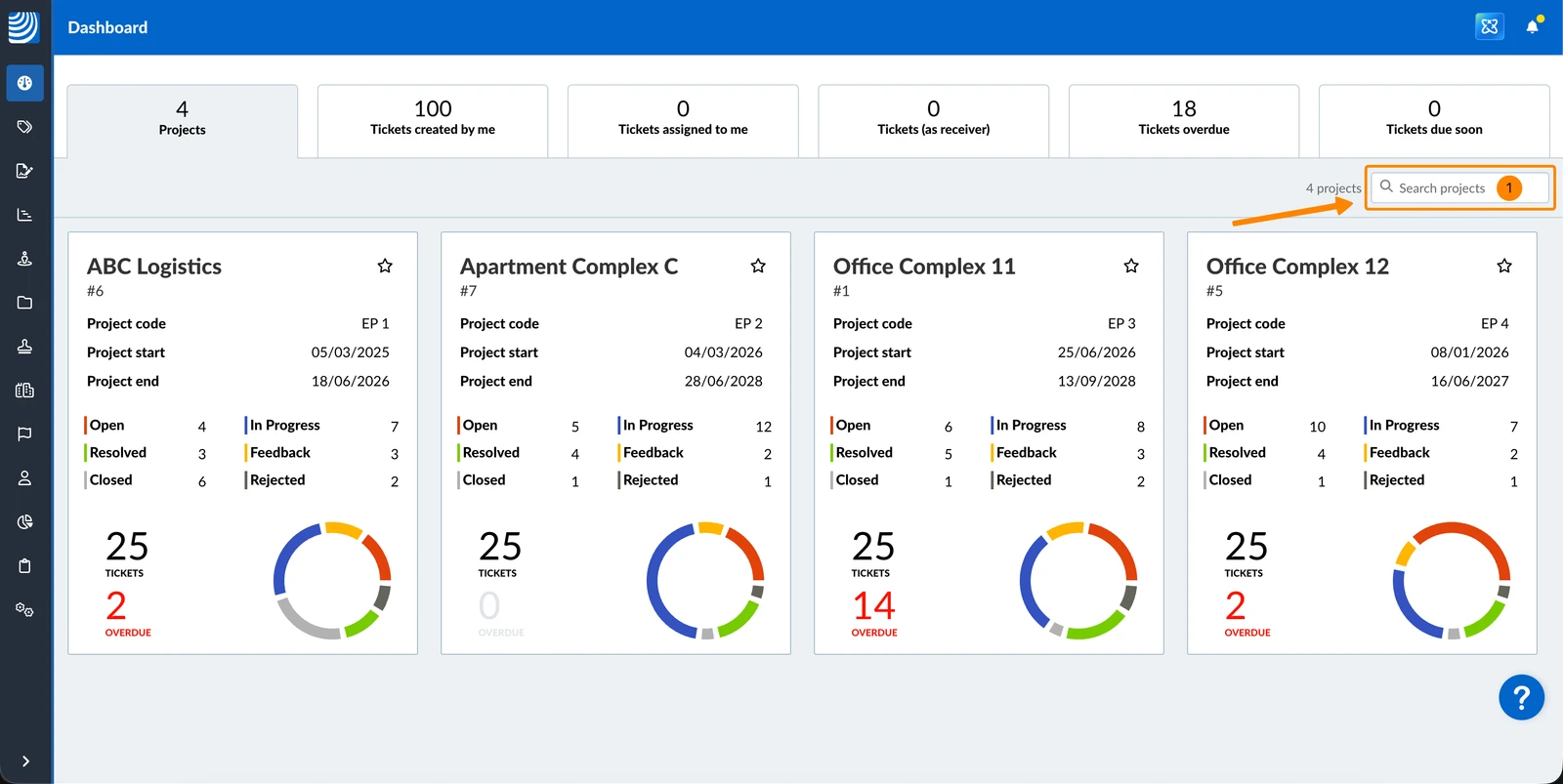
To search for projects by project name:
- Click in the Search projects field
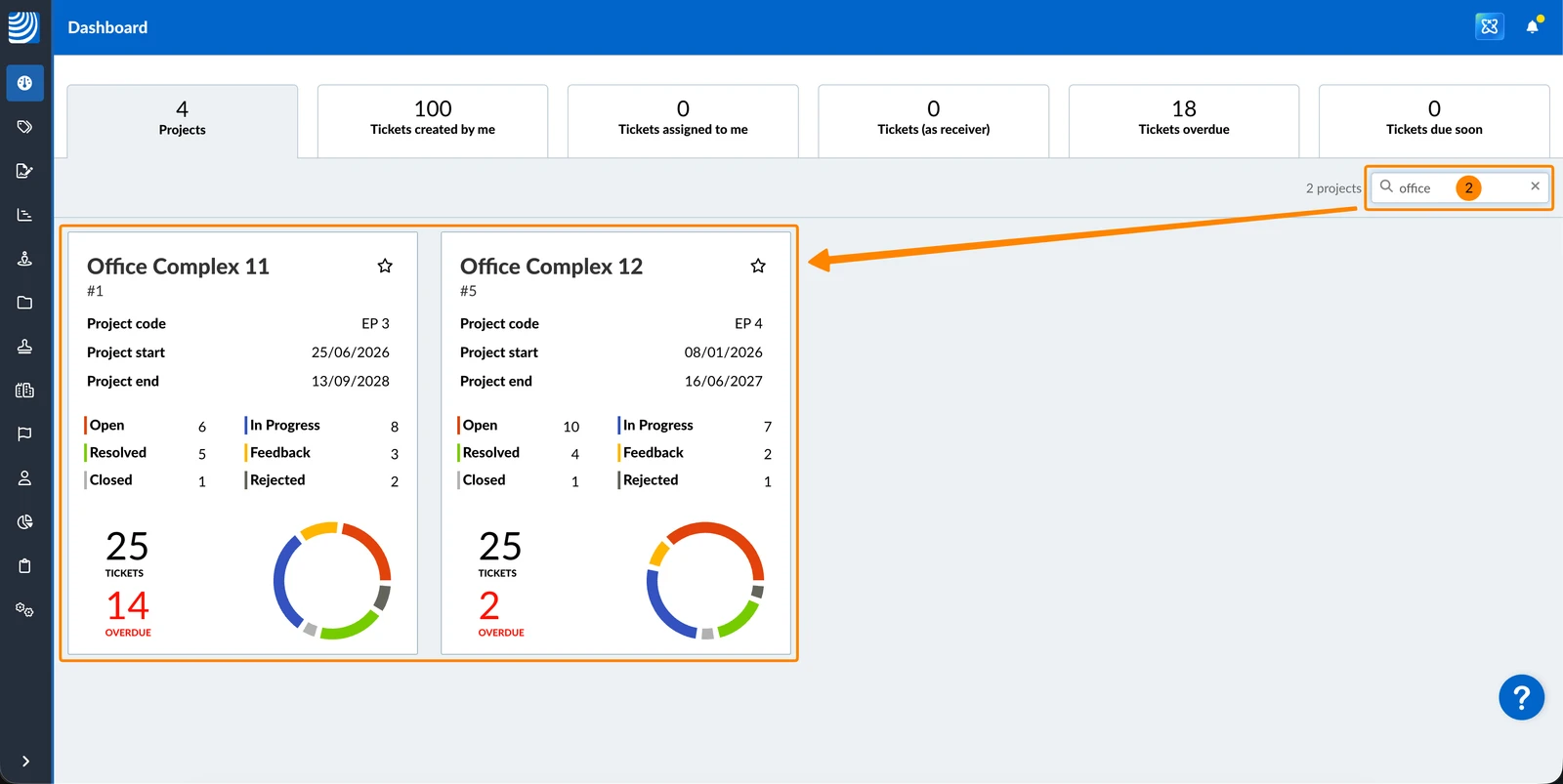
- Start typing a project name. The list updates automatically to show only matching projects.
Your Favorite Projects
Add projects to your favorites if they are currently important to you. They will be listed above other projects on the dashboard.
To add a project to your favorites:
- Click the favorite icon on the project card
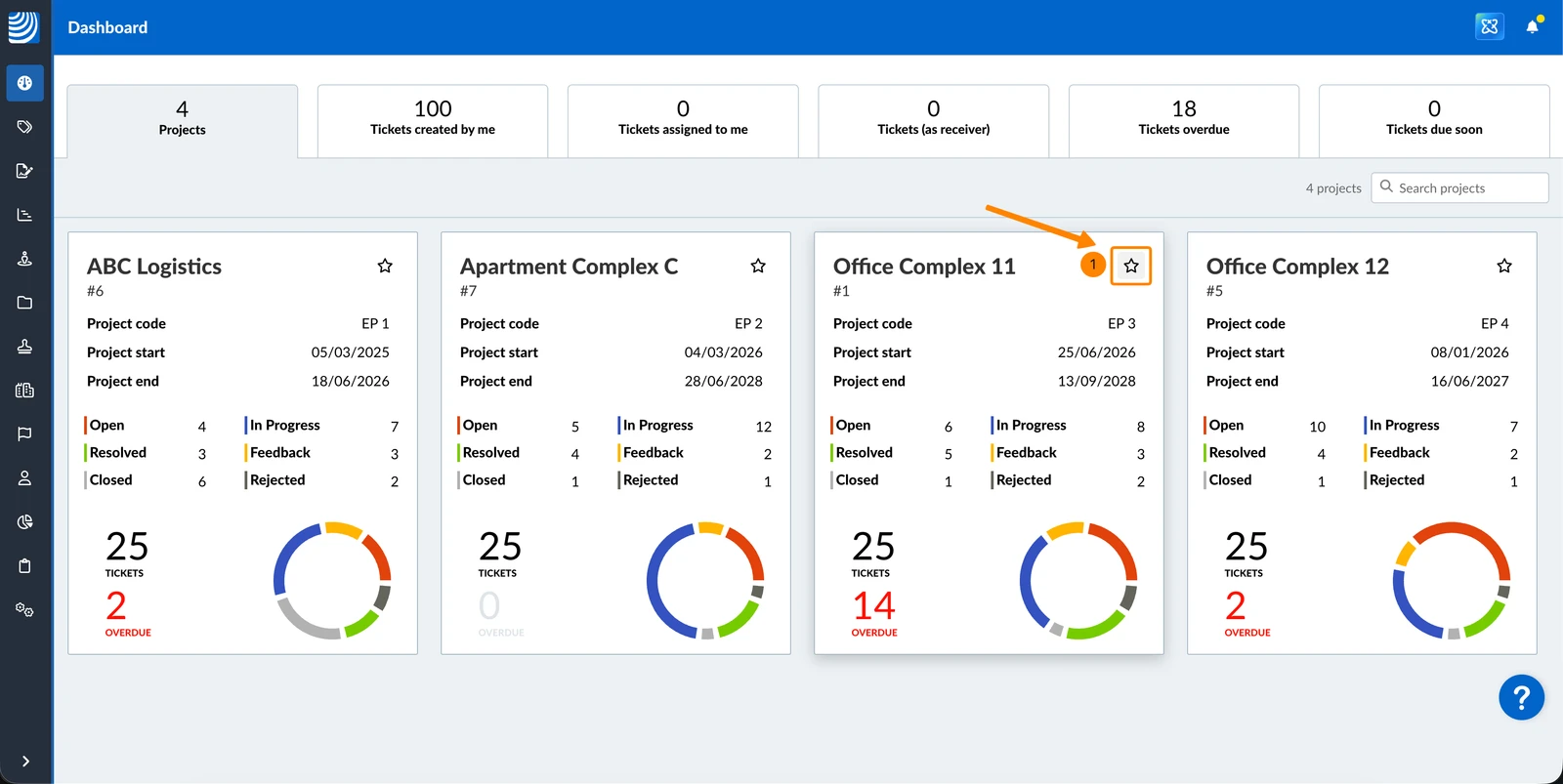
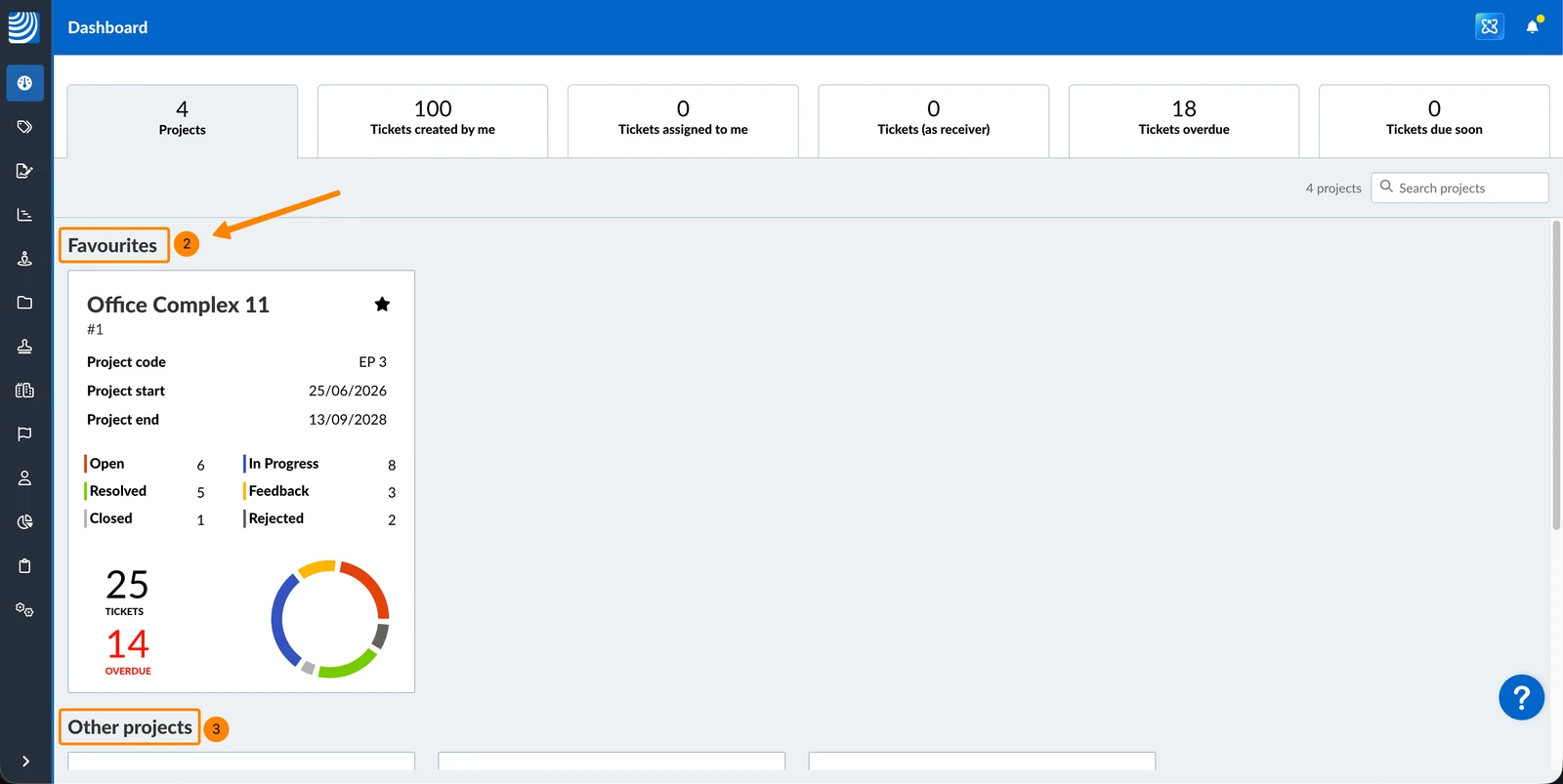
- The project appears in the Favorites section at the top of the Projects tab.
- All remaining projects are listed under Other projects.
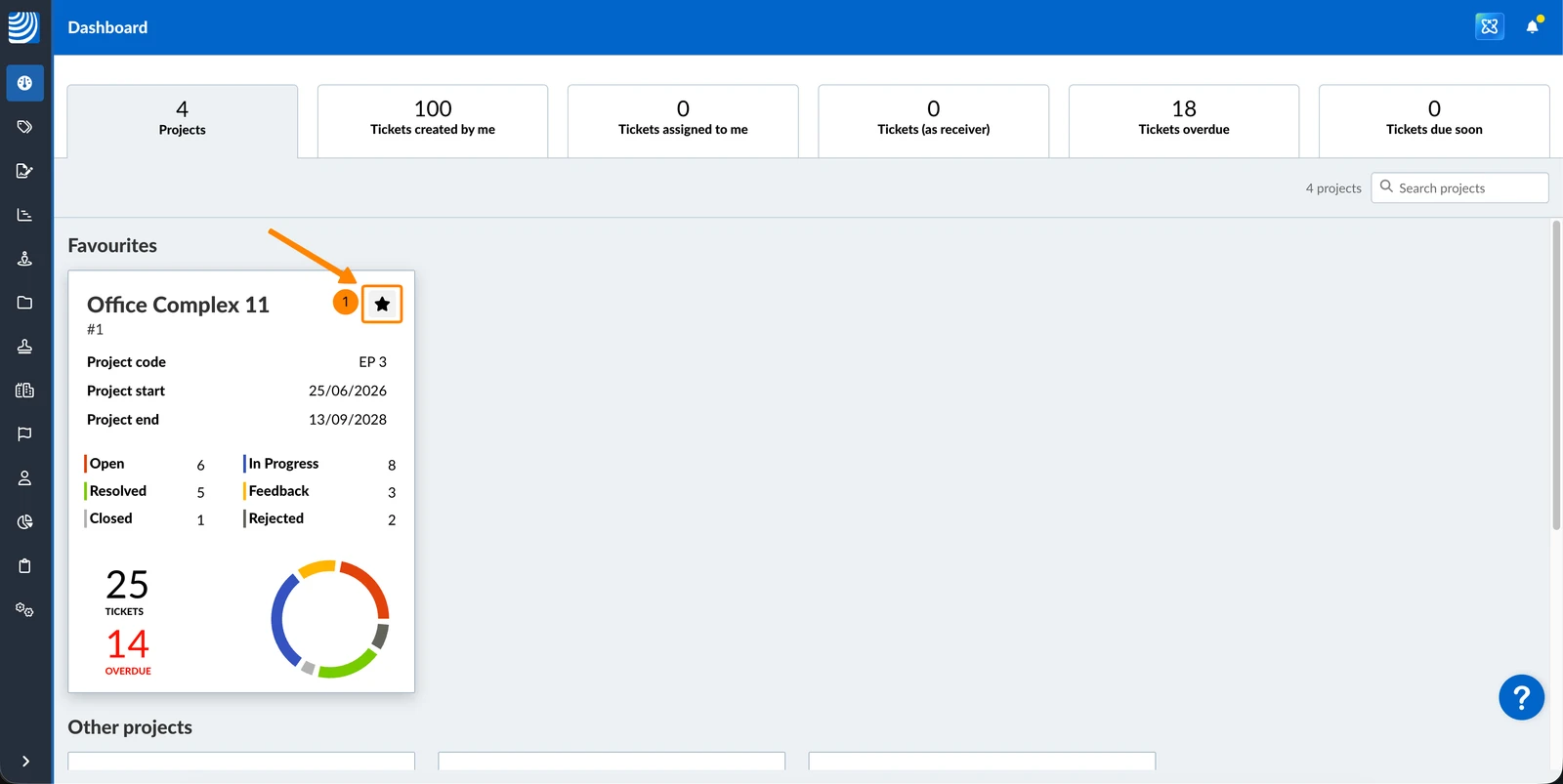
To remove a project from your favorites:
- Click the favorite icon on the project card
Ticket Tabs
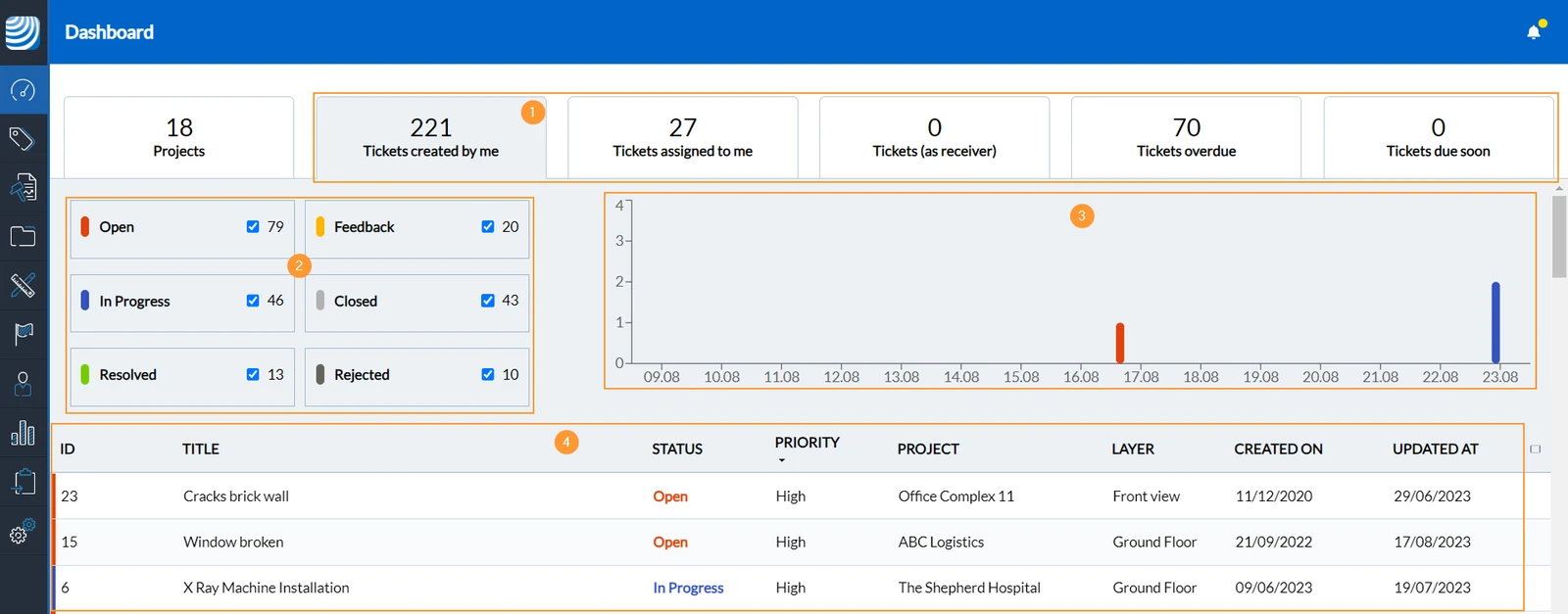
The ticket tabs show all tickets across all your projects with predefined filters.
- Ticket tabs - Click through the tabs to show tickets corresponding to the filters and see the total number of tickets that match the filter.
- Status filter - Clearing the status check boxes will hide tickets of that status. Next to each check box you see the total number of tickets for each status.
- Time graph - It shows the number of tickets that got created per day grouped by current status.
- Ticket list - See a list of tickets according to the filters and status check boxes selected above.
The predefined filters are meant to help you keep a quick overview and to avoid missing tickets that soon reach their due date or are already overdue.
Updated May 16, 2026